
Connect and schedule posts to Instagram directly from Enrollio's Social Planner—no Facebook Page needed! This update streamlines Instagram management for your childcare center, supports Creator accounts, and simplifies your social media workflow.
What's New
- Direct Instagram Integration: Connect and schedule posts to Instagram directly—no Facebook Page needed.
- Creator Account Support: Auto-post Stories from Creator accounts.
- Simplified Workflow: Manage Posts, Stories, and Reels from Enrollio without extra Facebook permissions.
What is Direct Instagram Integration in Social Planner?
Direct Instagram Integration is a feature in Enrollio's Social Planner that lets you connect your Instagram Business or Creator accounts and schedule content without linking a Facebook Page. This removes a major barrier, streamlines your process, and gives you a one-stop dashboard for Instagram management.
With this enhancement, you can:
- Auto-post Stories (including from Creator accounts)
- Schedule Posts, Stories, and Reels
- View engagement metrics directly in Social Planner
Key Benefits of Direct Instagram Integration
- No Facebook Page Needed: Skip the Facebook connection step—grant only Instagram permissions.
- Supports Creator & Business Accounts: Full Stories and post scheduling for both account types.
- Simplified Workflow: One interface for all Instagram content—no extra apps or dashboards.
- Quick Setup: Guided connection in minutes.
- Statistics Access: Engagement data (likes, comments) visible; view counts for images/videos excluded by Instagram API.
- Content Flexibility: Schedule Posts, Stories, and Reels per Instagram guidelines.
- Time Savings: Fewer steps, fewer permissions—focus on creating content that showcases your childcare center.
Before You Begin
The key distinction between your options is:
Direct Instagram Integration (recommended): Does NOT require you to connect a Facebook page during setup in Social Planner. You authenticate only with Instagram. However, Instagram/Facebook still requires the underlying profile to be either:
- A Business profile linked to a Facebook page
- A Creator profile (does not require a Facebook page)
Facebook-linked Integration: This requires explicitly connecting a Facebook page inside Social Planner. You only need this if you want legacy Facebook permissions or view-count analytics.
Requirements:
- Confirm that your Instagram profile is a Business or Creator profile. If you don't have an Instagram Business or Creator profile, see Convert an Instagram Personal profile to a Business or Creator profile.
- If using Facebook-linked integration, confirm that you have an Admin or Editor Page role for the Facebook Page if it's a Classic Page type or Facebook access with full or partial control on a New Page type.
Method 1: Facebook-Linked Integration (Classic)
IMPORTANT: This method is required if you need legacy features that still rely on Facebook permissions.
This method links your Instagram account through Facebook, allowing for:
- Enhanced metrics (including video/image views)
- Access to Meta Business features
Connect Instagram to Facebook
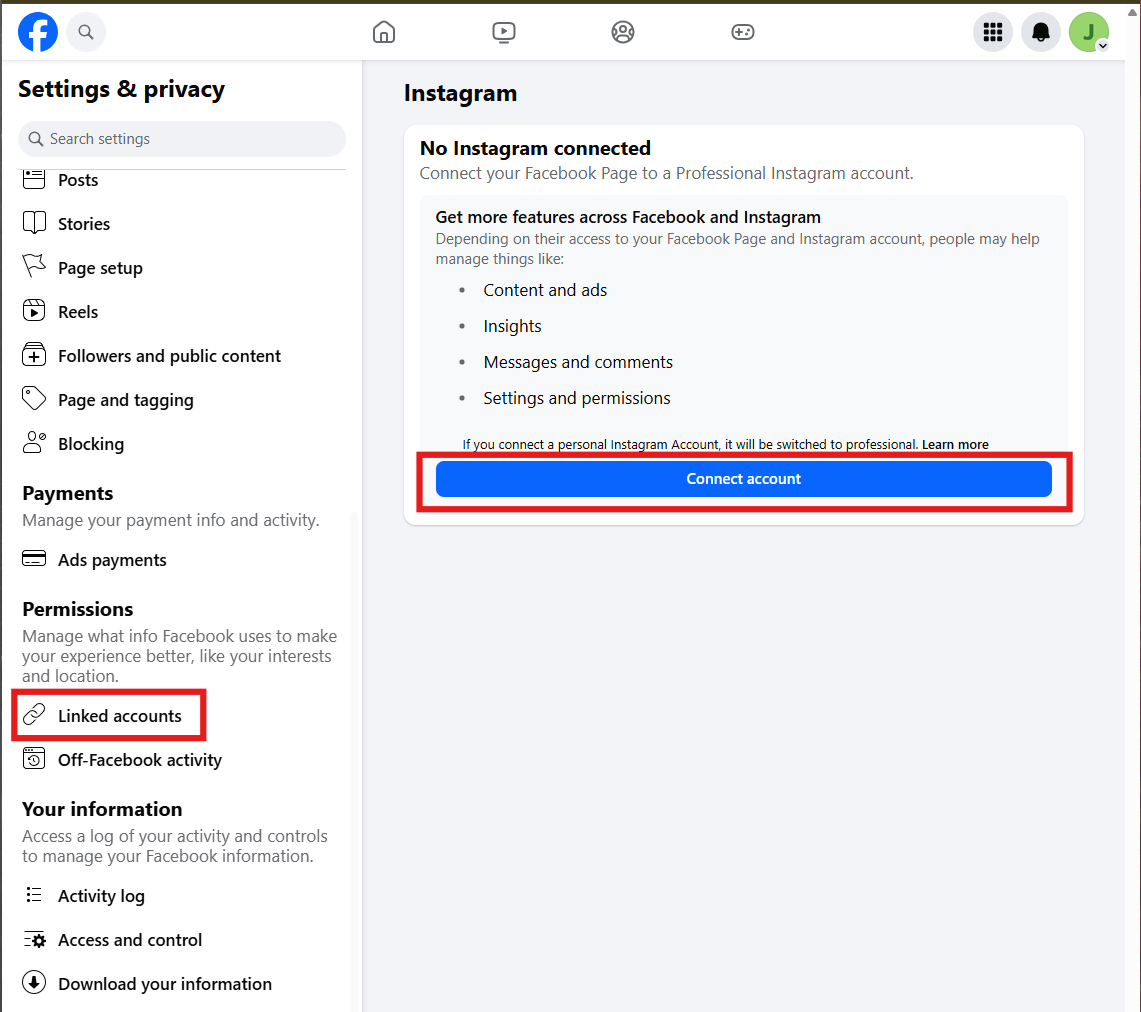
- Log in to Facebook, then click your profile photo in the top right.
- Click See all profiles, then select the Page you want to switch into.
- Click your page's profile picture at the top right of Facebook.
- Click Settings & privacy.
- Then click Settings.
- Under Permissions, click Linked accounts.
- Next to Instagram, click View.
- Click Connect account, then follow the steps to connect your Facebook Page and Instagram account.
- Now, your Instagram business profile is linked to your Facebook account.
Connect to Social Planner
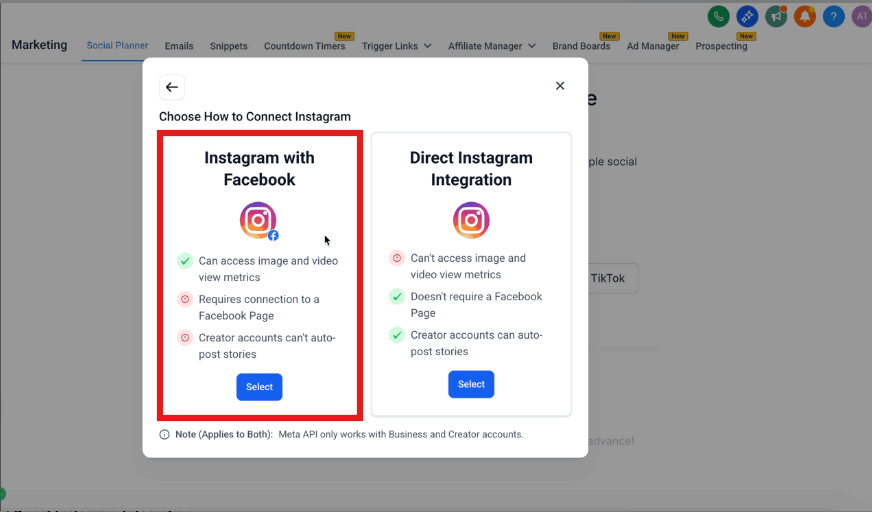
- Go to Marketing > Social Planner.
- Click the Settings (gear icon) next to New Post.
- Select Add Socials.
- Choose Instagram.
- Select Instagram with Facebook.
- Follow the prompts to connect your Facebook Page and Instagram account.
Method 2: Direct Instagram Integration (Recommended)
Ideal for quick setup and Story scheduling, this method does not require Facebook.
Steps
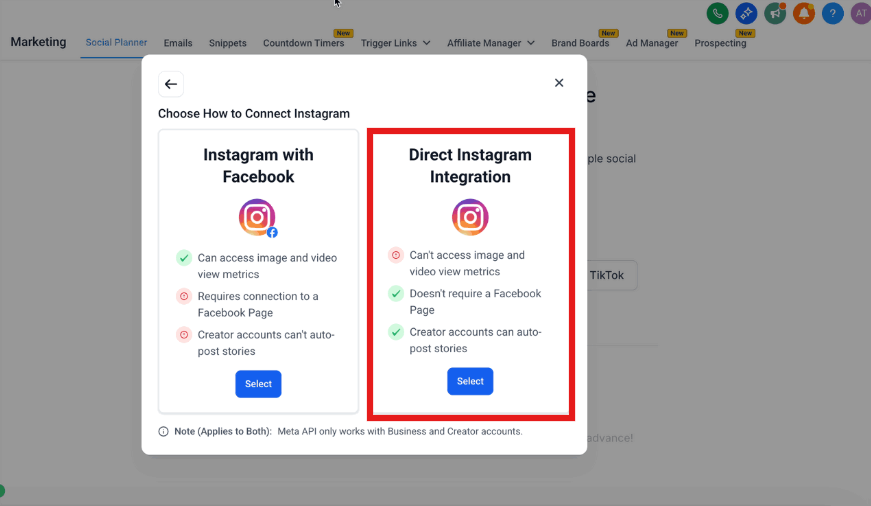
- Go to Marketing > Social Planner.
- Click Settings (gear icon) next to New Post.
- Select Add Socials.
- Choose Instagram.
- Choose Direct Instagram Integration.
- In the popup, select Direct Instagram Integration.
- Grant permissions and select your Instagram Business or Creator account.
Feature Comparison
| Feature | Facebook-Linked | Direct Integration (New) |
|---|---|---|
| Requires a Facebook Page | Yes | No |
| Supports Creator Accounts | Limited | Yes |
| Auto-post Stories | No | Yes |
| Schedule Reels | Yes | Yes |
| View Engagement Metrics | Yes | Yes (excl. view counts) |
| Setup Complexity | Higher (multiple logins) | Lower (single login) |
Understanding Instagram's Requirements
To successfully post to your Instagram Business Profile, including direct publishing, your Instagram Business profile must be connected to a Facebook Page or Creator Profile. You don't need to publish to the Facebook Page when you use Instagram, but the permissions to manage your Instagram profile are granted to Enrollio through Facebook. This is a requirement from Facebook (which owns Instagram).
Frequently Asked Questions
Can I use Direct Instagram Integration with a personal account?
No, only Business and Creator accounts are supported.
Do I need to disconnect my Facebook Page first?
No, choose your integration type during setup. Simply select Direct Integration.
What post types can I schedule?
Posts, Stories, and Reels (per Instagram guidelines).
Are all analytics available?
Engagement metrics, yes; view counts for images/videos not available via the Instagram API.
Can I auto-post Stories from a Creator account?
Yes—Stories auto-post is supported for Creator accounts.
What if my posts fail to publish?
Ensure content meets Instagram specifications and the account is correctly connected. Check your Instagram account permissions and try reconnecting if needed.
Is there a limit on connected accounts?
You can connect multiple Instagram accounts to Enrollio. The limit depends on your Enrollio plan.