
Social Planner - How to Add Multiple Watermarks
Keep every post on-brand by assigning a unique watermark to each connected social account in Social Planner. This guide explains how to upload watermarks and assign them per social account.
What is a Watermark in Social Planner?
A watermark is a visible, often translucent, design or text superimposed onto a digital image. Enrollio lets you upload one watermark per connected social account and control which watermark is applied automatically at publish time.
Instead of a single global watermark, you can assign different watermarks to different accounts. This helps you manage multiple center locations or brands without repetitive re-uploads.
Key Benefits of Using Watermarks
Ownership and Copyright Protection: Watermarks help assert ownership and protect the copyright of your content. By including your center's logo or branding, it becomes more difficult for others to claim the content as their own.
Brand Recognition: Watermarks serve as a form of branding. Placing your logo or center name on images helps build brand recognition — particularly important for marketing your childcare center and establishing a consistent online presence.
Deterrence Against Unauthorized Use: Watermarks act as a deterrent against unauthorized use of your images. Potential infringers may be less likely to use or share content that is clearly marked with your branding.
Professionalism: Watermarks add a level of professionalism to your content. This is especially important when showcasing your center's facilities, activities, and staff in a polished manner.
Promotion and Marketing: Use watermarks strategically for promotional purposes. For example, include your website URL, social media handle, or a hashtag related to an enrollment campaign, directing viewers to your online presence or a specific promotion.
Personalization and Artistic Expression: Some centers use watermarks as a means of personalization. The design and placement can be a creative element that enhances the overall visual appeal of your content.
How to Upload & Manage Watermarks
Step 1: Go to Settings
- Log in to your Client Account.
- Navigate to Marketing → Social Planner → Settings.
- Click on the Watermark tab.
If you haven't added a watermark yet, you'll see a "Try It Now" prompt. If you already have a watermark assigned, your existing single watermark will automatically appear in the list view as "All Socials". You can choose to edit this setup and assign specific watermarks to each account later.
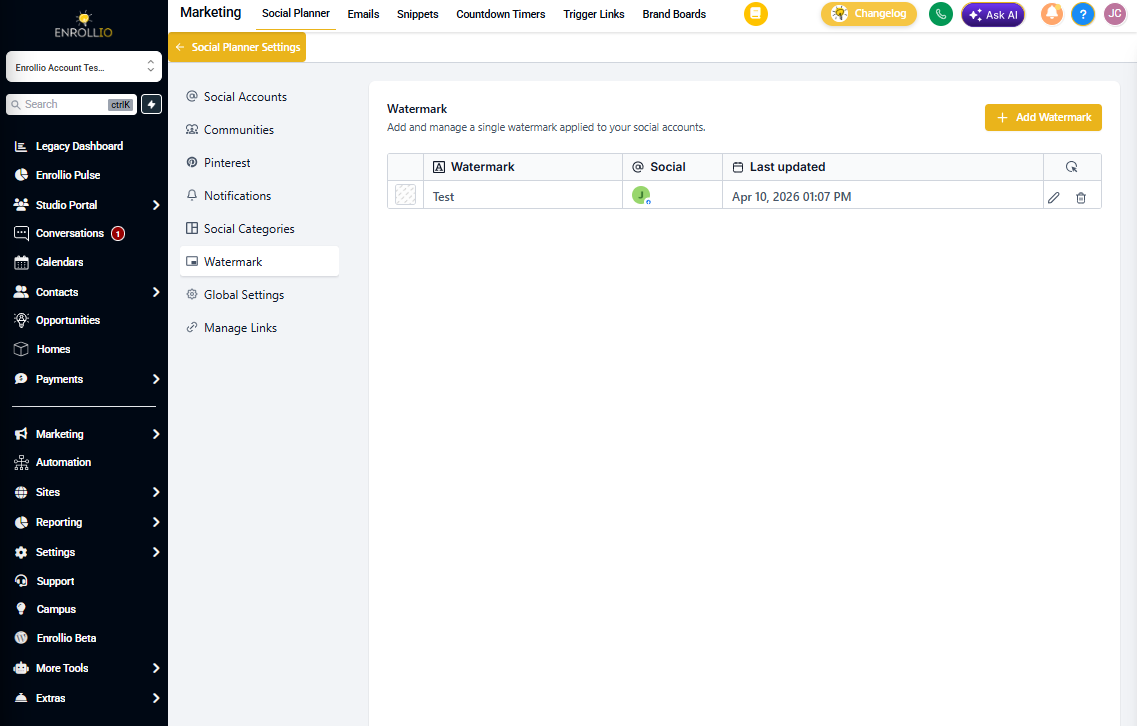
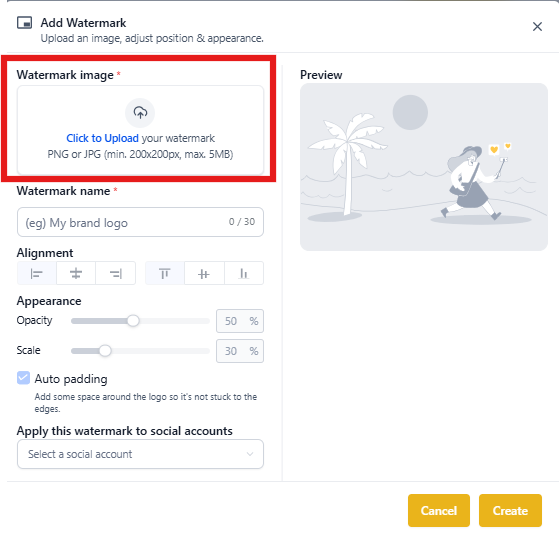
Step 2: Upload a Watermark
- Click the + Add Watermark button.
- Give your watermark a name for easy identification (e.g., "Main Location Logo" or "Summer Camp 2025").
- Upload a PNG or JPG (minimum 200x200px, maximum 5MB).
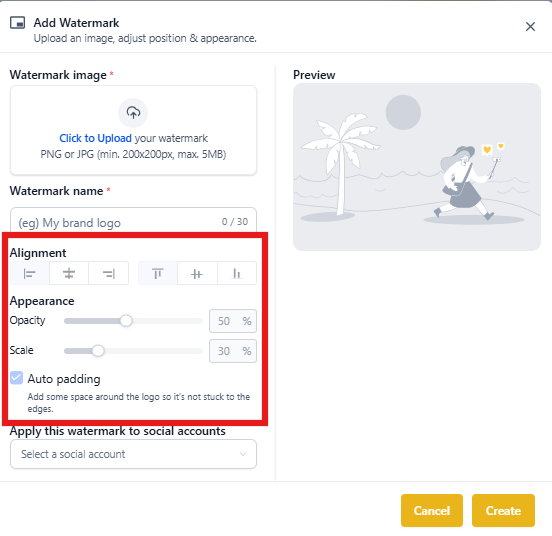
Step 3: Edit Watermark
- Adjust the alignment of your watermark (choose position on the image).
- Adjust the opacity of the watermark (how transparent it appears).
- Use the Scale button to resize the watermark.
- Use the Auto Padding option to add more space around the logo.
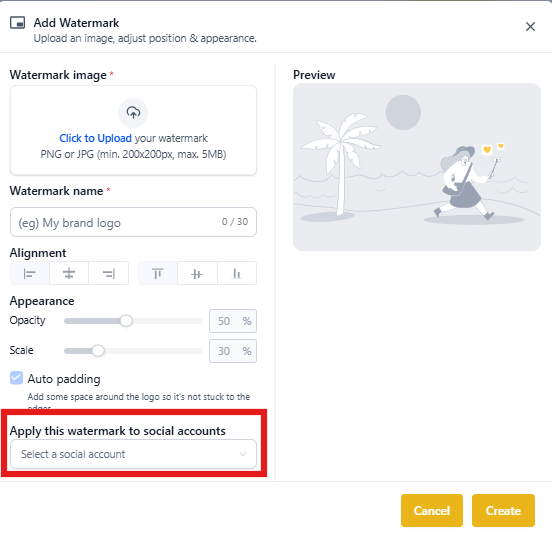
Step 4: Select Accounts and Create Watermark
- Select All or Particular social media accounts you want to apply this watermark to.
- Click the Create button.
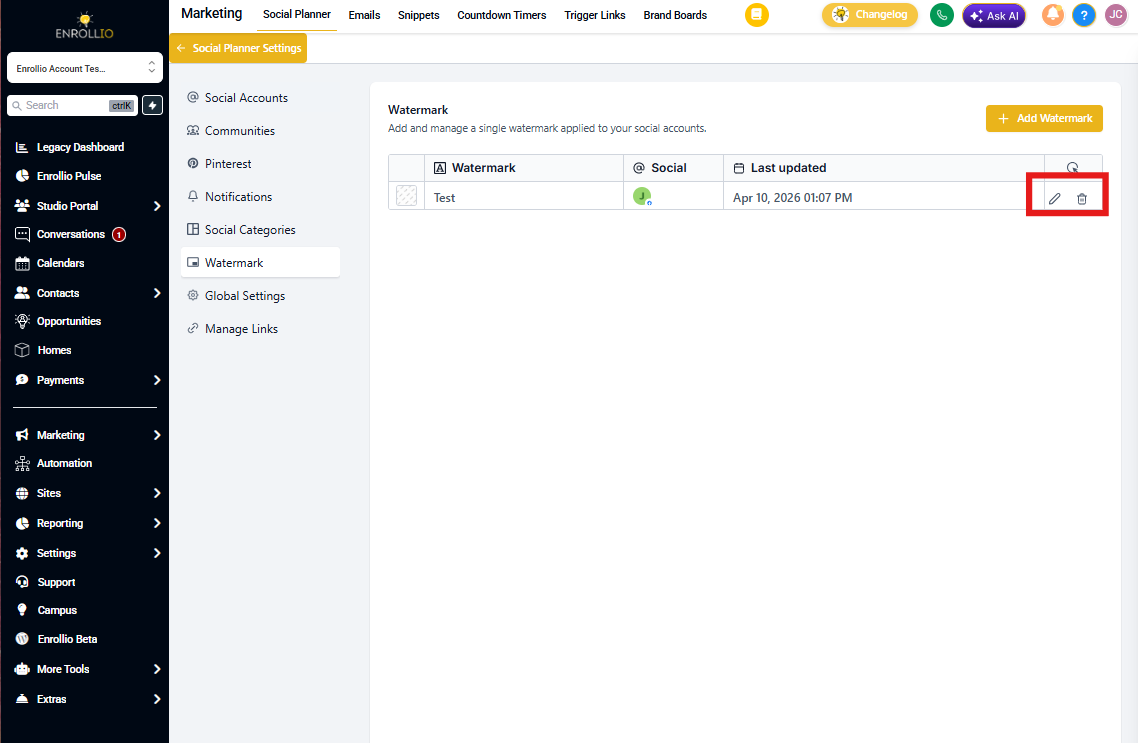
Step 5: Manage Uploaded Watermarks
Once uploaded, you can:
- View all watermarks in a list.
- Edit (rename or replace) any watermark.
- Delete a watermark.
Important Notes
- New posts created will use the latest assigned watermark.
- When you edit or clone an older post, you will see the original (non-watermarked) image, and the new watermark will apply only after saving.
- New Category Queue posts will have the new assigned watermark.
- RSS and Review Posts do not support watermarks.
- Video watermarking is not supported (API restriction).
- For automated posts (Category Queue & Recurring Post), the new watermark will start applying from the next scheduled post onwards.
Frequently Asked Questions
Can I apply more than one watermark to the same social account?
No. Each social account can have one assigned watermark at a time.
What happens if I delete a watermark that's assigned?
Affected social accounts reset to "No watermark" until you assign another.
Do watermarks apply to videos?
No. Watermarks apply to supported image posts only.
Will changing assignments update posts already scheduled?
Changes affect future publishes. Existing scheduled items keep their media unless you recreate or update them.
Can RSS or Review posts use watermarks?
No. These sources do not apply watermarks.
What's the recommended file type and size?
PNG or JPG (minimum 200x200px, maximum 5MB).
How does bulk CSV scheduling decide which watermark to use?
It uses the current per-social assignment for each account at the time the post publishes.