
Reporting a Google Review from within the Conversations Tab
To report a problematic review in your Enrollio account for your dance studio:
Navigate to the Conversations tab in your Enrollio CRM. Search for the contact associated with the review you want to dispute.
-
Click on Dispute this review.
You can only dispute reviews generated by the system. If the review was not generated from the system, please start the process by clicking here.
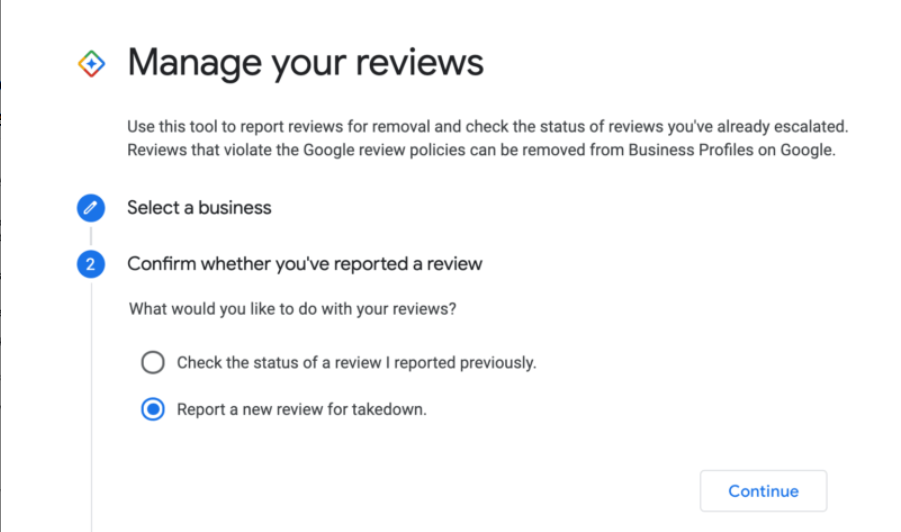
3. Confirm your Google email and the business account associated with your studio’s Google My Business listing.
-
Choose your action:
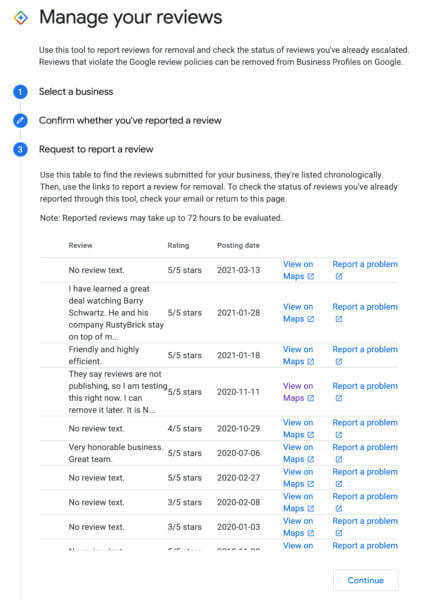
Enrollio will show a list of your recent reviews from Google. Click on the review to view details on Google Maps or submit a takedown request
If unsure whether the review qualifies, review Google’s guidelines directly.
Checking the Status of a Reported Google Review
Click the link in Enrollio CRM that says Check the status of existing Reviews you have Reported.
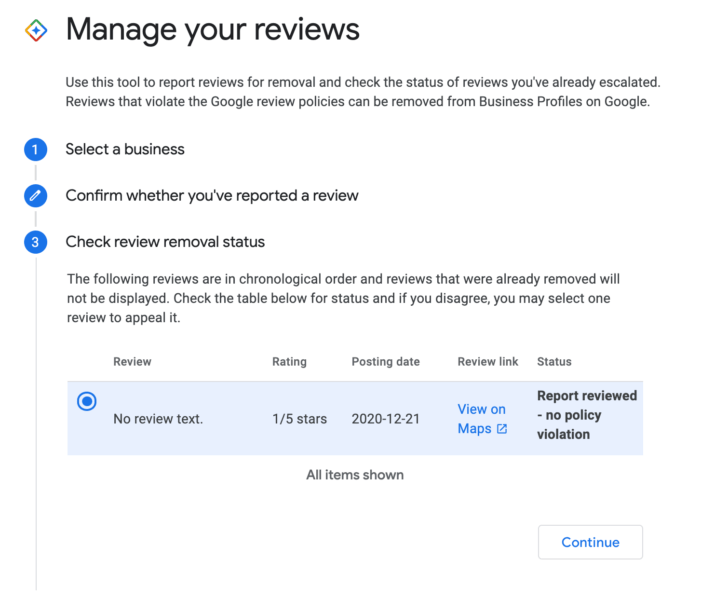
Enrollio will display the reviews you’ve reported along with their current status.
Select any review from the list to view more details and, if necessary, submit an appeal if your initial takedown request was not accepted.
Note: There is a limit to the number of reviews Google will show. Studios with multiple locations may need to follow Google’s alternative process if the dispute feature is unavailable.
By following these steps, you can better manage your dance studio’s online reputation and ensure that only accurate and helpful feedback is visible online. Maintaining a trustworthy online presence helps attract future students and families to your dance classes.
For further assistance, consult additional articles in the Enrollio Help Center.