
Sending SMS through Enrollio is simple and flexible. Whether you’re updating parents about class changes or sending reminders for an upcoming recital, you can easily choose the appropriate From and To numbers to ensure your message is delivered using the correct sender identity.
How to Select a Phone Number for Sending SMS
Open the Message Composer
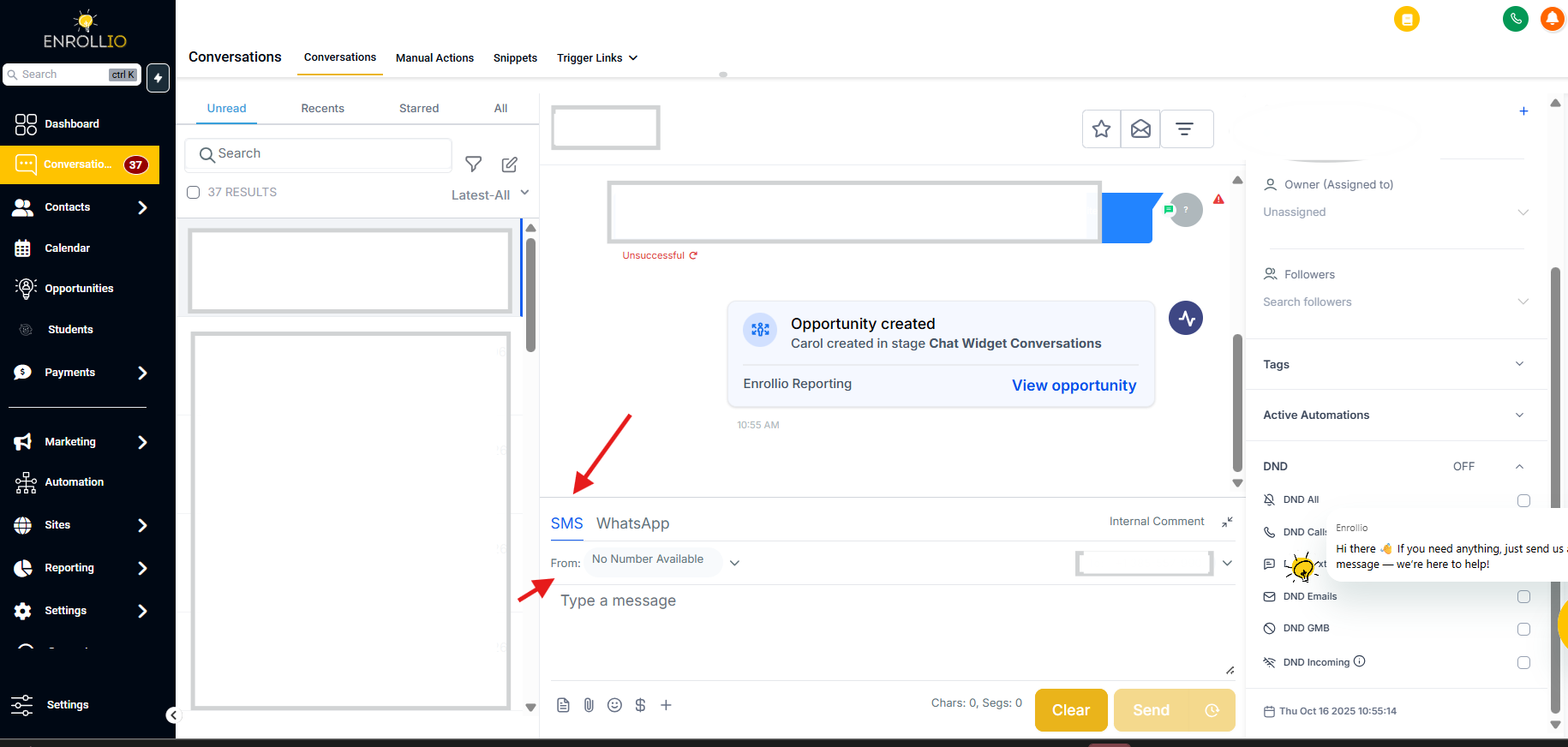
Go to the Conversations module and open the message composer. Click on the SMS tab to begin drafting your message.Choose Your “From” Number
-
Click the From dropdown to see all available phone numbers.
-
Enrollio automatically selects the last number used when messaging that specific contact.
Each number includes:
• A friendly name
• The assigned user
• Tags showing the default number and last used numberIf there’s no previous conversation, Enrollio uses the default number automatically.
-
Choose the Correct “To” Number
If the contact (e.g., a parent) has multiple saved phone numbers:
-
Click the To dropdown
Select the correct number you want to send the SMS to
If there’s no messaging history, Enrollio defaults to the primary contact number.
Role-Based Access to Phone Numbers
Enrollio controls phone number visibility based on user roles to maintain consistent communication standards.
Admins Can Access:
All phone numbers configured in the account
Full visibility for managing the overall messaging strategy
Users Can Access:
The default account number
The last used number for a specific contact
Any numbers assigned to them
Unassigned numbers
This ensures clarity, consistency, and secure communication while distributing responsibilities appropriately.
Final Note
By selecting the appropriate From and To numbers before sending, your studio can maintain a consistent identity and streamline communication with parents and students—keeping every message in rhythm with your studio’s branding.