
Create Tags While Scheduling Email Campaigns
You can create new tags right from the Send or Schedule screen when setting up your email campaigns. This saves time and keeps you focused on getting your message out to families.
What This Feature Does
Tags help you organize families and trigger automations based on their actions. With on-the-fly tag creation, you can build and apply new tags while scheduling your email—no need to stop and set them up separately first.
This is especially useful when you're setting up a new campaign and realize you need a tag for tracking responses or triggering follow-ups.
Why Create Tags During Scheduling
Creating tags right in the campaign flow makes your work faster and smoother:
- No prep work needed — create tags as you go instead of planning them in advance
- Fewer clicks — stay in your campaign setup without switching screens
- Instant automation triggers — tags are ready to use in automations immediately
- Better organization — segment families more effectively for targeted follow-ups
How to Create Tags While Scheduling
Here's how to add new tags during your email campaign setup:
- Go to Email Marketing in your Enrollio dashboard
- Create a new email campaign or open one you're preparing to send
- Click through to the Send or Schedule screen
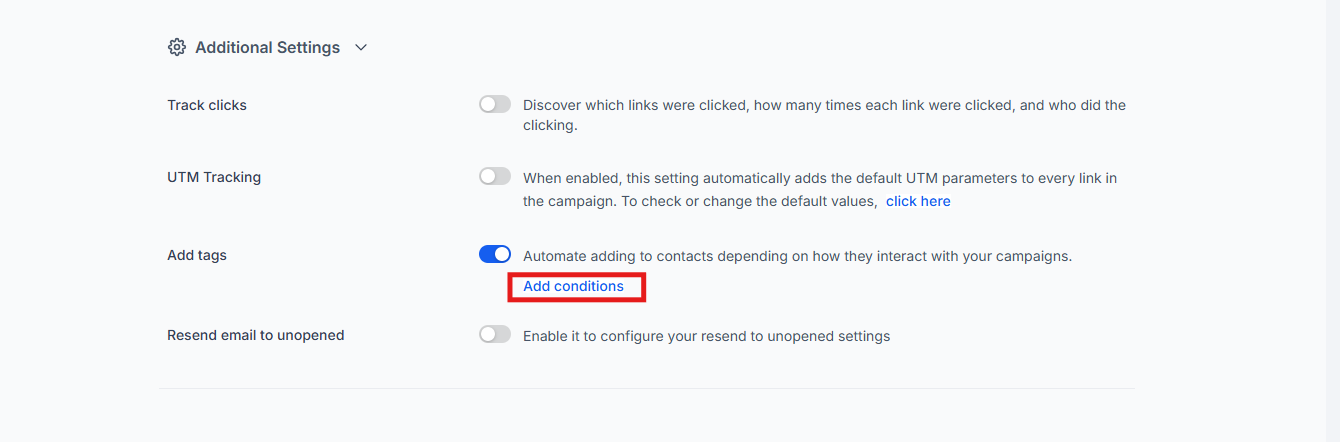
- Click Add Tags and toggle it on
- If you want the tag to trigger automations, enable Automate
- In the tag dropdown, type the name of your new tag
- Click Add to create and apply the tag to your campaign
Important Things to Know
Tags are saved permanently: When you create a tag this way, it's automatically added to your main Tags list and becomes available for other campaigns and automations.
Watch for duplicates: Double-check your spelling and naming before creating the tag. It's easy to accidentally create "Tour Request" and "tour request" as separate tags if you're not careful.
Can't remove tags after sending: Once your campaign goes out, the tags are applied to families. You can't automatically remove them afterward.
Common Questions
Can I edit or remove a tag after scheduling?
Yes, as long as the campaign hasn't been sent yet. Once it's sent, the tags are applied and can't be removed automatically.
Will these tags show up in my main Tags list?
Yes. Any tag you create during scheduling appears in your CRM's Tags section and can be used in future campaigns and automations.
Do I always need to enable Automate?
Only if you want the tag to trigger specific automations. You can add tags just for segmentation without enabling Automate.
Can I create multiple tags at once?
Yes. You can create and apply as many new tags as you need before finalizing your campaign schedule.
Next Steps
- Review your upcoming email campaigns and think about which tags would help you track responses or trigger follow-ups
- Try creating a tag on-the-fly during your next campaign to see how it streamlines your process
- Set up automations that use your new tags to send personalized follow-ups to families who engage with your emails