
What is Adding a Custom Form to Tour Calendars
Custom forms in Enrollio help you gather important information from parents before they book a tour. When you connect a form to your tour calendar, parents complete it after selecting their preferred time slot. This ensures you collect essential details that are automatically saved to the family's record, enabling personalized follow-ups and better tour preparation.
Before adding custom forms to your calendars, you'll need to create a form first. Learn how to create custom forms.
Key Benefits of Using Custom Forms with Tour Calendars
Attaching a custom form to your tour booking flow ensures you capture the right information before meeting with prospective families. This improves lead handling, automates data collection, and helps you deliver a more personalized enrollment experience.
- Better Tour Preparation: Ask about the child's age, start date needs, and program interests before the tour
- Automated Data Collection: Form responses are saved directly to family records for easy follow-up
- Improved Personalization: Use collected information to tailor tour conversations and recommendations
- Reduced Back-and-Forth: Get all necessary details upfront to prepare the perfect tour experience
- Compliance and Consent: Add terms, agreements, or consent checkboxes to meet regulatory requirements
- Automation Triggers: Start follow-up sequences based on custom field responses from the form
- Better Parent Experience: Provide a seamless way for families to share information before their visit
How To Set Up Custom Forms with Tour Calendars
Connecting a custom form to your tour calendar is simple and ensures you collect key details from parents before they book.
Step 1: Navigate to Your Calendar
- Click Calendars in the main menu
- Click Calendar Settings in the navigation ribbon
- Find the calendar you want to edit
- Click Edit next to the calendar name
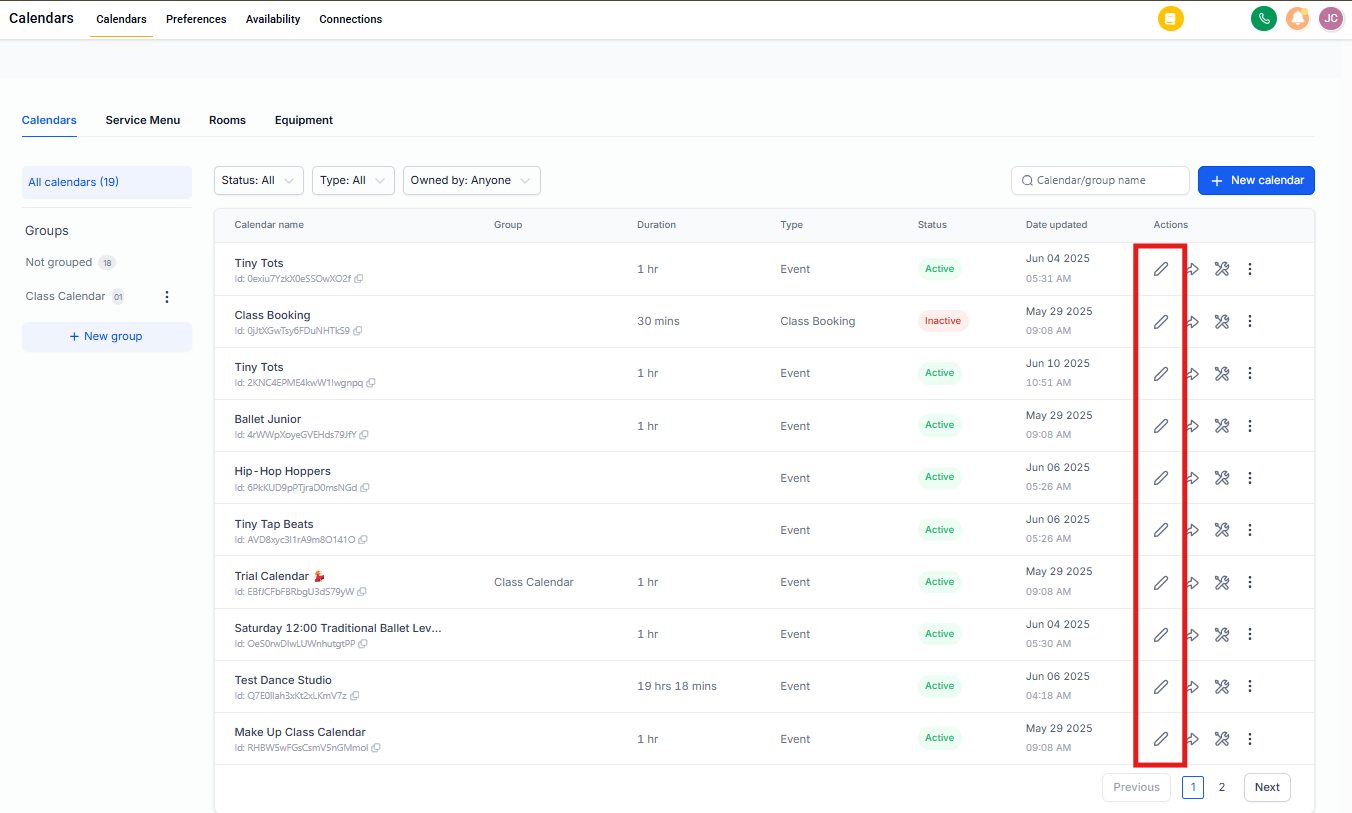
Step 2: Attach the Custom Form to Your Calendar
- Click the Forms & Payment tab in the left navigation
- Under Select Form, choose your desired form from the dropdown
- Click the blue Save button in the upper right corner
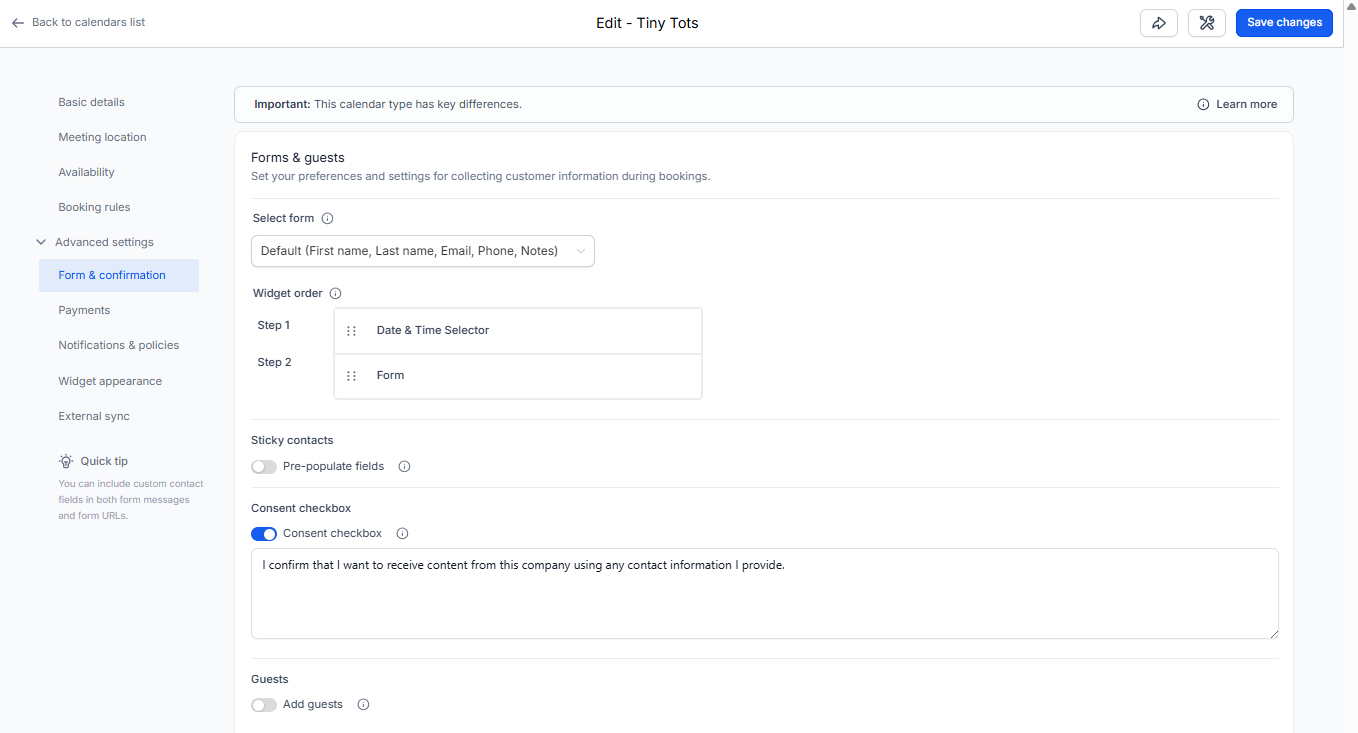
How to Add the Same Form to Multiple Calendars
If you offer different tour types or have multiple staff calendars, you can reuse one consistent form to maintain uniform data collection. This is helpful when you need the same intake information across all tour bookings.
After creating your form under Sites Forms, assign it to multiple calendars by repeating the process for each calendar:
- Navigate to Calendar Settings
- Click Edit next to each calendar
- Choose the form from the Select Form dropdown
- Save your changes
Important: Forms must be added individually to each calendar. Even if you're using the same form across multiple calendars, you need to add it to each calendar's settings separately. This gives you control over which form appears on which booking flow.
Frequently Asked Questions
Q: Can I use more than one custom form on a single calendar?
No. Only one custom form can be attached to a calendar at a time.
Q: What happens to the information submitted in the form?
Form responses are automatically saved to the family's record in your system, as long as the form fields are mapped to custom fields.
Q: Can I use the same form on multiple calendars?
Yes. A single form can be assigned to multiple calendars by selecting it in each calendar's settings.
Q: Why isn't my form showing up in the calendar dropdown?
Make sure your form is saved under Sites Forms and contains at least one field. You may need to refresh the calendar settings page after saving.
Q: Does the form appear before or after selecting a time slot?
The form appears after a time slot is selected. Parents choose their tour time first, then complete the custom form to confirm the booking.
Q: Can I edit the form after attaching it to the calendar?
Yes. Any changes to the form will automatically reflect in calendars where it's attached. However, be careful not to delete critical fields tied to automations or family records.
Q: Will the form data be saved if the parent doesn't complete the booking?
Form responses are stored in the family record only after the parent clicks the final 'Book Appointment' button. If they abandon the process before that step, no data is saved.