
You can organize your unassigned calendars and round-robin calendars by adding them to calendar groups. This makes it easier to manage tour scheduling and staff availability across your childcare center.
How to Add an Unassigned Calendar to a Group
- Go to Settings > Calendars
- Find the calendar you want to organize
- Click the three dots on the right side of that calendar
- Select Move to Group
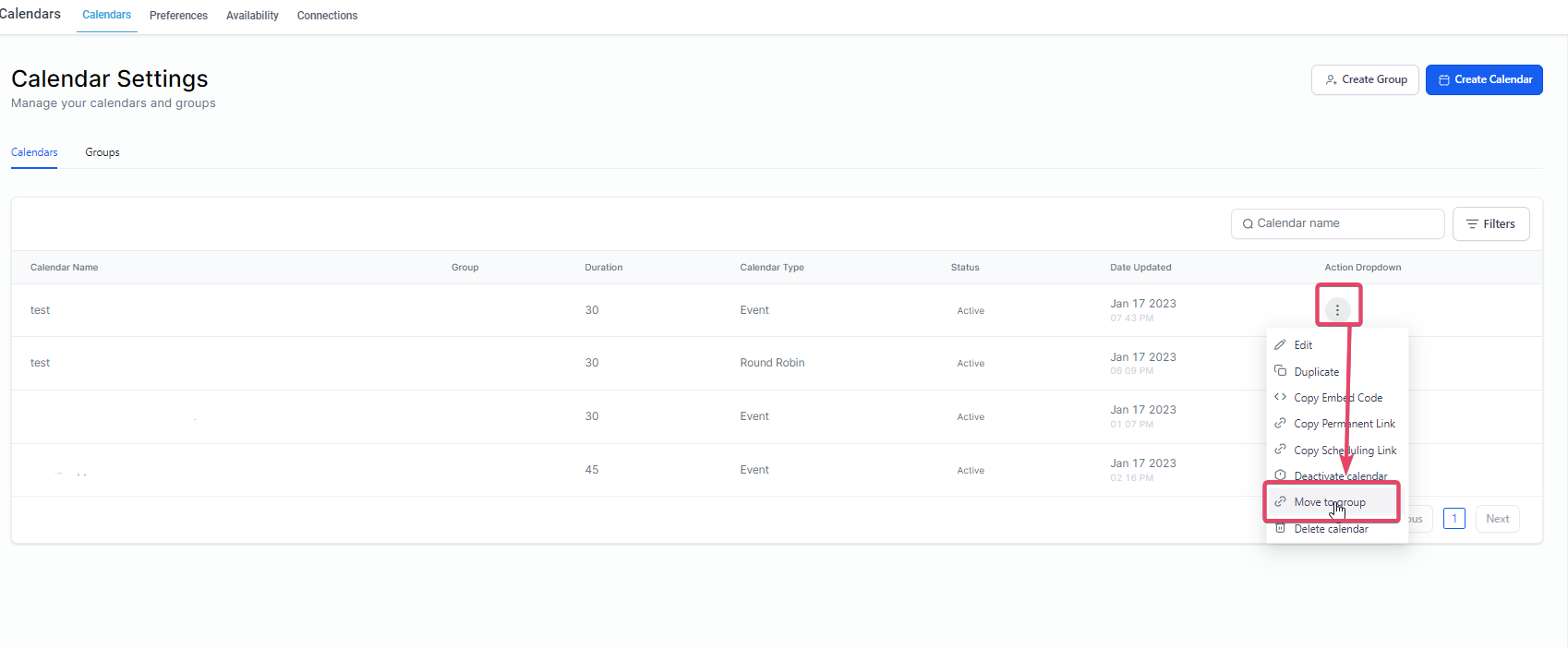
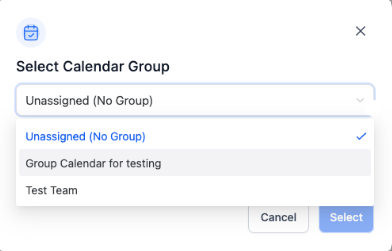
A popup will appear asking you to select which group you want to assign the calendar to.
- Choose your desired group from the dropdown
- Click Select
Pro Tip: Grouping calendars is especially helpful if you have multiple staff members handling tours or if you run multiple locations. You can keep all tour calendars for a location in one group for easier management.
When to Use Calendar Groups
Calendar groups help you organize scheduling by location, staff role, or appointment type. For example:
- Group all tour calendars for your infant room staff
- Separate calendars by location if you have multiple centers
- Organize round-robin calendars by department (enrollment team, directors, etc.)