
Importing Duplicate Families With Same Email and Phone
When you import families into Enrollio, the platform automatically checks for duplicates to keep your database clean and organized. Understanding how this works helps you avoid creating multiple records for the same family.
How Enrollio Handles Duplicates During Import
Enrollio uses email addresses and phone numbers as unique identifiers. When you import a CSV file, the system checks each row against your existing families:
- Matching email or phone: The import updates the existing family record instead of creating a new one
- No match found: A new family record is created
- Multiple matches: The system updates the most recently created matching record
Pro Tip: This duplicate detection helps you safely re-import your family list to update information without worrying about creating duplicates.
What Gets Updated vs. Overwritten
When a duplicate is detected during import:
- Empty fields in your CSV: Existing data in Enrollio is preserved
- Filled fields in your CSV: New data overwrites what's currently in Enrollio
- Tags and custom fields: New values are added to existing ones (not replaced)
This means you can update specific fields without erasing other family information.
Best Practices for Importing Families
Clean Your Data First
Before importing, review your CSV file to ensure:
- Email addresses are formatted correctly (no spaces or typos)
- Phone numbers use a consistent format
- Each family has at least one unique identifier (email or phone)
Test With a Small Batch
Import 5-10 families first to verify the results before uploading your entire list. This helps you catch formatting issues early.
Merge Duplicates After Import
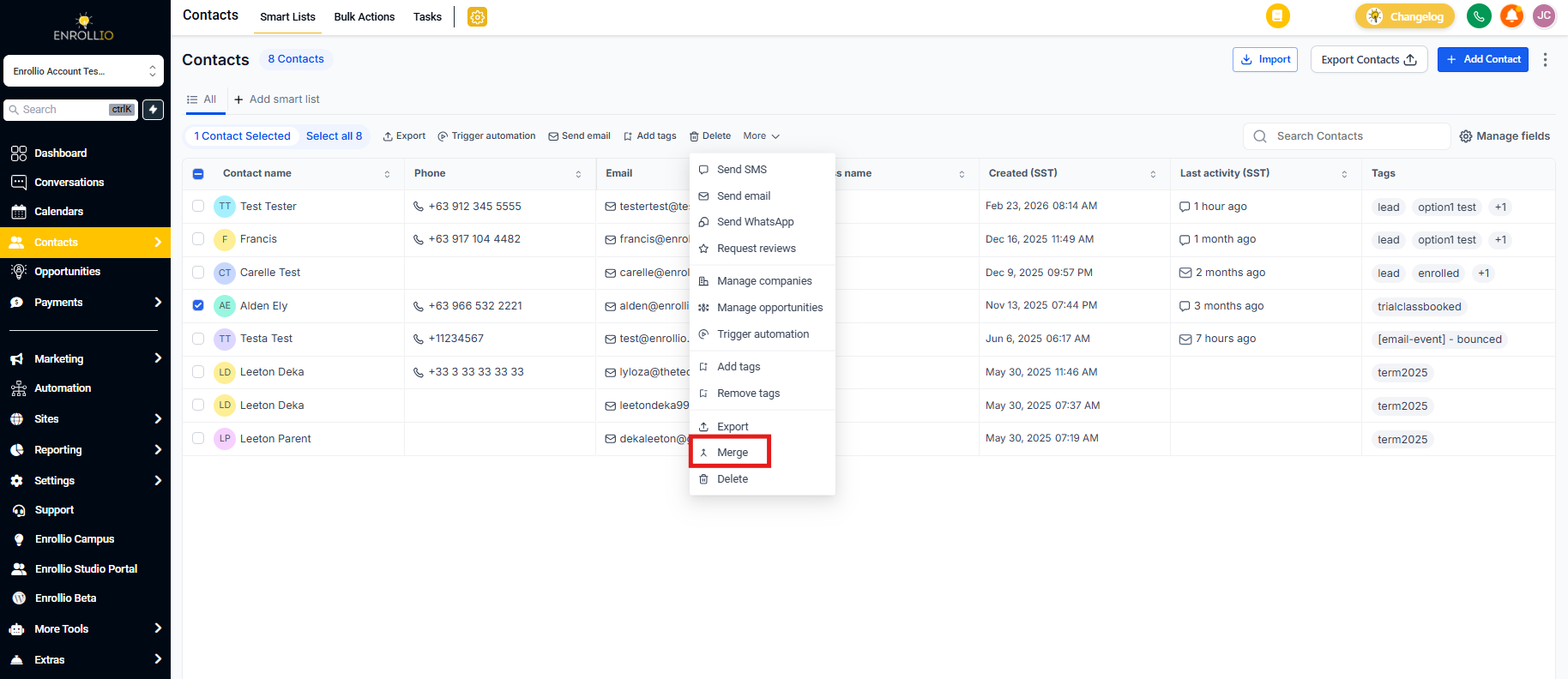
If you accidentally create duplicate family records, you can merge them manually:
- Go to Contacts in your navigation menu
- Search for the duplicate family
- Open one of the duplicate records
- Click the three-dot menu and select Merge Contact
- Choose which record to keep and complete the merge
Common Scenarios
Importing Families With Multiple Phone Numbers
If a family has both a cell phone and home phone in your CSV, Enrollio matches against either number. The import updates the existing record if it finds a match on any phone field.
Updating Enrollment Information
You can re-import families with updated information (like new addresses or child ages) without creating duplicates. Just ensure your CSV includes the same email or phone number.
Families Without Email Addresses
For families who only provide a phone number, Enrollio will match on that. However, we recommend collecting email addresses when possible for better communication tracking.
Note: Families must have at least an email address or phone number to be imported into Enrollio.
Troubleshooting Duplicate Issues
If you're seeing unexpected duplicates after import:
- Check for typos: Small differences in email or phone formatting create separate records
- Review formatting: (555) 123-4567 and 555-123-4567 may be treated as different numbers
- Look for missing data: Rows without email or phone will always create new records
Need help cleaning up duplicates? Our support team can assist with bulk merging for larger imports.