
When a parent books a tour or consultation with your childcare center, you may need to send a contract that includes their specific appointment date and time. This article shows you how to automate this process, whether you use a simple booking flow or track families through your enrollment pipeline.
The Goal & The Challenge
What You Want: An automation that sends a contract with the family's specific tour date as soon as they book.
The Problem: You can't add appointment date merge tags directly into contract templates. The "Send Contract" action pulls data from Parent/Family or Enrollment Opportunity fields only—not from the appointment trigger itself.
The Solution: Use your automation to first copy the appointment date into a custom field (on the Parent/Family or Enrollment Opportunity), then send the contract that pulls from this field.
Before You Start
You need two things set up before building your automation:
1. Create a Custom Field to Store the Date
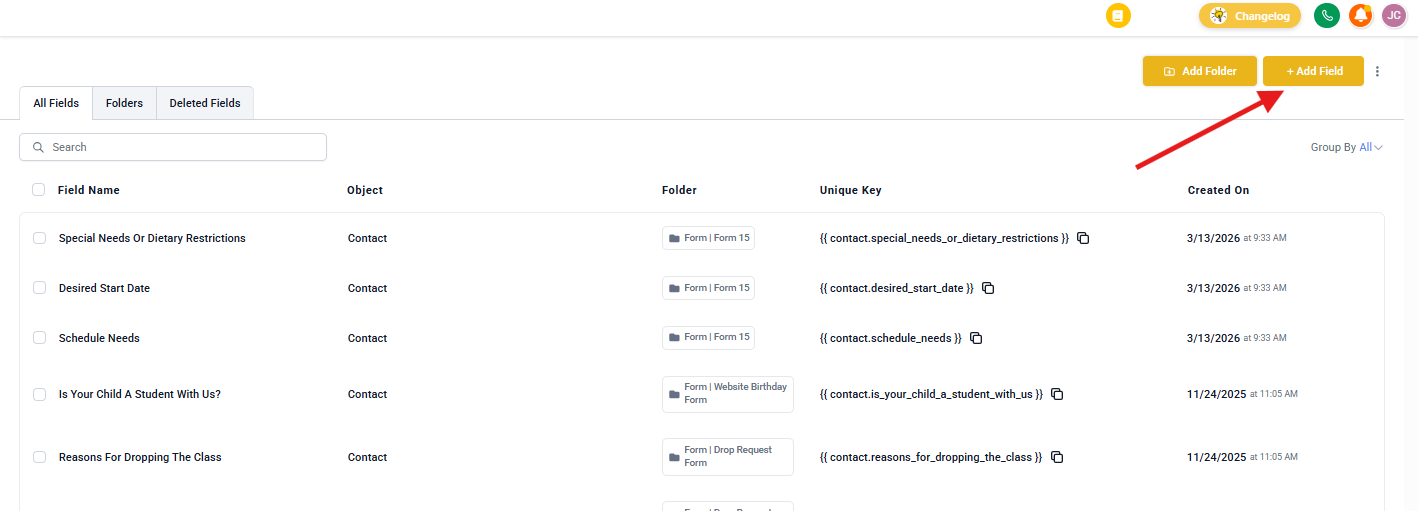
- Navigate to Settings → Custom Fields
- Click Add Field
- Select Parent/Family (for the simple method) OR Enrollment Opportunity (for the pipeline method)
- Set Field Type to Text
- Name it clearly: "Tour Date," "Visit Date," or "Appointment Date"
- Click Save
2. Update Your Contract Template
- Go to Payments → Contracts
- Find your existing template and click Clone, or create a new template
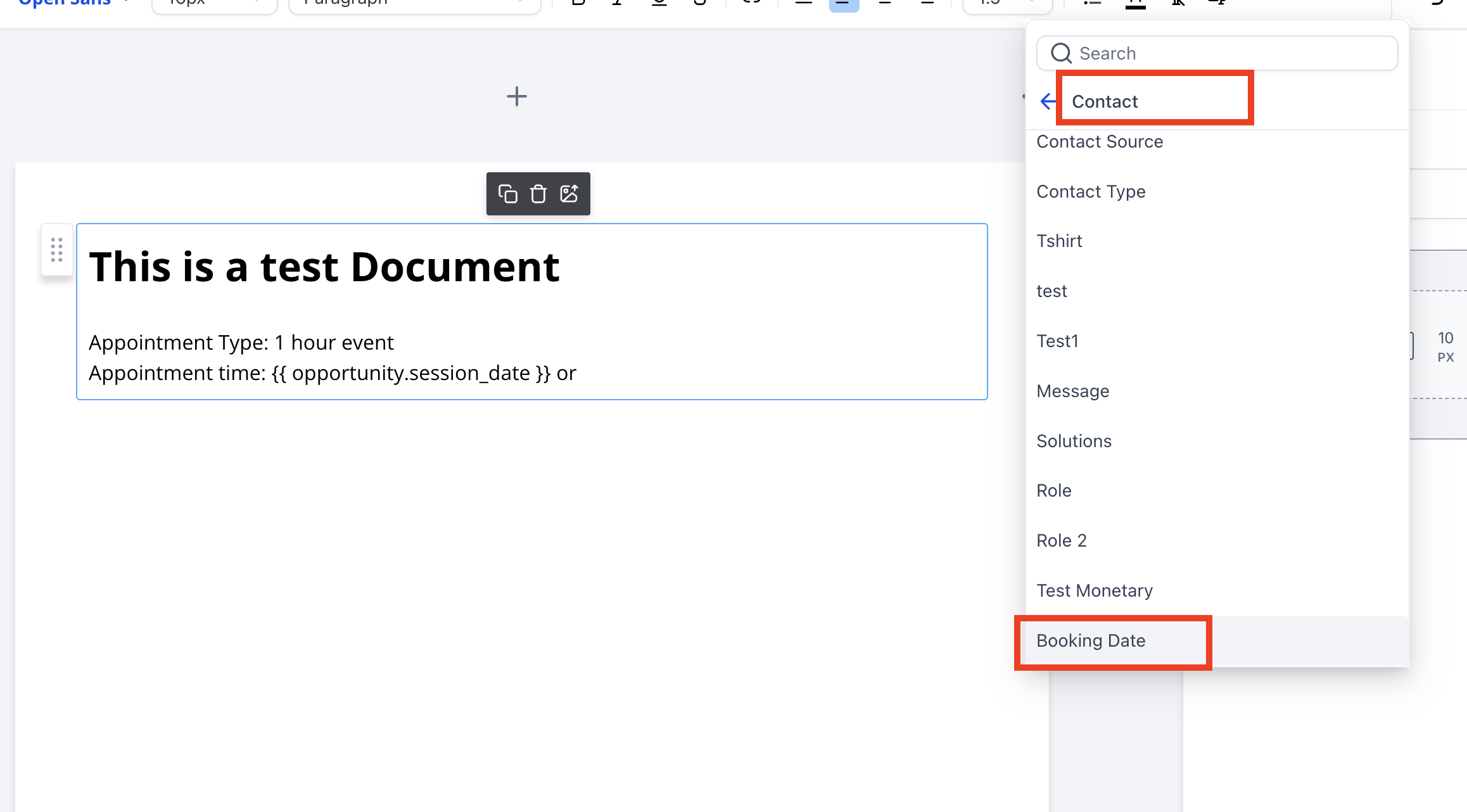
- Edit the template and add your custom field variable:
- For Parent/Family method:
{{contact.tour_date}} - For Enrollment Opportunity method:
{{opportunity.tour_date}}
- For Parent/Family method:
- Click Save
Method 1: Simple Parent/Family Automation
Use this method if you don't track families through an enrollment pipeline and just want to send a contract right after they book a tour.
Set Up Your Automation
- Set Your Trigger: Create a new automation and select Customer Booked Appointment
- Optional: Add a filter to select the specific calendar (like "Center Tours") that should trigger this automation
-
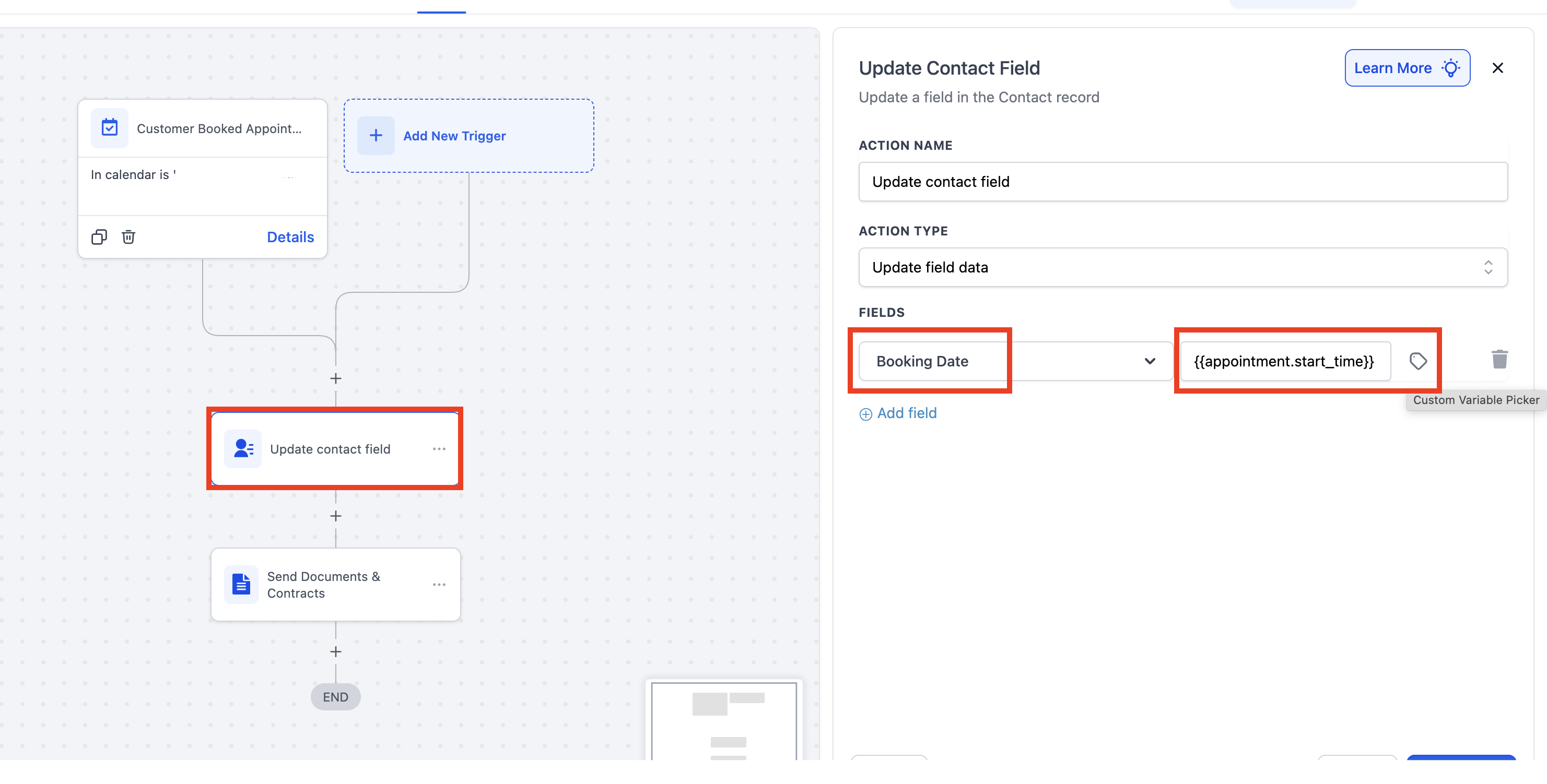
Add "Update Parent/Family Field" Action:
- Click the (+) icon to add an action
- Select Update Contact Field
- Select Field: Choose your custom field (e.g., "Tour Date")
- Select Value: Click the tag icon and select Appointment → Start Time
-
Add "Send Contract" Action:
- Click the (+) icon below the Update Field step
- Select Send Documents & Contracts
- Choose your updated contract template from the dropdown
- Save and Publish your automation
Method 2: Enrollment Pipeline Automation
Use this method if you already track families through an enrollment pipeline. This finds the family's existing enrollment opportunity and updates it with the tour date.
Set Up Your Automation
- Set Your Trigger: Add Customer Booked Appointment and filter for your specific calendar
-
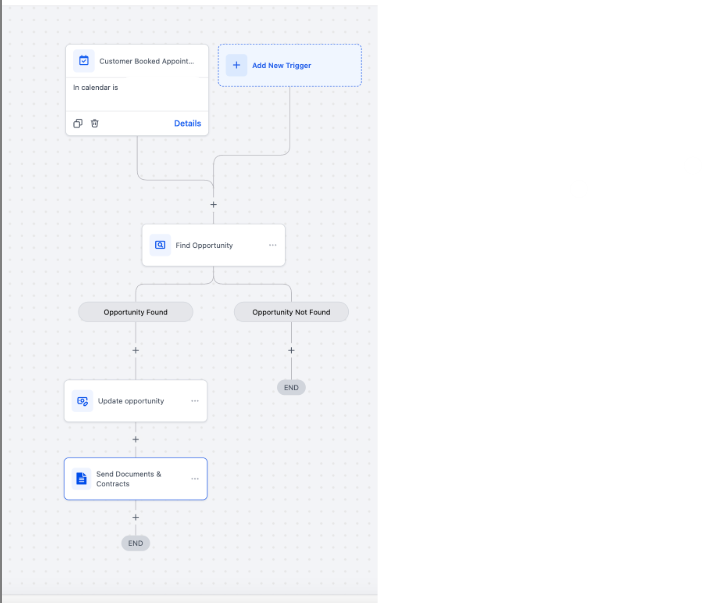
Add "Find Enrollment Opportunity" Action:
- Click (+) and select Find Opportunity
- Set Opportunity to be found to Most recently created opportunity
- Add a field filter: Select your custom field (e.g., "Tour Date") and set condition to Is Empty
- This ensures you only update opportunities that need a date
-
Add "Update Enrollment Opportunity" Action:
- On the Opportunity Found branch, click (+)
- Select Update Opportunity
- Add your custom field (e.g., "Tour Date")
- For the value, click the tag icon and select Appointment → Start Time
-
Add "Send Contract" Action:
- Click (+) below the Update Opportunity step
- Select Send Documents & Contracts
- Choose your updated Enrollment Opportunity-based contract template
- Save and Publish your automation
Key Automation Logic
Your automation must follow this order for either method:
- Trigger (Appointment Booked)
- Update Field (Parent/Family or Enrollment Opportunity)
- Send Contract (Using the updated template)
Troubleshooting
The contract was sent, but the date field is blank
Check these common issues:
- Automation order is wrong: The Update Field action must come before the Send Contract action
- For enrollment pipeline method: Make sure an enrollment opportunity exists for the family. If opportunities are created after booking, add a "Create Opportunity" action first
- Wrong custom field: Verify you're using the correct field name in your contract template
The old contract was sent without the date field
Open your automation's Send Contract action and confirm you selected your new, updated template—not your old one.
The merge tag shows in the contract instead of the date
Double-check that your custom field name in the template exactly matches the field name in Settings → Custom Fields (including spelling and spacing).