
Need to change when your email goes out? You can reschedule any email campaign that uses Simple Schedule, Batch Schedule, or RSS Schedule — as long as it's at least one hour before the scheduled send time.
Where to Find Your Scheduled Campaigns
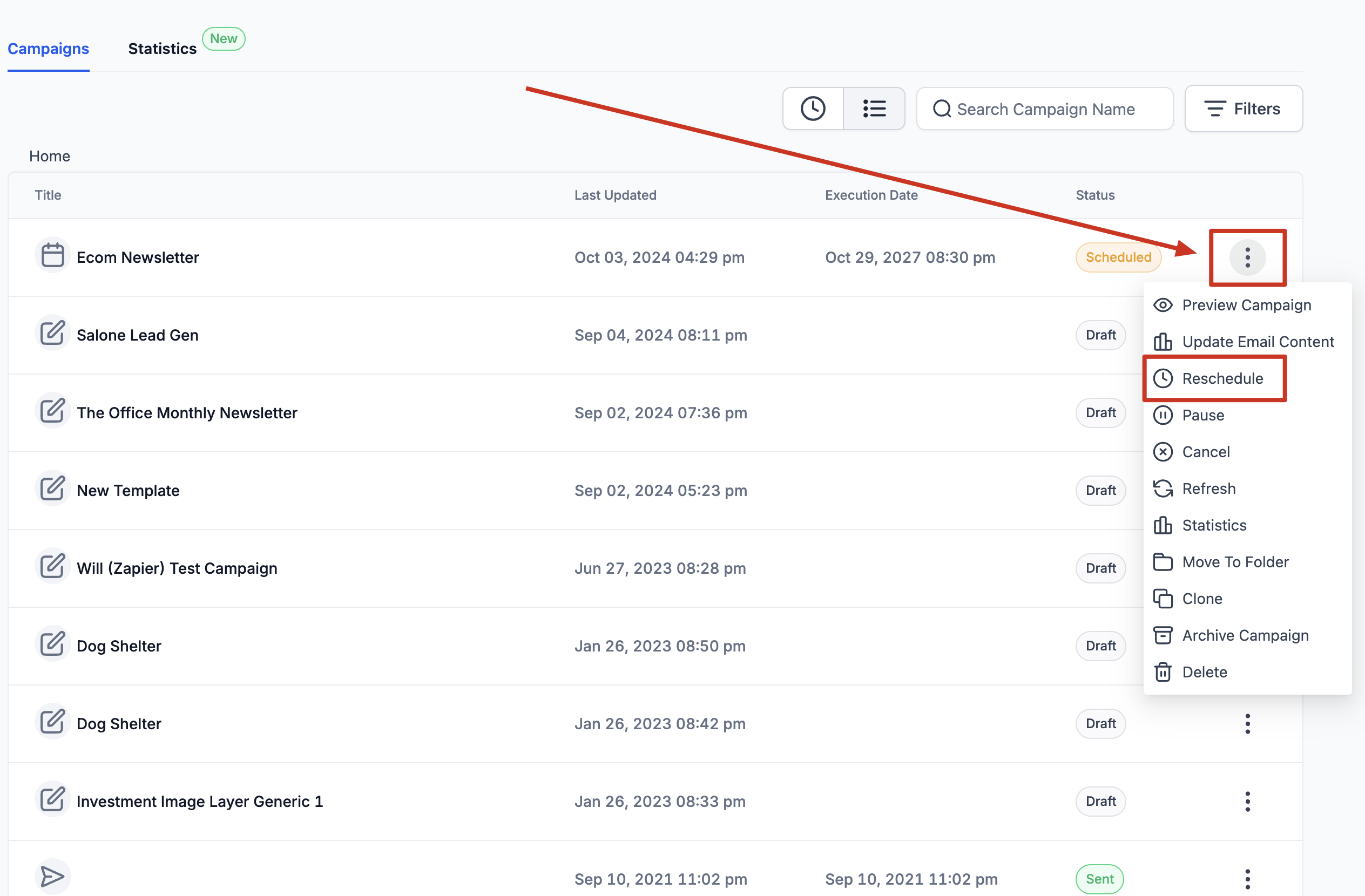
Navigate to Marketing > Email and click the Email Campaign tab. You'll see all your scheduled campaigns listed here.
Steps to Reschedule a Campaign
- Find the campaign you want to reschedule in your list
- Click the Action button dropdown next to the campaign
- Select Reschedule Campaign
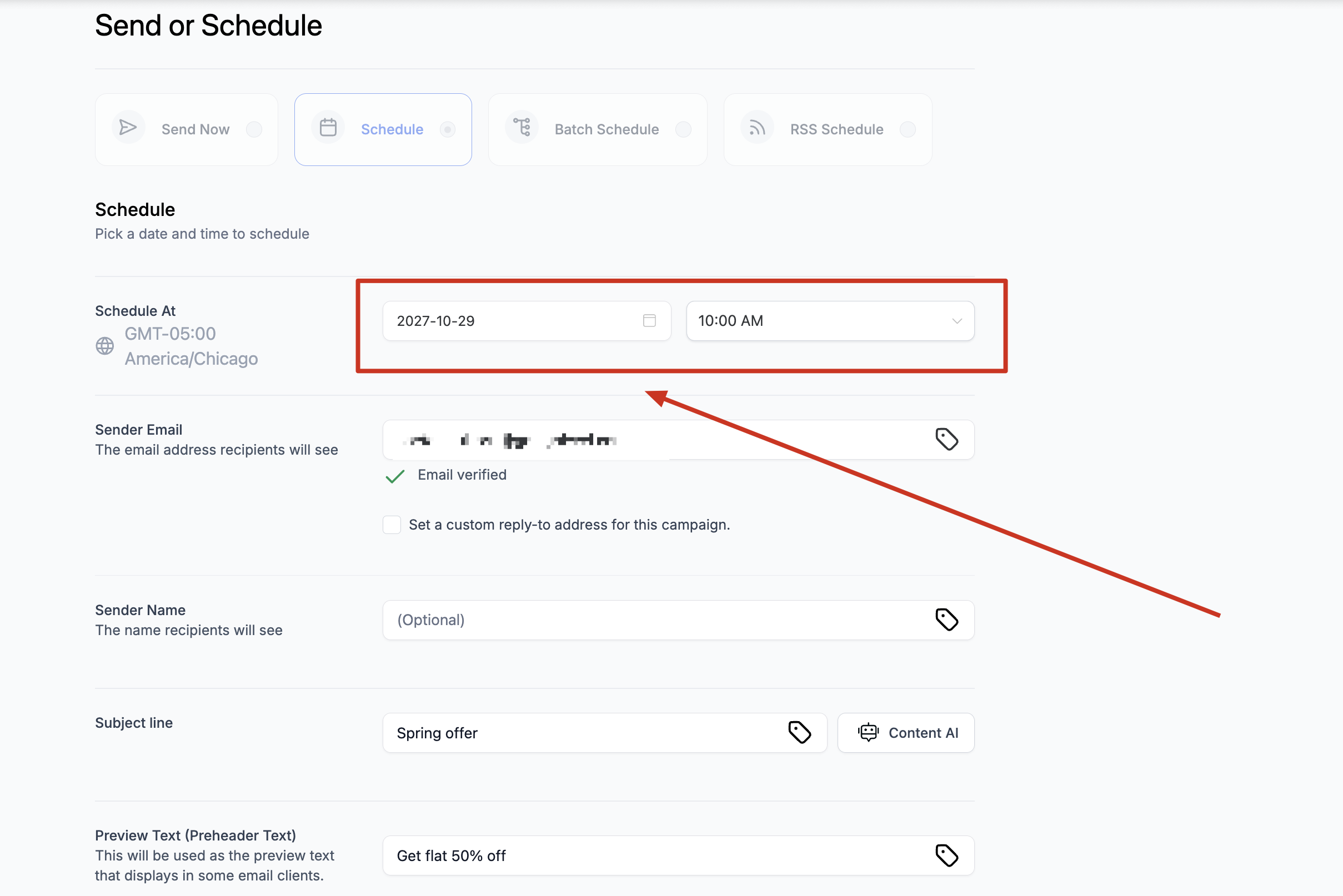
- Update the schedule details — you can change the date, time, and even the delivery method if needed
- Check the box to mark it as a rescheduled campaign
- Click Save to confirm your changes
Pro Tip: Planning to send a parent newsletter or tour reminder? Schedule it in advance, then reschedule if your timing needs to shift. Just remember to make changes at least an hour before it's set to go out.
What You Can Change
- Send date and time — move it to a better day or time slot
- Delivery method — switch between Simple Schedule (all at once), Batch Schedule (spread out over time), or RSS Schedule (recurring content)
- Time zone — if your center operates across time zones
Important to Know
You must reschedule at least 60 minutes before the campaign is set to send. If you're within that window, you'll need to cancel the campaign and create a new one instead.
Related Articles
- How to Send or Schedule an Email Campaign
- How to Batch Schedule Email Campaigns
- How to Pause or Cancel a Scheduled Email Campaign
- Different Email Delivery Methods Explained