Creating Group Booking Calendars
Group booking calendars let multiple staff members share availability for tours, assessments, or parent meetings. When a family books an appointment, all selected team members receive the calendar invite, but one person acts as the primary contact.
Creating Your Group Booking Calendar
- Go to Calendars → Calendar Settings
- Click Create Calendar
- Select Group Booking
- Add your calendar details:
- Calendar Name – Choose something clear like "New Family Tours" or "Enrollment Consultations"
- Team Members – Select at least 2 staff members who should attend these appointments
- Custom URL – Auto-generated from your calendar name, but you can edit it if needed
- Meeting Location – Not required, but recommended. If you skip this, Enrollio will use the primary owner's default meeting location
- Click Confirm
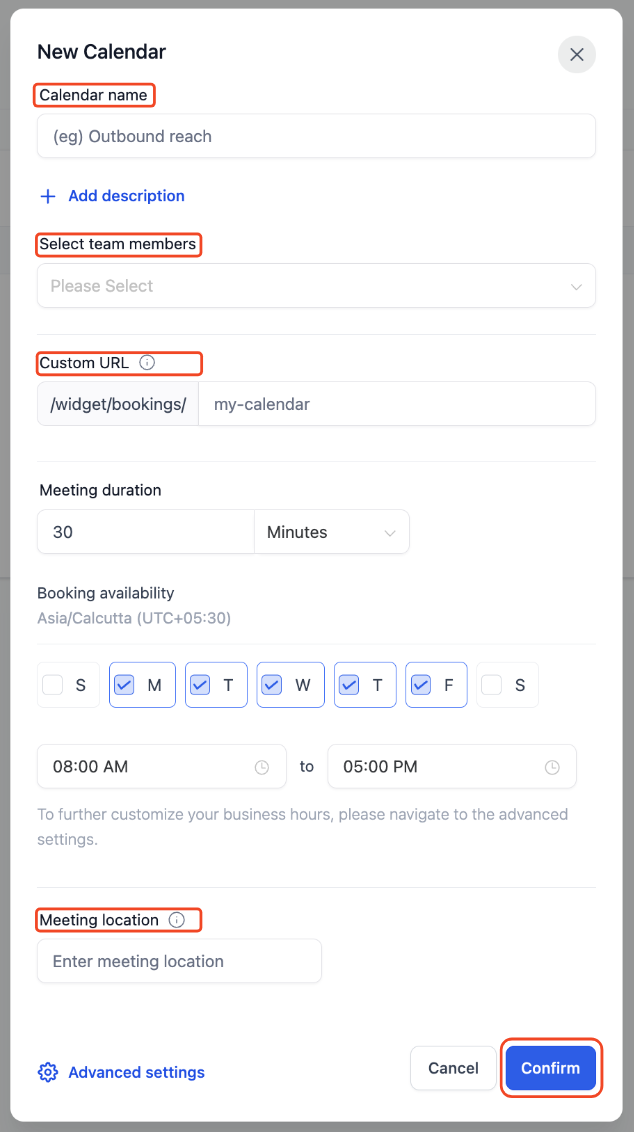
Your group calendar is now created. To customize availability, forms, or other settings, click Go to advanced settings or click Edit calendar from your calendar list.
Pro Tip for Multi-Program Centers
If you offer different programs (infant care, preschool, before/after school), you have two options:
Option 1: Create separate calendars for each program. This lets you assign different staff, availability windows, and meeting preferences for each program type.
Option 2: Use one group calendar with a custom form that includes a program selection dropdown. Families choose their program at booking, and you can route appointments using tags or contact assignment.
Setting the Primary Owner
The primary owner is the main point of contact for the appointment. They own the appointment record, and if contact assignment is enabled, the family will be assigned to them.
By default, the first team member you add becomes the primary owner. The primary owner cannot be deleted from the calendar.
Changing the Primary Owner
- Go to Advanced Settings or Edit Calendar → Meeting Details
- You'll see Make owner next to all non-primary team members
- Click Make owner next to the person you want to designate
- The owner label will update to show the new primary owner
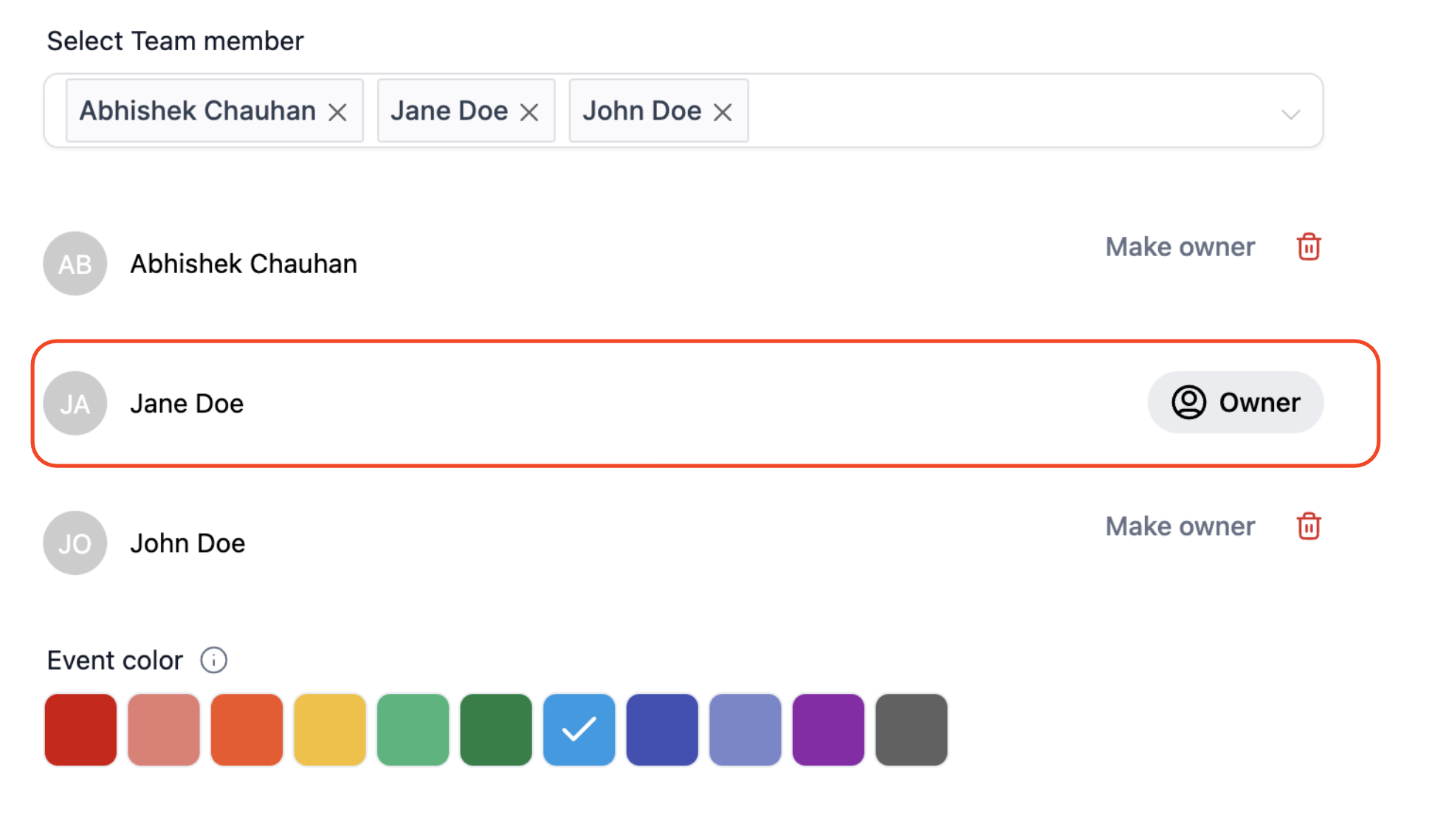
Important: You cannot delete the primary owner. To remove someone who's currently the primary owner, first assign ownership to another team member.
How Notifications Work
Email notifications from Enrollio go only to the primary owner. However, all team members on the calendar receive calendar invites through their connected calendars (Google Calendar, Outlook, iCloud).
This means everyone knows about the appointment and has it blocked on their schedule, but the primary owner handles the Enrollio-side communication.
Payment Settings
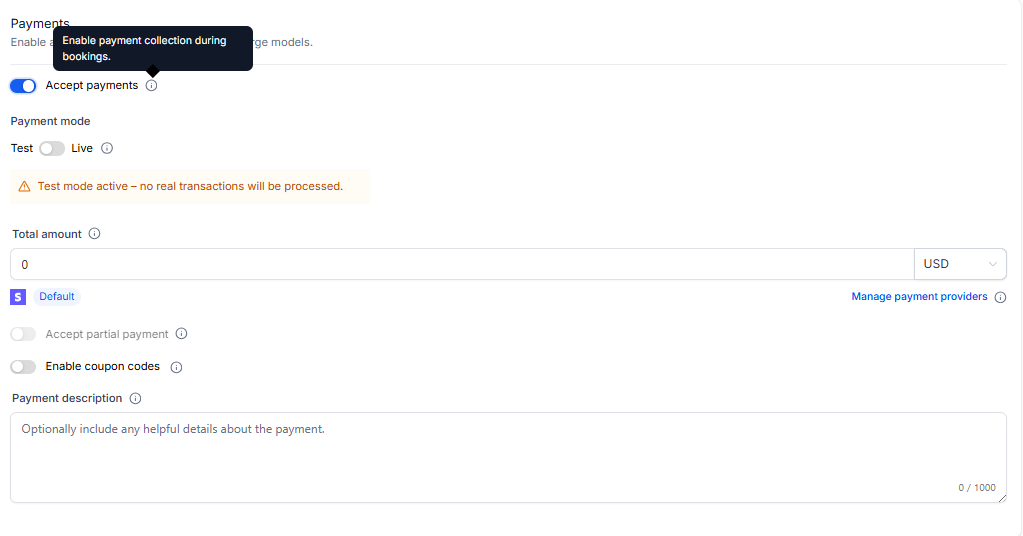
If you enable payments for your group booking calendar (like requiring a tour deposit), families must complete payment before the appointment is confirmed. Once payment goes through, the appointment is booked and all team members receive their calendar invites.