
Group Booking Calendar Overview
Group Booking lets you schedule tours, parent meetings, and other appointments that require multiple staff members to attend. The platform automatically syncs everyone's availability to show only time slots that work for the entire team.
This feature is perfect for center tours with both the director and lead teacher, enrollment consultations involving administrative and classroom staff, or parent conferences that need multiple perspectives.
What are Group Bookings?
Group bookings coordinate appointments involving multiple team members simultaneously. Instead of manually checking everyone's calendar, Enrollio finds times when all required staff are available and presents those options to parents booking appointments.
Common uses in childcare centers include:
- Center tours with both administrative staff and classroom teachers
- Enrollment consultations involving your director and program coordinator
- Parent conferences with teachers and support specialists
- Onboarding meetings with multiple departments
Creating a Group Booking Calendar
Setting up group bookings takes just a few minutes:
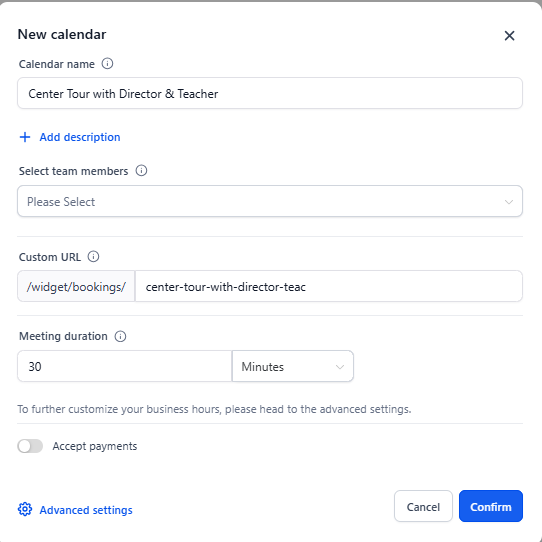
- Go to Calendars → Calendar Settings
- Click Create Calendar
- Select Group Booking
- Enter your calendar name (like "Center Tour with Director & Teacher")
- Add the team members who need to attend
- Set your meeting location (physical address or video link)
- Review and customize the booking URL if needed
- Click Save
Understanding the Primary Owner
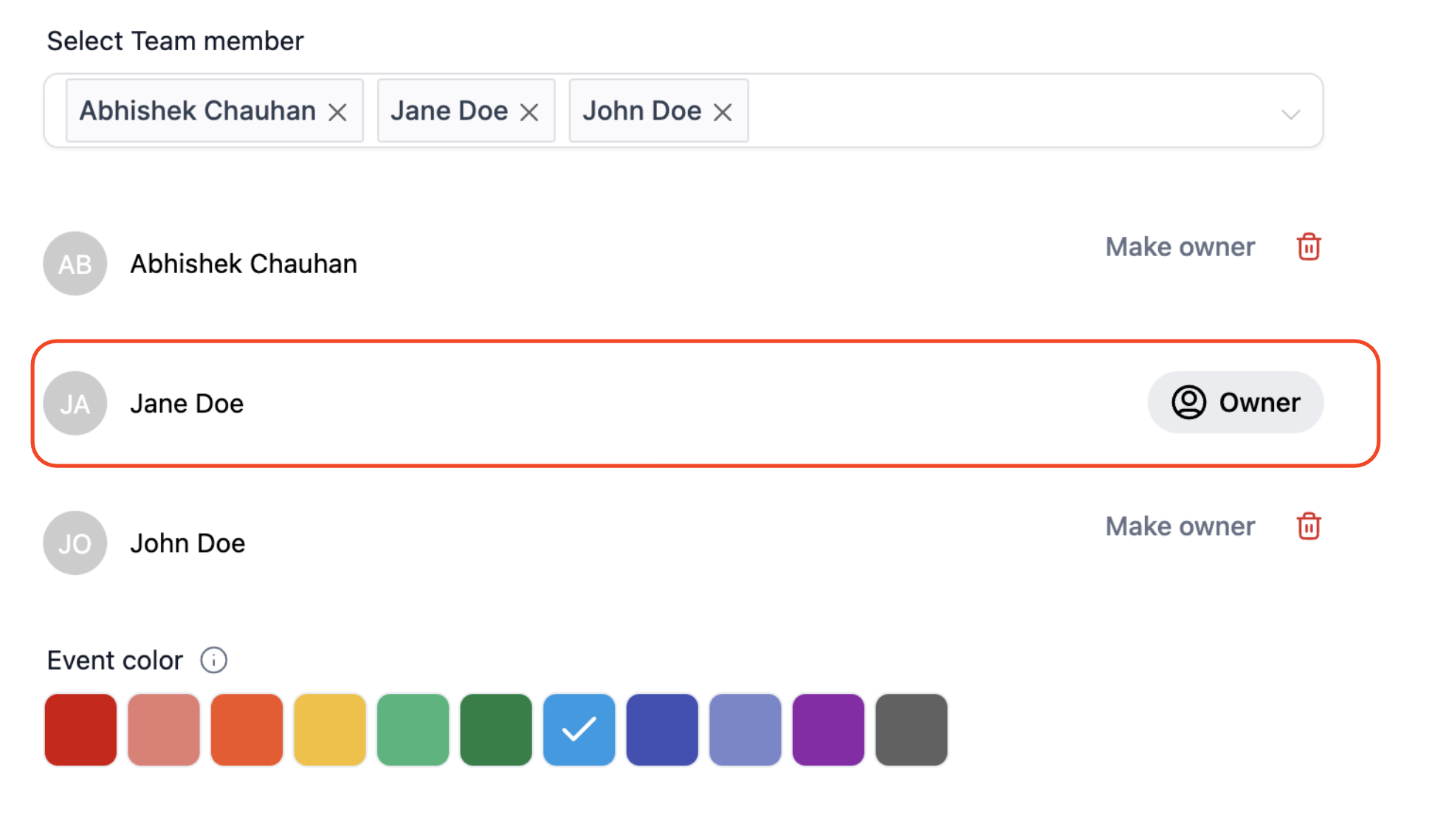
Every group booking calendar has a primary owner — the main point person for these appointments. The primary owner:
- Shows as the appointment host
- Receives the parent contact as an assignment (if contact assignment is enabled)
- Leads the appointment
By default, the first team member you add becomes the primary owner. You can change this anytime by reassigning ownership in the calendar settings.
Notifications and Communication
When a parent books a group appointment, all team members receive immediate notification. This keeps everyone informed and ensures no one misses the meeting.
The booking confirmation sent to parents will show all staff members attending, helping families know exactly who they'll meet with.
Payment Options
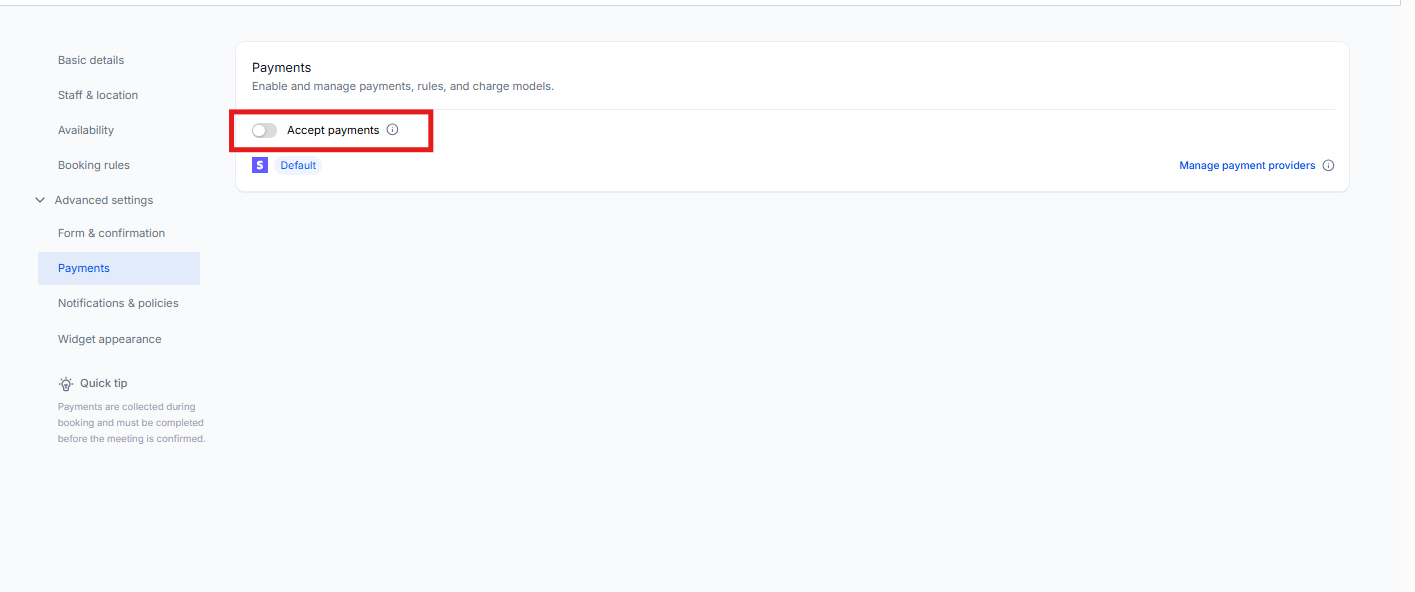
If you charge for certain appointments (like enrollment deposits or registration fees), you can enable payment collection on group booking calendars. Parents must complete payment before the appointment confirms, ensuring a smooth, secure process.
Frequently Asked Questions
How many team members can I include in a group booking?
You can add up to 100 team members to a single group calendar. Keep in mind that more team members means fewer available time slots, since the platform only shows times when everyone is free.
Can I use group booking for virtual tours?
Absolutely. Group bookings work for both in-person and virtual appointments. Just add your video conference link in the meeting location field when setting up the calendar.
Can I remove a team member from an existing group calendar?
Yes, you can remove any team member except the primary owner. If you need to remove the primary owner, first reassign ownership to another team member, then remove them.
What happens if I change the primary owner?
Appointments already booked will still show the original primary owner — those details are locked when the appointment is created. Only new bookings after the change will reflect the new primary owner.
Can I edit an appointment after it's booked?
Yes, you can edit appointment details like time, location, and notes. However, you cannot change which team members are assigned to attend an already-booked appointment. You'll need to cancel and rebook if you need different staff members.
How do I reschedule a group booking?
Click into the appointment from your calendar and select the reschedule option. The platform will show available times when all original team members are free. Parents can also reschedule from their confirmation email if you've enabled that option.