
Understanding Staff Selection in Round Robin Scheduling
When you use Round Robin scheduling for tours, Enrollio automatically distributes appointments fairly among your available team members. But what if a parent wants to tour with a specific staff member they've spoken with before?
The Staff Selection feature gives you both: parents can choose who they want to meet with, while your team still benefits from balanced appointment distribution.
How It Works
When you enable Staff Selection:
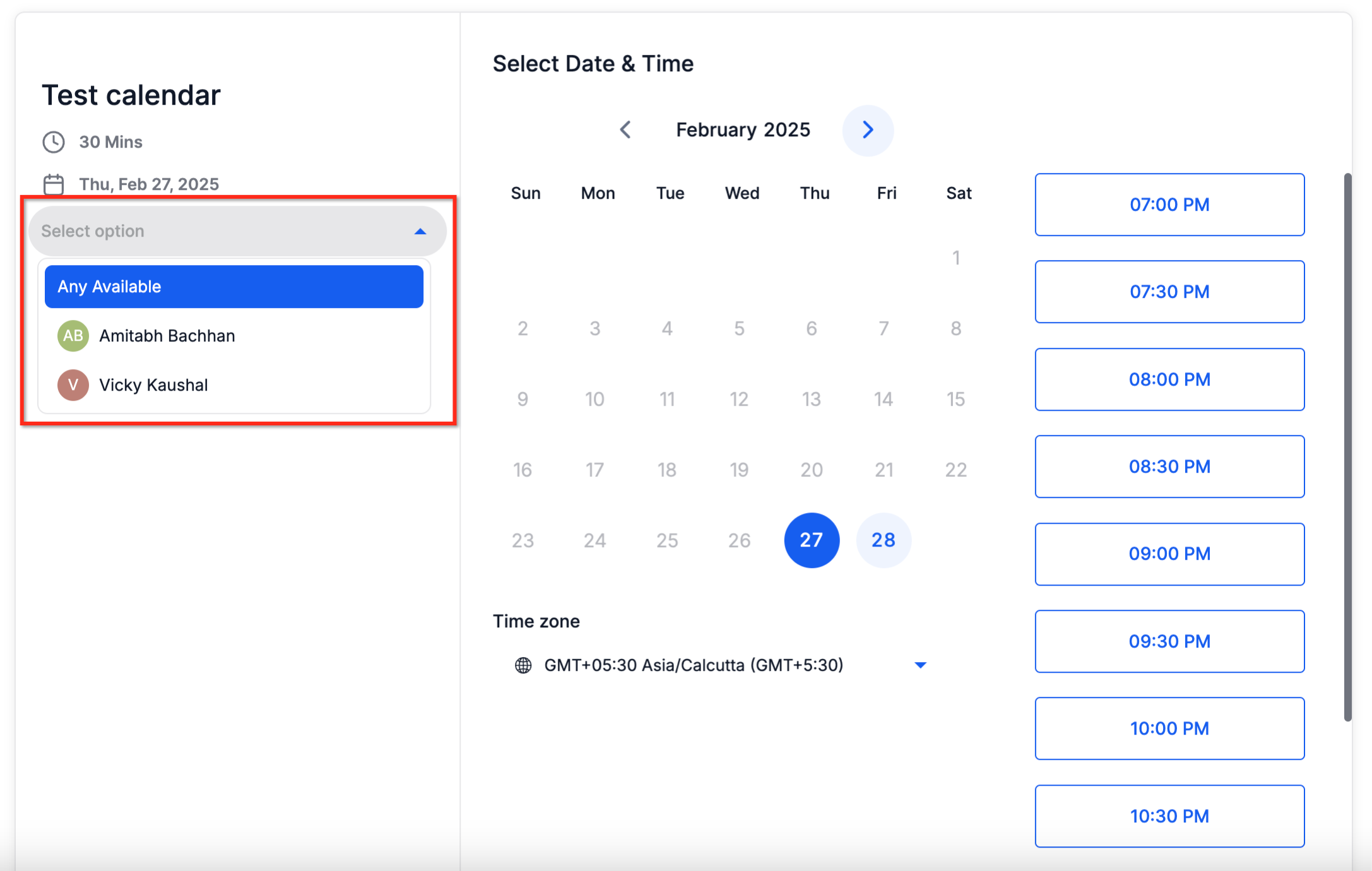
- Parents see a list of available staff members when booking their tour
- They can select their preferred person — or skip this step
- If they don't choose anyone, Enrollio assigns the next available staff member using Round Robin logic
- This feature only works with the Neo booking widget (the modern, mobile-friendly version)
Why Use Staff Selection?
- Better parent experience — Families can book with the person they've already built rapport with
- Fair workload distribution — Your team still gets appointments evenly distributed when parents don't have a preference
- Fewer scheduling headaches — Integrates seamlessly with your existing calendar settings
- Modern booking experience — Works with the Neo widget for a clean, mobile-friendly interface
How to Enable Staff Selection
Follow these steps to let parents choose their preferred staff member when booking tours:
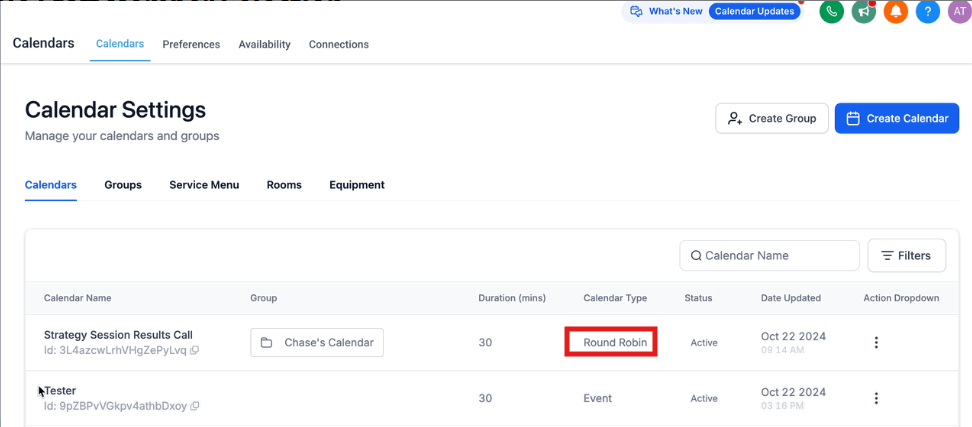
Step 1: Open Your Calendar Settings
- In Enrollio, click Settings → Calendars
- Find the Round Robin calendar you want to update (typically your tour scheduling calendar)
Step 2: Edit the Calendar
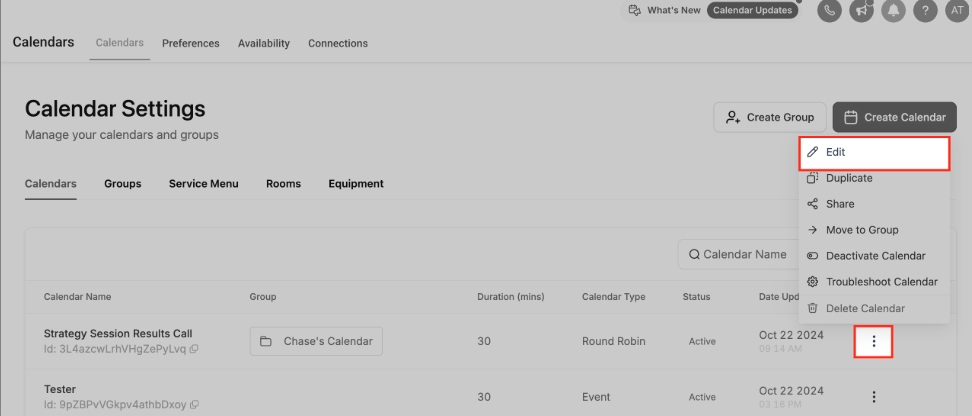
- Click the three-dot menu next to your calendar
- Select Edit
Step 3: Turn On Staff Selection
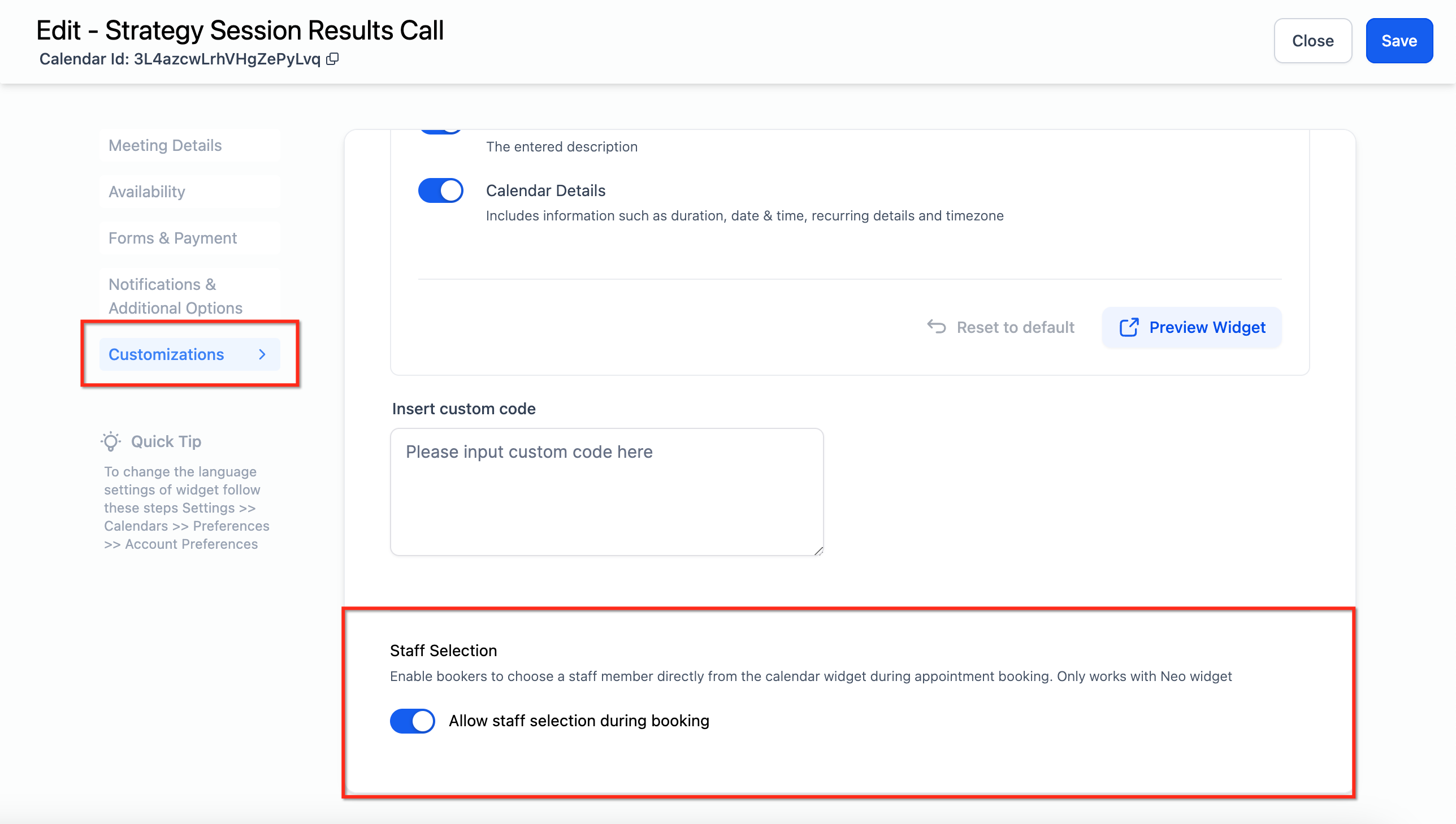
- Scroll to the Customizations section
- Find the Staff Selection option
- Toggle on Allow staff selection during booking
- Click Save
Managing Staff Availability
For Staff Selection to work properly, each team member needs their availability set up correctly:
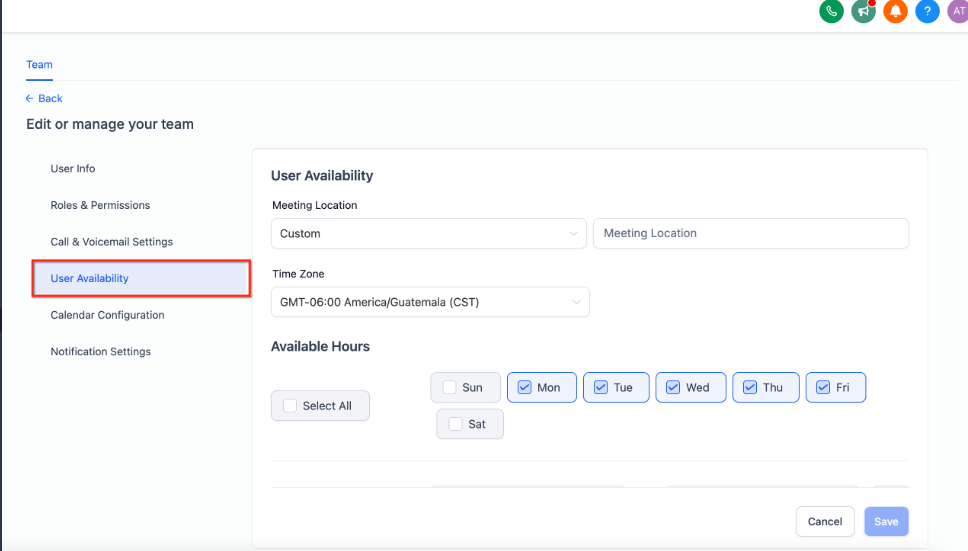
- Go to Settings → My Staff
- Click on the staff member you want to update
- Under the Actions tab, click the pencil icon to edit
- Set their working hours and timezone
- Click Save
Parents will only see staff members who are available during the time slot they're trying to book.
Test the Parent Booking Experience
Before you share your booking link with parents, test it yourself to make sure everything looks right:
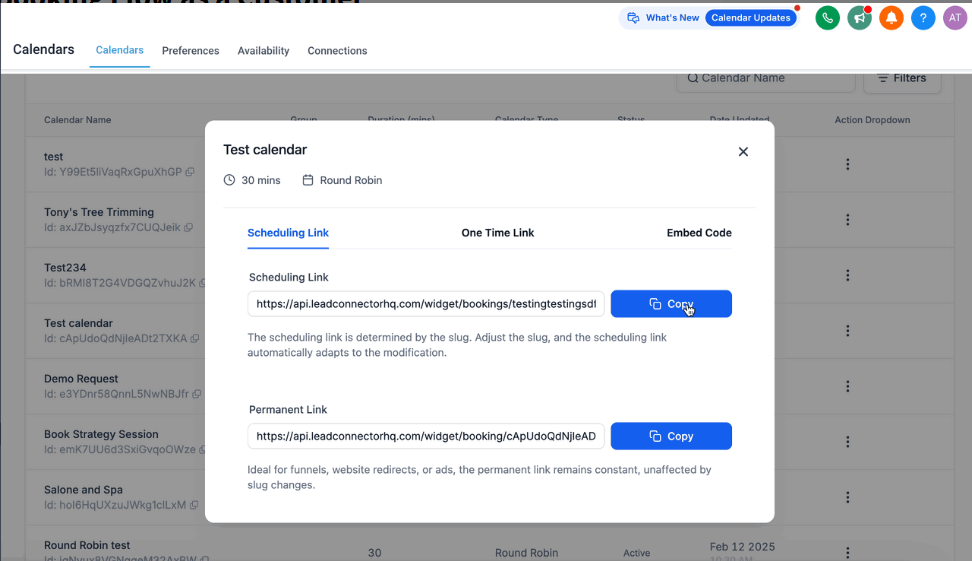
- Click the three-dot menu next to your calendar
- Select Share
- Copy either the Scheduling Link or Permanent Link
- Open the link in a new browser window (or incognito mode)
You'll see exactly what parents see — including the option to select a staff member from the list of available team members.
Frequently Asked Questions
Can I use Staff Selection with the Classic booking widget?
No, this feature only works with the Neo widget. You'll need to switch your calendar to use Neo in the widget style settings.
What happens if a parent doesn't select anyone?
Enrollio will automatically assign the next available staff member using Round Robin logic — just like it normally would.
Can I enable this for multiple calendars?
Yes! Just repeat these steps for each calendar where you want parents to choose their staff member.
Does this affect how tours are distributed among my team?
Only when a parent actively chooses someone. If they select a specific staff member, that person gets the tour. If they don't choose anyone, Enrollio distributes it fairly using Round Robin.
Will parents see staff members who aren't available?
No. The system only shows staff members who are available during the time slot the parent is trying to book.