
Overview of Duplicating Calendars
Duplicating calendars lets you instantly clone an existing scheduling setup. Instead of building availability, reminders, and settings from scratch, you can copy a proven calendar with one click.
This ensures consistency across your team and saves time when creating similar calendars for different staff members, locations, or tour types.
Key Benefits of Duplicating a Calendar
- Time Savings: Launch a fully configured calendar in minutes without manually rebuilding every setting
- Uniform Experience: Maintain consistent availability, meeting types, and communication styles across multiple calendars
- Error Prevention: Avoid missing critical details like buffer times or cancellation policies that can get overlooked during manual setup
- Flexible Scaling: Easily create calendars for new staff members, additional tour types, or test environments while preserving your original setup
What Settings Get Duplicated
When you duplicate a calendar, these settings automatically copy over:
Meeting Details
- Calendar logo and name
- Description
- Group assignment
- Meeting invite title
- Team member selection and meeting location
- Meeting color
Availability
- Weekly available hours
- Look busy settings
- Recurring meeting options
- Slot interval and meeting duration
- Minimum scheduling notice
- Date range restrictions
- Maximum bookings per day and per slot
- Pre-buffer and post-buffer time
Forms & Payments
- Selected form
- Widget order
- Pre-populate fields (sticky contacts)
- Consent checkbox
- Add guests option
- Confirmation page settings
- Meta pixel
- Auto-confirm new calendar meetings
- Payment settings
Notifications & Additional Options
- Email and in-app notifications
- Google/Outlook invitations
- Assign families to calendar
- Skip contacts if already assigned
- Allow rescheduling and cancellation
- Meeting invite notes
Customizations
- Calendar cover image
- Widget style
- Primary and background colors
- Button text
- Calendar title, description, and details
- Custom code
What Settings Do Not Get Duplicated
Understanding what doesn't copy helps you configure the new calendar correctly:
- Calendar Name: The cloned calendar is automatically named "Copy of [Original Name]". Update this during setup to avoid confusion
- Calendar ID: A new, unique calendar ID is generated for the duplicate
- Calendar URL: The duplicate gets its own booking URL based on the original, with additional random numbers appended
- Automations: Any automations tied to the original calendar are not cloned and must be recreated or reassigned
How To Duplicate a Calendar
Follow these steps to duplicate an existing calendar:
Step 1: Navigate to Calendar Settings

- From your dashboard, select Calendars on the left-hand navigation bar
- Using the top navigation ribbon, click Calendar Settings
Step 2: Select Calendar to Duplicate
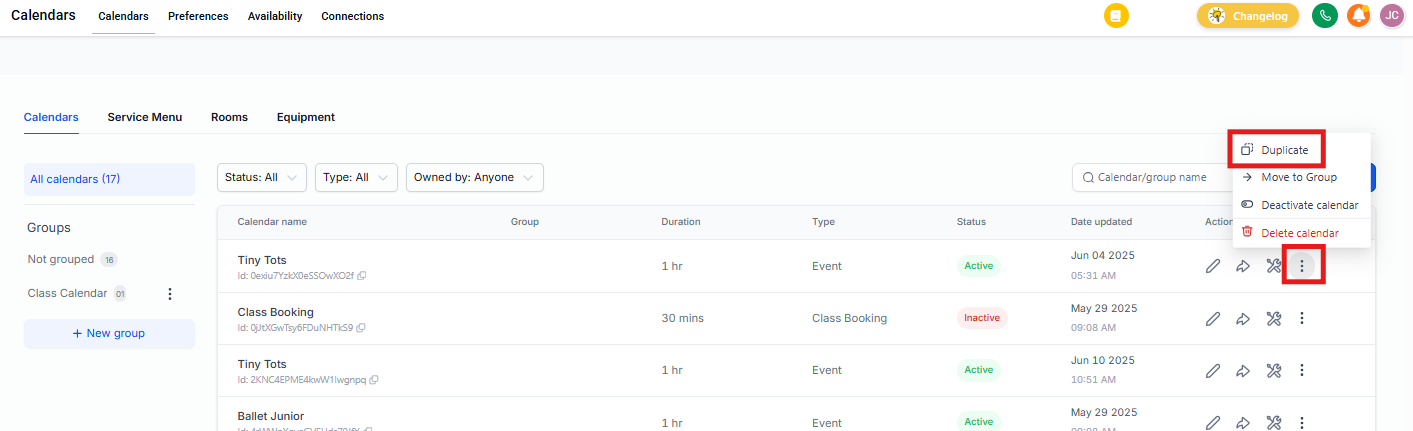
- Click the 3-dot icon next to the calendar you want to duplicate
- Select Duplicate and confirm in the popup
Step 3: Review and Configure New Calendar
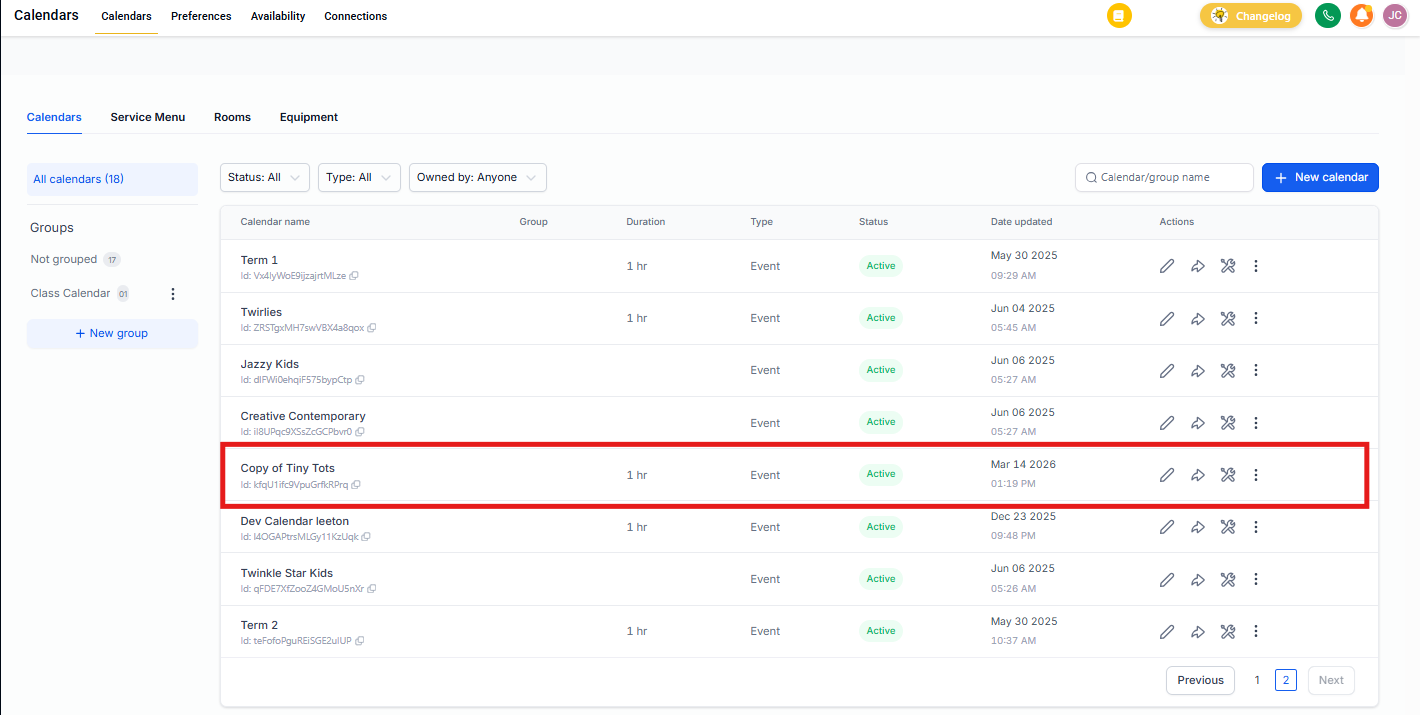
- The new calendar will be named "Copy of [Original Name]". Update this to avoid confusion
- Inspect every setting — availability windows, buffer times, meeting locations, and notification templates — to ensure they match your needs
- Click the blue Save button in the upper right corner
Frequently Asked Questions
Can I duplicate any calendar type (Round-Robin, Class, Event)?
Yes. All calendar types support duplication and inherit their unique configurations.
Are automations duplicated too?
No. Automations must be recreated or reassigned to the new calendar manually.
Will existing booking links redirect to the new calendar?
No. The booking link from the original calendar remains tied to that calendar. The duplicate generates its own unique booking link.
Will the calendar's time zone settings carry over?
Yes. The duplicate calendar retains the same time zone configuration as the original, ensuring bookings display at the correct local time.