
Overview
Recurring appointments let you schedule repeating sessions — perfect for weekly tours, parent meetings, or staff check-ins. You can set up recurring appointments in two ways:
- Calendar-Level Settings: Configure default recurrence rules that apply when families book through your booking widget or scheduling link
- Custom Recurrence: Set specific recurrence rules for individual appointments that override your calendar defaults
Set Up Recurring Appointments in Your Calendar
Follow these steps to configure default recurrence rules for a calendar:
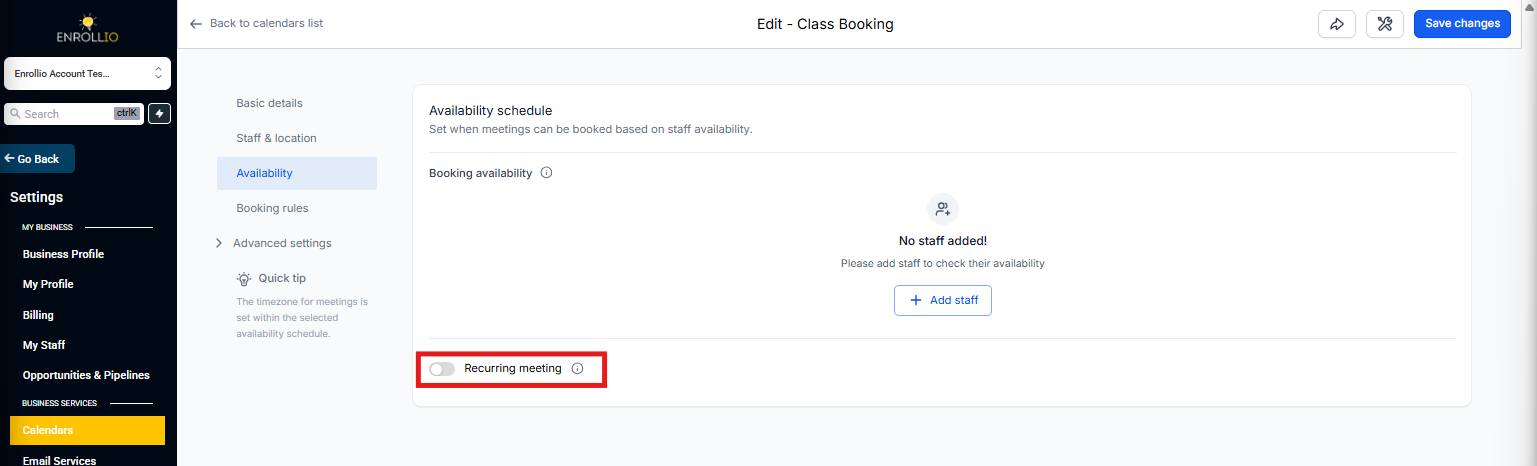
- Navigate to Calendar Settings: Click Calendar Settings and select the calendar you want to configure
- Verify Basic Setup: Make sure no date-specific hours are added and only one team member is assigned to this calendar
- Enable Recurring Meetings: Click the Availability tab and toggle on Recurring Meeting
- Configure Your Recurrence Settings: Set the pattern according to your needs and click Save
Recurrence Settings Explained
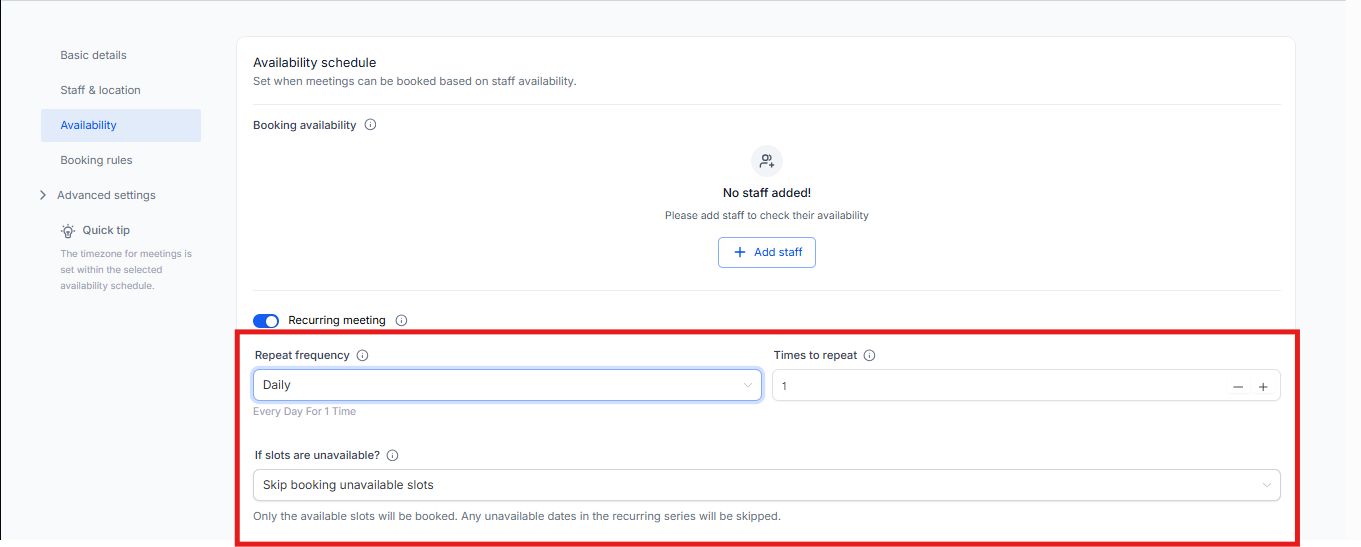
Repeat: Choose how often appointments recur:
- Daily: Repeats every day for the specified number of times
- Weekly: Repeats every week on the same day for the specified number of times
- Monthly: Repeats every month on the same date for the specified number of times
- Custom: Create your own recurrence pattern
Times to Repeat: Specify how many times the appointment should occur (maximum 24 recurrences).
These settings apply when families book through your booking widget or when you create appointments using the default date and time settings.
Handling Unavailable Time Slots
Choose how Enrollio should handle scheduling conflicts:
Skip Booking Unavailable Slots: Unavailable slots are skipped, and only available slots are booked. If you need 10 appointments but 3 slots are unavailable, only 7 appointments will be created.
Continue Booking: Appointments are booked even if the slot is unavailable. You can decide whether these overlapping appointments should be marked as Confirmed or Unconfirmed.
Book Next Available Slot: When a slot is unavailable, the system finds the next available slot to maintain your recurrence count. If you need 10 appointments and 3 slots are unavailable, the system will find 3 additional slots to book all 10 appointments.
Create Recurring Appointments in the Appointment Modal
When creating appointments directly in Enrollio, you have two options:
Using the Default Tab
This option follows the recurrence settings already configured in your calendar. If your calendar is set up for recurring appointments, you'll see available recurring slots. If it's a standard calendar, only a single slot will appear.
Using the Custom Tab
This option lets you define a custom recurrence rule specifically for the appointment you're creating. This custom rule applies only to that series and won't affect other appointments or your calendar settings.
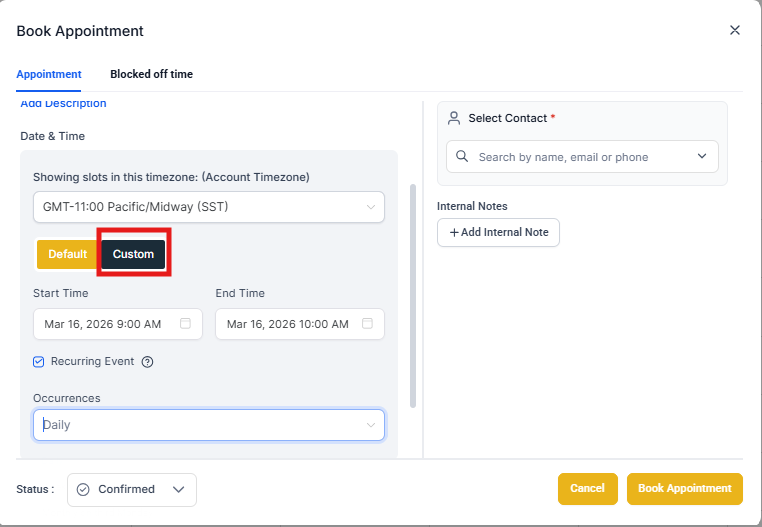
You can create custom recurring appointments from any calendar, regardless of whether recurrence is enabled in the calendar settings.
Steps to Create a Custom Recurring Appointment
- Create New Appointment: Click Create New Appointment, then select the calendar, team member, and family
- Configure Recurrence: Navigate to the Date and Time section and choose Custom. Check the Recurring Event checkbox. Select your recurrence pattern from the dropdown or click Custom to define a specific rule
-
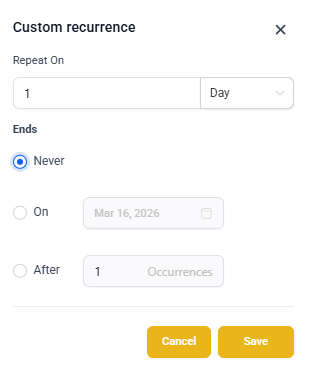
Set Recurrence End: Decide when the recurring appointments should end:
- Never: The recurrence continues indefinitely
- On a Specific Date: Set an end date for the recurrence
- After X Number of Occurrences: Specify how many times the appointment should repeat
- Save and Create: Configure the remaining settings and click Create Appointment
Managing Recurring Appointment Series
Once created, all recurring instances are linked together. You can:
- Edit or Delete All Occurrences: Modify or remove all instances in the series
- Edit or Delete a Specific Occurrence: Make changes or delete only one instance
- Edit or Delete Future Occurrences: Adjust or remove upcoming instances while leaving past occurrences unchanged
Current Limitations
Keep these limitations in mind when working with custom recurring appointments:
- List View Display: Only the first appointment in a custom recurring series appears in the Appointment List View, Family Tab, and Conversations Tab. Subsequent appointments aren't individually displayed
- Automations: Automations currently trigger only for the first custom recurring appointment in a series
- Calendar Notifications: Calendar notifications aren't sent for custom recurring appointments at this time
- Class Booking: Class booking calendars don't support custom recurring appointments
- Cancellation/Rescheduling: Using the cancellation or reschedule link affects the entire series, not individual appointments
- Meeting Links: Only one meeting link (Zoom, Google Meet, or Microsoft Teams) is generated for the entire appointment series
- Outlook Sync: Appointments synced to Outlook won't sync back if you make changes in Outlook. Frequently deleting appointments may affect your Outlook sync experience