
Your calendar descriptions are often the first thing parents see when booking a tour or meeting. The rich text editor helps you create clear, professional descriptions that match your center's brand.
What You Can Do
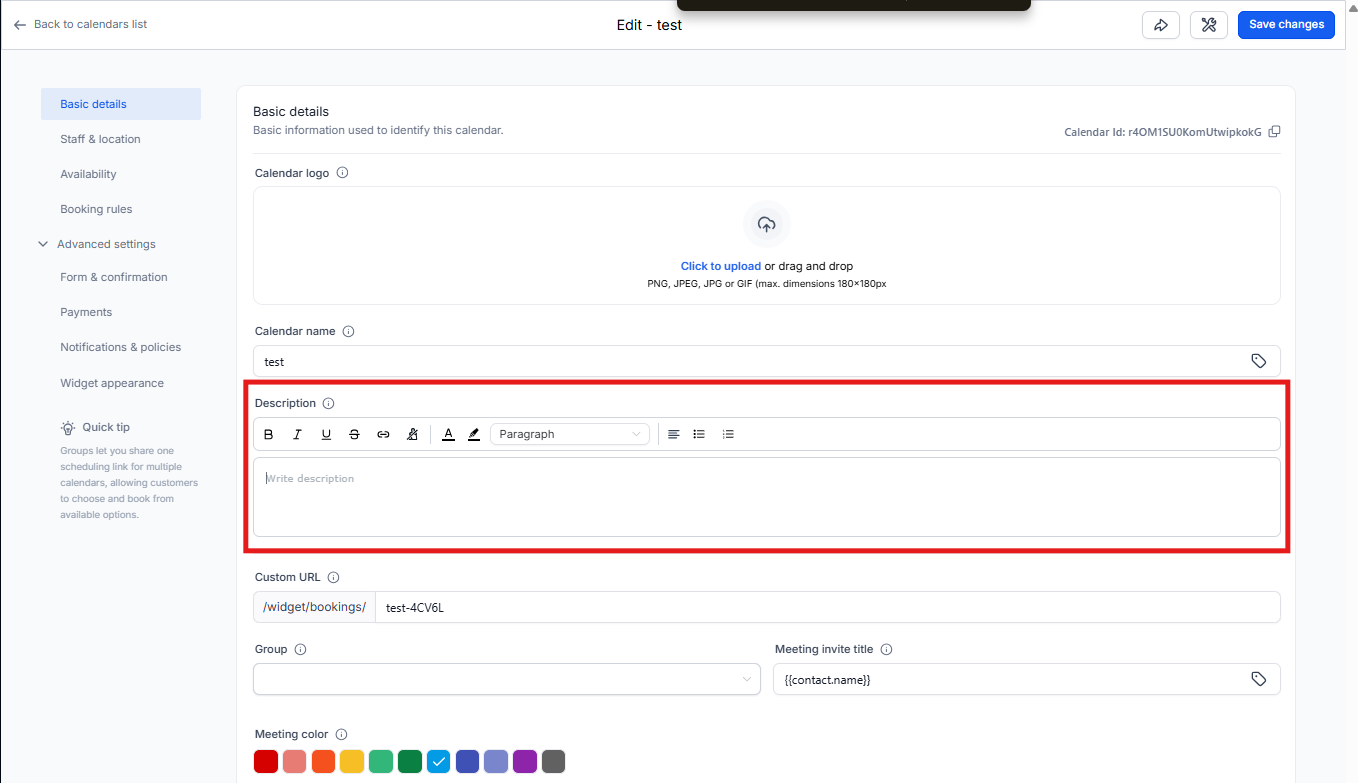
The rich text editor gives you formatting options to make your calendar descriptions more engaging and easier to read:
- Text Formatting: Bold, italics, underline, and strikethrough
- Lists: Bulleted and numbered lists to organize information
- Hyperlinks: Add clickable links (like directions to your center or enrollment forms)
- Colors: Customize text and background colors to match your branding
- Headings: Use different heading sizes to organize content
- Text Alignment: Align text left, center, or right
These options help you highlight what's important—like what to bring to a tour or required documents—and make your descriptions look polished and professional.
How to Format Your Calendar Description
- Go to Settings and select Calendars
- Choose the calendar you want to edit
- Navigate to the Meeting Details section
- Click into the calendar description field—you'll see the rich text editor toolbar appear
- Use the formatting options to style your description
- Click Save when you're done
Pro Tip
Use bold text to highlight what parents need to bring to a tour, or add a link directly to your enrollment application to make the next step easy.
Example Uses for Childcare Centers
- Tour descriptions: Format a checklist of what to bring and what you'll cover
- Parent meetings: Include links to forms or documents parents need to review
- Staff meetings: Use headings to organize agenda items
- Assessment appointments: List required paperwork in an easy-to-scan bulleted list