
What is the Update Parent/Family Field Action?
The "Update Parent/Family Field" action lets you automatically modify information in a parent or family's record. Whether it's updating an address, email, phone number, or communication preferences, this action keeps your enrollment database accurate without any manual work.
Think of it as your automatic record-keeper—whenever family information changes, your system updates instantly.
Why Use This Action?
- Accurate enrollment data: Keep parent contact information current and reliable
- Personalized communication: Send the right message to the right family at the right time
- Time savings: No more manually updating records when families move or change phone numbers
- Better parent experience: Ensure families receive relevant communications based on their current information
How to Set Up the Update Parent/Family Field Action
Step 1: Open your automation
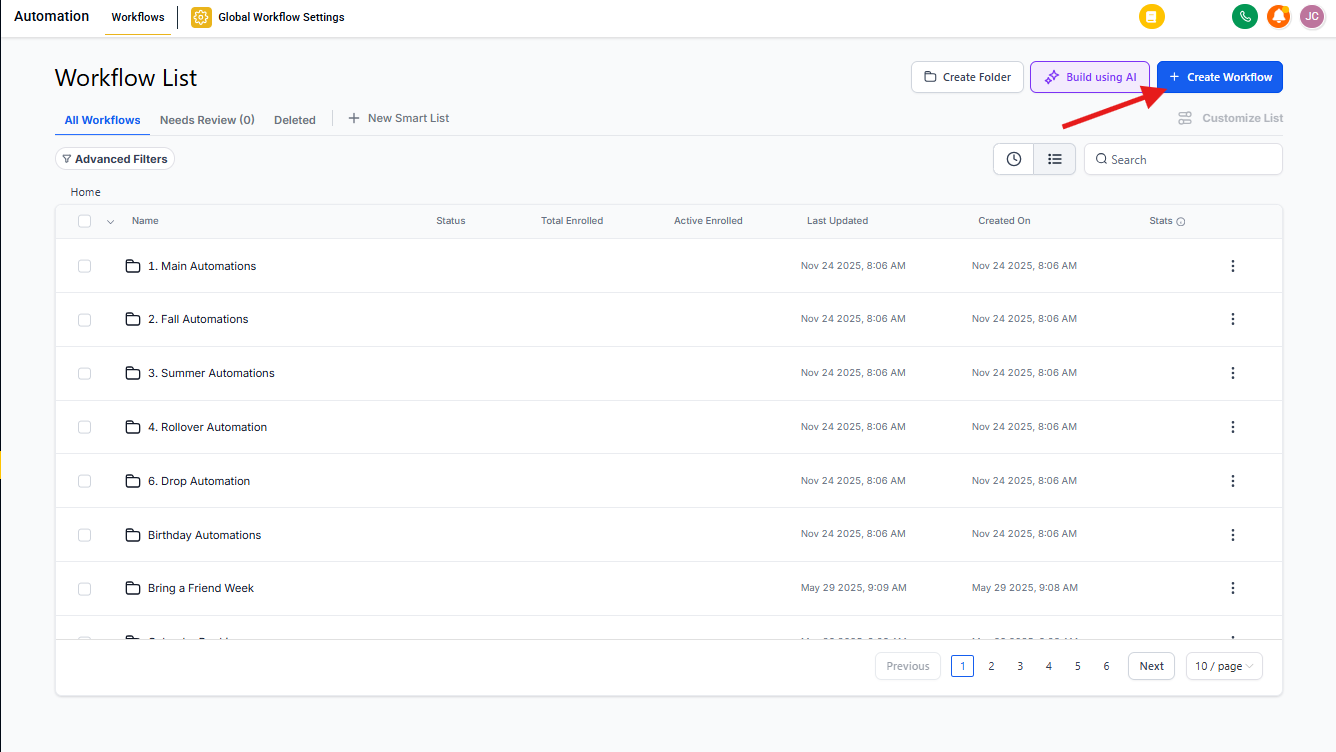
Go to the Automation section in Enrollio. Click Automations in the top menu, then either open an existing automation or click "+ Create Automation" to build a new one from scratch.
Step 2: Add the action
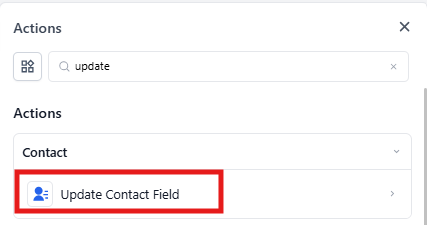
Click the "+" icon in your automation builder and select "Update Parent/Family Field" from the list.
Step 3: Name your action
Give it a clear name like "Update Parent Address" or "Mark Family as DND." This helps you quickly identify what the action does when reviewing your automation later.
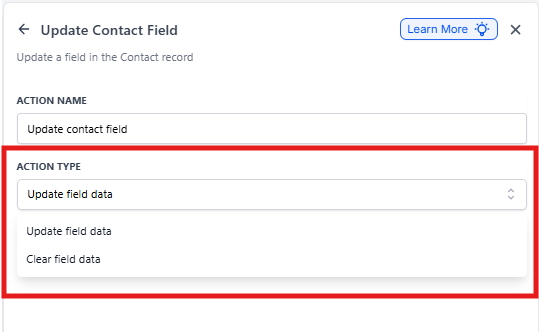
Step 4: Choose how to update
You have two options:
- Clear and replace: Removes existing information and adds new data
- Update only: Modifies the field while keeping other data intact
For most cases, you'll use the update option. Use clear and replace when you need to completely reset a field.
Step 5: Select fields to update
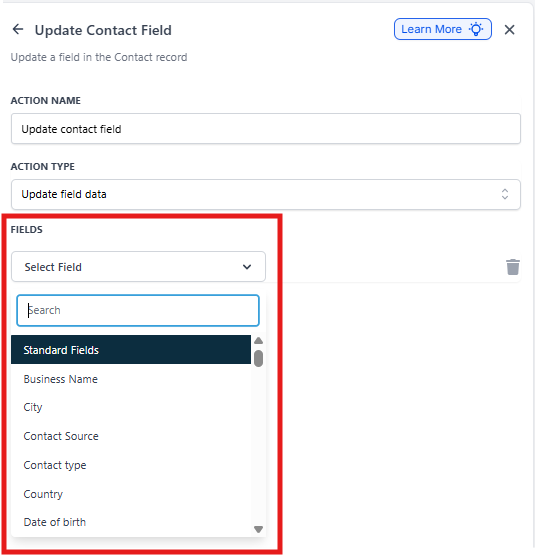
Click "Add field" and choose which information to update. Common fields include:
- City, State, Zip Code
- Phone or Email
- Do Not Disturb status
- Parent Source (where they found you)
- Custom fields specific to your center
You can update multiple fields in a single action—just keep clicking "Add field" for each one you need.
Step 6: Save and test
Save your action and test it with a sample family record. Check that the fields update correctly before publishing your automation.
Step 7: Publish
Toggle the automation to "Published" to activate it.

Real-World Examples
Example 1: Parent Moves to a New Address
Situation: A parent fills out your "Update My Information" form with their new address.
Your automation:
- Trigger: Form submission for "Update My Information"
- Action: Update Parent/Family Field to change City, State, and Zip Code
- Result: Your database immediately reflects the new address, and all future mailings go to the right location
Example 2: Parent Opts Out of Marketing Messages
Situation: A parent clicks "unsubscribe" in a promotional email.
Your automation:
- Trigger: Parent clicks unsubscribe link
- Action: Update Parent/Family Field to set Do Not Disturb = Yes
- Result: This parent stops receiving marketing messages but still gets important enrollment updates
Example 3: Track Where Families Found You
Situation: A family schedules a tour through your "Spring Open House" campaign.
Your automation:
- Trigger: Tour booking from Spring Open House landing page
- Action: Update Parent/Family Field to set Parent Source = "Spring Open House 2025"
- Result: You can track which marketing campaigns bring in the most tours and enrollments
Frequently Asked Questions
Can I update multiple fields at the same time?
Yes. In a single action, you can update as many fields as you need. This is more efficient than creating separate actions for each field.
What happens if I try to update a field that doesn't exist?
The update will be skipped for that field. Make sure the field exists in your parent/family records before setting up the automation. You can create custom fields in your Settings if needed.
How do I know if the update worked?
Test your automation with a sample family record and check their profile to confirm the changes appear correctly. You can also review your automation activity log to see when updates occur.
Can I undo an update if I made a mistake?
There's no automatic undo. If information is updated incorrectly, you'll need to manually correct it or create another automation to fix it. Always test your automations before publishing to avoid this.
Does this work with custom fields I created?
Absolutely. Any custom field in your parent/family records can be updated using this action—whether it's something like "Child's Dietary Restrictions" or "Preferred Tour Time."