
Social Planner - Advanced CSV for Bulk Scheduling
Effortlessly manage and schedule large volumes of social media content across multiple platforms with Enrollio's Advanced CSV for Bulk Scheduling. This powerful feature streamlines your social media planning, offering unmatched flexibility and control for busy childcare owners.
What is Advanced CSV for Bulk Scheduling?
Advanced CSV for Bulk Scheduling is a powerful enhancement to Enrollio's Social Planner. Upload and schedule content in bulk using a feature-rich CSV or XLSX template that supports platform-specific settings, media optimization, watermarks, tags, and more.
Plan, organize, and schedule posts across Facebook, Instagram (including Stories and Reels), YouTube Shorts, Google Business Profile, TikTok, Pinterest, and other platforms — all from a single workflow. Perfect for maintaining your center's social presence without spending hours on manual scheduling.
Key Benefits of Advanced CSV for Bulk Scheduling
The Advanced CSV feature brings powerful advantages designed to simplify your social media management:
- Bulk Scheduling Across Platforms: Schedule posts, stories, reels, and shorts for multiple channels in one upload
- Watermark Automation: Automatically brand your media with watermarks for consistent visual identity
- Smart Media Optimization: Images and videos are auto-optimized for each platform's requirements
- Tag & Category Assignment: Organize posts with tags and categories for streamlined reporting
- Pinterest Board Selection: Target specific Pinterest boards by adding a "Pinterest board" column to your CSV template (enter either board name or board ID)
- Flexible Date-Time Parsing: Supports multiple date-time formats, reducing import errors
- Dual Format Upload: Accepts both .csv and .xlsx files
- Performance Upgrades: Faster workflows, smoother imports, and improved error handling
- First-Time Comments: Add initial comments to posts for higher engagement
- Comprehensive Platform Support: Configure Google Business Profile, YouTube, TikTok, and more with platform-specific fields
How To Use Advanced CSV for Bulk Scheduling
Follow these steps to set up bulk scheduling for your social media campaigns:
Step 1: Navigate to Social Planner
- Go to Marketing in your Enrollio account
- Click on the Social Planner tab
- Connect your social media accounts if you haven't already
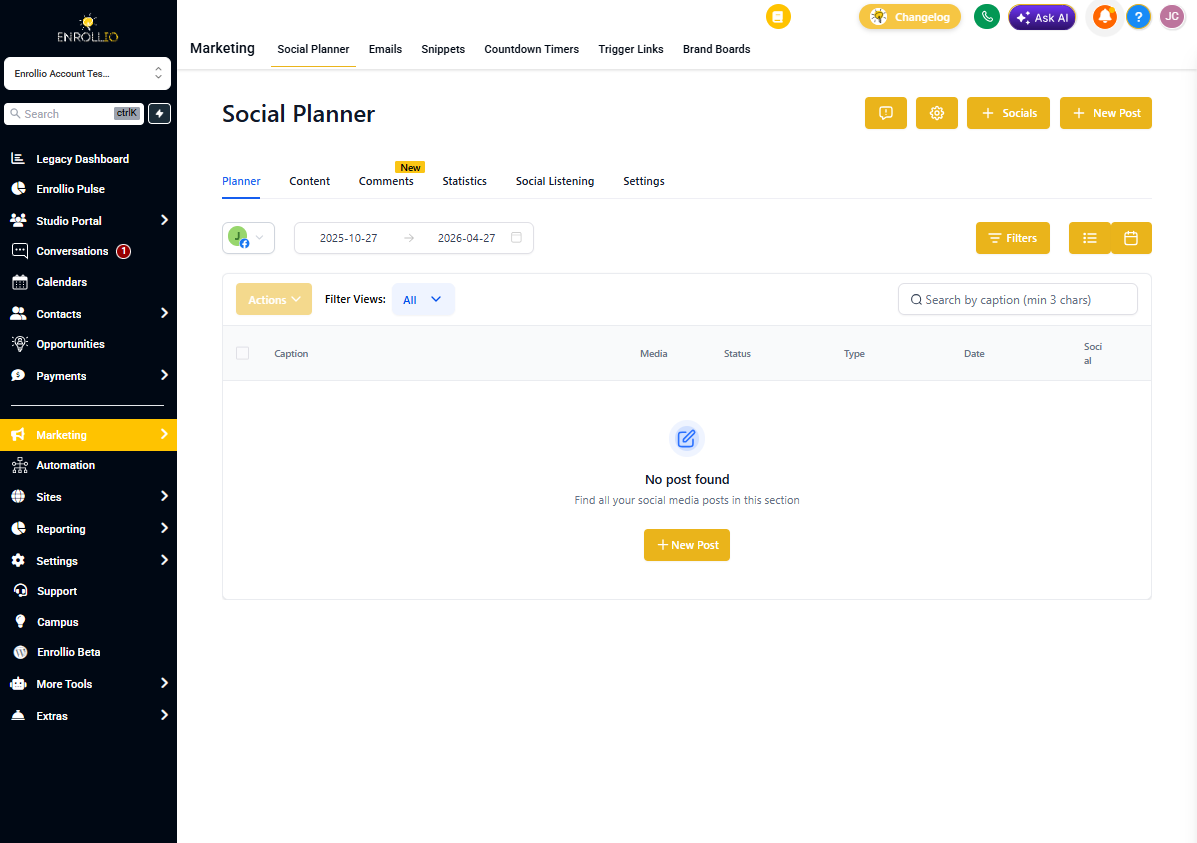
Step 2: Start a New Bulk Upload
- Click the + New Post button
- Select Upload from CSV from the dropdown menu
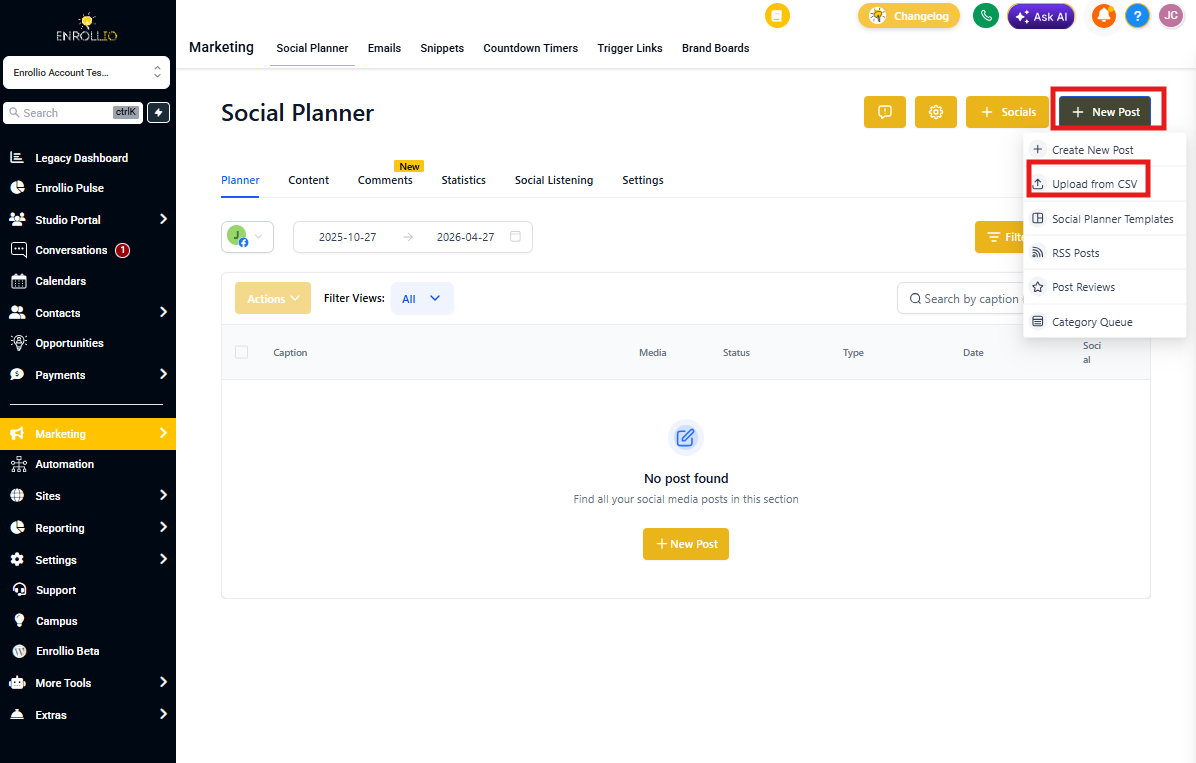
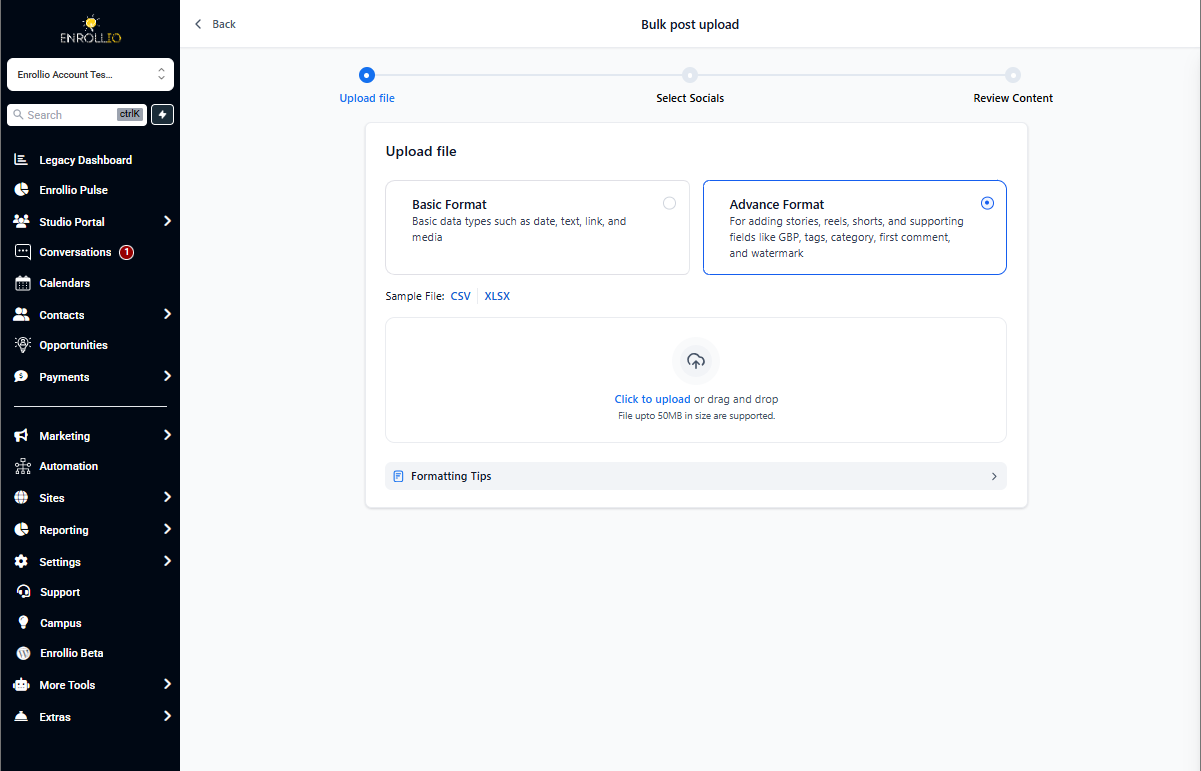
Step 3: Upload CSV File
- Select Advanced Format to unlock all enhanced features
- Upload your filled-out .csv or .xlsx file
- Click Next
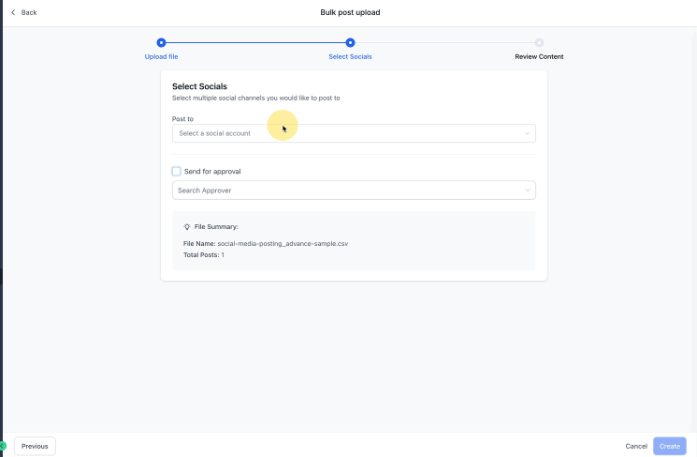
Step 4: Select Social Accounts & Approval Settings
- Select the social channel or channels you want to post to
- If posts need approval, turn on Send for approval and select an approver
- Click Create
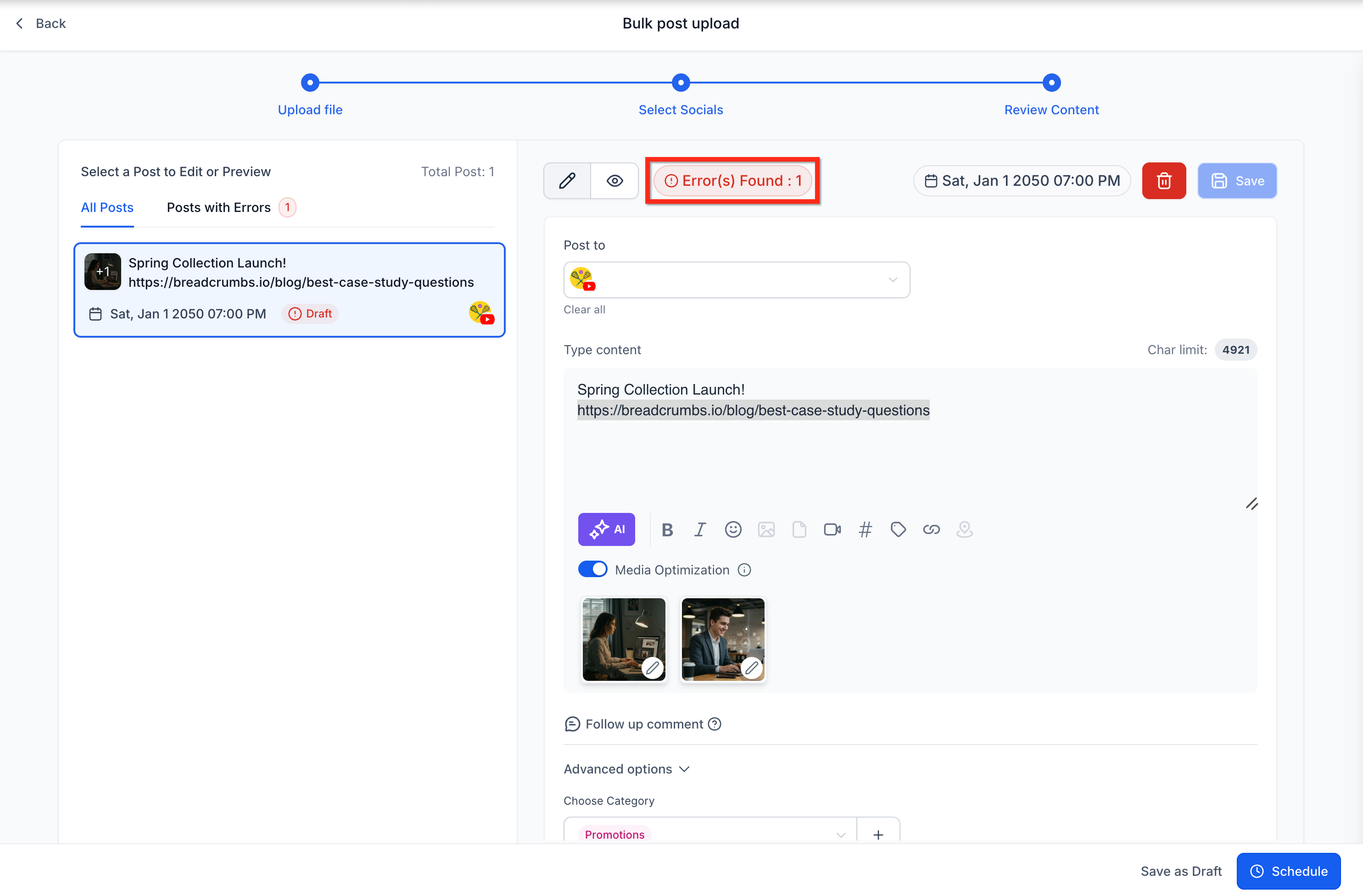
Step 5: Review & Correct Errors
The system will flag any issues with your upload. Review and correct them before proceeding to ensure all posts schedule successfully.
Step 6: Schedule and Import
- Click Schedule
- Click Import to add all approved posts to your calendar queue
Media Support by Platform
When scheduling posts across multiple social media platforms, media support varies by platform. Follow these guidelines to ensure your posts schedule successfully.
A sample spreadsheet with examples can be found here.
Image Support
Facebook and Instagram
- Support image carousels
- Add multiple image URLs in the spreadsheet
- Multiple image URLs must be comma-separated
- Example:
https://example.com/image1.jpg,https://example.com/image2.jpg
Google Business Profile
- Supports only one image per post
- Image carousels are not supported
Reel and Video Support
- Only one video or reel is supported per post
- Carousels are not supported for reels or videos
- If multiple video URLs are added, the post may fail to schedule
Uploading or Updating Images After CSV Import
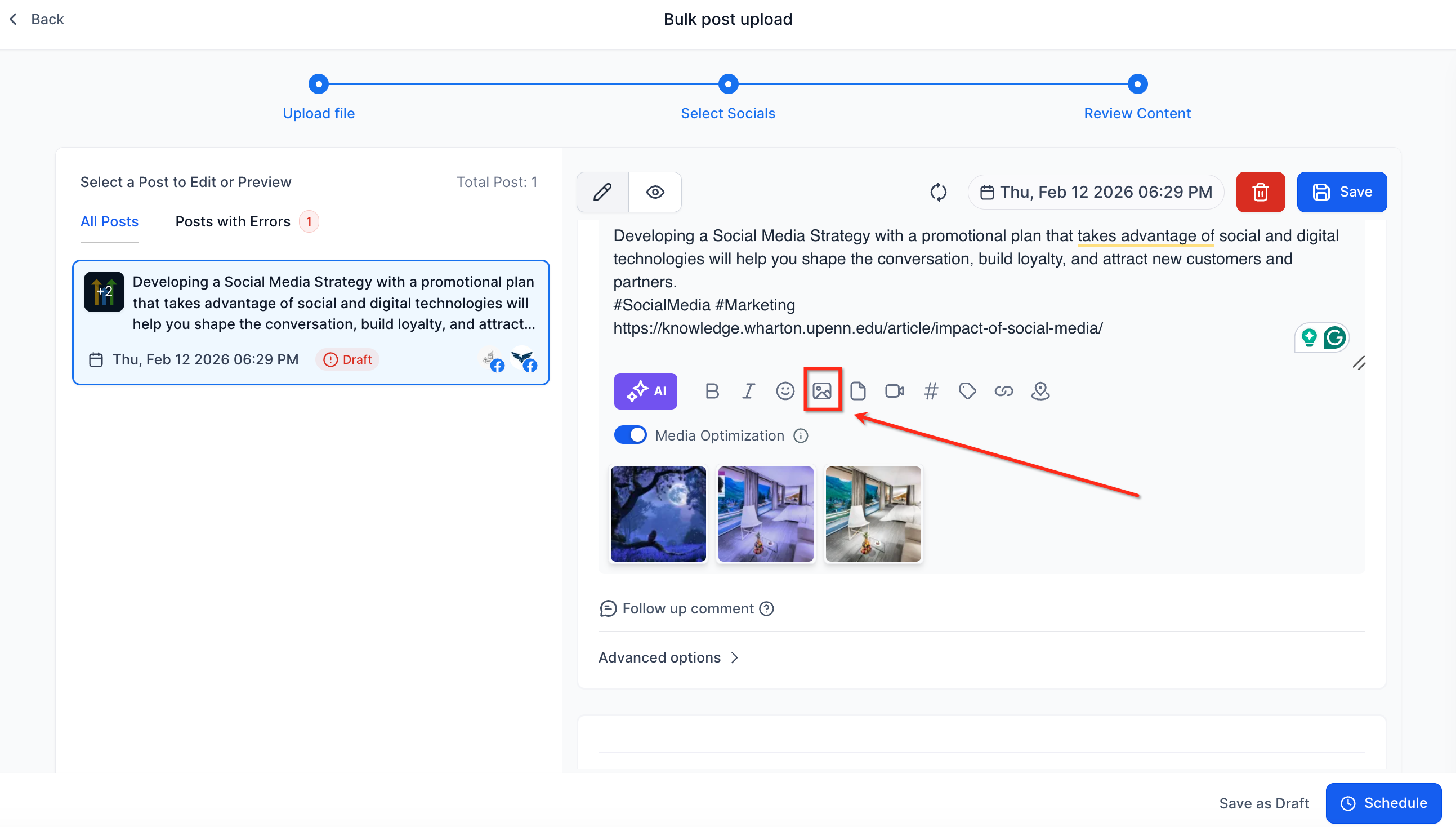
You can upload or modify images during the scheduling flow, even after importing your CSV. On the third review screen, you can:
- Add new images
- Update existing images
- Upload additional images (where supported by the platform)
Use this method if you prefer not to include all media URLs directly in the CSV file.
Watermark Support
Automatically apply watermarks to your images and videos by specifying watermark fields in your CSV. This ensures consistent branding across all posts without manual editing.
- Add watermark file paths or settings in the designated CSV columns
- Watermarks are applied during the import process for all supported platforms
Smart Media Optimization
Media files are auto-optimized for each platform's requirements, ensuring your content looks its best and meets technical specifications.
- Images and videos are resized, compressed, or reformatted as needed
- Platform-specific media settings can be configured in the CSV template
Tag & Category Assignment
Assign tags and categories to each post directly in your CSV to streamline reporting and organization.
- Use the relevant columns in the template to add multiple tags or categories
- Organize your social content by campaign, season, or topic
Pinterest Default Board Settings
Select the default Pinterest board for each post within the CSV, eliminating the need for manual assignment after upload.
- Specify the board name or ID in the appropriate column
- Posts are automatically assigned to the selected board upon import
Flexible Date-Time Parsing
Reduce import errors by using any of the supported date-time formats in your CSV. The system recognizes and processes a wide range of common formats, including:
- YYYY-MM-DD HH:mm
- YYYY-MM-DD HH:mm:ss
- YYYY/MM/DD HH:mm:ss
- YYYY/MM/DD HH:mm
- MM/DD/YYYY H:mm:ss
- MM-DD-YYYY H:mm:ss
- MM/DD/YYYY H:mm
- MM-DD-YYYY H:mm
Frequently Asked Questions
Can I use both .csv and .xlsx files for bulk scheduling?
Yes, both file formats are supported for Advanced CSV uploads.
Why can't I use Google Drive links in my CSV imports anymore?
Due to recent changes by Google, we can no longer process Google Drive links during CSV imports. To ensure smooth uploads, use direct media URLs or upload files through the review screen.