
Managing Staff Assignments in Round Robin Calendars
Properly assigning staff members in Round Robin Calendars ensures fair and efficient tour distribution. This feature lets you automate scheduling while maintaining the flexibility to assign tours based on specific preferences — perfect for making sure prospective families connect with the right person.
Understanding Key Terms
Before configuring your Round Robin Calendar, it's helpful to understand these key terms:
- Appointment Owner: The staff member assigned to a specific tour or appointment when it's booked.
- Assigned User: The staff member designated to work with a particular family within Enrollio, often used for managing ongoing interactions.
Configuring Reschedule Preferences
Reschedule preferences determine how appointments are reassigned when families modify their bookings. These settings ensure flexibility while keeping your schedule organized.
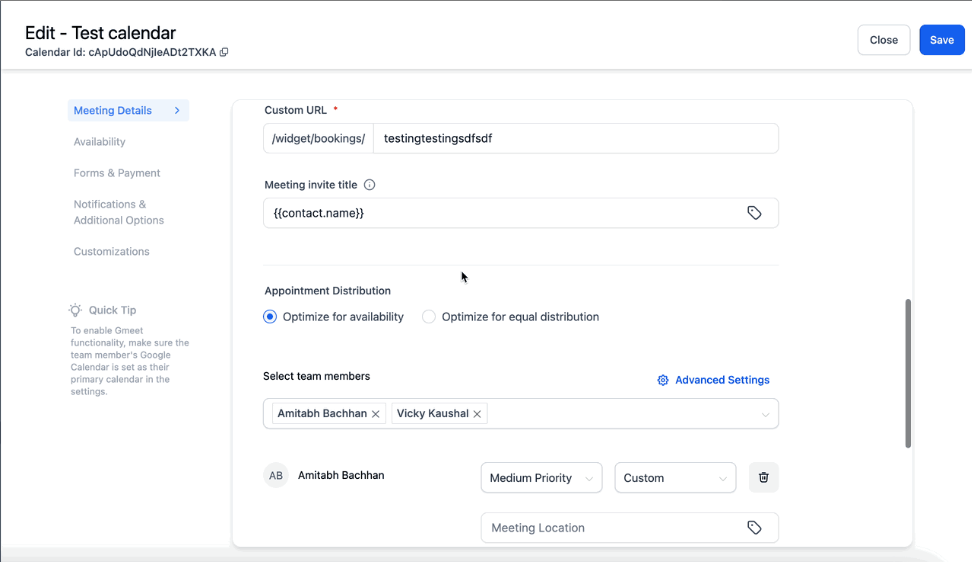
Step 1: Access Advanced Settings
- Navigate to Settings > Calendars
- Select your Round Robin Calendar
- Click on Meeting Details and select Team Members
Step 2: Select Reschedule Options
Locate Advanced Settings to configure reschedule preferences. You have two options:
Reassign Through Round Robin: When you choose this option, the rescheduled appointment will be assigned to any available staff member based on the round-robin algorithm.
Keep Same Appointment Owner: When a family reschedules using the reschedule link, only the original staff member's slots will be shown on the booking widget.
For example: If Sarah was the original appointment owner and the family reschedules, only Sarah's available slots will be displayed.
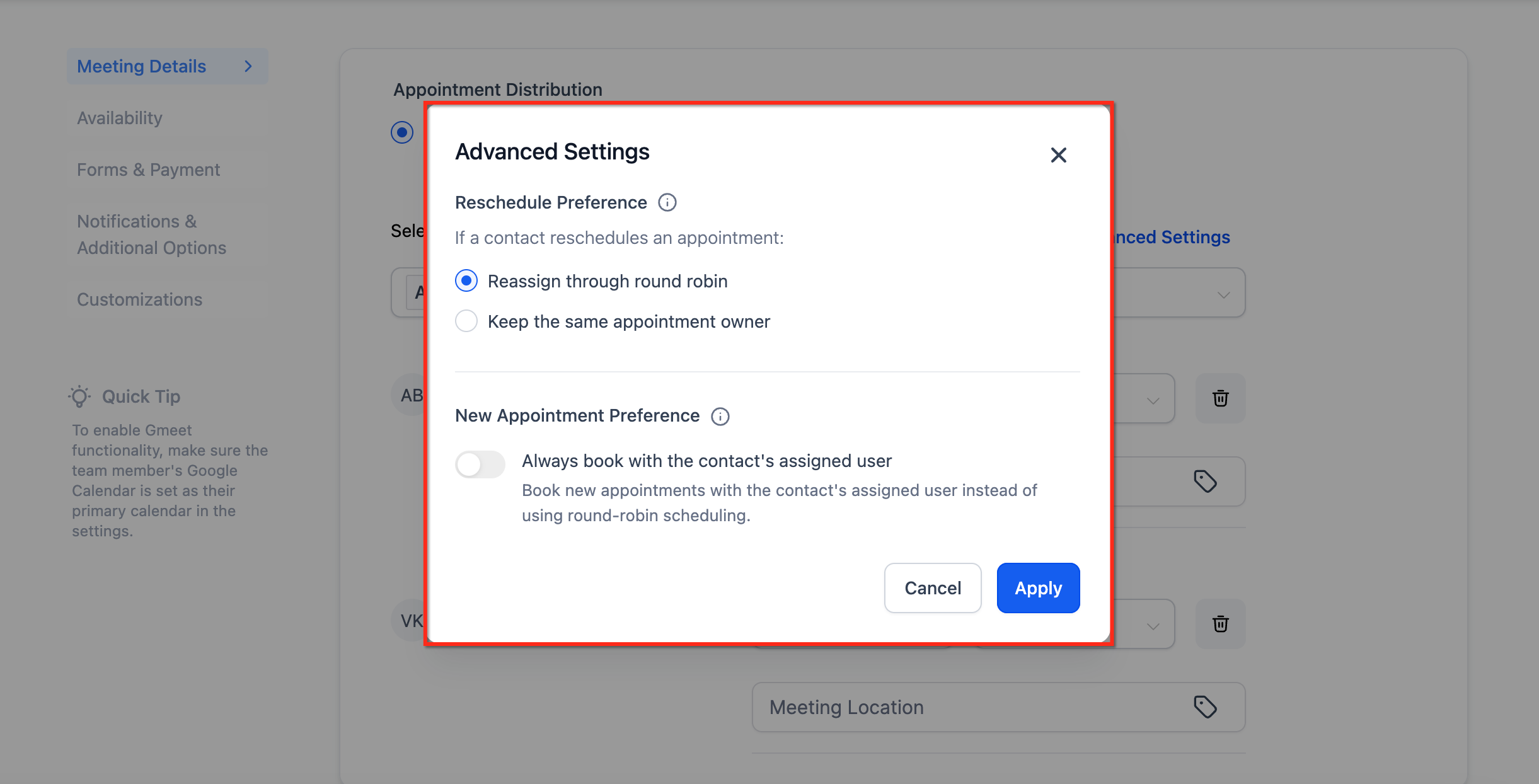
Setting New Appointment Preferences
New appointment preferences let you automate staff assignments based on predefined conditions. This ensures families book with the appropriate staff member when needed.
Step 1: Enable "Always Book with Assigned User"
This feature ensures new appointments are always booked with the family's assigned staff member. If a family has an assigned user, that person will be given preference; otherwise, it will be a round-robin assignment.
Prerequisites:
- The prospective family must already have an assigned staff member in the system
- The form must be first in the booking widget order (you can reorder widgets from the Forms & Payments tab)
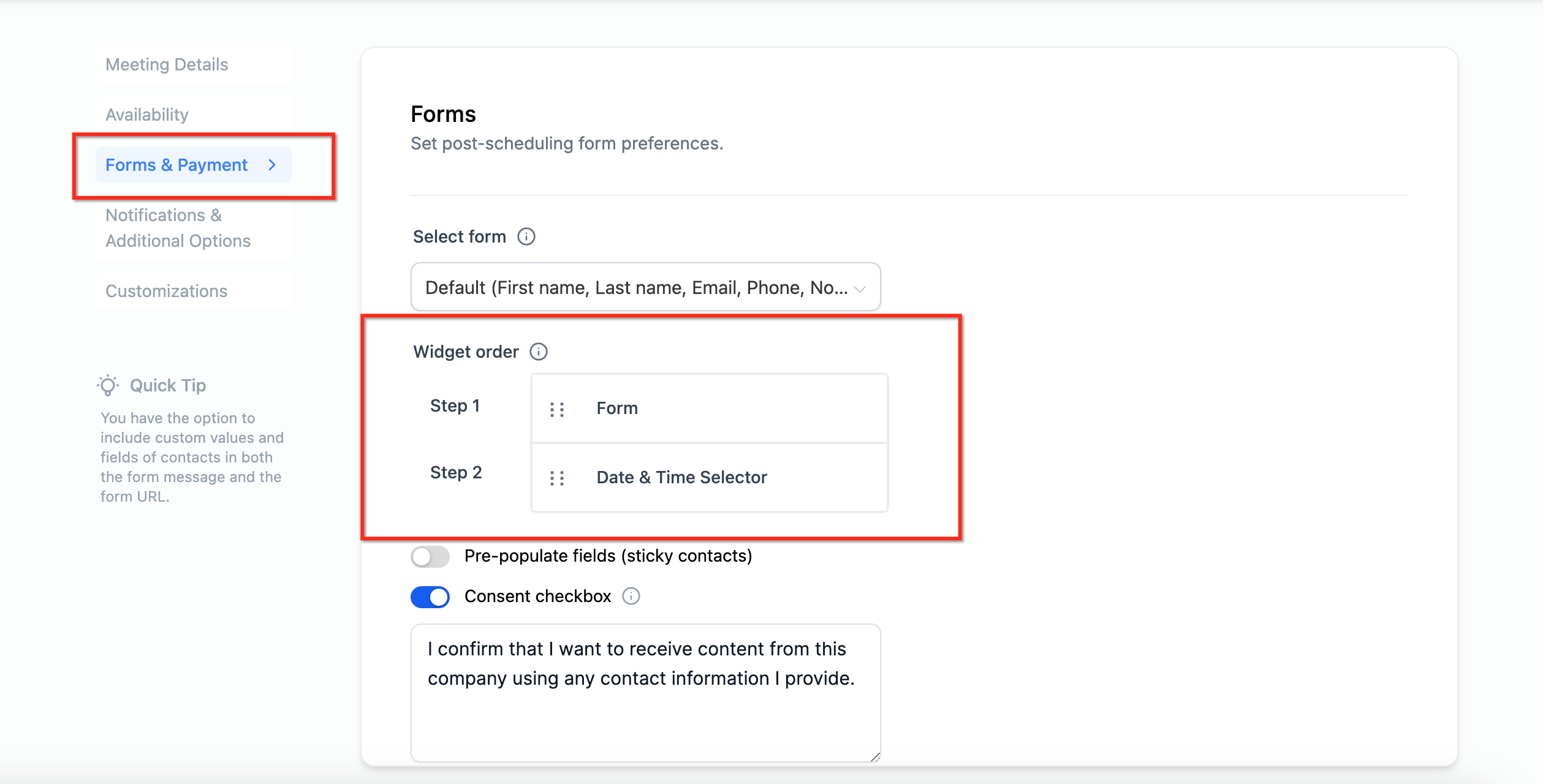
Step 2: Configuration Steps
- Go to Meeting Details > Team Members > Advanced Settings
- Toggle Always Book with Assigned User to enable this feature
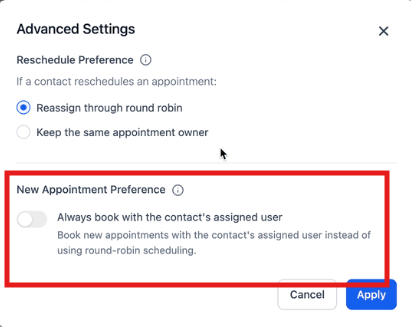
How New Appointment Preferences Work
Here's what happens when a family books an appointment:
- The family fills out their information on the form
- Based on their email or phone number, Enrollio checks who their assigned staff member is
- The system follows one of three scenarios:
Scenario 1 - No Assigned User: If the family has no assigned staff member, the appointment is assigned through round-robin scheduling.
Scenario 2 - Assigned User Not Part of the Calendar: If the family has an assigned staff member (e.g., Sarah) who isn't part of the calendar, the appointment is assigned through round-robin scheduling among available team members.
Scenario 3 - Assigned User Part of the Calendar: If the family has an assigned staff member (e.g., Sarah) who is part of the calendar, Sarah's slots are shown in the booking widget, and the appointment is booked with Sarah.
Additional Settings
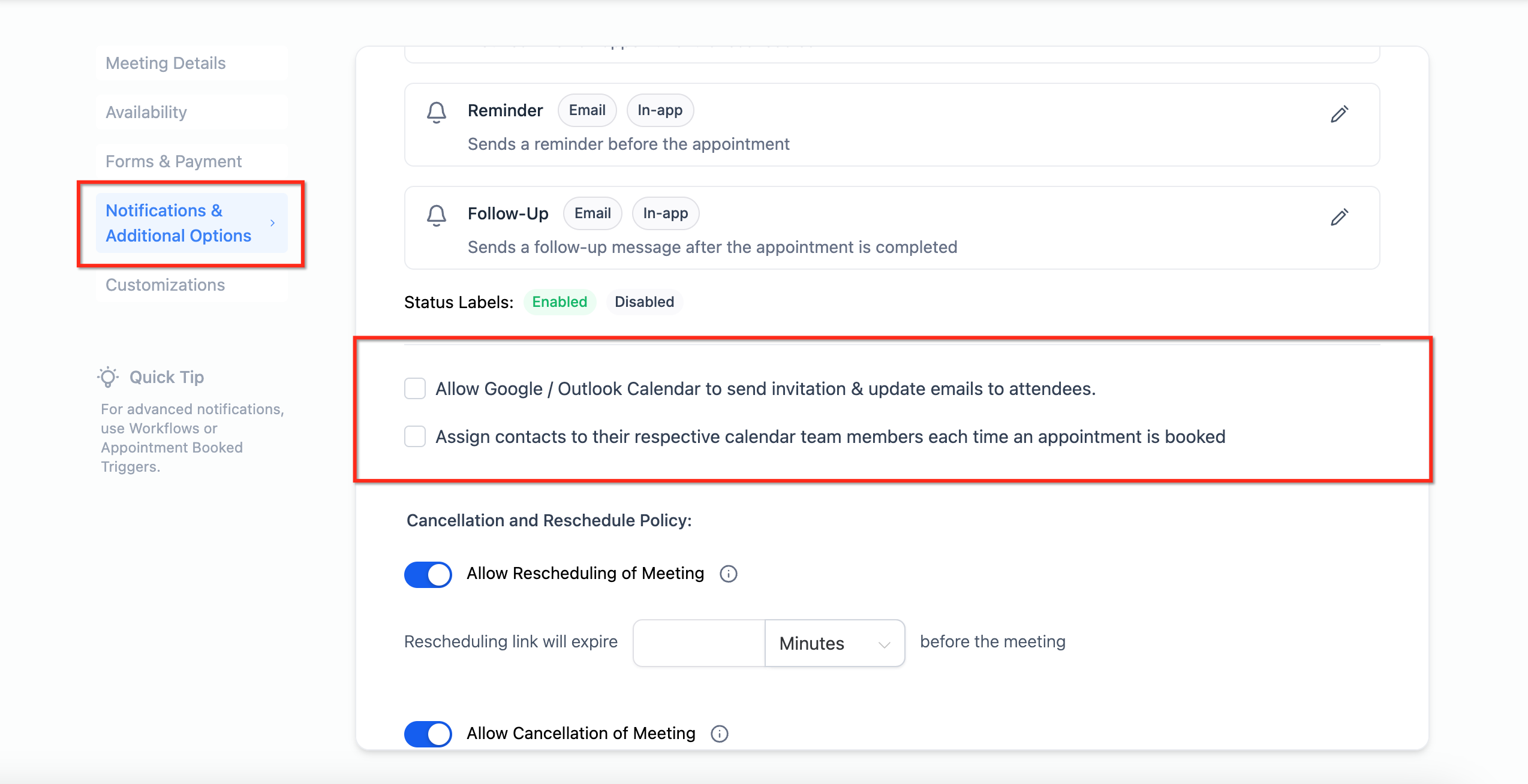
You can enable specific settings that impact how families are assigned to staff members within your Round Robin Calendar. Find these settings under Notifications and Additional Options tab.
Setting 1: Assign Contacts to Their Respective Calendar Team Members
This setting ensures that when an appointment is booked, the family is automatically assigned to the staff member they scheduled with. It helps streamline client management by keeping appointments and communications consistent with a single team member.
Setting 2: Automatically Assign Future Appointments to the Same Team Member
Enabling this setting ensures that once a family books an appointment with a specific staff member, all future appointments for that family will automatically be assigned to the same person. This helps maintain continuity and improves relationships by allowing families to work with the same staff member over time.
Best Practices
Follow these recommendations to keep your Round Robin Calendar running smoothly:
- Keep availability updated: Ensure your team's availability is current for accurate appointment distribution
- Review settings regularly: Check Advanced Settings periodically to align with your center's needs
- Stay consistent: Maintain consistent settings across all calendars to prevent conflicts
Frequently Asked Questions
Q: What happens if a family doesn't have an assigned staff member?
The Round Robin logic will automatically assign an available team member based on the rotation.
Q: Can I manually assign an appointment to a specific staff member?
Yes, appointments can be manually reassigned within the calendar settings.
Q: How does rescheduling work with this feature?
Depending on your selected settings, the appointment can either remain with the original staff member or be reassigned through Round Robin logic.
Q: Why can't I see all my team members in the dropdown when booking an appointment from the family record?
When booking an appointment from the family detail screen (CRM > Contacts > Family > Appointments tab), the "Team Member" dropdown only shows staff members who are assigned to that specific calendar. To ensure multiple team members appear in the dropdown, go to Calendars > Select the Calendar > Team Members tab and add all relevant staff to that calendar. Only users added here will appear during manual booking.