
What Are Round Robin Calendars?
Round Robin Calendars automatically distribute tour bookings and parent meetings across your team members. Instead of parents choosing a specific staff member, the platform assigns the next available person — ensuring everyone gets a fair share of tours and no one gets overwhelmed.
This is perfect for childcare centers with multiple tour guides, enrollment coordinators, or directors who all handle family visits.
How It Works
When a parent books a tour through your Round Robin Calendar:
- The platform checks the first assigned staff member's availability
- If they're unavailable, it automatically moves to the next person
- This continues until it finds someone available at that time
- Parents only see time slots when someone can actually meet them
Key benefit: No double-bookings, no empty appointments, no manual juggling of schedules.
How Slot Capacity Works
If you allow multiple tours at the same time (like group tours), availability is based on your slot capacity limit. Each confirmed tour reduces capacity by 1.
If a tour overlaps multiple time slots, the platform reduces availability by 1 in each affected slot. A time slot only gets blocked when it reaches your defined capacity limit.
Why Use Round Robin for Your Center
Round Robin Calendars help childcare centers manage tours and parent meetings more efficiently:
- Fair distribution — No one staff member gets overloaded with tours while others sit idle
- Faster booking — Parents get the next available person, not just their first choice
- Scaling made easy — As you add more enrollment staff, they're automatically included in the rotation
- Better parent experience — More available slots mean parents can book tours that fit their schedule
- Less manual work — No more spreadsheets or group texts asking "who can take this tour?"
Creating a Round Robin Calendar
Here's how to set up automatic tour distribution for your team.
Step 1: Start Your Calendar
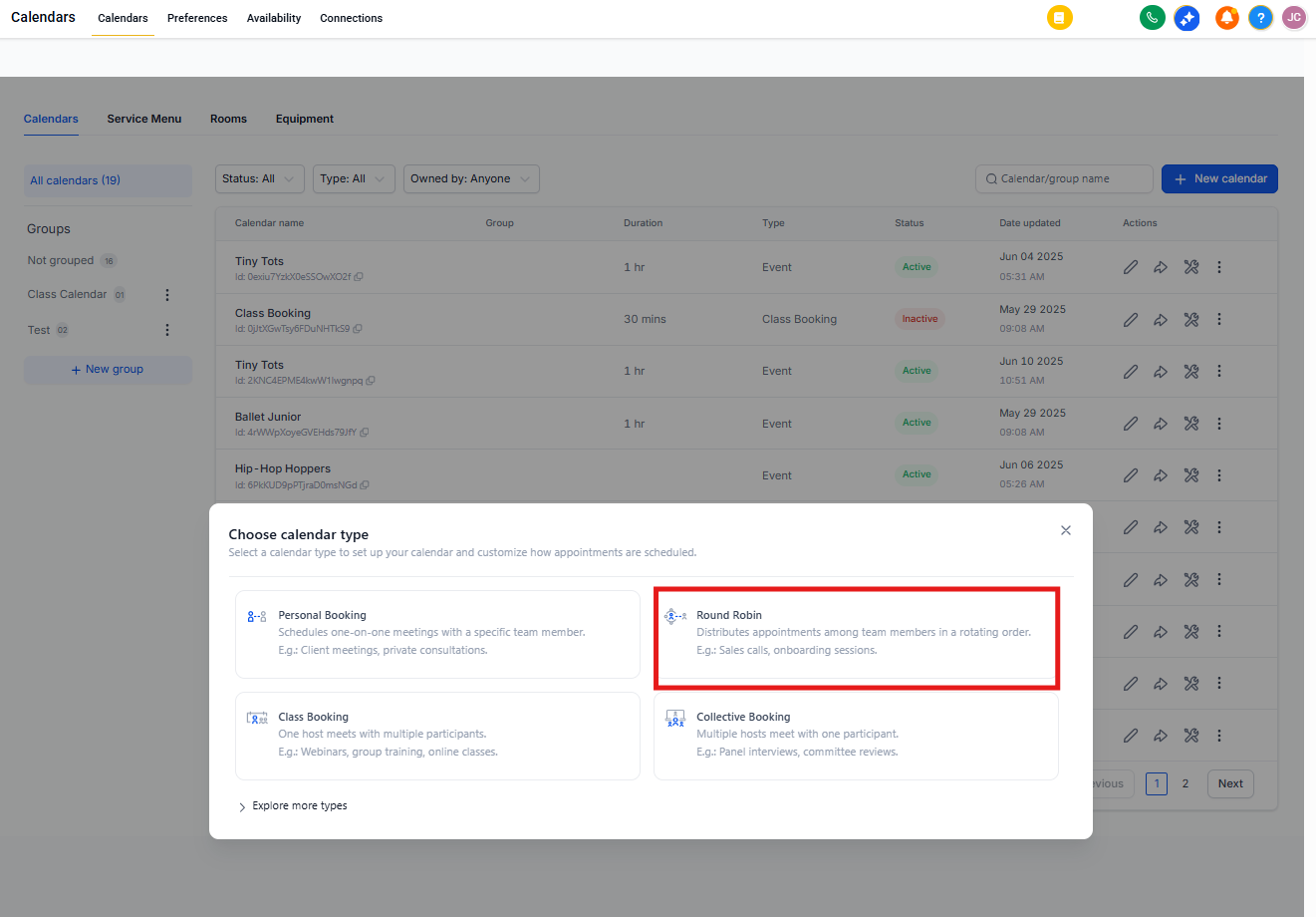
Navigate to Settings → Calendars and click Create Calendar. Select Round Robin as your calendar type.
You can also access this from the Calendars tab in your account, then click Calendar Settings → Create Calendar.
Step 2: Name Your Calendar
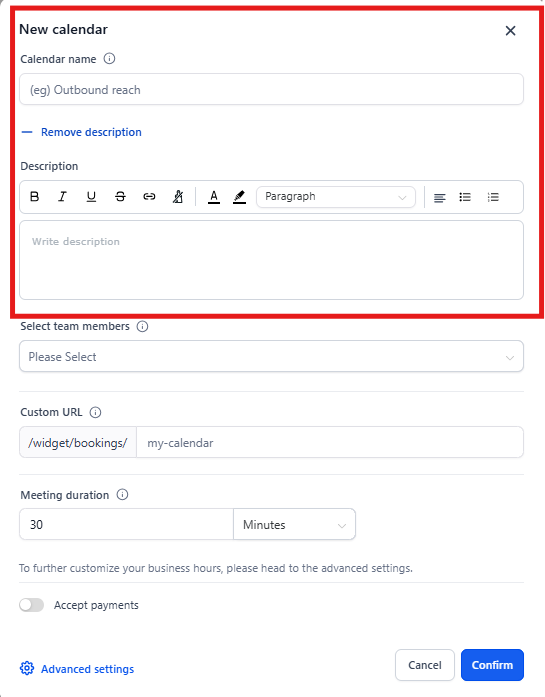
Give your calendar a clear name like "Center Tours" or "Parent Consultations." Add a description so you remember what it's for — especially helpful if you manage multiple calendars.
Step 3: Assign Your Team Members
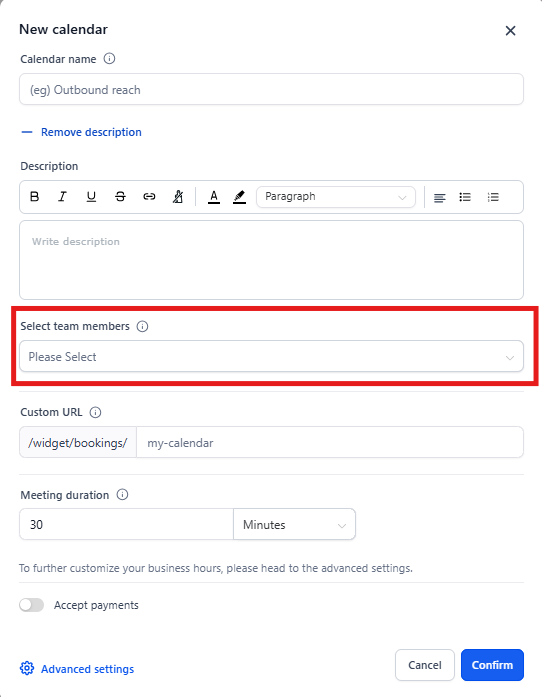
Select which staff members should receive tours through this calendar. You must assign at least one person, but you can add as many as you need.
Pro tip: Start with your core tour team. You can always add more people later as your enrollment staff grows.
Step 4: Set Your Custom URL
Enrollio automatically creates a booking URL based on your calendar name. You can edit this to make it cleaner or more memorable — like yourschool.enrollio.com/tours.
The platform checks if your URL is available. If it's taken, just modify it until you find one that works.
Step 5: Configure Meeting Duration and Availability
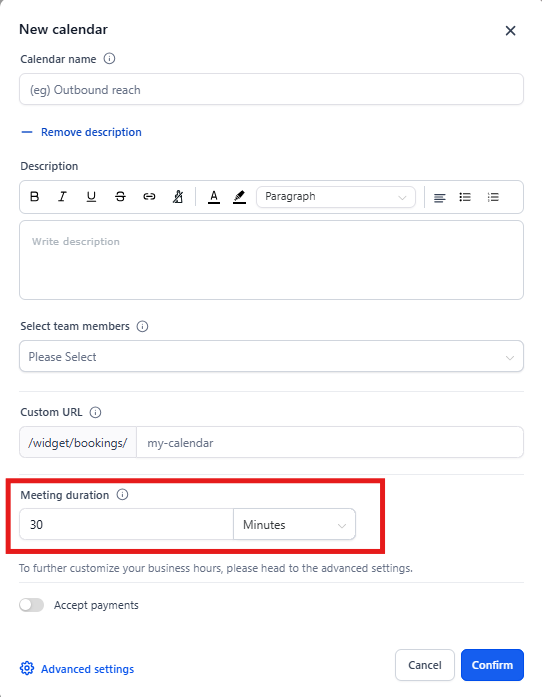
Set how long tours typically take — you can choose minutes or hours. Then configure when your team is available to give tours.
You can set availability based on:
- Standard weekly hours (like "weekdays 9am-4pm")
- Individual staff member schedules
- Specific dates and exceptions (like closing early during holidays)
For detailed guidance on setting availability windows, see Calendar Availability - Weekly Working Hours & Date-Specific Hours.
Step 6: Set Up Payments (Optional)
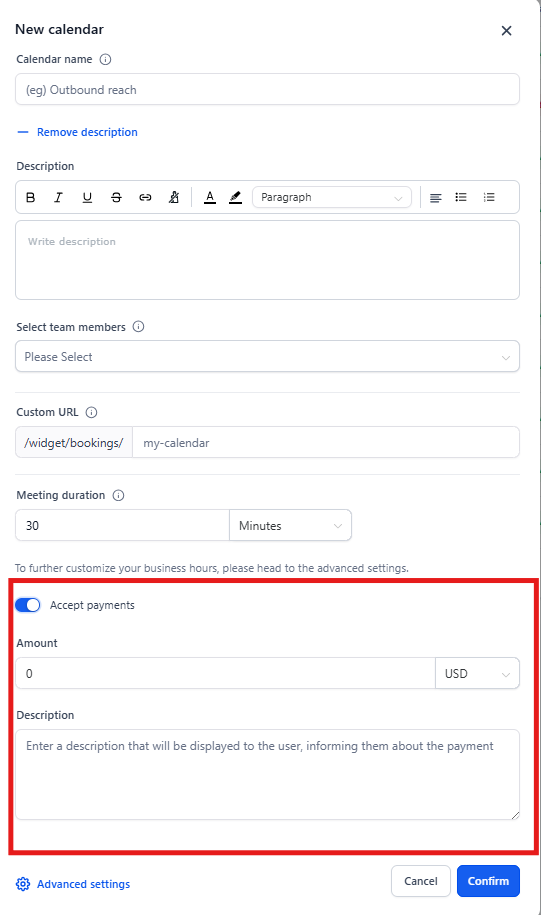
If you collect tour deposits or consultation fees, toggle on Accept Payments. Choose your currency and add payment details parents should know before booking.
For complete payment setup instructions, see Collecting Payments in Calendars.
Step 7: Save and Preview
Click Save to create your Round Robin Calendar. You can preview how it looks to parents, or edit settings anytime by clicking the three dots next to your calendar name.
Managing Your Round Robin Calendar
Once your calendar is live, you can adjust settings as your center's needs change. Here are some related resources:
Distribution and Assignment
- Appointment Distribution Logic — Control whether tours are distributed based on availability or equal rotation
- Team Member Assignment in Round Robin Calendars — Configure how staff members are assigned and handle rescheduling
- Staff Selection in Round Robin Calendars — Let parents choose their preferred staff member while still using round robin backup
Preventing Double-Bookings
- Setting Up Linked & Conflict Calendars — Sync Enrollio with Google Calendar or Outlook to prevent scheduling conflicts
Fine-Tuning Availability
- Adjusting Availability Settings for Individual Calendars — Set working hours, buffer times between tours, and appointment slot durations
- Calendar Availability - Weekly Working Hours & Date-Specific Hours — Customize team availability by specific days and times
Troubleshooting and Sharing
- Troubleshooting Tool for Calendar — Identify and fix issues preventing tour bookings
- Deactivating Calendar Groups — Disable calendar groups while keeping historical records
- Embedding Calendars using HTML Code — Add your calendar to your website or landing pages
Frequently Asked Questions
What happens if no one is available at the time a parent wants?
Parents won't see that time slot as an option. The calendar only displays times when at least one assigned staff member is available, so families can't accidentally book tours when no one can meet them.
Can parents choose a specific staff member?
By default, Round Robin automatically assigns the next available person. However, you can enable staff selection if you want to give parents the option to choose while still using round robin as a backup.
How do I add more staff to an existing Round Robin Calendar?
Navigate to your calendar, click the three dots, and select Edit. Add new team members in the Team Members section and save your changes.
Can I use Round Robin for group tours?
Yes! Set your slot capacity higher than 1 to allow multiple families to book the same tour time. The platform tracks capacity automatically and blocks slots when they're full.