
Why Should You Customize Your Calendar?
Your booking calendar is often one of the first things prospective families see when they're ready to schedule a tour. Keeping your calendar colors consistent with your childcare center's branding helps you look professional and memorable.
When your calendar colors match your logo and website, families get a cohesive experience that builds trust. It's a small detail that makes a big difference in how polished your center appears.
How to Customize Calendar Colors
Important: You can only customize calendar colors if you're using the NEO calendar style.
Step 1: Navigate to Calendar Settings
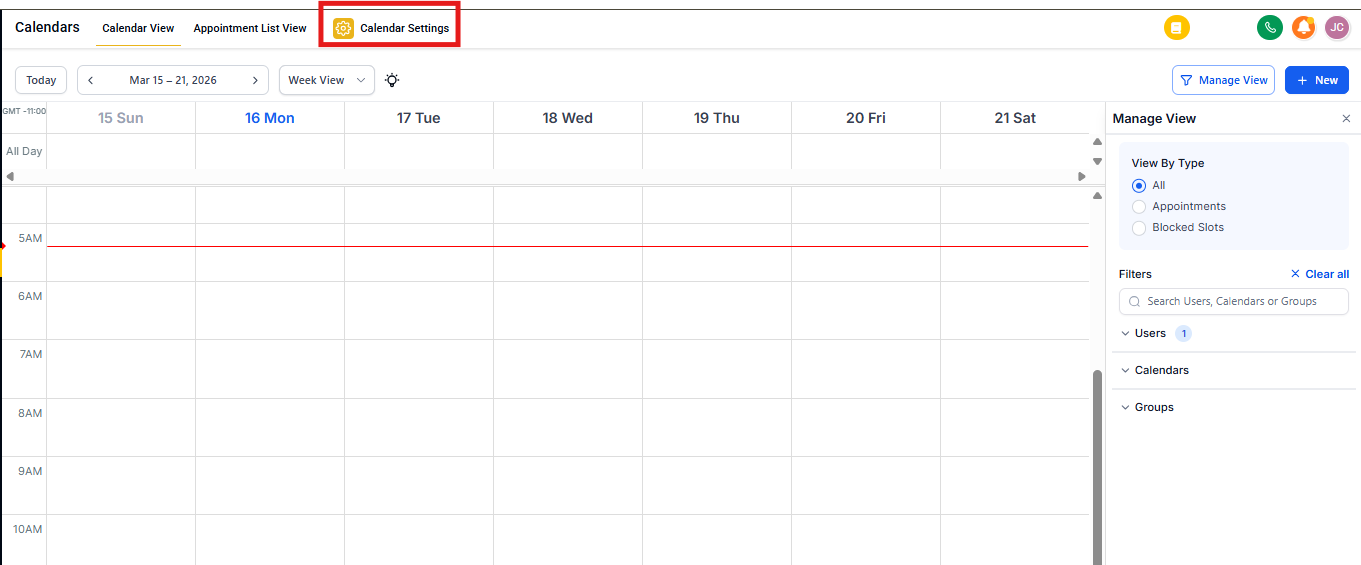
Click Calendars in the main navigation, then click Calendar Settings in the top menu.
Step 2: Edit Your Calendar
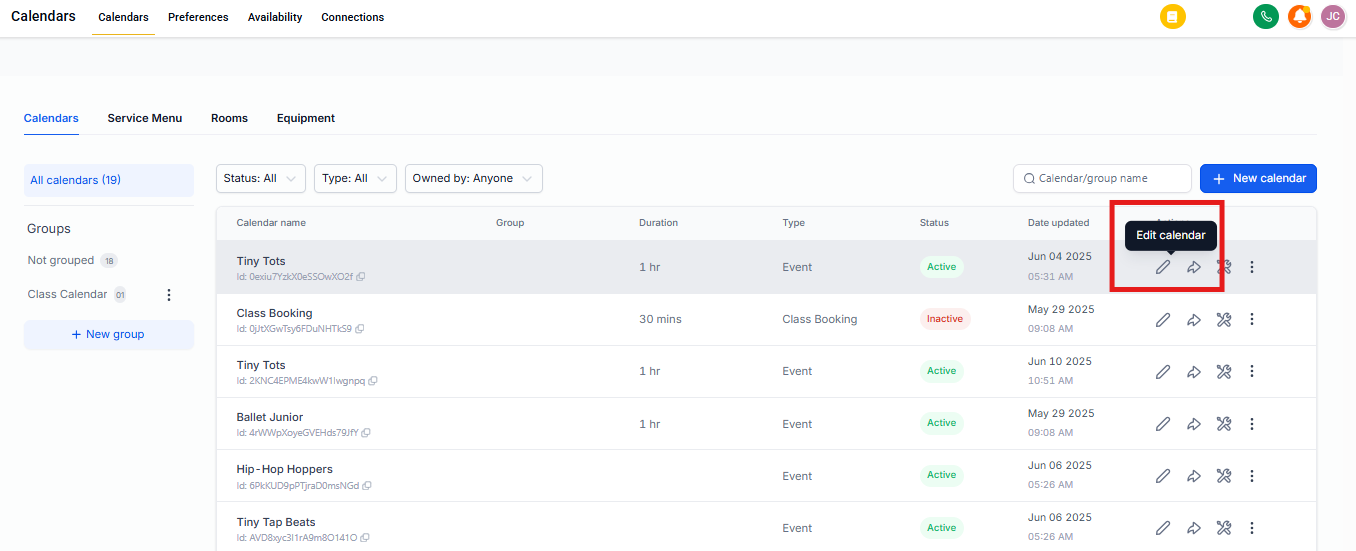
Find the calendar you want to customize in the list. Click the 3-dot icon in the Action column on the right, then select Edit from the dropdown menu.
Step 3: Navigate to Customizations
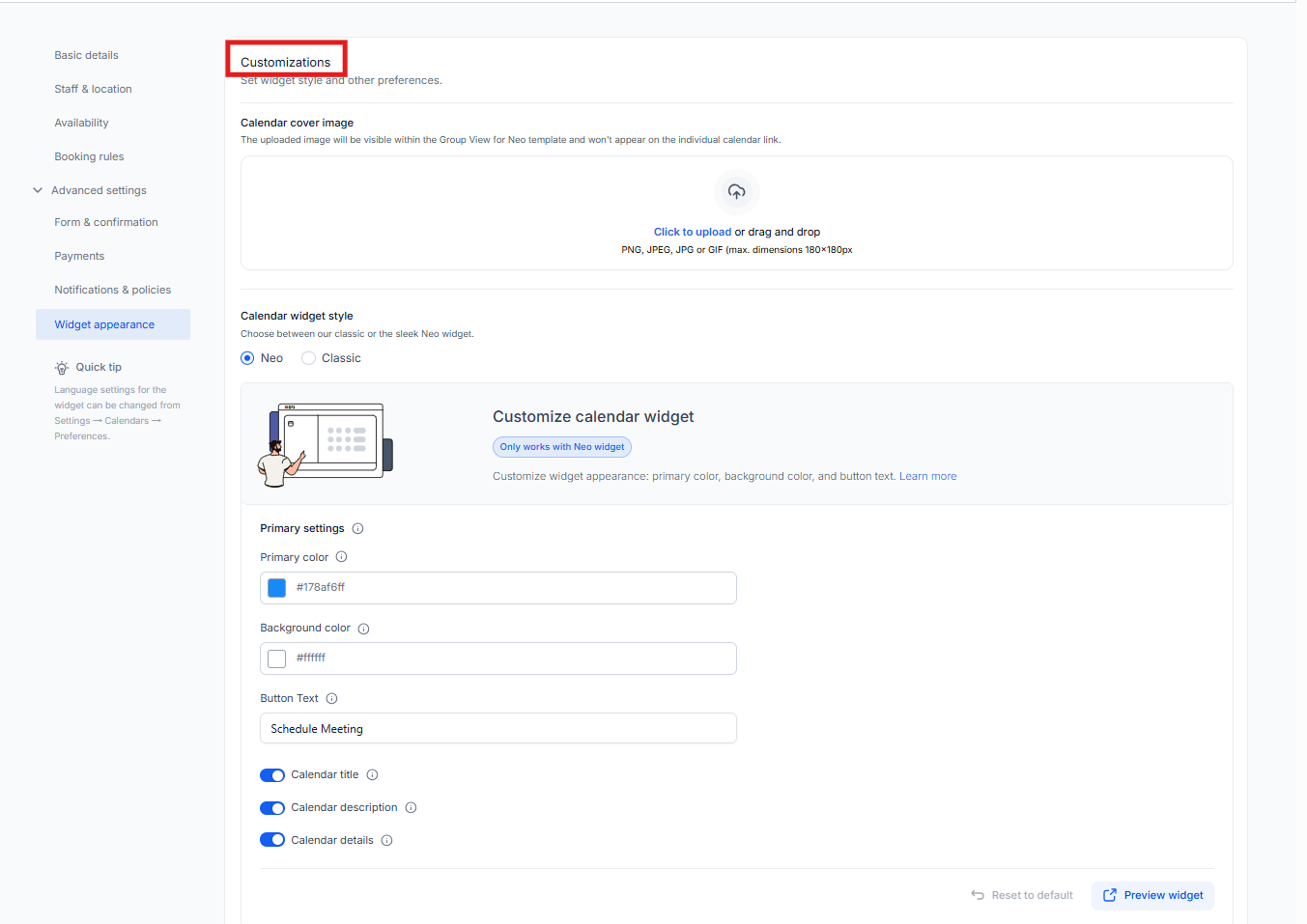
In the calendar editor, look for the navigation menu on the left side of your screen. Click Customizations at the bottom of the menu.
Step 4: Choose Your Colors
Scroll down to find the color pickers. You'll see two options:
- Primary Color – Controls buttons, highlights, and interactive elements
- Background Color – Controls the overall background of your calendar
You can customize colors in two ways:
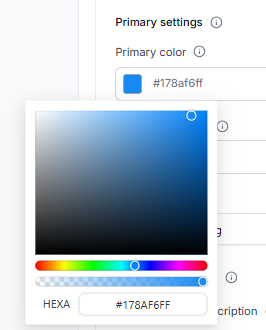
- HEXA Code – Enter your exact brand color code (starts with #). This ensures perfect color consistency across all your materials.
- Color Slider – Click and drag the circle in the color picker to find the right shade visually.
What Gets Customized?
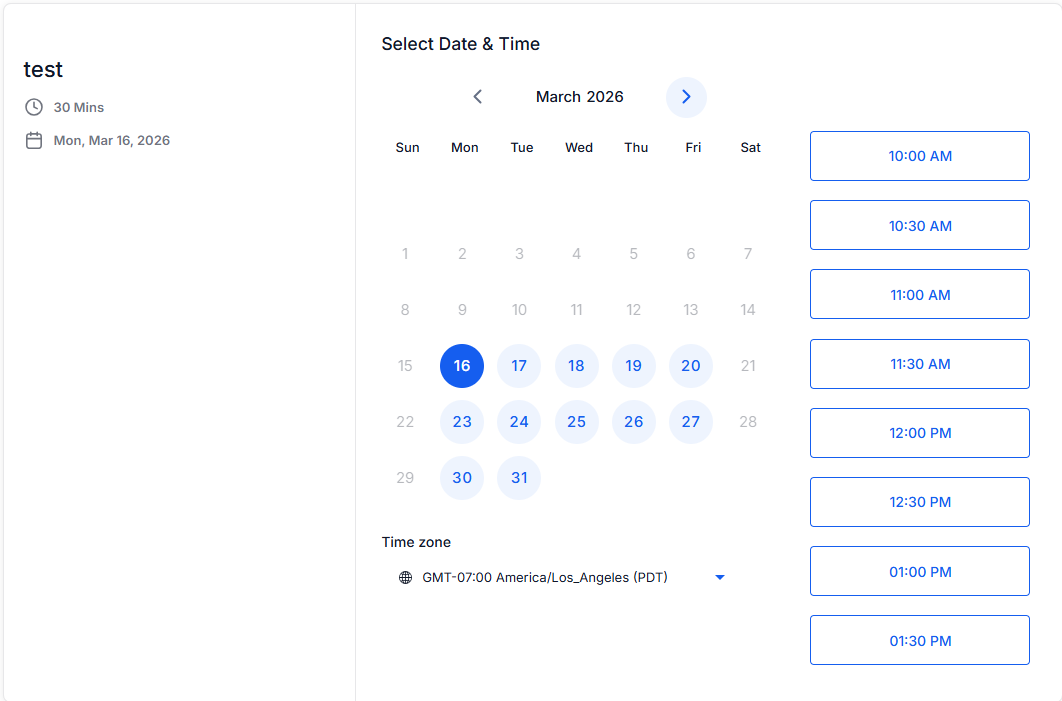
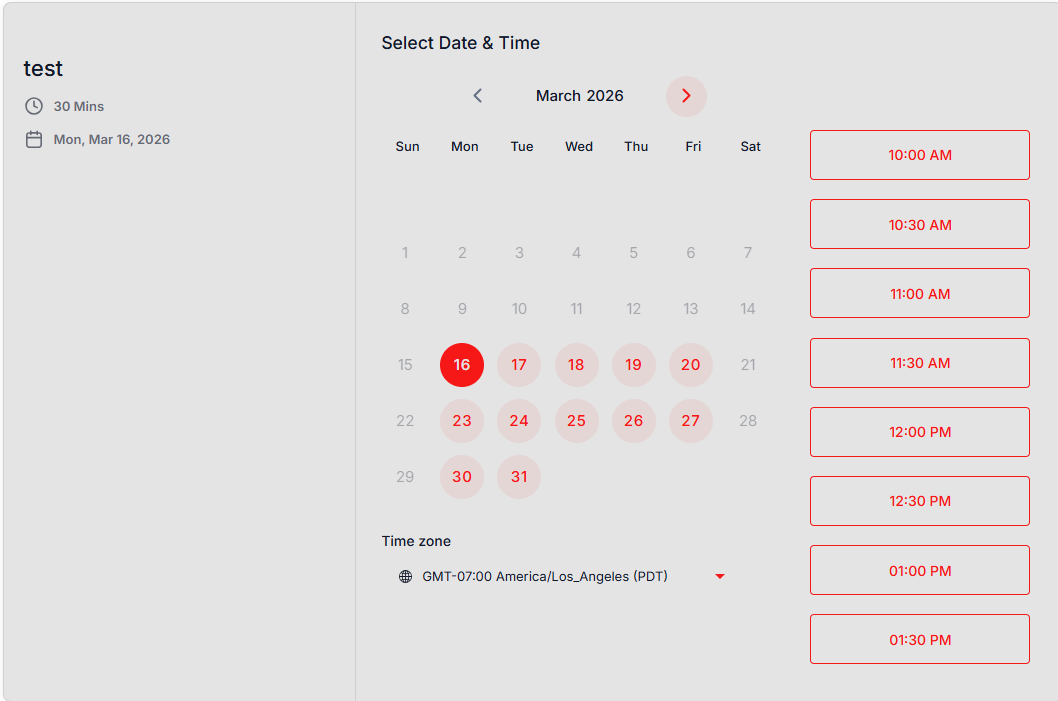
Changing your calendar colors affects several parts of the booking experience:
Primary Color Changes:
- Calendar navigation buttons (month/week/day views)
- Date selection highlights
- Time slot selection buttons
- Confirmation buttons
- Action links and clickable elements
Background Color Changes:
- Overall calendar background
- Header area
- Date/time selection panels
- Form backgrounds
Frequently Asked Questions
Can I use different colors for different calendars?
Yes! Each calendar can have its own color scheme. This is helpful if you want to use different colors for tours vs parent meetings vs staff availability.
Will families see my custom colors?
Absolutely. Your custom colors appear everywhere families interact with your calendar — on your website, in booking links, and in confirmation pages.
What if I only have the Classic calendar style?
You'll need to switch to the NEO calendar style to customize colors. Go to your calendar settings and look for the Style option in the calendar editor.