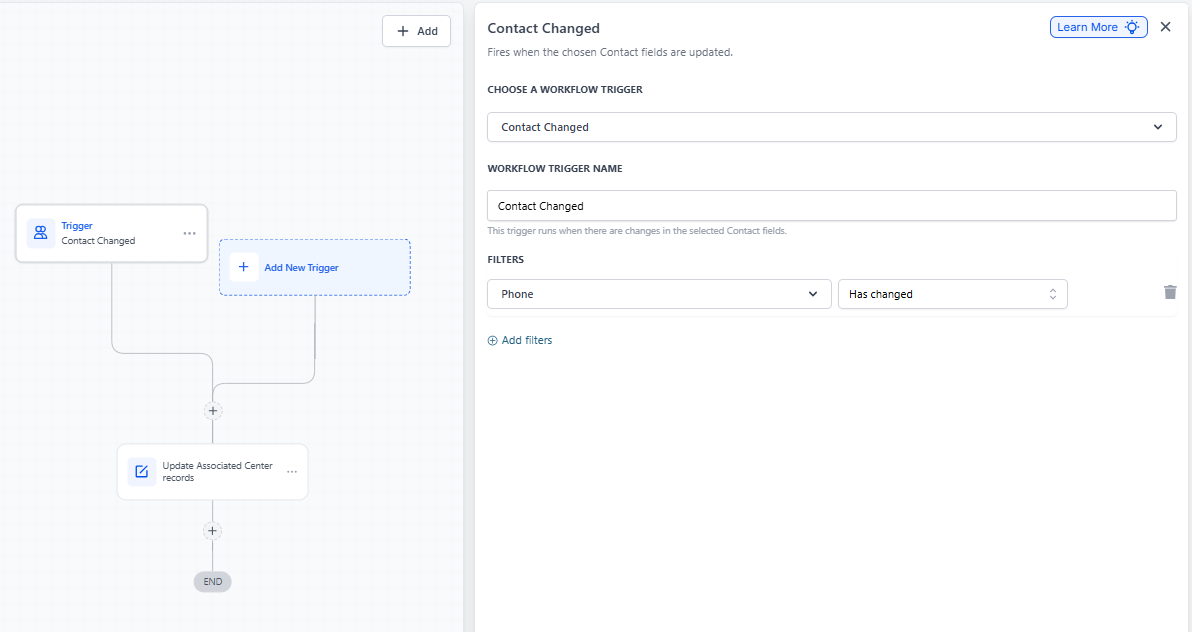
Overview
The Update Center or Associated Family action lets you automatically update details for your childcare center record or associated parent/family contacts within a center-based automation. Keep your CRM data accurate by dynamically updating center or family information whenever related events occur—like form submissions, webhook updates, or record changes.
When to Use This Action
Use this action to:
- Automatically update your existing center record or parent/family contacts linked to your center
- Map automation fields, webhook data, or fixed values to update CRM fields
- Correct or enrich center and family data based on incoming triggers
- Streamline data management across your center-based automations
Important: This action modifies existing records—it doesn't create new ones. To create new entries, use the Create Center or Associated Family action instead.
Setting Up the Action
1. Choose What to Update
Select which record type you want to update:
- Center: Modify your current center record in the automation
- Associated Family: Update contact details for one or more parents/families linked to your center
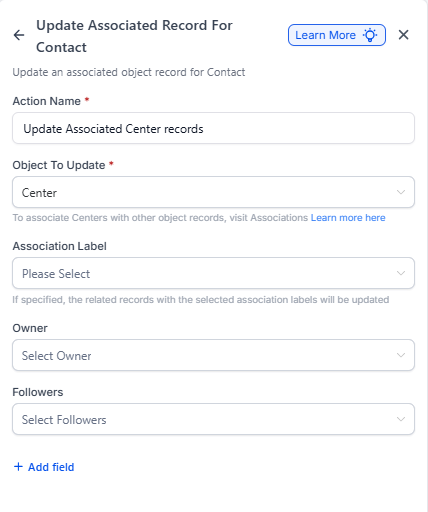
2. Map Your Fields
Connect data from your automation sources to the fields you want to update. Here are some common examples:
- Center Type: {{inboundWebhookRequest.body.centerType}}
- Family Phone: {{inboundWebhookRequest.body.phone}}
- Family Status: {{inboundWebhookRequest.body.status}}
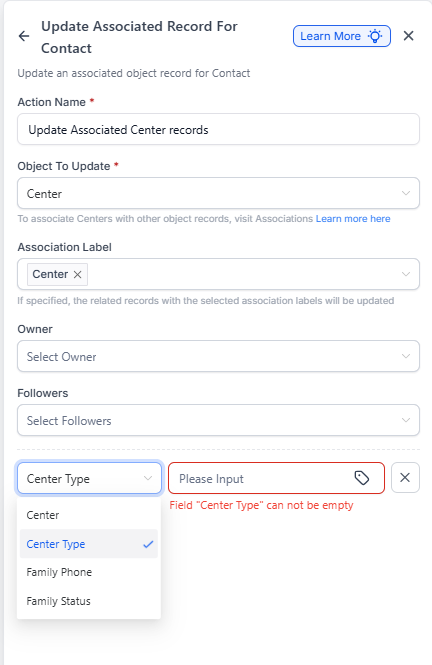
3. Use Dynamic Values
You can pull data from multiple sources:
- Inbound webhook data: {{inboundWebhookRequest.body.centerName}}
- Center fields: From the record that triggered the automation
- Fixed text: Like "Active" or "Updated by Automation"
4. Update Multiple Fields at Once
Click + Add Field to update several fields in a single action. Each row represents one field-value pair to update.
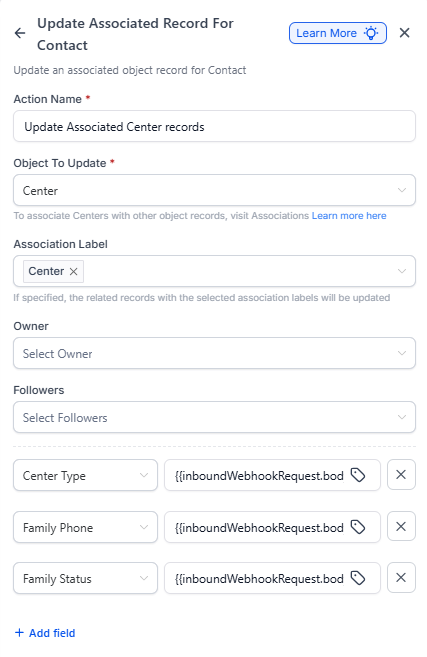
5. Save Your Action
Click Save Action to confirm. When your automation runs, the selected fields will update based on the latest values in the automation context.
How It Works with Associated Families
When updating Associated Families, the action only updates parents/families currently linked to your center record in the automation. If no matching associated families exist, the action skips automatically—no error, no problem.
Important Notes
- This action is available only in center-based automations
- It cannot create new records—use the Create Center or Associated Family action for that
- Make sure your webhook data structure matches your field mappings
Real-World Examples
Example 1: Update Center Information from External System
Goal: Automatically update your center details whenever new data comes in from an external integration.
Setup:
- Automation Type: Center-based
- Trigger: Inbound Webhook (updated center data from external system)
- Object to Update: Center
Field Mappings:
- Center Name → {{inboundWebhookRequest.body.centerName}}
- License Type → {{inboundWebhookRequest.body.licenseType}}
- Website → {{inboundWebhookRequest.body.domain}}
How it works:
- Updated center data arrives through the webhook
- Automation triggers the update action
- Your existing center record updates automatically with the new values
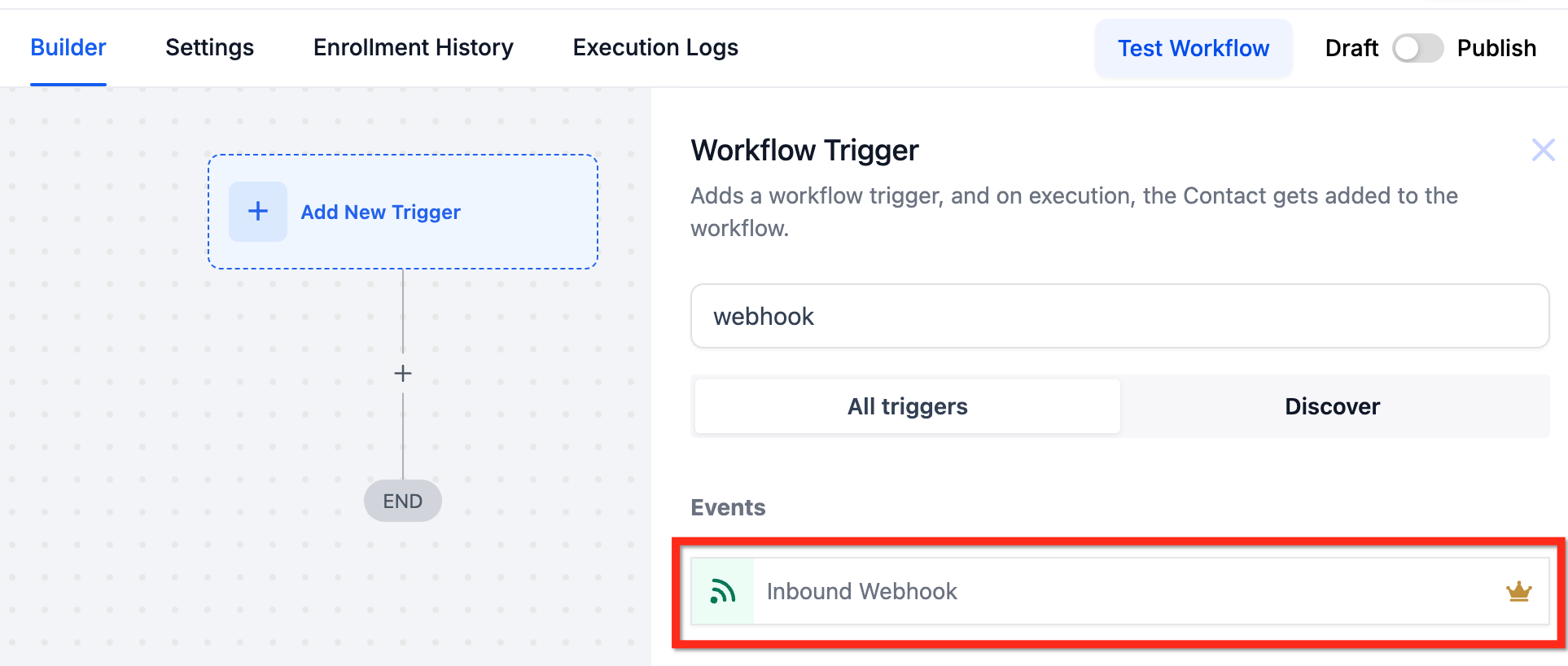
Example 2: Update Parent Contact Information
Goal: Automatically update a parent's phone number and emergency contact when they submit an updated information form.
Setup:
- Automation Type: Center-based
- Trigger: Center Updated or Form Submission (parent information update)
- Object to Update: Associated Family
Field Mappings:
- Phone → {{inboundWebhookRequest.body.phone}}
- Emergency Contact → {{inboundWebhookRequest.body.emergencyContact}}
- Updated Date → {{currentDate}}
How it works:
- Parent submits updated contact information
- Automation identifies the family linked to your center
- The parent's phone and emergency contact fields update automatically