
Overview
The Remove Tag action lets you remove specific tags from a family's profile in Enrollio. Use this to keep your family records organized, update their status as they move through your enrollment process, or adjust which families receive certain communications.
Tags help you segment families based on their interests, stage in the enrollment process, or how they've interacted with your center. Removing tags keeps these segments accurate and up-to-date.
What This Action Does
This action removes selected tags — or all tags — from a family's record. When you remove a tag, you're changing which segment that family belongs to, which can affect future automations they're part of.
How to Set It Up
When you add this action to an automation, you'll configure these settings:
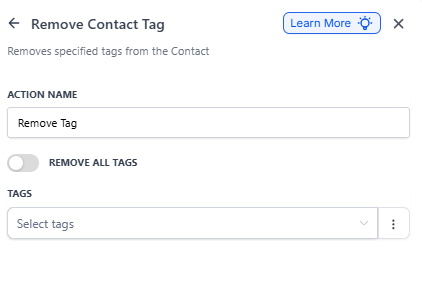
Action Name
Give your action a clear name that describes what it does. Something like "Remove Tour Interested Tag" or "Clear Event Attendee Tags" makes it easy to understand your automation at a glance.
Tags
Click the "Select a tag" dropdown and choose which tag(s) to remove. You can select multiple tags if needed. This field is required unless you're removing all tags.
Remove All Tags
Turn this toggle on if you want to remove every tag from the family's profile. When this is enabled, you won't be able to select specific tags — it removes everything.
When to Use This Action
Here are some common scenarios where removing tags makes sense:
When a Parent Replies
Set up an automation that removes tags based on what parents say in their messages. If someone texts back "not interested" or "already enrolled elsewhere," remove tags like "Tour Interested" or "Follow Up Needed."
When Tour Status Changes
If a scheduled tour gets canceled or rescheduled, remove the "Tour Confirmed" tag so your records stay current. This prevents you from sending tour reminder messages to families who aren't coming.
After Event Responses
When a parent completes a survey or RSVP form indicating they can't attend your open house, remove tags like "Event Attendee" or "Open House Registered" to keep your guest list accurate.
Example: Managing Open House Attendees
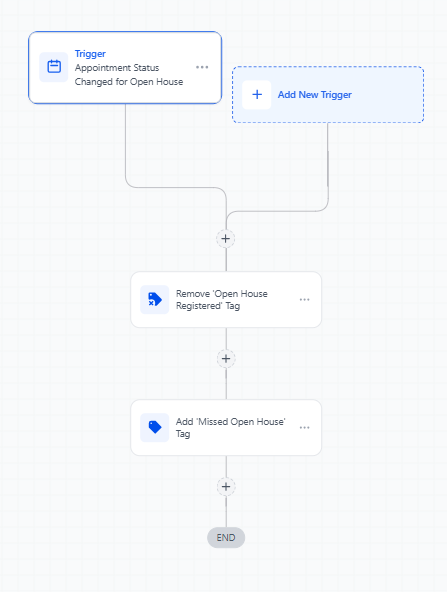
Let's say you're hosting an open house and tag interested families as "Open House Registered" when they sign up. If they don't show up, you want to remove this tag and handle them differently than families who actually attended.
Here's how to set it up:
- Action Name: "Remove Open House Tag for No-Shows"
- Tags: Select "Open House Registered"
- Trigger: Event Not Attended (or time-based trigger after the event)
- Follow-up Actions: Optionally add a new tag like "Missed Open House" so you can send these families a different follow-up sequence
What Happens Next
Once this action runs, the selected tag(s) disappear from the family's profile immediately. Any automations that trigger based on those tags won't affect this family anymore. You'll see the updated tags when you view their profile in your contacts list.