
Overview
This guide shows you how to set up a form in Enrollio where parents can select their preferred tour time and automatically receive a confirmation email. This is perfect when you want a single registration form with multiple time slots and instant confirmation.
What You'll Do
- Create a custom field to store the tour time slot
- Add the field to a registration form
- Set up an automation to send a confirmation email when the form is submitted
- Optionally, add reminder messages before the tour
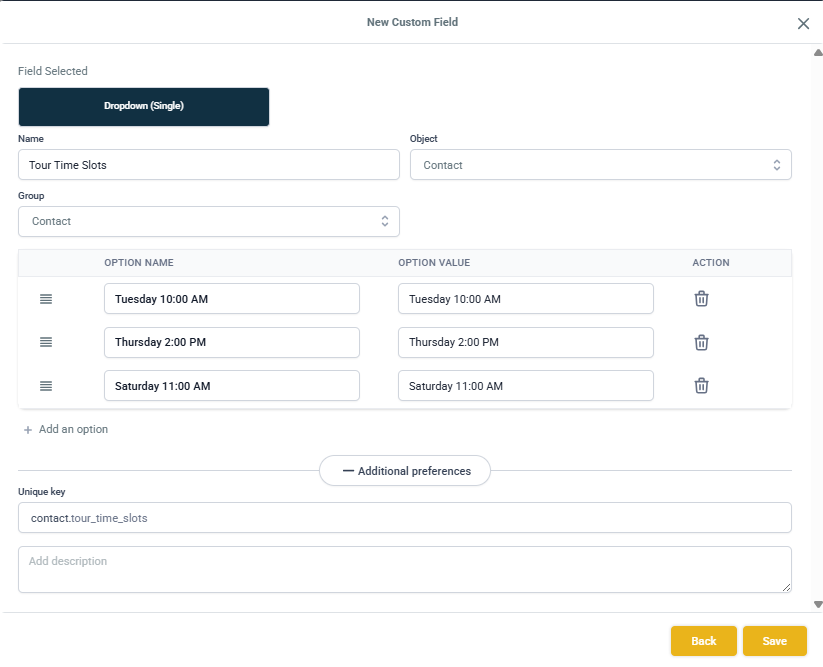
Step 1: Create a Custom Field for Tour Time Slots
- Navigate to Settings → Custom Fields
- Click + Add Field
- Select Dropdown or Radio Select
- Name the field: Choose Your Tour Time
- Set the Object to Contact
- Add your time slot options, such as:
- Tuesday 10:00 AM
- Thursday 2:00 PM
- Saturday 11:00 AM
- Leave Allow Custom Values unchecked — this ensures parents can only choose from your preset times
- Click Save
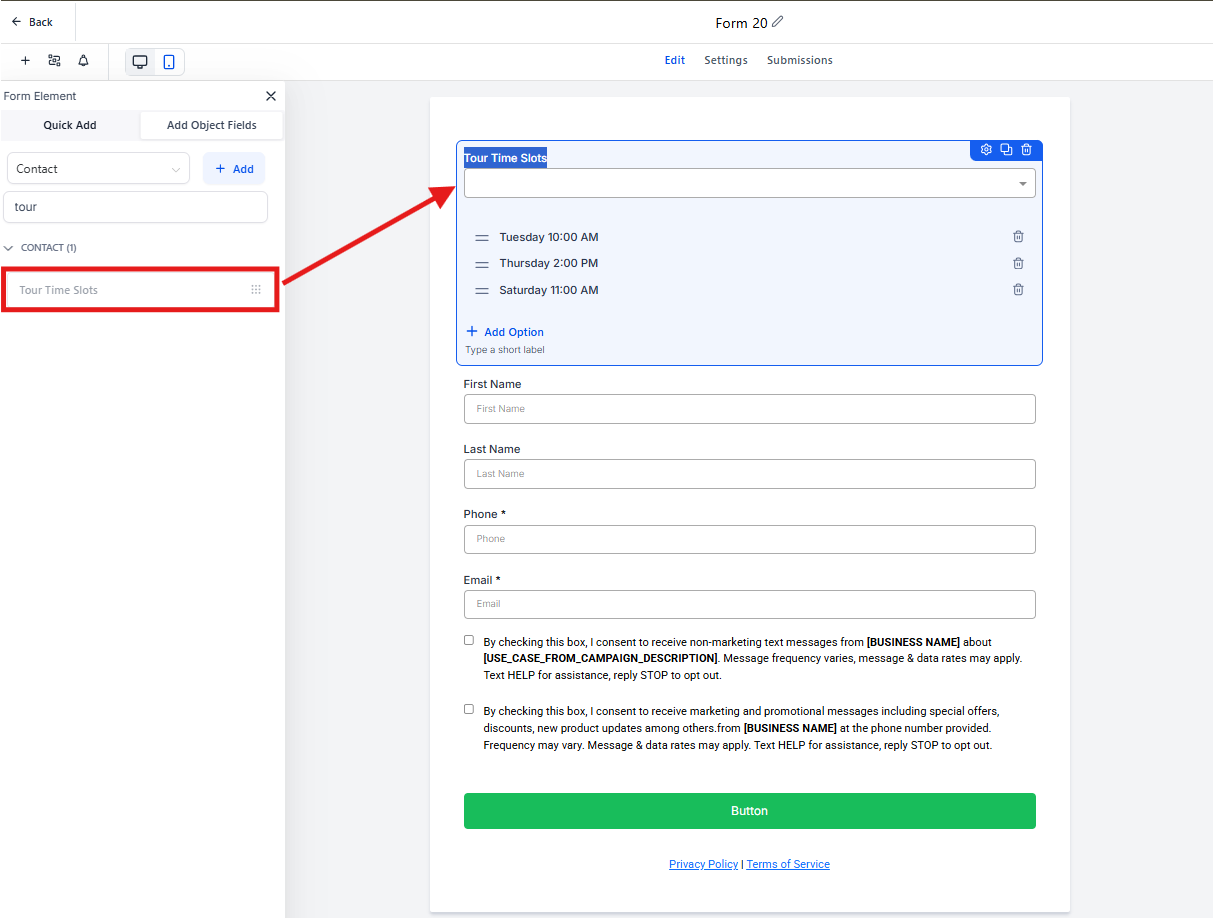
Step 2: Add the Field to Your Registration Form
- Go to Sites → Forms
- Click Create (or select an existing form to edit)
- From the Custom Fields tab, drag your new Choose Your Tour Time field onto the form
- Add other required fields like First Name, Last Name, Email, and Phone
- Save the form
Parents can now select their preferred tour time when they register.
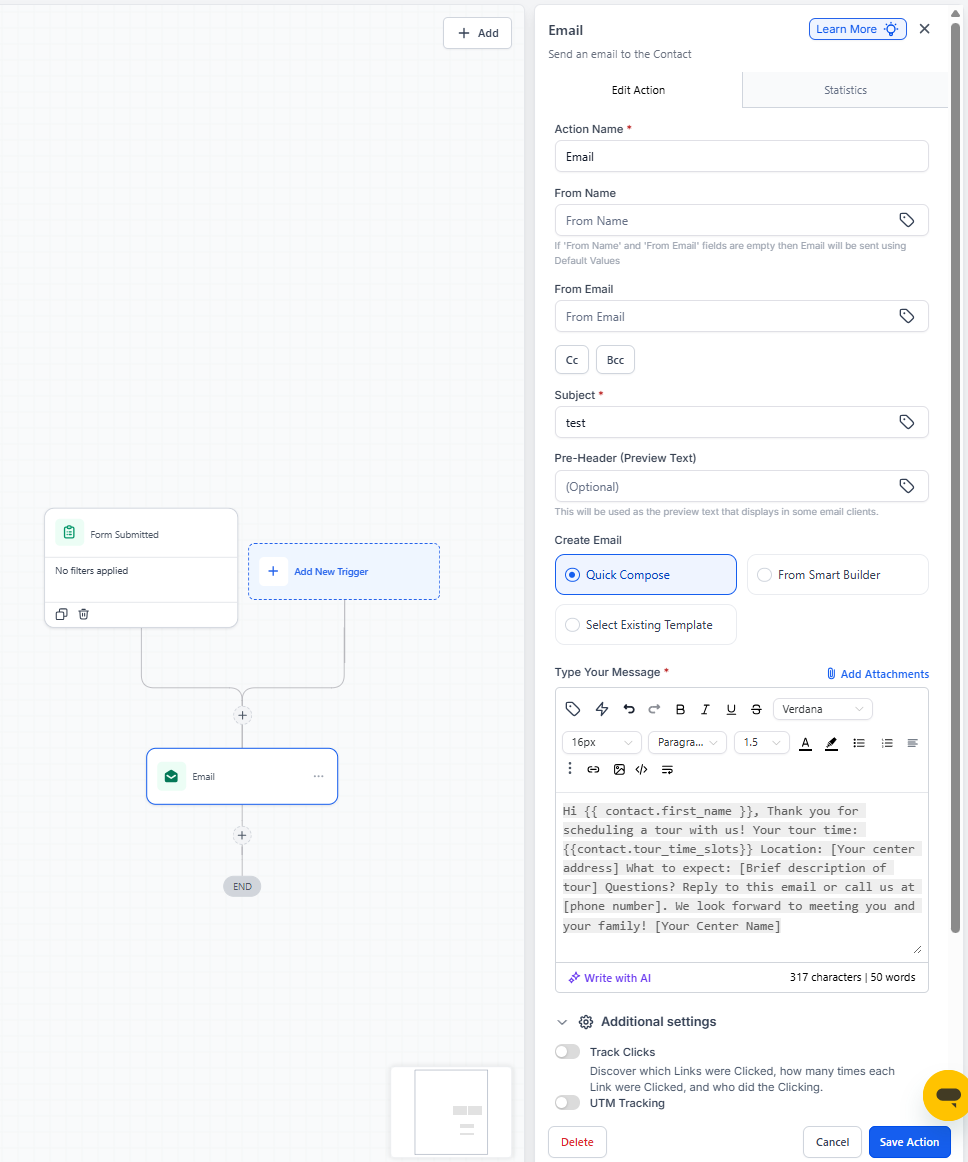
Step 3: Set Up the Confirmation Email
Form settings only control what happens on the page after submission (thank-you message, redirects). To send an email, you need to create an automation.
- Go to Automation → Automations → Create Automation
- Add a Trigger: Form Submitted and select your tour registration form
- Add a Send Email action
- Configure the email:
- Subject: Tour Confirmation - [Your Center Name]
-
Body:
Hi {{ contact.first_name }},

Thank you for scheduling a tour with us!

Your tour time: {{ custom_values.choose_your_tour_time }}

Location: [Your center address]

What to expect: [Brief description of tour]

Questions? Reply to this email or call us at [phone number].

We look forward to meeting you and your family!

[Your Center Name]
- Save and publish the automation
Every parent who registers will immediately receive a personalized confirmation email with their selected tour time.
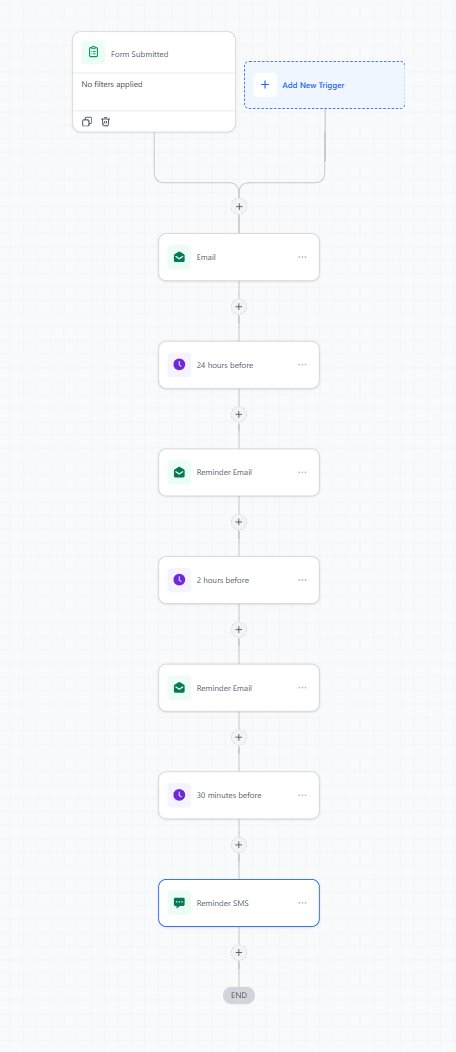
Step 4: Optional Reminder Messages
Reduce no-shows by sending reminders before the tour:
- In the same automation, add Wait Until actions timed relative to the tour
- Send reminders at strategic times:
- 24 hours before
- 2 hours before
- 30 minutes before (via text message)
- If you offer multiple tour sessions, add If/Else conditions in the automation based on the chosen time slot
Frequently Asked Questions
Should I allow custom values in the dropdown field?
No. Keep it unchecked so parents can only choose from your scheduled tour times. This prevents booking conflicts and keeps your calendar manageable.
Can I send confirmation emails without creating an automation?
Not if you want to include the chosen time slot. The on-page thank-you message can acknowledge submission, but personalized confirmation emails always require an automation.
Can I send different reminders based on which time slot they chose?
Yes. Add an If/Else step in your automation based on the "Choose Your Tour Time" field value. This lets you send time-specific reminders or different information for morning vs. afternoon tours.
What if I need to reschedule a tour?
You can manually update the custom field value in the parent's contact record, then send them a personal email with the new time. For frequent reschedules, consider using Enrollio's calendar booking feature instead.
Can I use this for open house events instead of individual tours?
Absolutely. Just adjust the field options to match your open house dates and times, and update the confirmation email language accordingly.