
Overview
Webinar pages let you host virtual open houses, parent info sessions, and staff training events. You can run them live or on-demand, making it easy to connect with prospective families and keep your staff informed.
Whether you're showcasing your center to out-of-town families or training staff on new policies, webinar pages give you everything you need: registration forms, automated reminders, and follow-up messages — all in one place.
Key Features
- On-Demand Webinars — Pre-recorded virtual tours or info sessions families can watch anytime
- Live Webinars — Real-time Q&A sessions, open houses, or staff trainings with scheduled dates and times
- Template Selection — Pre-built registration and confirmation pages so you can launch faster
- Automated Reminders — Pre-configured automations send email and text reminders automatically
Getting Started
To create your first webinar page:
- Log in to your Enrollio account
- Click Sites in the left sidebar
- Select Webinars
- Click New Webinar Page
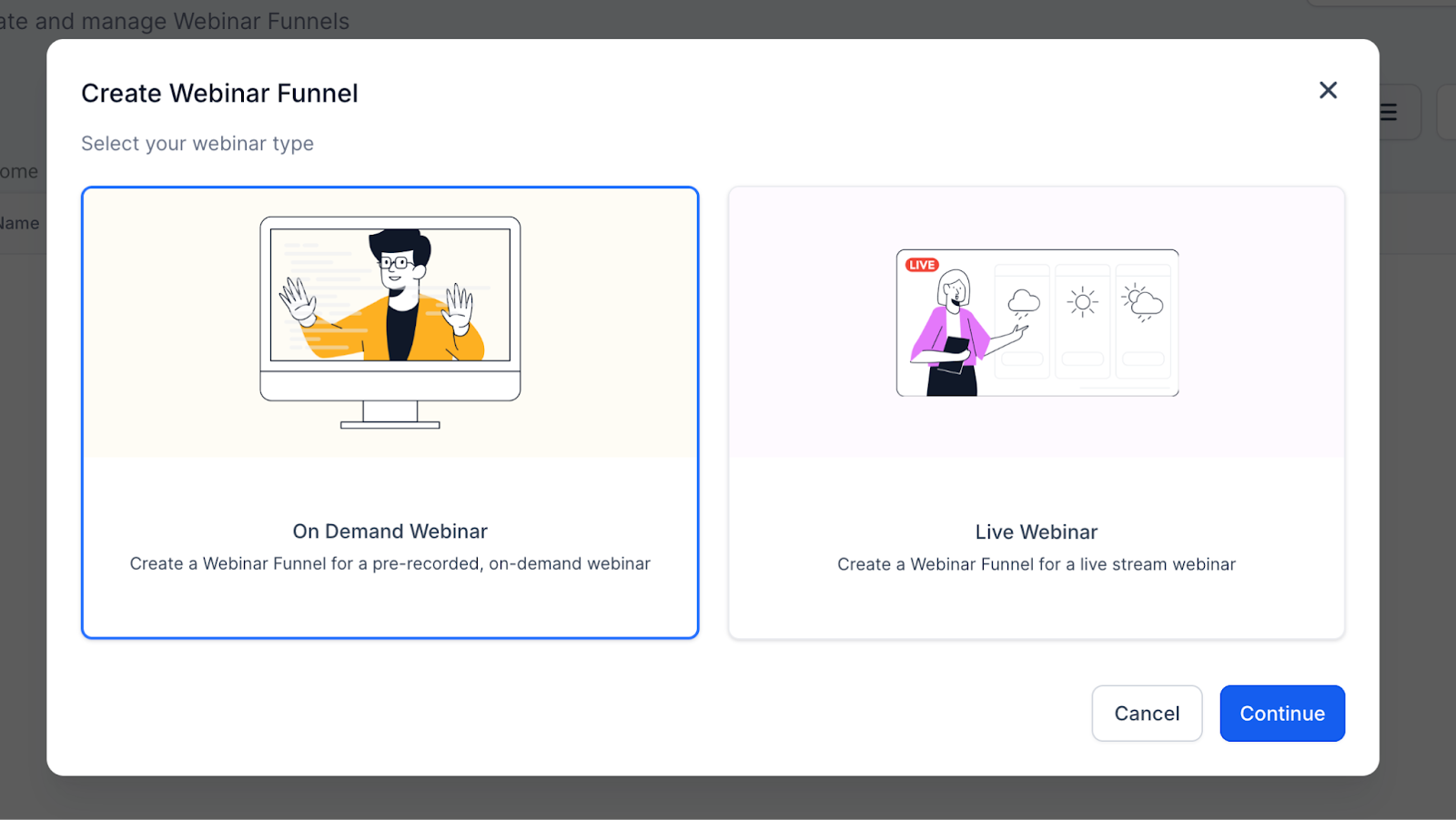
- Choose your webinar type:
- On Demand — Pre-recorded content families can watch anytime
- Live — Scheduled event with a set date and time
Live Webinars
Live webinars are perfect for virtual open houses, parent Q&A sessions, or staff meetings where you want real-time interaction.
4-Step Setup
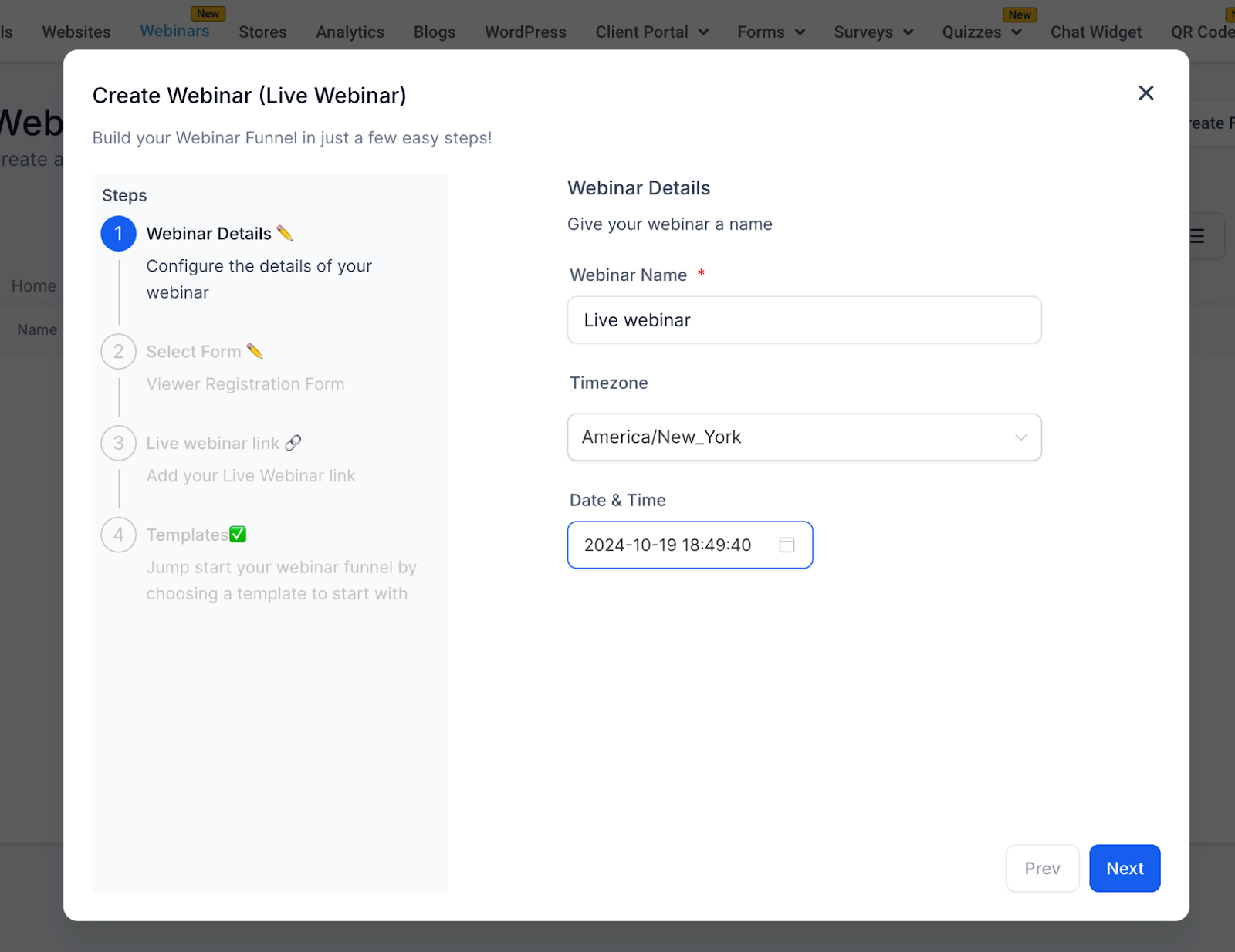
Step 1: Webinar Details
- Webinar Name (Required) — Example: "Virtual Open House - Spring 2025"
- Timezone (Required) — Default is America/New_York, but you can change it
- Date (Required) — Pick a future date
- Time (Required) — Example: 6:00 PM (after work hours often works best for parents)
Step 2: Select Registration Form
Families register using forms you create in Sites Forms. The form captures their contact info and syncs directly to your CRM.
- Choose from your existing forms in the dropdown
- Or create a custom form with fields like parent name, email, phone, and child's age
- Form submissions automatically trigger your reminder automations
Step 3: Add Your Streaming Link
Enter the link where your live session will stream:
- Zoom: https://zoom.us/j/123456789
- YouTube Live: https://youtube.com/watch?v=ABC123
Make sure to test your link before the event starts.
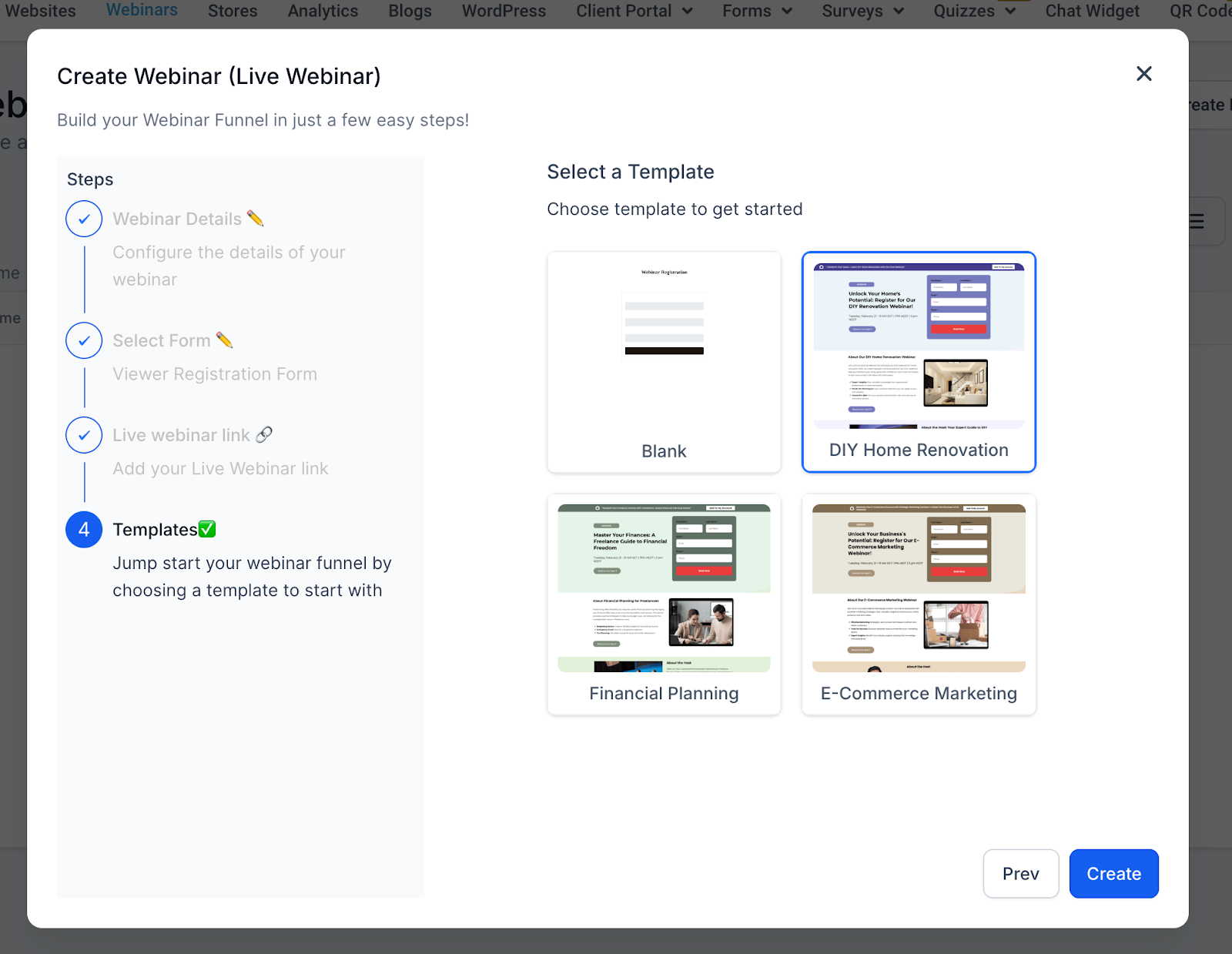
Step 4: Choose a Template
Pick from pre-designed templates like:
- Blank Live (start from scratch)
- Marketing Live (great for virtual tours)
- Financial Planning Live (good for explaining tuition and payment plans)
You can customize any template to match your branding.
On-Demand Webinars
On-demand webinars are pre-recorded sessions families can watch whenever it fits their schedule. Perfect for center tours, curriculum overviews, or staff training videos.
4-Step Setup
Step 1: Webinar Details
- Webinar Name (Required) — Example: "Virtual Center Tour - Watch Anytime"
- No timezone, date, or time needed since it's available on-demand
Step 2: Select Registration Form
Same as live webinars — families fill out a form to access your video. This lets you capture their info and follow up automatically.
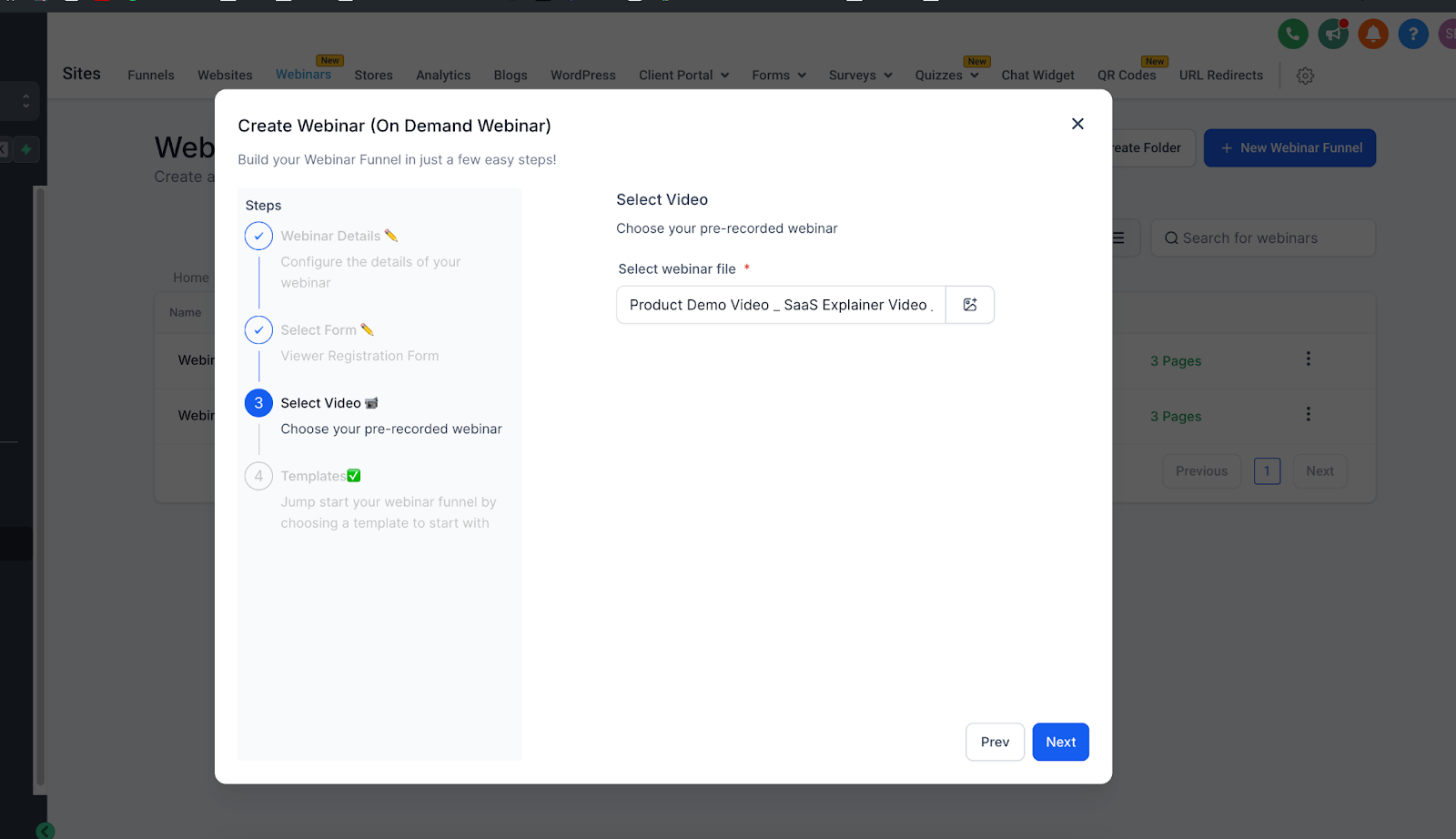
Step 3: Upload Your Video
- Upload a pre-recorded video from your computer
- Or select one from your media library
- Supported formats: MP4, MOV, AVI
Keep videos between 10-30 minutes — busy parents appreciate concise content.
Step 4: Choose a Template
Same template library as live webinars, optimized for on-demand viewing.
Automated Reminders and Follow-Ups
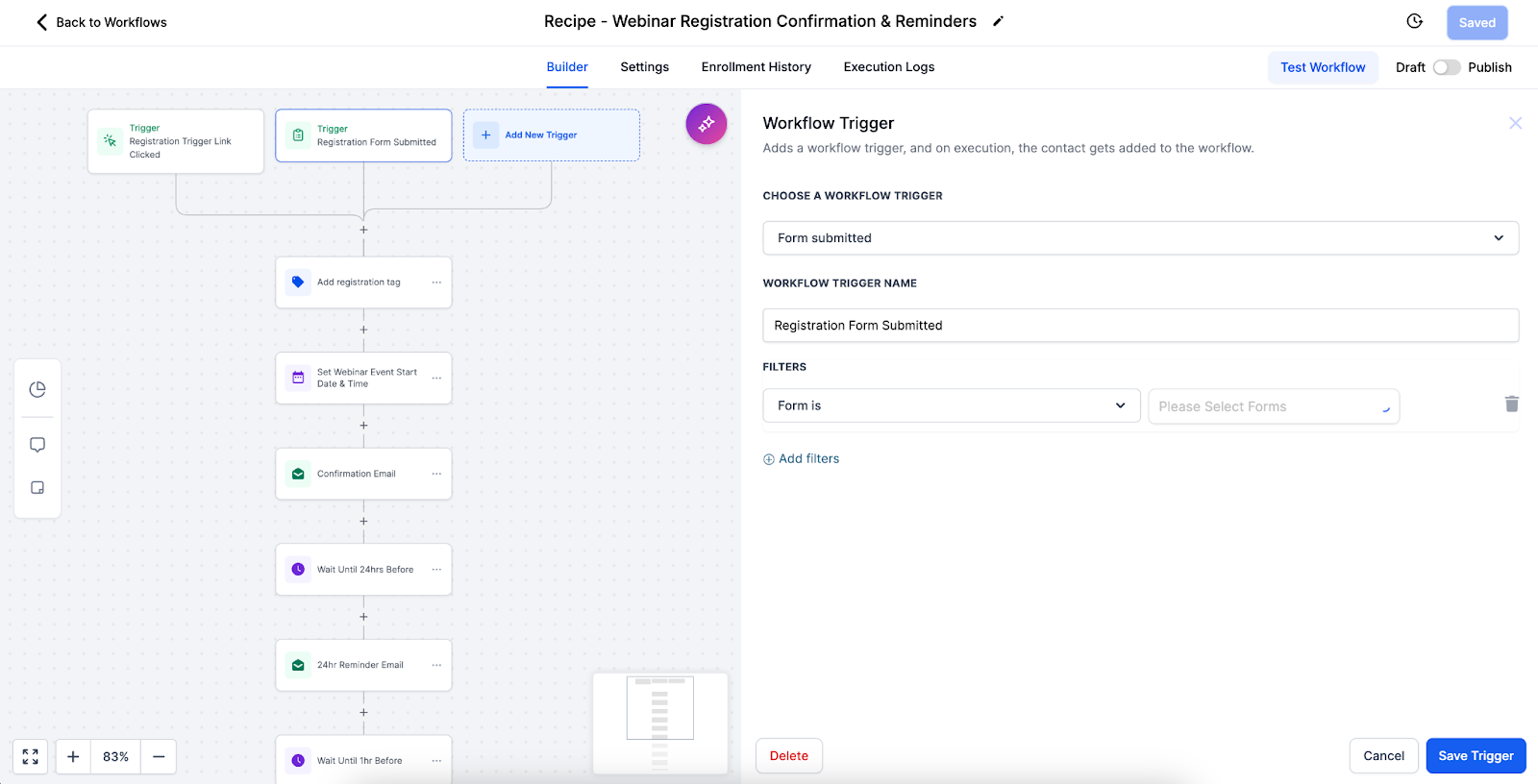
Every webinar page comes with built-in automations that save you time and keep families engaged.
How It Works
- Registration Trigger — When a family submits your form, automations start automatically
- Reminders — For live webinars, send email and text reminders (example: 24 hours before, 1 hour before, 10 minutes before)
- Follow-Ups — After the webinar, send thank-you messages, replay links, or schedule a tour invitation
Customizing Your Automations
Click the three-dot menu on your webinar page to edit the automation:
- Adjust reminder timing
- Personalize messages with family names
- Add extra steps like tour booking links
Best Practices
For Live Webinars
- Test your streaming link and registration form before promoting your event
- Schedule for evenings (6-7 PM) when parents are home from work
- Promote on your website, social media, and in follow-up emails to prospective families
- Have a backup plan if your internet connection drops
- Encourage questions via chat — parent engagement shows you care
For On-Demand Webinars
- Use high-quality video and audio — it reflects your center's professionalism
- Keep videos focused and concise (10-30 minutes)
- Show real moments: circle time, outdoor play, meal time
- Organize your media library so you can find videos quickly
- Update your virtual tour annually to show facility improvements
General Tips
- Add a clear next step at the end: "Ready to schedule a tour?"
- Use webinars to pre-qualify families — answer common questions upfront
- Follow up within 24 hours with families who registered but didn't attend
Troubleshooting
Live Webinars
Streaming link not working
- Verify the URL format is correct
- Test the link in a private browser window before your event
Timezone confusion
- Display the timezone clearly on your registration and confirmation pages
- Send reminders that include the time and timezone
On-Demand Webinars
Video upload fails
- Check your file format (MP4 works best)
- Large files may take several minutes — don't close the browser
- Try a different internet connection if the upload stalls
Poor video quality
- Upload high-resolution versions (1080p recommended)
- Make sure your original recording was well-lit and stable
General Issues
Form not capturing family info
- Test the form yourself before promoting your webinar
- Check that form submissions are appearing in your CRM
Template not loading
- Refresh your browser
- Check your internet connection
- Try a different template and customize from there
Conclusion
Webinar pages give you flexible ways to connect with families and staff:
- Live webinars — Perfect for virtual open houses and real-time Q&A
- On-demand webinars — Great for center tours and info sessions families can watch anytime
With built-in templates and automated reminders, you can launch professional webinars quickly. Families get timely reminders and helpful follow-ups, and you get more engaged prospective parents — without the manual work.