
Overview
Connect your Microsoft Teams account to automatically generate unique meeting links for virtual tours and parent meetings. When you select Microsoft Teams as your meeting location in any calendar, Enrollio creates a fresh Teams link for each booking and includes it in the confirmation.
This eliminates manual link creation and ensures every family gets their own secure meeting space.
Before You Start
You'll need access to the Microsoft Teams account you want to connect. Only Microsoft Teams accounts for Work and School (Organization and Education) are supported.
How to Connect Microsoft Teams
You can connect Microsoft Teams from two places in Enrollio:
Option 1: From Your Profile
- Click Settings > My Profile
- Under Video Conferencing connections, click Add New
- Select Microsoft Teams and click Connect
- Sign in with your Microsoft Teams credentials
- You're connected — that's it!
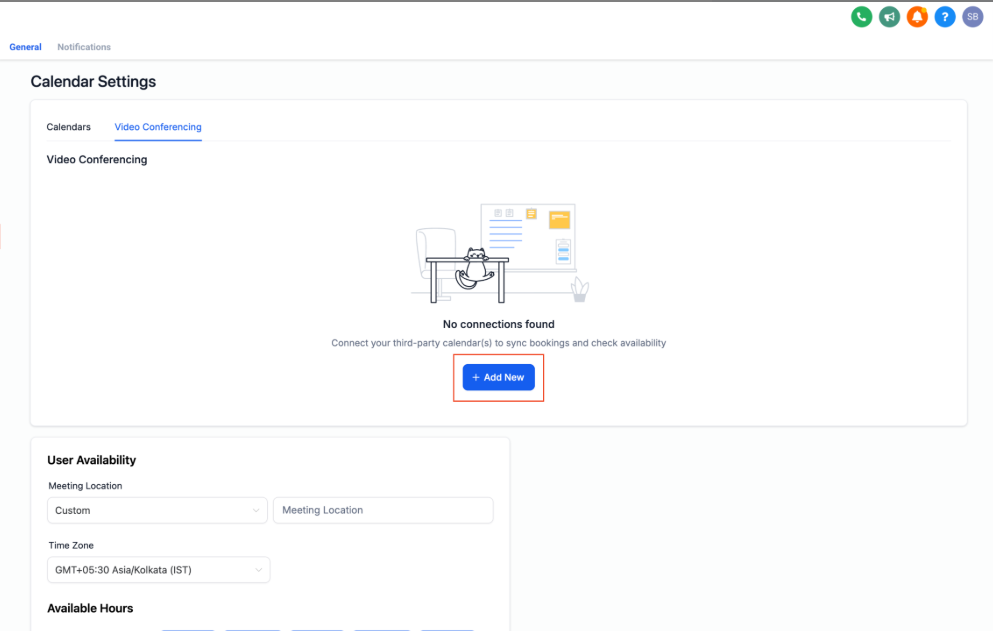
Option 2: From Calendar Settings
- Go to Calendars > Calendar Settings > Connections
- Click the Video Conferencing tab
- Click Add New, then click Connect next to Microsoft Teams
- Sign in with your Microsoft Teams credentials
- Your account is now connected
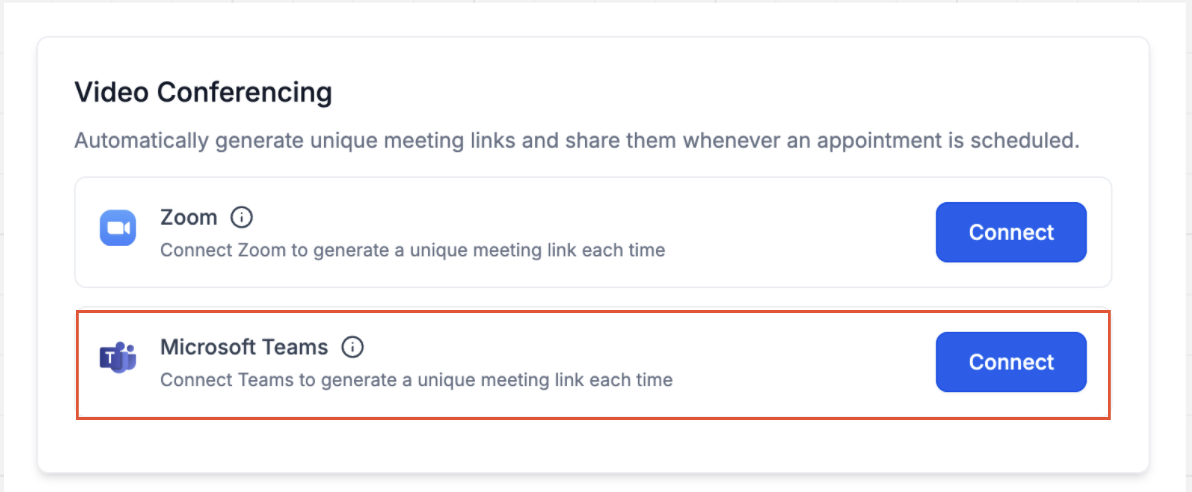
Adding Teams Links to Your Calendars
Once you've connected Teams, here's how to enable automatic meeting links:
- Navigate to your Calendar Settings and edit the calendar you want to update
- Go to the Meeting Details tab
- Scroll to the Team Members section
- Choose the team member who has Microsoft Teams connected
- Select Microsoft Teams as the meeting location
- Click Save
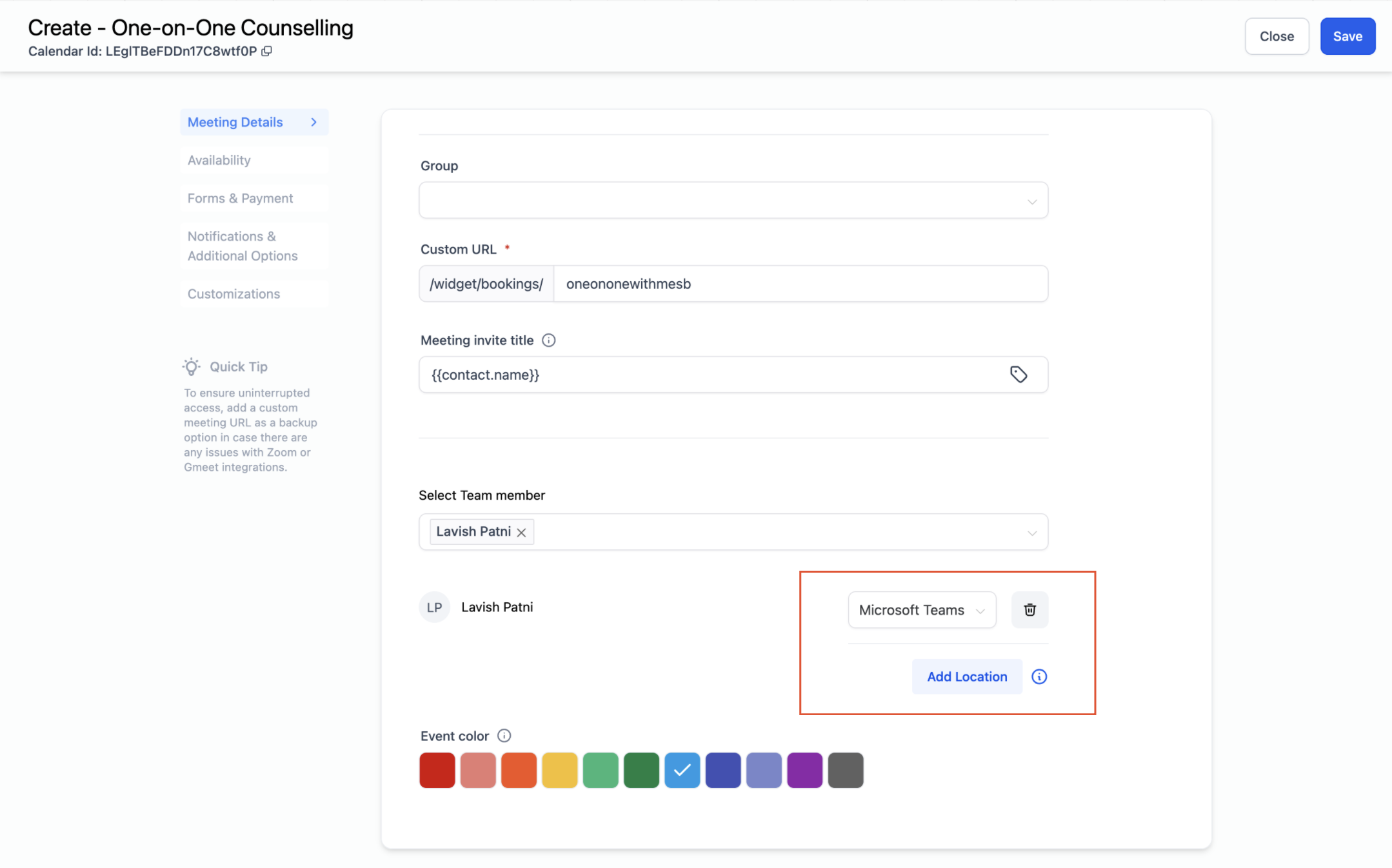
Now every booking on this calendar will automatically generate a unique Teams link.
Important Notes
Outlook Calendar vs. Teams Integration
Connecting an Outlook calendar does not automatically link Microsoft Teams. These are separate integrations.
To use Teams meeting links, connect Teams separately under Calendar Connections > Video Conferencing.
Viewing Appointments in Outlook
To see your tour bookings in your Outlook calendar, make sure your Outlook calendar is both connected and selected as the linked calendar under Calendar Connections > Calendars.
Using Teams Across Your Organization
Same Account, Multiple Staff
Multiple team members can connect and use the same Microsoft Teams account. This is helpful if your center has one shared Teams account for virtual tours.
One Account Per Person
Each user can connect one Microsoft Teams account per location. If you need to switch accounts, you'll need to disconnect the current one first.
Switching or Removing a Connected Account
- Go to Calendars > Settings > Connections > Video Conferencing
- Remove the existing Microsoft Teams connection
- Connect a different Teams account if needed
- Confirm the meeting location setting on any calendars that should generate Teams links
Which Calendar Types Support Teams Integration?
Automatic Link Generation
These calendar types automatically generate new Teams links for each booking:
- Personal Booking (individual tours with specific staff)
- Round Robin (distributes tours among available staff)
- Collective Calendars (group availability)
Manual Link Setup for Events
For Event Calendars (like open houses or orientation sessions), you can add a static Teams link:
- Generate a meeting link in Microsoft Teams
- In your calendar settings, select Custom as the meeting location
- Paste the Teams link you generated
Note: This creates a static link — the same link will be used for everyone who books this event.
Frequently Asked Questions
Can I use the same Teams account across different locations?
Yes. You can connect the same Microsoft Teams account in multiple locations and share it among different users.
Do calendars still auto-generate Teams links when using a shared account?
Yes. As long as Microsoft Teams is selected as the meeting location and the Teams account is connected under Video Conferencing, your calendars will automatically generate unique links for each booking.
What happens to existing appointments if I disconnect Teams?
Existing appointments keep their Teams links. When you reconnect Teams, Enrollio will automatically generate links for any upcoming appointments that were missing them.