
Connect Google Calendar to Enrollio
This guide shows you how to connect your Google Calendar to Enrollio so your tour bookings and appointments sync automatically across both platforms.
What is Google Calendar Integration?
Google Calendar integration gives you real-time syncing between Enrollio and Google Calendar. Schedule tours with prospective families, coordinate with your staff, and manage your availability—all from one place. Your bookings appear in both calendars automatically.
Key Benefits
- Real-time appointment syncing between Google Calendar and Enrollio
- Two-way sync keeps both platforms aligned
- Avoid double bookings with conflict calendar checking
- Multi-user support—each staff member connects their own calendar
- Better visibility and control over your center's schedule
Before You Start
Make sure you have:
- A valid Google account
- Admin or user-level access to Calendar settings in Enrollio
- A calendar that isn't shared with conflicting permissions
How to Connect Google Calendar
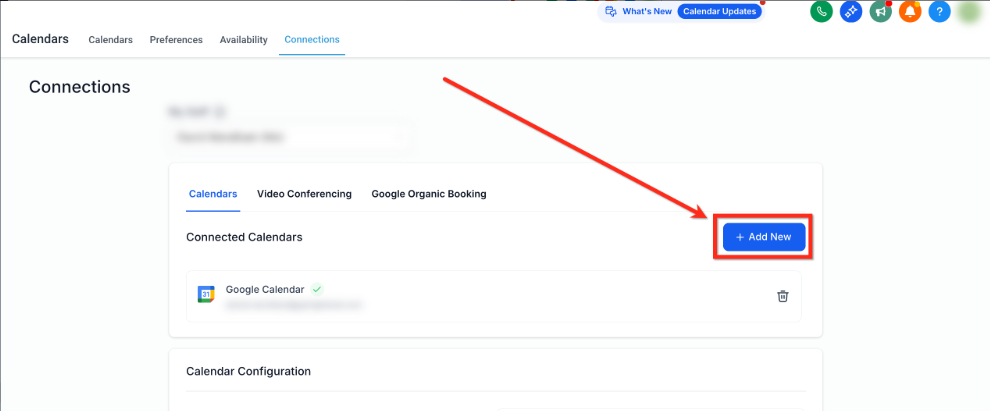
Step 1: Navigate to Calendar Settings
- Go to your client account
- Click Calendars in the left navigation
- Click Calendar Settings in the upper right corner
- Select the Connections tab
- Click + Add New
Step 2: Authenticate with Google
- On the Connections page, click Connect next to Google Calendar
- Select the Google account you want to use
- Accept all requested permissions, including:
- Calendar (read/write)
- Profile access
- Email access
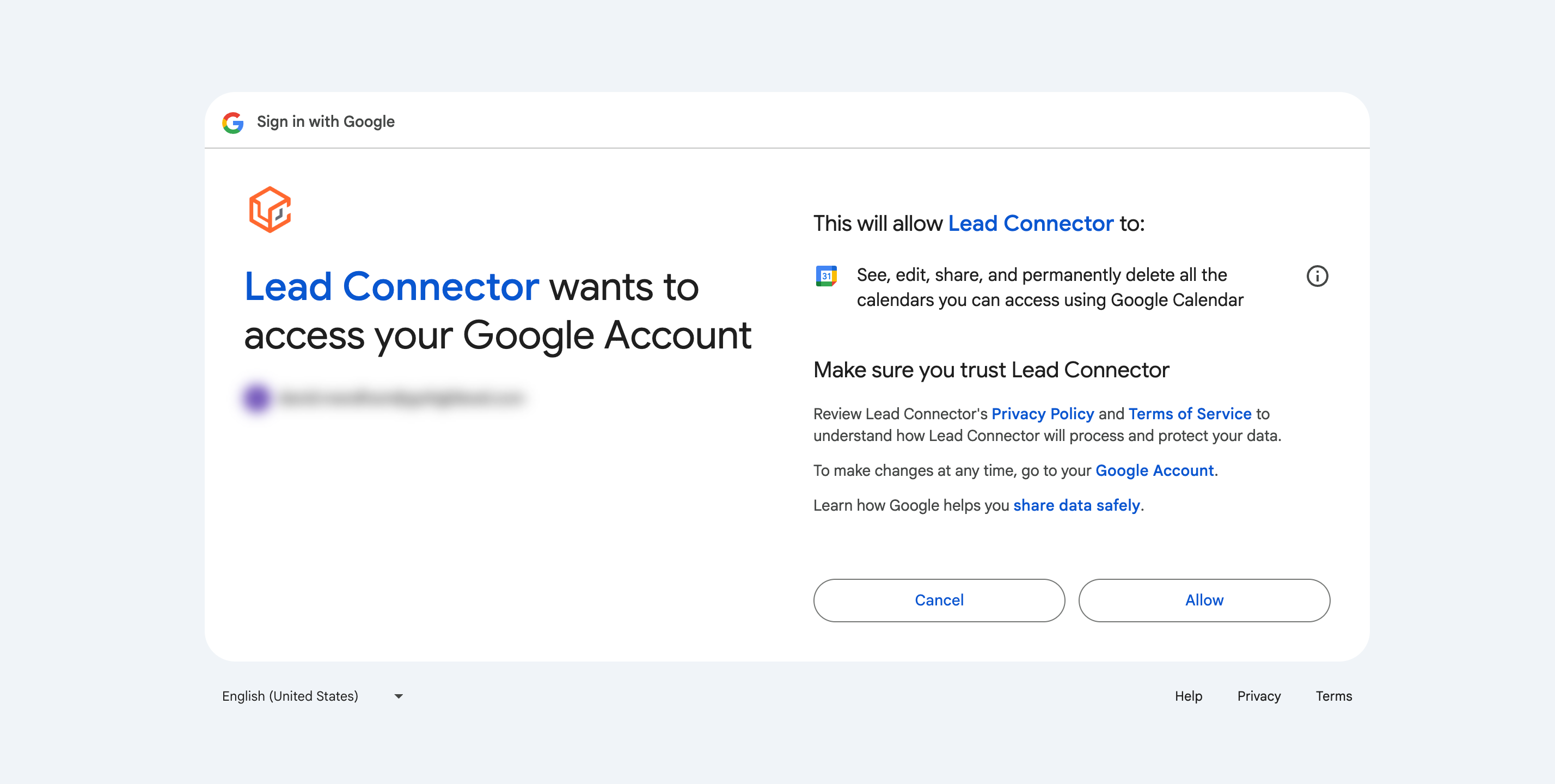
Google may let you skip some permissions during setup. If you don't grant all required permissions, syncing will fail. Check Settings → Integrations → Google for a missing-permissions warning and click Reconnect to fix it.
Frequently Asked Questions
Why isn't my calendar syncing?
Check Settings → Integrations → Google for a missing-permissions warning. If you see one, click Reconnect and make sure you grant all requested permissions.
I don't see my Google Calendar listed—what should I do?
Make sure you're logged into the correct Google account. Try logging out of all Google accounts, then reconnect using the right one.
What causes Google Calendar sync to break?
Common causes include:
- Token expiry
- Calendar deleted
- Permissions revoked after connection
What if a connected Google Calendar was deleted and I see an error banner?
Use the banner's Fix This option to see which deleted calendars are still connected in Enrollio. Click Remove Deleted Calendars to clean up broken connections, then reconnect or select an active calendar.
Can I use one calendar across multiple staff members?
No, calendar integrations are user-specific. Each staff member must connect their own Google Calendar for personalized scheduling and syncing.
Can I sync multiple Google Calendars?
Yes. You can link multiple Google Calendars. Set one as your Linked Calendar for tour bookings and use others as Conflict Calendars to prevent double bookings.
Do I need a specific Google account type (Gmail vs. Google Workspace)?
No, both personal Gmail accounts and Google Workspace (formerly G Suite) accounts work with this integration.
Related Articles
- Setting Up Linked Calendars & Conflict Calendars
- Connect Your Outlook Calendar
- Connect Your iCloud Calendar
- Connect Zoom to Enrollio
- Why Google Calendar Integration Breaks and How to Fix It