
What This Article Covers
This article shows you how to view custom form submissions directly inside tour and appointment details. Instead of switching between different sections of Enrollio, you can now see all the information families submitted when they booked — right where you need it.
What Is the Forms Tab?
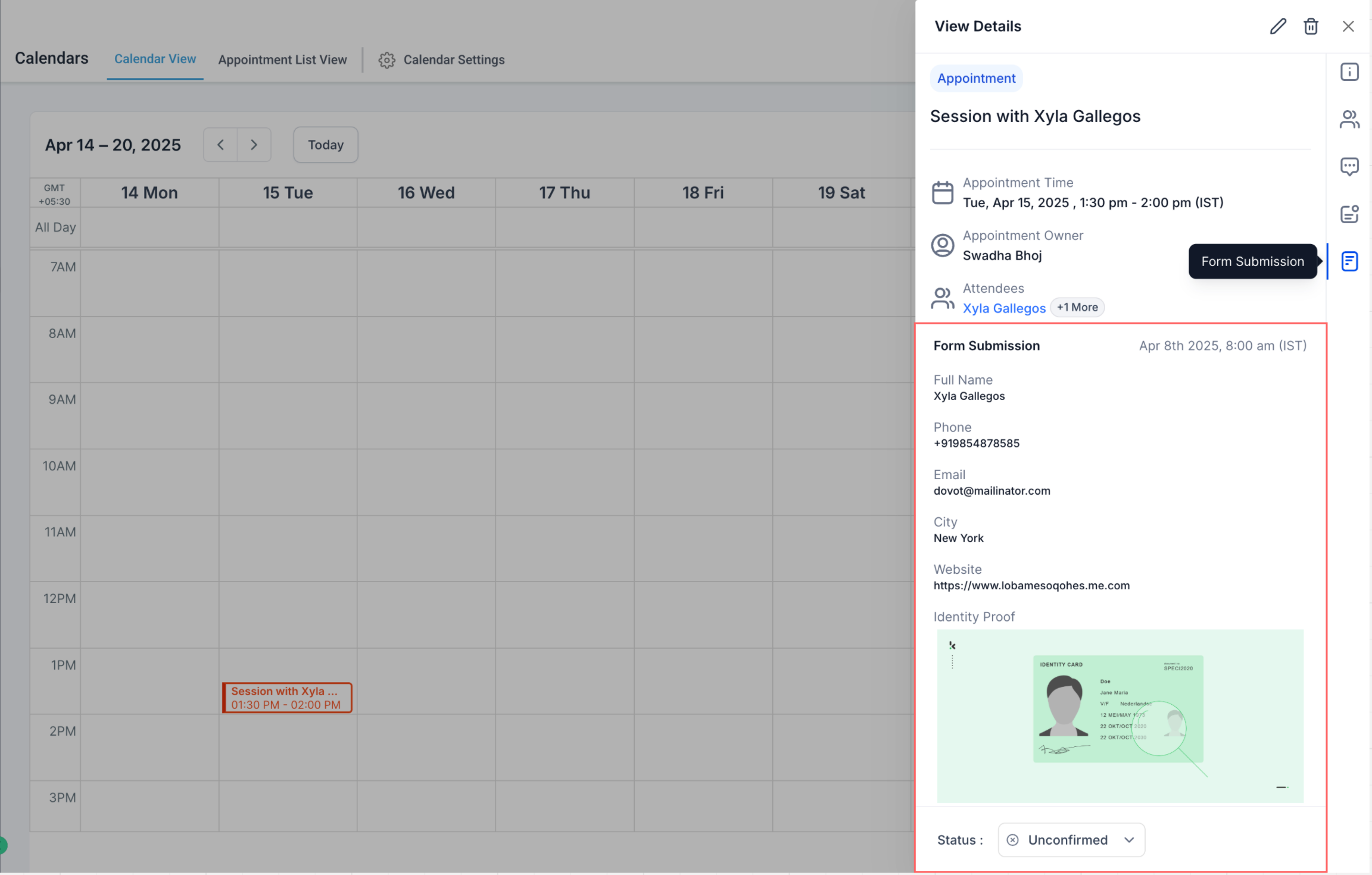
The Forms tab appears inside the tour or appointment detail view when a family filled out a custom form during booking. All their responses appear in a clean, organized layout — no hunting through other sections required.
This is especially helpful when you need to review a family's specific needs, childcare preferences, or special requests before a tour.
Why This Matters for Your Center
Custom forms often capture the details that help you prepare for tours and enrollment conversations. Having that information right in front of you means less clicking around and more time focusing on families.
Key benefits:
- View parent responses without leaving the appointment
- No more searching for form entries in other areas
- Spend less time prepping, more time connecting
- Keep all family information in one place
- Make tours more personalized from the start
How to Access Form Submissions
You can view form submissions from anywhere you open appointment details in Enrollio — whether you're in Calendars, Families, or Conversations.
To view a family's form submission:
- Go to Calendars, Families, or Conversations
- Click on a tour or appointment to open the details
- If the appointment includes a custom form, you'll see a Forms tab
- Click the Forms tab to view the full submission
Which Forms Are Supported?
This feature works with custom forms you've created in Enrollio's Form Builder and attached to your calendar during booking.
Supported:
- Forms created in the Form Builder
- Forms embedded in your calendar settings
Not yet supported:
- The default booking form (Name, Email, Phone only)
The reason default forms aren't shown in the Forms tab yet is because that basic information already appears in the Family Details section. Support for viewing default forms here is coming in a future update.
How Childcare Centers Use This
This feature is particularly valuable when you collect detailed intake information during booking. It helps you prepare for every tour and makes families feel heard from the moment they walk in.
Common scenarios:
- Tour preparation: Review a family's preferred start date, age of children, and care needs before they arrive
- Waitlist management: See program preferences and scheduling requirements at a glance
- Special accommodations: Note allergies, special needs, or other important details families shared
- Enrollment conversations: Reference specific answers families provided to personalize your discussion
This eliminates unnecessary clicking and helps you have more informed, meaningful conversations with prospective families.
Frequently Asked Questions
Why don't I see the Forms tab?
The Forms tab only appears if the appointment includes a custom form submission. Tours booked with just the default form won't show the tab.
Can I edit the form submission here?
No, form submissions are read-only in the appointment view. To make changes, go to the Forms section or edit the form within the family's record.
Where does this form data come from?
It comes from the custom form attached to your calendar or added during the booking process.
Will default booking forms be supported?
Yes, the ability to view default booking form submissions in the Forms tab is in development and coming soon.
Can I access the Forms tab from Conversations or Families?
Yes, the Forms tab appears in appointment details no matter where you open it from — Calendars, Families, or Conversations.
Next Steps
- Add custom forms to your tour calendar to capture important family information
- Review existing appointments to confirm form data is displaying correctly
- Train your staff on how to access and use form submissions before tours
- Create intake forms that help you personalize every family's experience