
Overview
You can now choose any timezone to view your appointments across Enrollio. This personal setting controls how appointment times appear in your Calendar View, Appointment List, family profiles, and conversations — without affecting availability, booking behavior, or scheduling logic.
Perfect for childcare owners who travel, manage multiple locations, or coordinate with staff across different time zones.
Where This Setting Applies
Your selected timezone affects how appointment times display in:
- Calendar View
- Appointment List
- Family profiles (Appointments section)
- Conversations
Important: This setting only changes how you see appointment times. It doesn't affect your availability hours, booking links, or how families schedule tours.
How to Change Your Viewing Timezone
To adjust which timezone you see appointments in:
- Navigate to Calendar Settings
- Open Preferences
- Locate View Appointments In
- Select your preferred timezone from the dropdown
- Click Save Preferences
You can update this setting anytime — your change takes effect immediately.
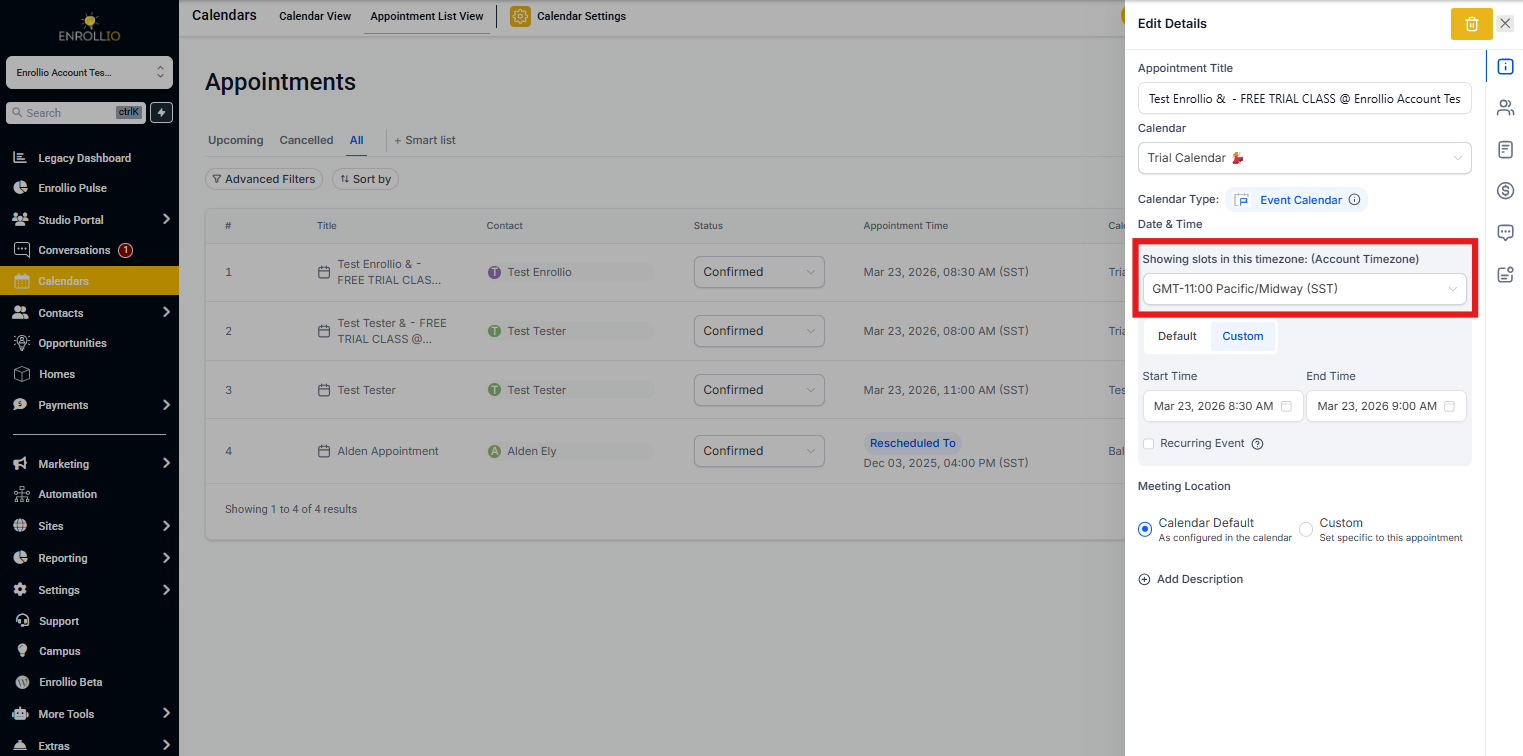
Timezone Indicators
Enrollio displays your active timezone so you always know which timezone you're viewing.
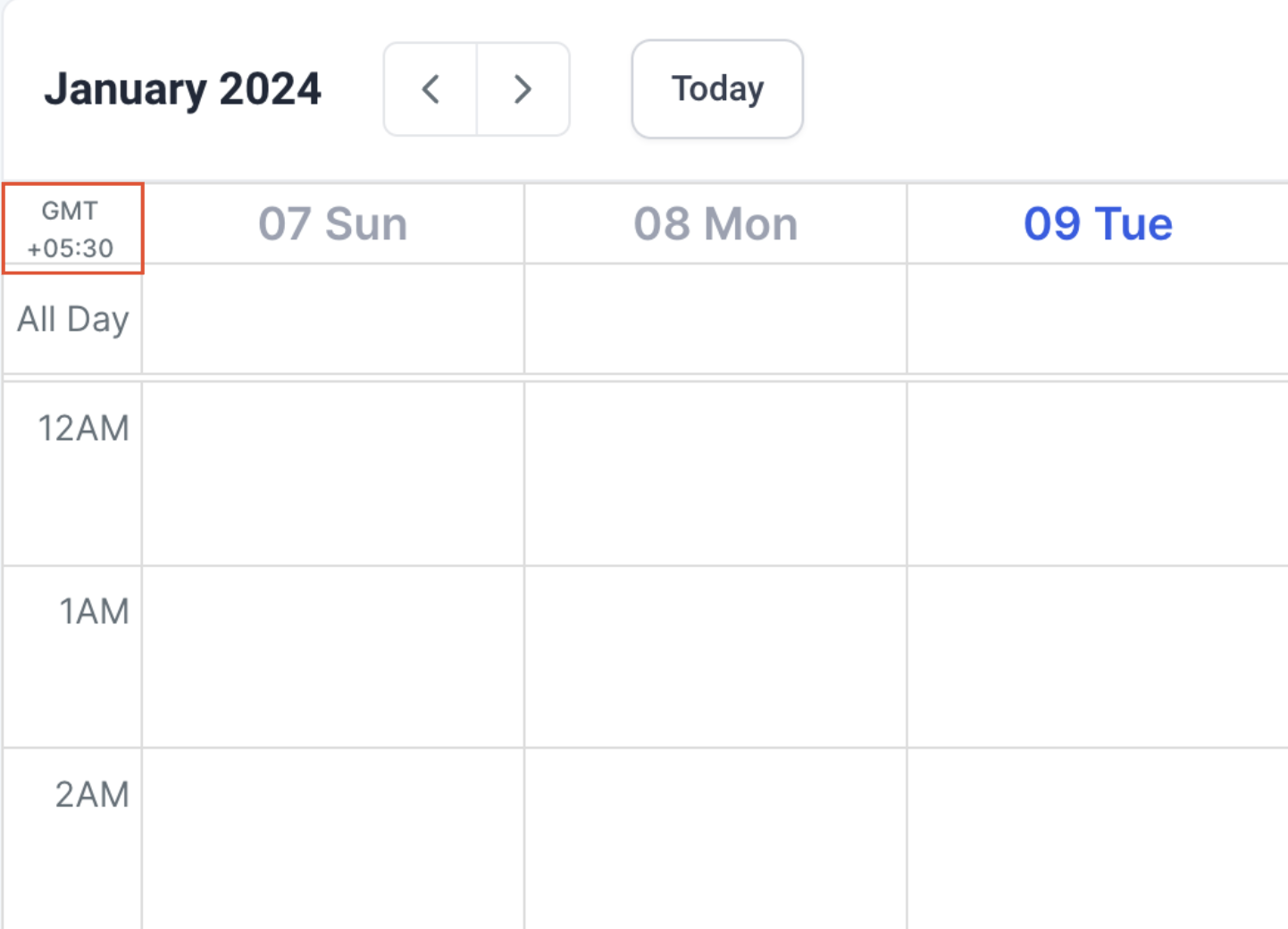
Calendar View
The currently selected timezone appears at the top of your calendar interface.
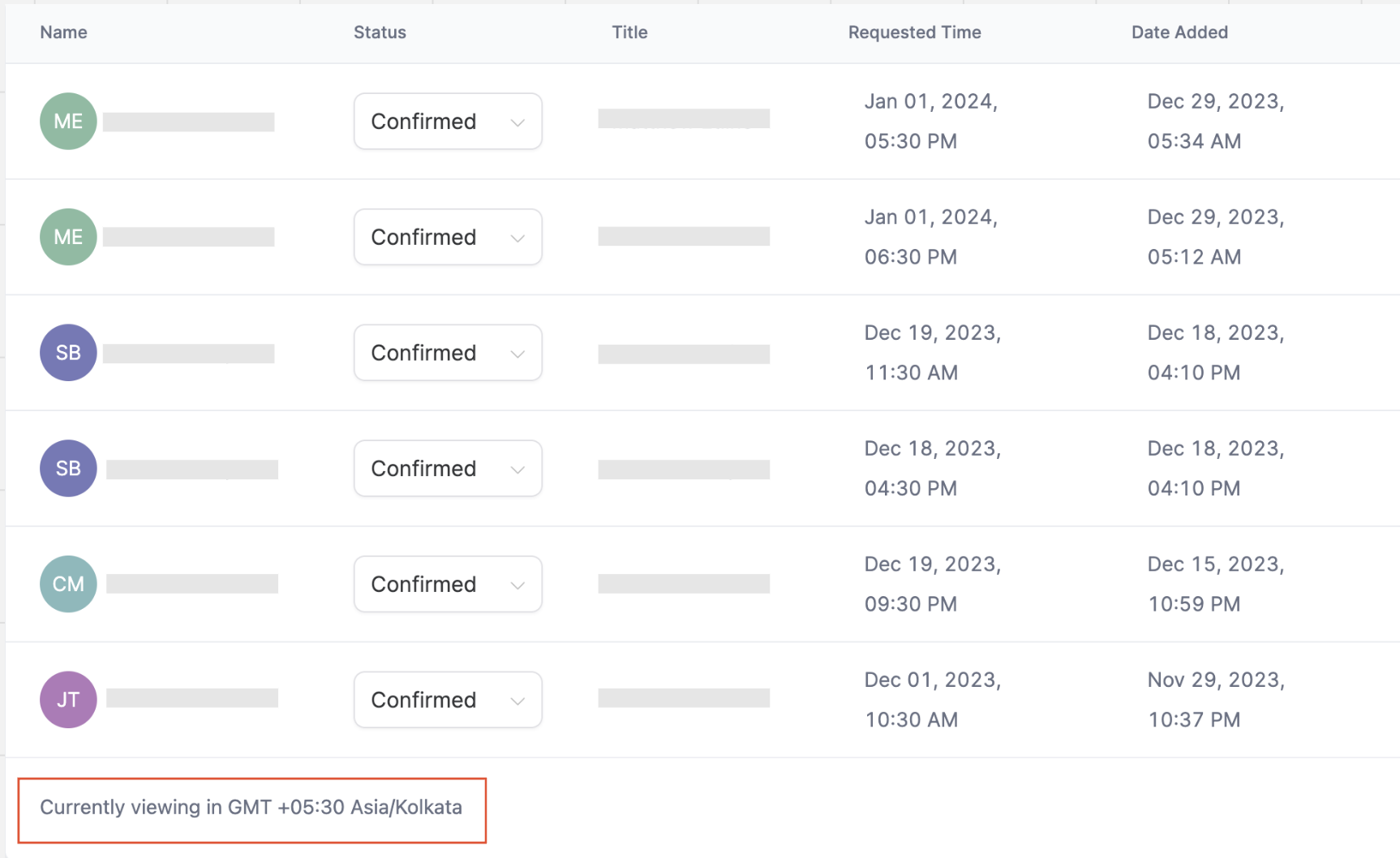
Appointment List
Your active timezone displays at the bottom of the Appointment List page.
Example Scenario
Your childcare center operates in New York (EST), but you're visiting family in London (GMT):
- You can switch your view to GMT to match your local time
- Your director back in New York can keep viewing appointments in EST
- Each person sees times in their preferred timezone — no manual conversion needed
- Tour bookings and availability hours remain unchanged
Your Availability Hours Stay the Same
This feature only changes how appointments are displayed to you. It does not modify:
- Your availability hours
- Tour duration settings
- Scheduling rules
- Booking links
- Confirmation or reminder messages
To adjust your actual availability, go to Settings → My Profile → User Availability.
Frequently Asked Questions
Does changing my viewing timezone affect my availability?
No. It only changes how appointment times are displayed to you. Your available hours remain exactly the same.
Will other staff members see appointments in my selected timezone?
No. This setting is personal to your account. Each team member can choose their own preferred timezone.
Can I select any timezone?
Yes. You can select any timezone from the dropdown menu.
I want to view appointments in my center's timezone. What should I do?
Go to Calendar Settings → Preferences → View Appointments In and select the timezone configured for your client account.
What happened to the old timezone display setting?
Previously, there was a Labs feature that let you toggle between User Timezone and Business Timezone. That has been replaced with this more flexible option. If you had that setting turned on, your view is now set to User Timezone. If it was off, you're now viewing in your Business Timezone. You can change this preference anytime.