
How to Sync Enrollio Calendars With Outlook
The Outlook Calendar integration lets you sync your Outlook Calendar with Enrollio, so you can manage all your tour appointments, enrollment meetings, and staff schedules in one place. Connect your Outlook account, configure your settings, and create new appointments that automatically appear in both systems.
In This Article
- What is the Outlook Calendar integration?
- What are the benefits?
- Who will benefit most?
- How to connect Outlook
- How to configure your calendar
- Frequently Asked Questions
What is the Outlook Calendar Integration?
The Outlook Calendar integration synchronizes your Outlook Calendar with Enrollio. All your tour appointments, parent meetings, and staff events stay in sync between both platforms automatically.
Once connected, you can view your Outlook Calendar events directly in Enrollio, manage them without switching apps, and create new appointments that appear in both places instantly.
What Are the Benefits?
Everything in one place. View all your tours, enrollment meetings, and appointments without jumping between apps.
Manage events from Enrollio. Create, edit, or cancel appointments directly in Enrollio — changes sync to Outlook automatically.
Never double-book. Enrollio checks your Outlook calendar for conflicts before scheduling new tours or appointments.
Stay current. All calendar data syncs seamlessly, so your schedule is always up to date across both platforms.
Who Will Benefit Most?
This integration is perfect for childcare owners and staff who:
- Schedule frequent tours with prospective families
- Manage enrollment meetings and parent conferences
- Coordinate staff schedules across multiple programs
- Already use Outlook Calendar for personal or business scheduling
How to Connect Outlook Integration
Step 1: Click Settings in the left sidebar, then select Profile.
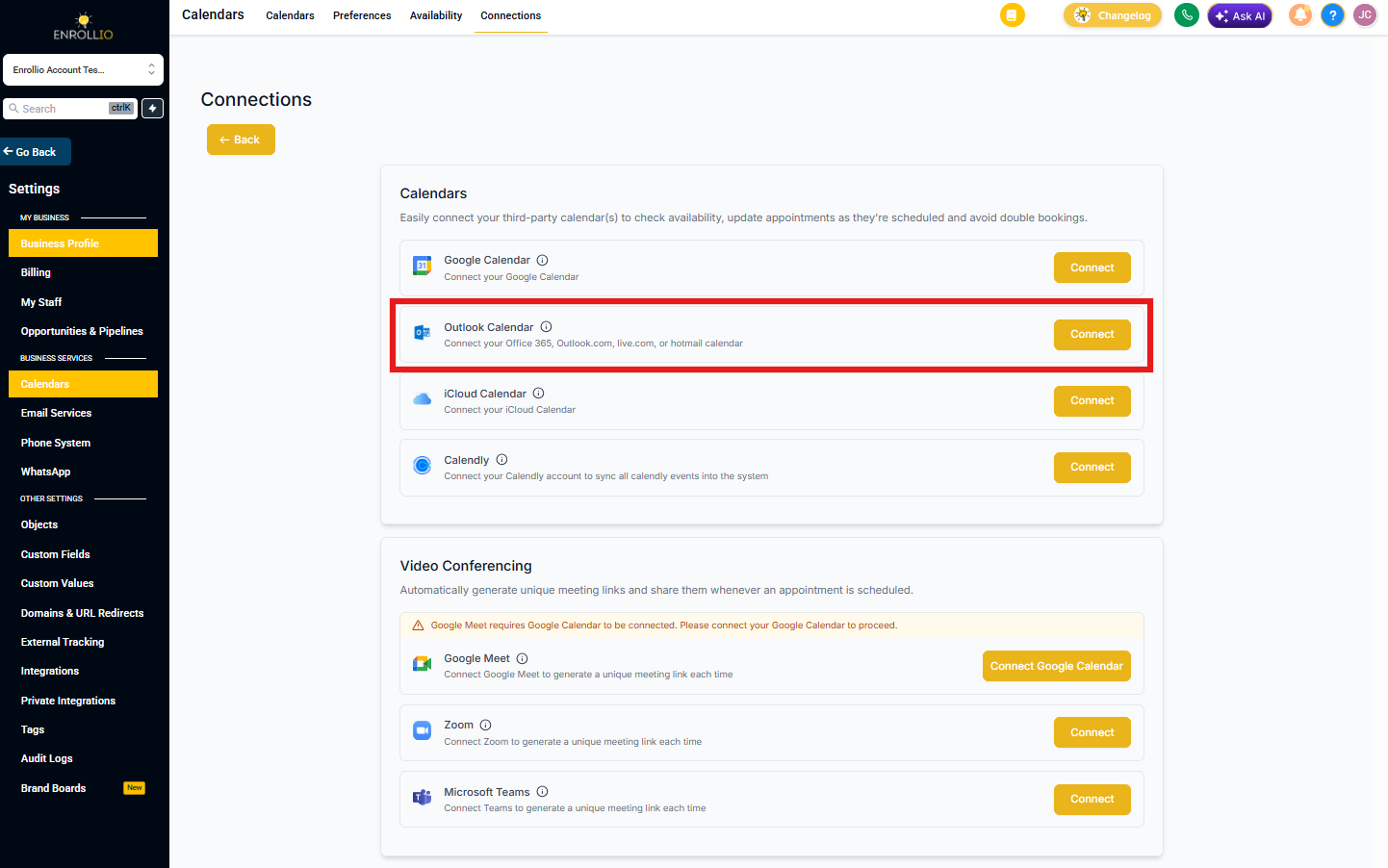
Step 2: Scroll to the Integrations section and click Connect next to Outlook Calendar.
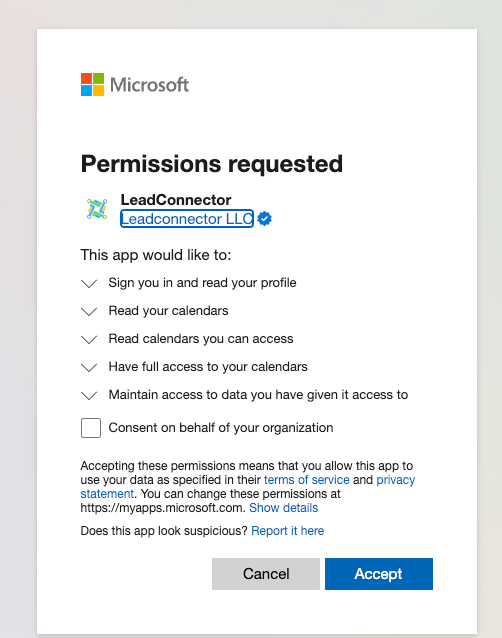
Step 3: You'll be prompted to grant Enrollio permission to access your Outlook Calendar. Click Allow to continue.
How to Configure Your Calendar
After connecting Outlook, configure how Enrollio syncs with your calendar.
Step 1: Go to Settings > Profile and scroll to Calendar Configuration at the bottom right.
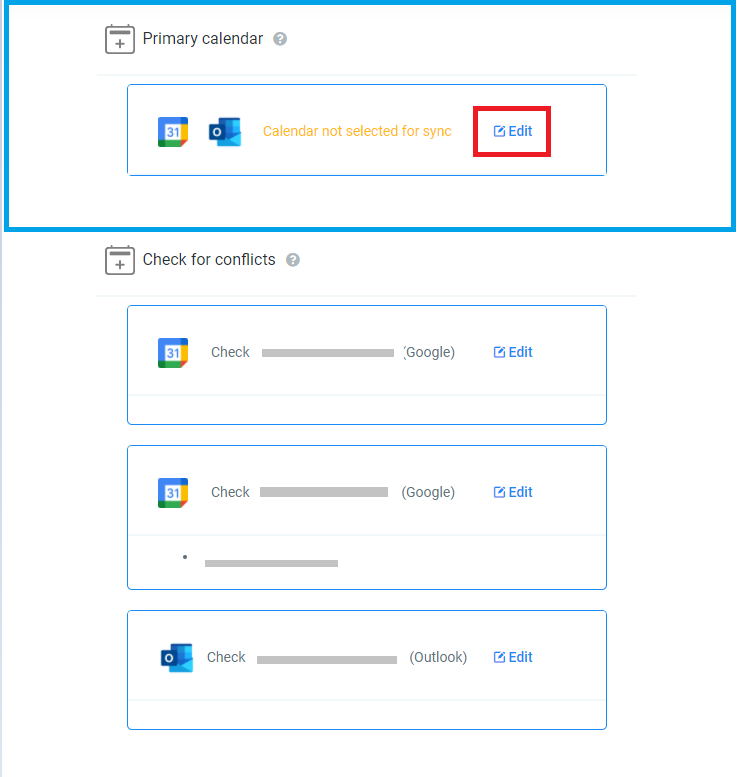
You'll see two configuration options:
Primary Calendar
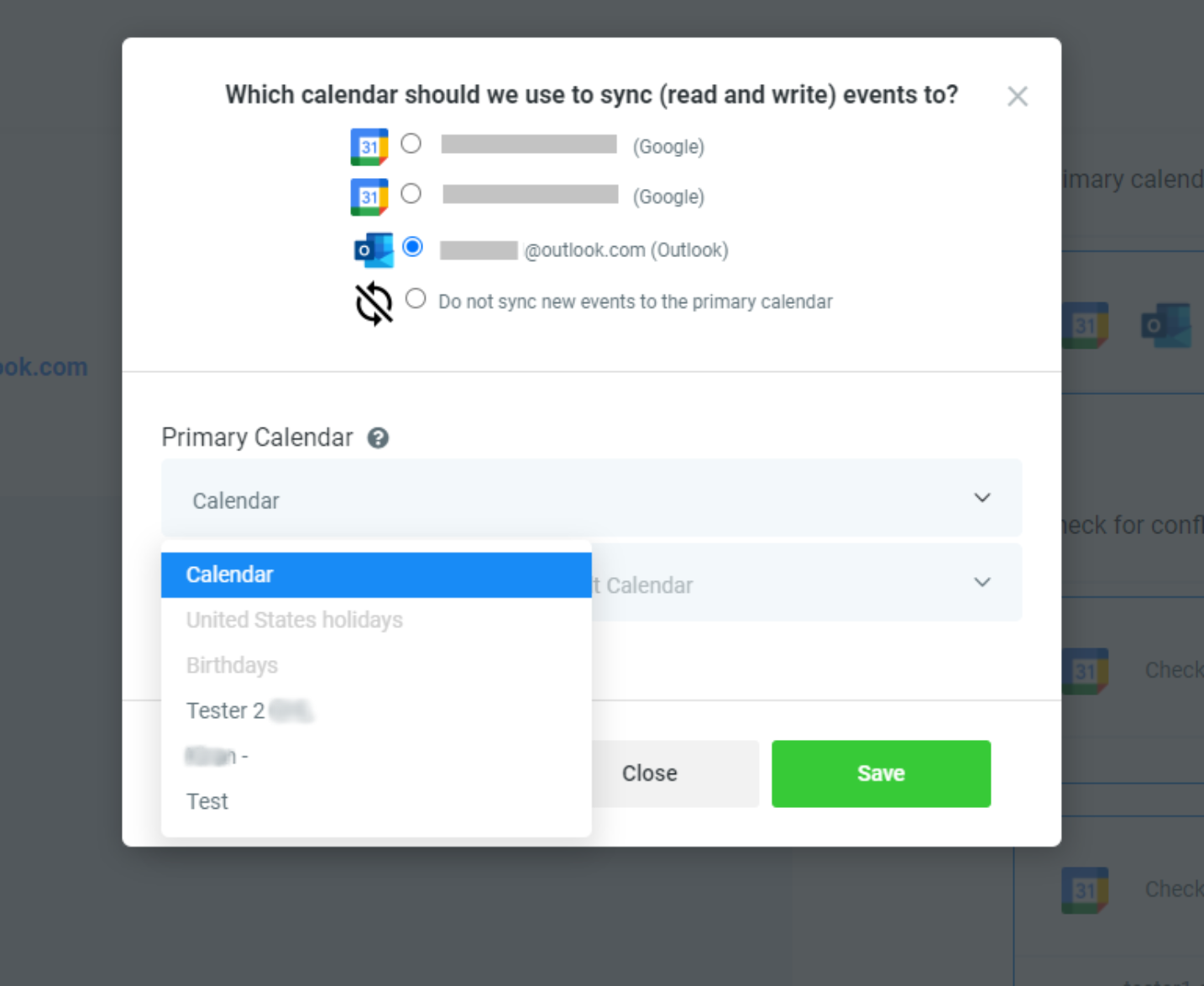
This is your main calendar. Enrollio reads all events from this calendar and writes all new appointments to it.
To configure:
- Click Edit under Primary Calendar
- Select your Outlook account from the dropdown
- Choose which Outlook calendar you want to sync with Enrollio
- Click Save
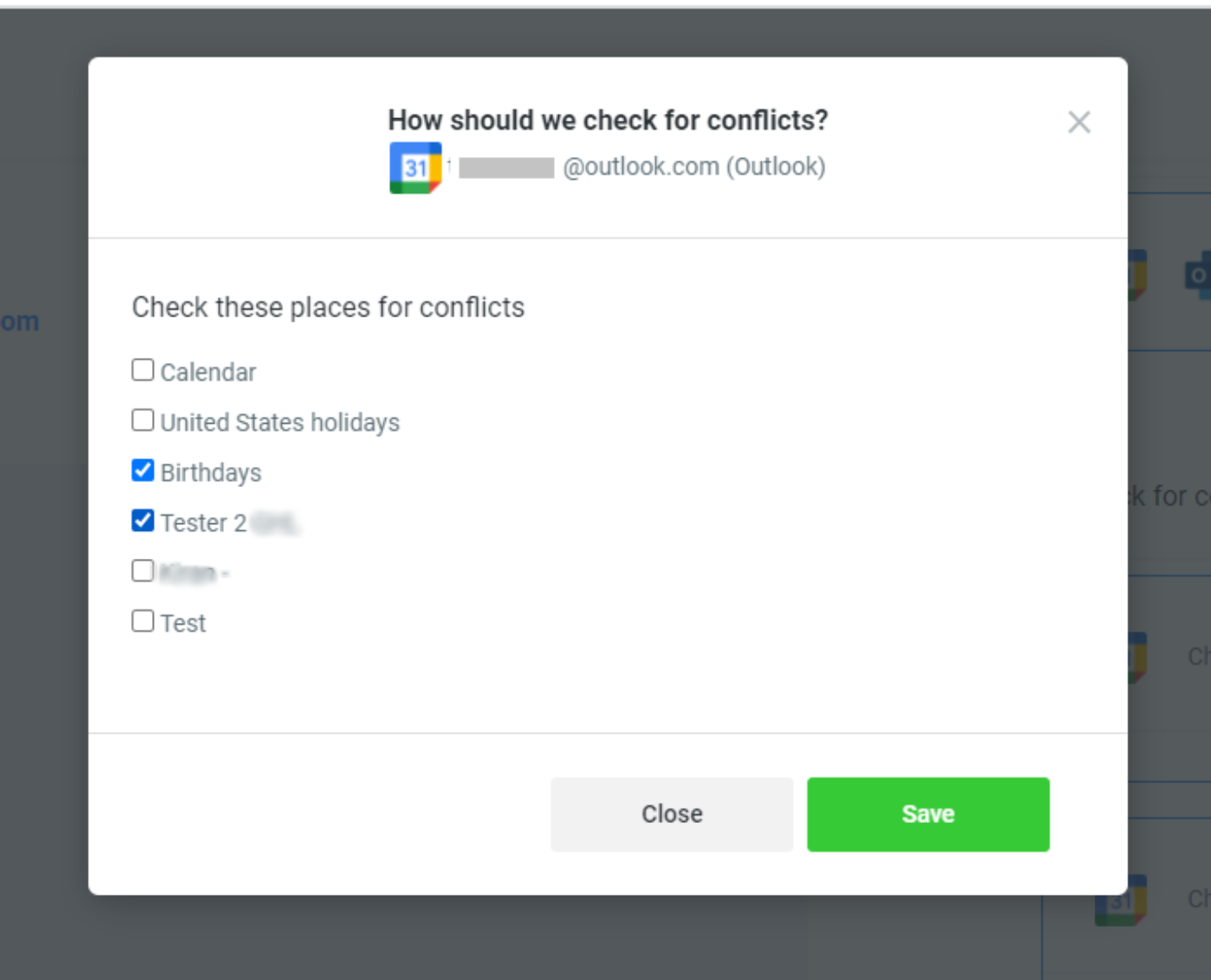
Check for Conflicts
Enrollio reads events from these calendars to prevent double-booking, but doesn't write appointments to them.
To configure:
- Click Edit under Check for Conflicts
- Select any additional Outlook calendars you want Enrollio to check
- Click Save
This is useful if you have a personal Outlook calendar you want to avoid scheduling tours during.
Frequently Asked Questions
Can I connect multiple Outlook accounts?
No, you can connect only one Outlook account per user. However, if the same user exists in multiple centers under the same email address, they can connect the same Outlook Calendar in each center.
Why can't I connect an Outlook account that's already connected to another user?
Each Outlook account can only be connected to one Enrollio user. Even if it's the same person using different email addresses in Enrollio, the Outlook account is locked to the first user who connected it.
Workaround: Connect a different Outlook account to the second user, then share the calendar from the first Outlook account. Learn how to share Outlook calendars.
Can I connect Outlook for my staff from the admin dashboard?
No, each staff member needs to log into Enrollio with their own account to connect their Outlook calendar. Once connected, you can configure their calendar settings from Team Management.
Can I use both Google Calendar and Outlook Calendar at the same time?
Yes! You can set your Primary Calendar to Outlook and Check for Conflicts to Google Calendar (or vice versa). This lets you write appointments to one calendar while checking the other for scheduling conflicts.
Can I write appointments to both Google and Outlook simultaneously?
No, you can write appointments to only one calendar at a time. Choose either Google or Outlook as your Primary Calendar.
What happens when I disconnect Outlook?
When you disconnect Outlook integration, Enrollio automatically removes any Outlook calendars configured in your Primary Calendar and Check for Conflicts settings.