
Understanding Calendar Scheduling Conflicts
When you're managing tours, parent meetings, and staff schedules, the last thing you need is double-bookings. Enrollio helps you avoid scheduling conflicts by syncing with your external calendars like Google, Outlook, or iCloud.
How Conflict Checking Works
For team calendars (Round Robin, Class, and Collective), appointments assigned to specific staff members can sync with their external calendars. Enrollio reads events from those calendars and automatically blocks off times when staff aren't available.
This means if your tour coordinator has a dentist appointment in their Google Calendar, that time slot won't be available for parent tours in Enrollio.
Setting Up Conflict Checking
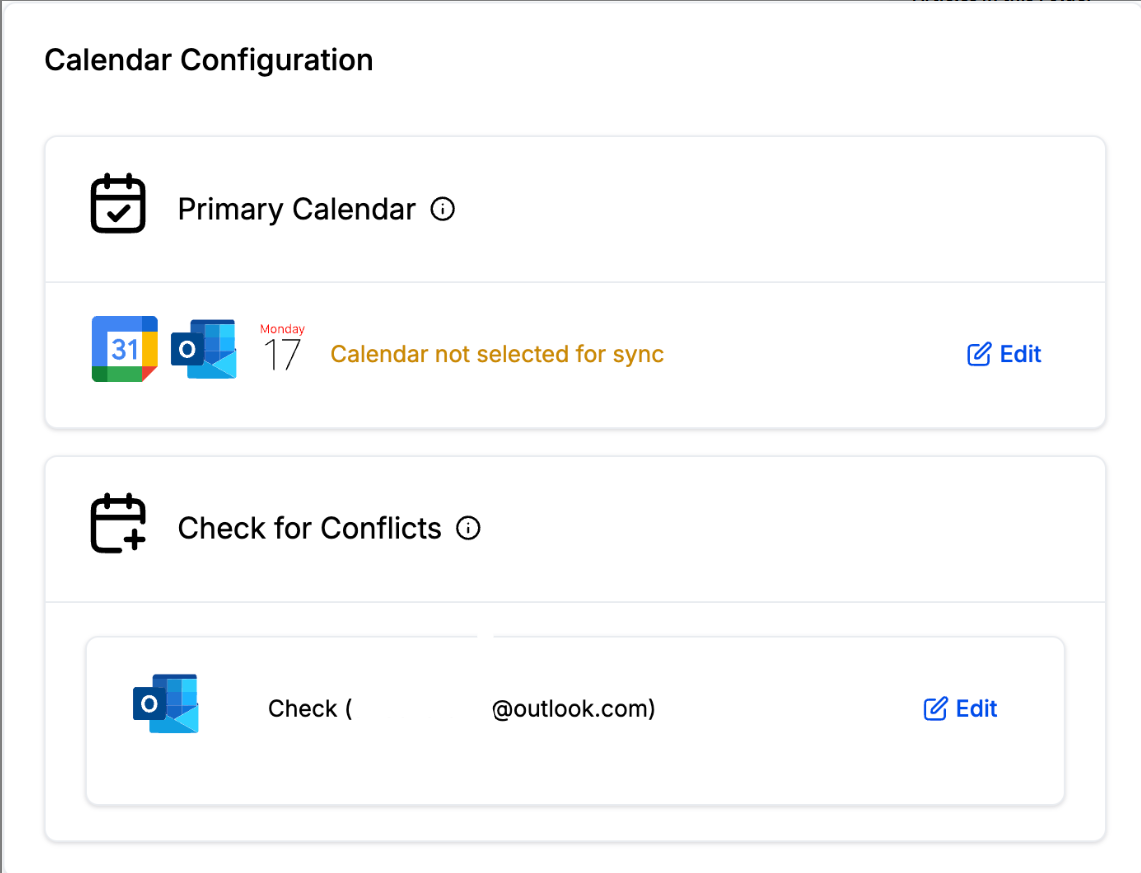
You configure calendar conflict settings under Settings My Profile. You'll see two main options:
- Primary Calendar — Where Enrollio sends your appointments
- Check for Conflicts — Which calendars Enrollio reads to block busy times
Step-by-Step Setup
- Navigate to Settings My Profile
- Scroll to the calendar integration section
- You'll see all Google, Outlook, and iCloud calendars you've connected
- Under Check for Conflicts, select which calendars to monitor
What Gets Blocked
When you enable conflict checking for a calendar, Enrollio reads all events from that calendar and blocks those time slots. Parents and families won't be able to book appointments during blocked times.
Important: Enrollio only reads from conflict calendars — it doesn't create appointments there. That's what your Primary Calendar is for.
💡 Pro Tip
If a calendar is already selected as your Primary Calendar, you don't need to also check it for conflicts. Enrollio automatically prevents double-bookings on your primary calendar.
Common Use Cases
Tour Coordinator: Set their work Google Calendar for conflict checking so their personal appointments block tour availability.
Director with Multiple Calendars: Check conflicts across both their office Outlook calendar and personal calendar to prevent any scheduling mishaps.
Part-Time Staff: Sync their availability from another job's calendar so they're only bookable when actually at your center.
Troubleshooting
If time slots aren't blocking as expected, verify that:
- The correct calendar is selected under Check for Conflicts
- Your external calendar integration is still connected (check Settings Integrations)
- Events in your external calendar have proper start and end times
Need to reconnect a calendar? See our guide on Setting Up Linked Calendars & Conflict Calendars.