
Overview
Connecting your iCloud Calendar to Enrollio ensures your tour bookings and appointments stay in sync across both platforms. This prevents double bookings, keeps your availability accurate, and makes scheduling with families seamless.
Before You Start
You'll need access to the Apple account associated with your iCloud Calendar. You'll also need to generate an app-specific password from Apple (we'll walk you through this below).
Choose your access level:
- Writer's access: Select this if you want appointments created in Enrollio to appear in your iCloud Calendar
- Read-only access: Select this if you only want to import events from iCloud to Enrollio to block availability
Step 1: Generate Your App-Specific Password from Apple
Apple requires you to use a unique app-specific password (different from your regular password) when connecting to third-party platforms like Enrollio. You'll also need two-factor authentication enabled.
Here's how to set it up:
- Go to https://appleid.apple.com/ and sign in
- Under the Security section, enable two-factor authentication if you haven't already
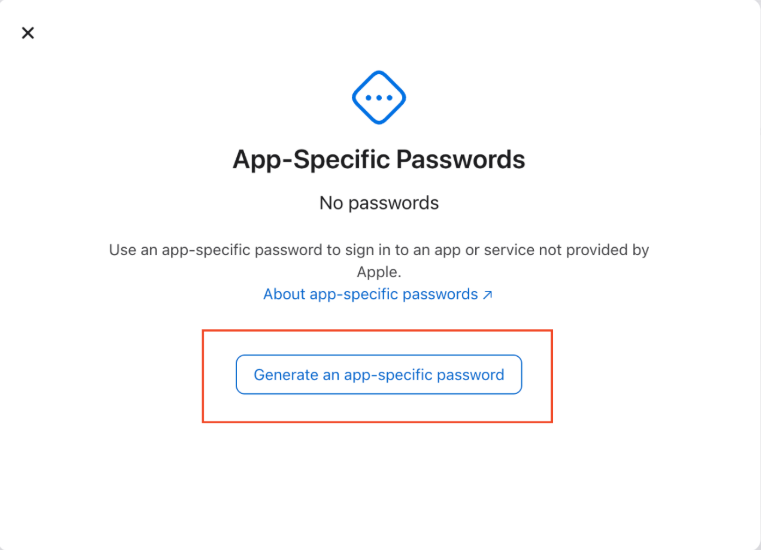
- In the App-Specific Passwords section, click 'Generate Password'
- Enter a label like 'Enrollio Calendar Integration' and click 'Create'
- Copy the generated password and save it somewhere safe — you'll need it in the next step
Step 2: Connect iCloud Calendar in Enrollio
Now you're ready to link your calendar:
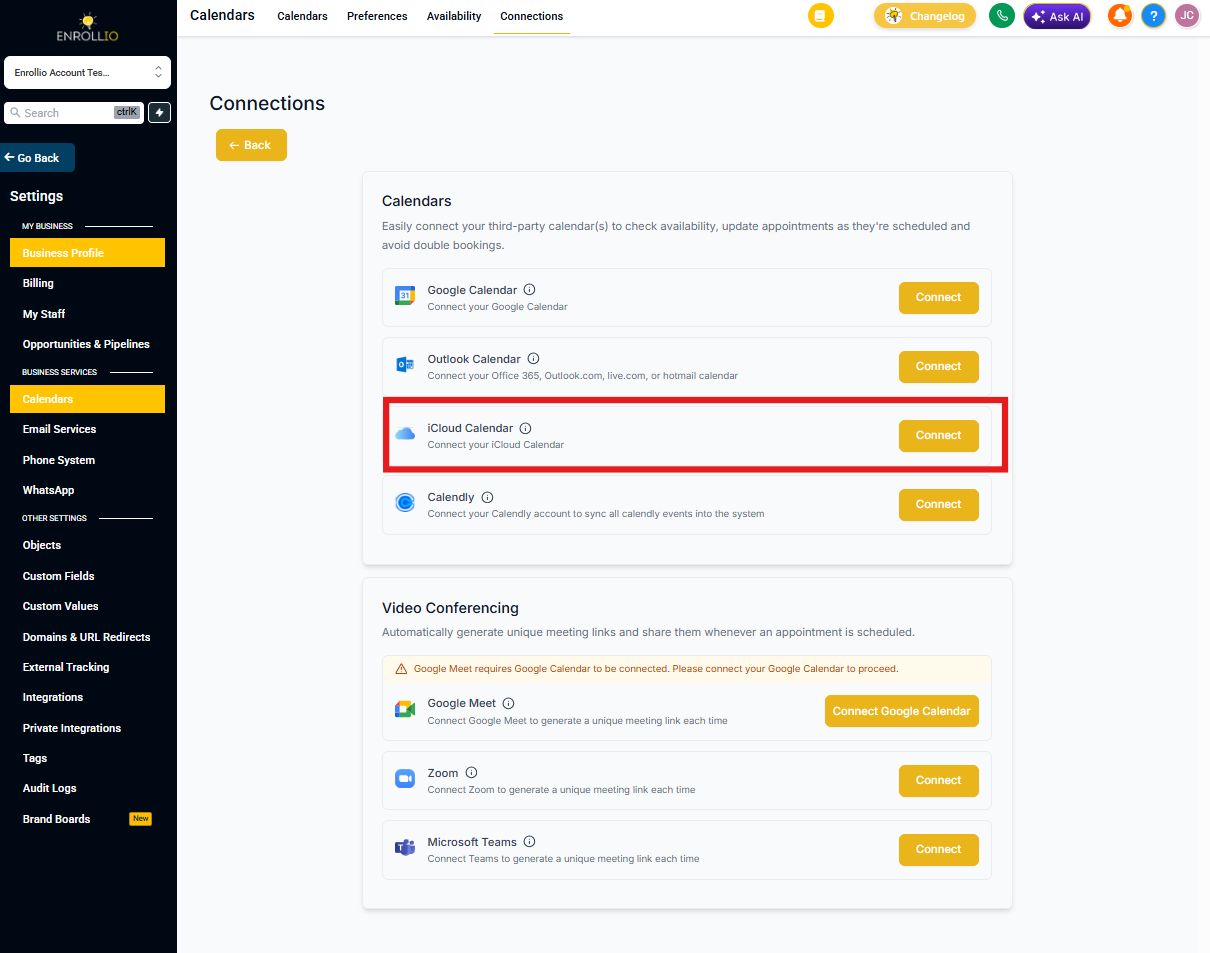
- In Enrollio, navigate to Settings → Calendars → Connections
- Click 'Add New'
- Select 'iCloud Calendar' and click 'Connect'
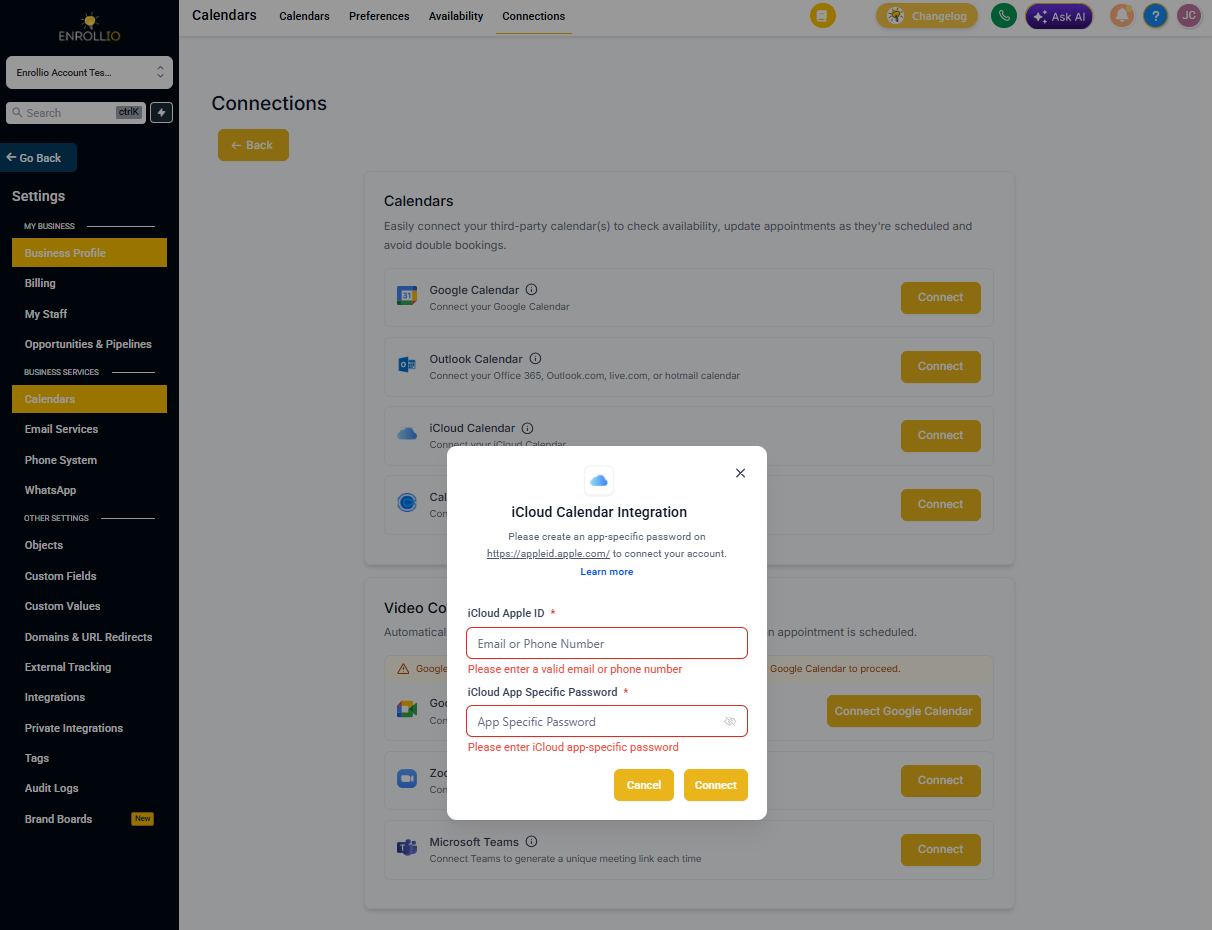
- Enter your Apple ID and paste the app-specific password you generated
- Click 'Connect'
Step 3: Configure Your Calendar Sync
Once connected, you'll configure how your calendars work together using two settings:
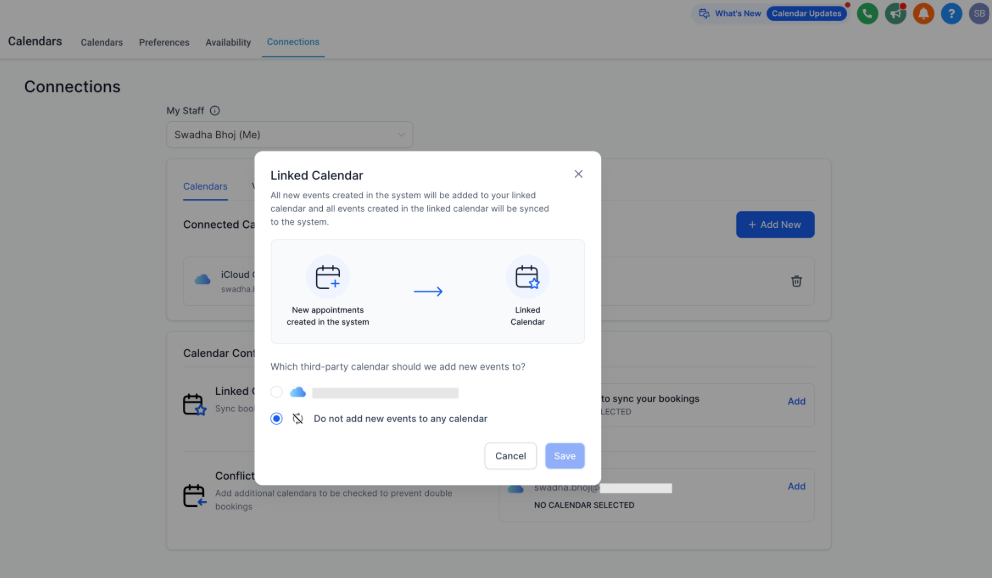
Linked Calendar
This is where new tour bookings and appointments created in Enrollio will appear. When you select a linked calendar, any appointment scheduled through Enrollio will automatically sync to your iCloud calendar.
Note: Writer's access is required to use a linked calendar. Your linked calendar is automatically added to your conflict calendars (see below).
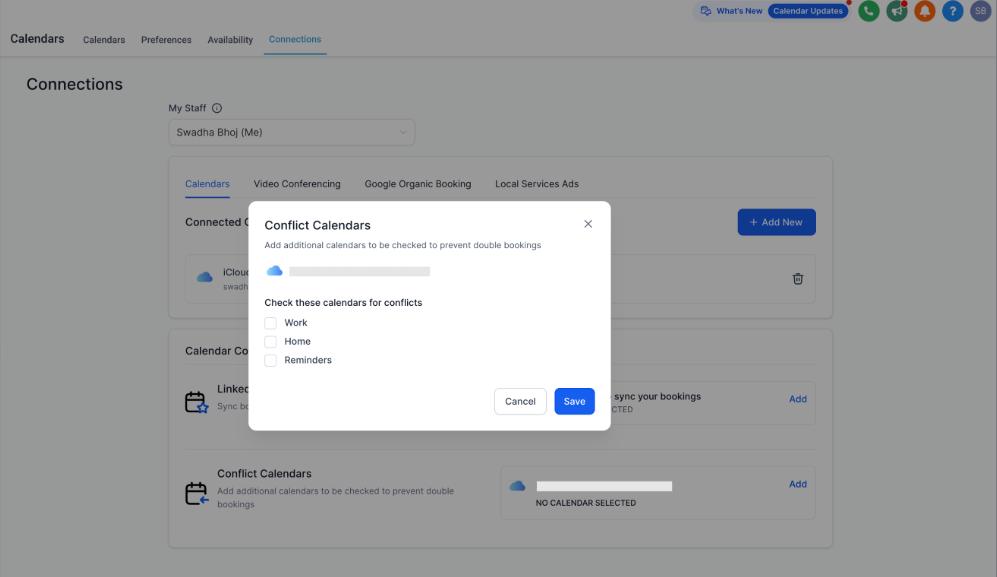
Conflict Calendars
Events from these calendars will block your availability in Enrollio, preventing double bookings. For example, if you have a personal appointment in iCloud marked as 'BUSY', Enrollio will block that time slot so families can't book tours during it.
Pro tip: Events marked as 'FREE' in iCloud will sync to Enrollio but won't block your availability. You can add multiple calendars as conflict calendars.
Understanding iCloud Sync Limitations
iCloud integration works a bit differently than Google or Outlook connections:
- One-way sync for blocks: Events coming from iCloud appear as blocked time slots in Enrollio. Parent contacts aren't created for guests in these events
- Blocked slots don't sync back: If you manually create a blocked time slot in Enrollio, it won't appear in your iCloud Calendar
- Subscription calendars not supported: You can't connect to iCloud calendars you've subscribed to via URL (typically public calendars)
- Multiple connections allowed: You can connect multiple iCloud accounts per location if needed
Why these limitations? These are restrictions from Apple's iCloud calendar system, not Enrollio. Google and Outlook offer more flexible two-way sync options.
You're All Set!
Your iCloud calendar is now connected to Enrollio. Your tour bookings will sync automatically, and your personal appointments will block availability to prevent scheduling conflicts.