
What is Multi-Calendar Booking with Enrollio Voice AI?
Enrollio Voice AI understands what parents are calling about and automatically books the right type of appointment—whether it's a center tour, enrollment consultation, or new family intake—without forcing them through confusing menus.
The AI listens to the entire conversation, figures out what the caller needs, and books time on the correct calendar. It respects your availability, buffers, and scheduling rules automatically.
Works for:
- Center tours for prospective families
- Enrollment consultations
- New family intake visits
- Parent-teacher conferences
- Waitlist interviews
Why Use Multi-Calendar Booking?
Understanding the benefits helps you decide which calendars to include and how to measure success.
Fewer Missed Tours: Parents get booked immediately—no callbacks needed.
Faster Scheduling: Families speak naturally instead of navigating phone menus.
Accurate Bookings: The AI considers the full conversation, not just keywords, so parents land in the right appointment type.
Multiple Service Types: Support distinct calendars for tours, enrollment meetings, and staff conferences.
Better Experience: When a request doesn't match your services, the AI offers clear alternatives instead of leaving parents hanging.
How AI Selects the Right Calendar
Enrollio AI analyzes conversational intent and context to match each caller's request to the best calendar. It can distinguish between similar phrases and uses the caller's wording, questions, and clarifications to boost accuracy.
Example Mappings:
- "I'd like to schedule a tour" → Center Tour Calendar
- "I want to talk about enrollment" → Enrollment Consultation Calendar
- "We're new; first visit" → New Family Intake Calendar
- "Parent-teacher meeting" → Conference Calendar
Pro Tip: The AI uses the entire conversation—not isolated keywords—and honors your availability, buffers, and minimum notice settings from each calendar.
AI-Generated Calendar Descriptions
Enrollio AI can generate clear descriptions and suggested trigger phrases for each calendar, helping the system understand when to use each one. You can accept these suggestions, refine them, or write your own to match your center's voice.
Provide calendar names and key details, then review the AI-drafted descriptions. Use concise, specific language and avoid overlapping phrasing across calendars so the AI can tell them apart easily.
Before You Start
Confirm these items before enabling multi-calendar booking to avoid setup errors and parent frustration:
- Enrollio Voice AI is active for your account
- At least two calendars configured for different appointment types
- Google or Outlook calendar connected (if applicable)
- Availability configured (time slots, buffers, minimum notice)
- Linked/conflict calendars set to prevent double-booking
- Appropriate permissions to edit AI and calendar settings
How to Set Up Multi-Calendar Booking
Proper configuration ensures the AI selects from the correct calendars, understands your services, and handles requests gracefully when something doesn't match.
Step 1: Create or Verify Your Calendars
Go to Calendars and confirm each appointment type has its own calendar with the correct duration, availability, buffers, and linked/conflict calendars configured.
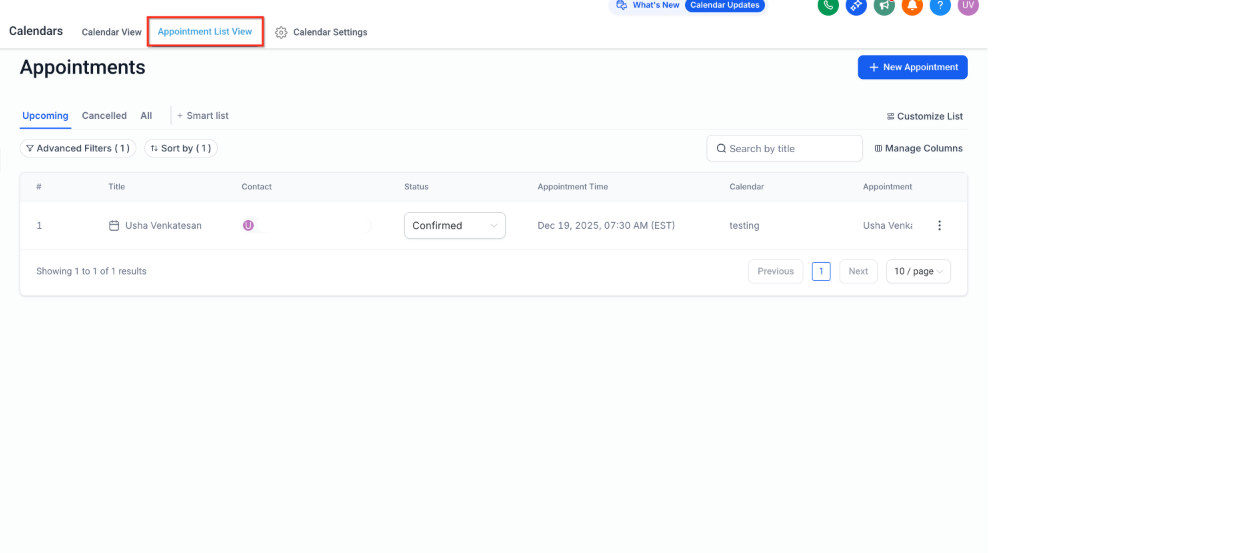
Step 2: Enable Voice AI Appointment Booking
Navigate to AI Agents and click on Enrollio AI.
Click Create Bot to start the setup process.
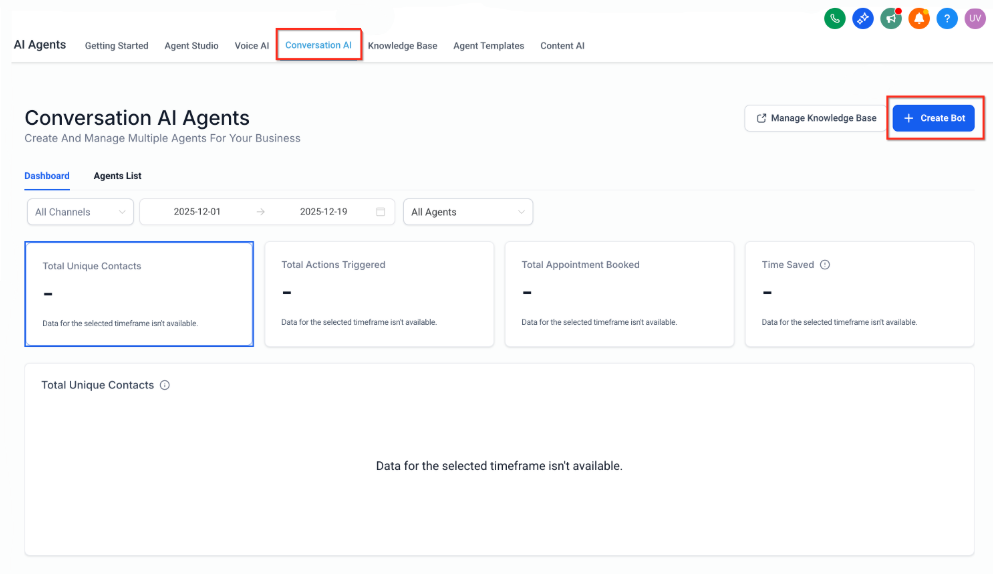
Step 3: Select Your Bot Type
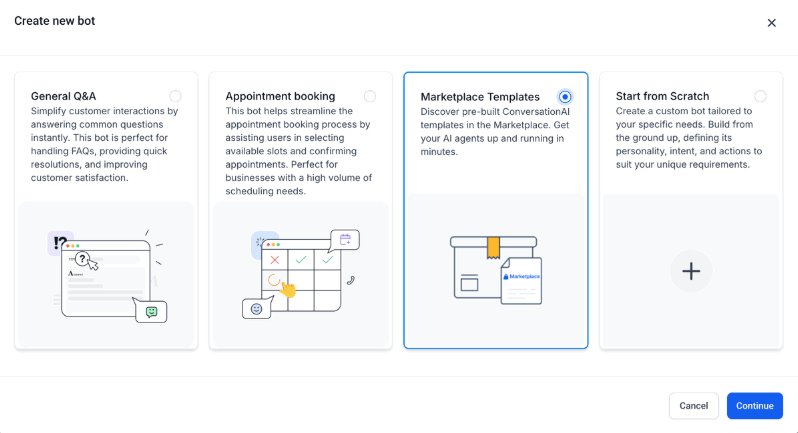
In Eligible Bots, choose the prompt-based bot.
Click Create New Bot to continue.
Choose Marketplace Templates and install the appointment booking template.
Step 4: Configure Appointment Settings
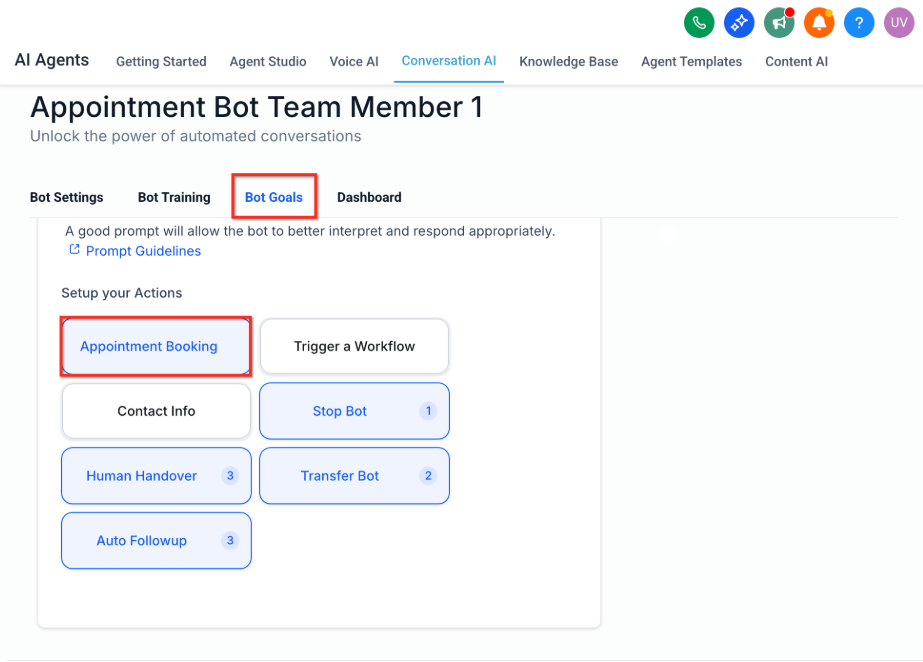
Go back to Enrollio AI and click on the installed template from your Agent list.
Click on the agent, navigate to the Bot Goals section, and complete the appointment booking settings.
Step 5: Set Up Your Calendars
Pick each calendar from the dropdown and click Proceed.
Add an AI Description for each calendar—this helps the AI understand when to use it.
Choose a Fallback Calendar (optional) for when the AI can't determine the best match.
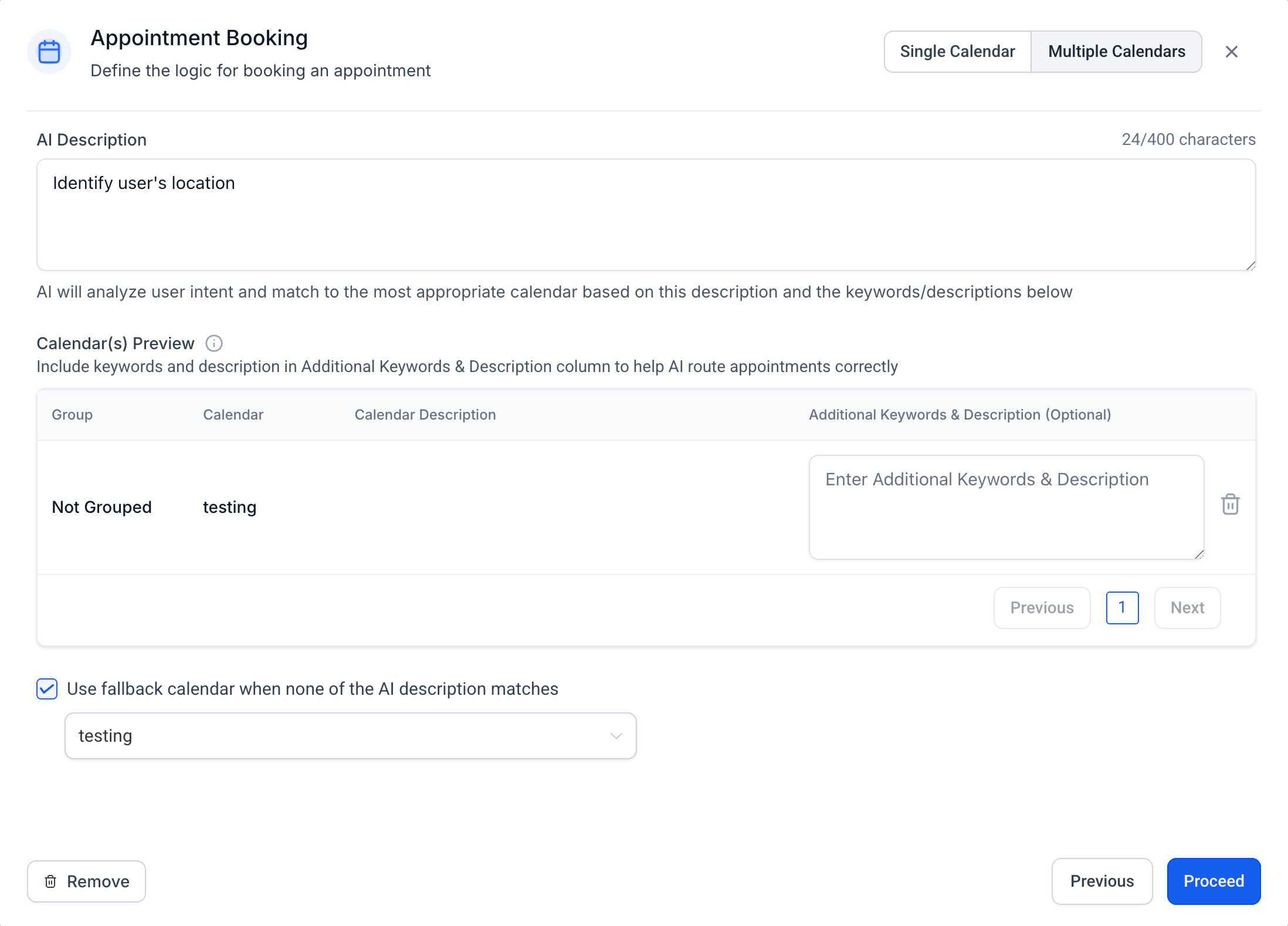
Pro Tip: Write descriptions that clearly differentiate each calendar. For example: "Center Tour Calendar: For prospective families wanting to visit the center and meet staff" versus "Enrollment Consultation: For families ready to discuss tuition, start dates, and paperwork."
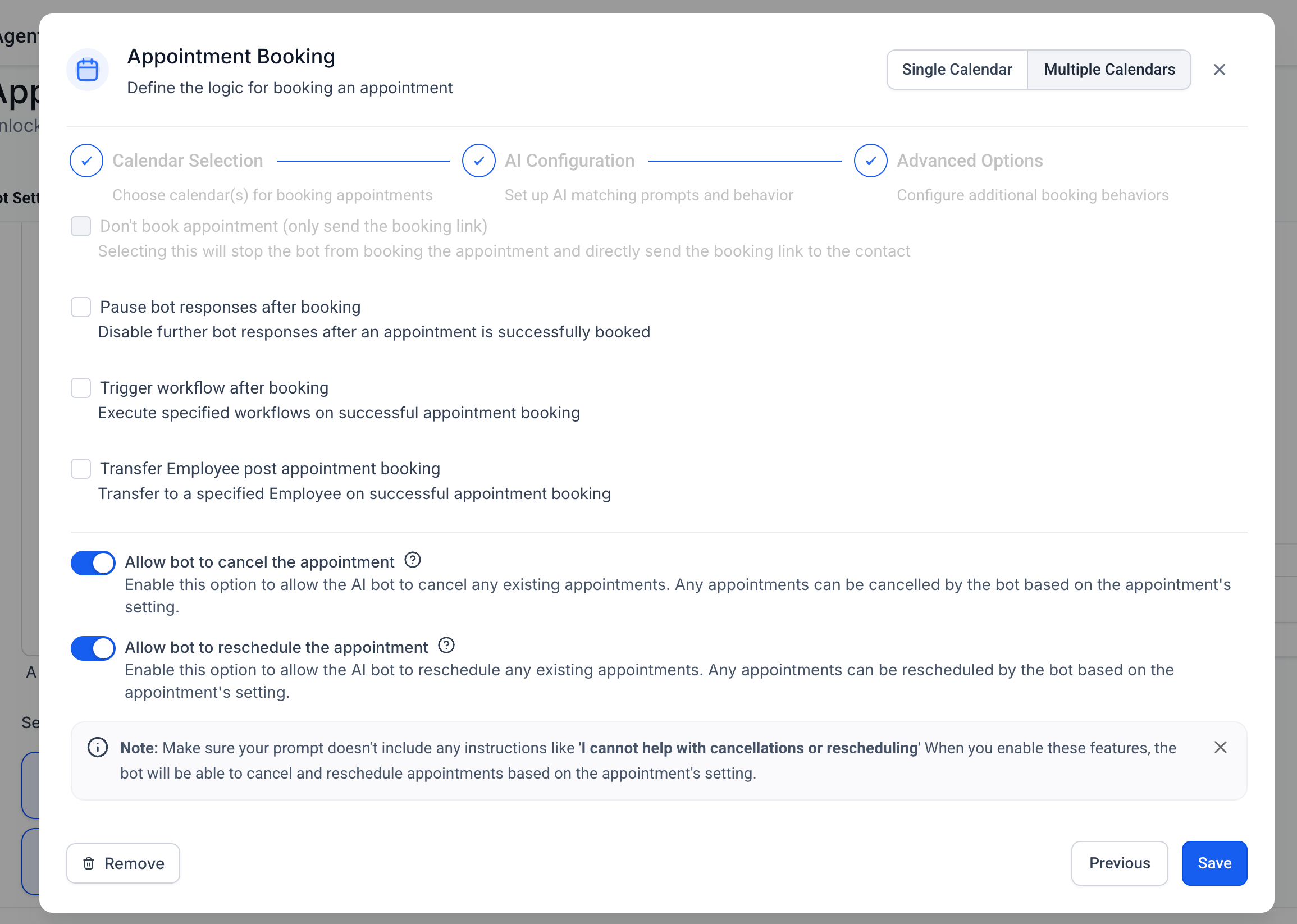
Step 6: Add Advanced Options
After clicking Proceed, configure any additional settings like buffer times, confirmation messages, or intake questions.
Click Save to complete your changes.
Frequently Asked Questions
Can I exclude a calendar from AI consideration without deleting it?
Yes. Simply remove it from Eligible Calendars in your bot settings, and the AI won't consider it for booking.
What happens if multiple calendars match a caller's request?
The AI uses confidence scoring to choose the best match. If confidence is low, it will ask clarifying questions or present options to the caller.
How do buffers and minimum notice affect available times?
The AI respects each calendar's scheduling rules, including buffers and minimum notice. Tight rules may limit the time slots offered to parents.
Can the AI reschedule or cancel existing appointments?
If enabled for your agent, the AI can manage changes by verifying caller details and updating the original calendar.
How do I handle calls about services we don't offer?
Configure your Fallback & No-Match settings to present available services, suggest a general calendar, or take a message for your staff to follow up.
What if the AI books the wrong calendar?
Adjust that calendar's description and trigger keywords. Remove any overlapping phrases between calendars and review call transcripts to identify confusing patterns.
Are there limits on the number of calendars?
While there's no hard limit, keep your eligible calendars focused on truly distinct appointment types. Too many similar options can reduce accuracy.
How does time zone work for out-of-area families?
Confirm your calendar's time zone settings. The AI offers times according to your configured preference and communicates clearly to the caller.
Can I collect intake information during booking?
Yes. If your calendar has intake questions configured, the AI can prompt for answers and store them with the appointment.
Related Articles
- Enrollio AI: Multiple Calendars for Appointment Booking
- Appointment Booking Automation Actions
- Setting Up Linked & Conflict Calendars
- Getting Started: Set Up a Booking Calendar
- Adjusting Availability Settings for Individual Calendars