
Overview
The Tour Booking Widget gives you full control over the order your families see when scheduling a tour. You can decide whether parents select a date and time first, or fill out their contact information first — whatever works best for your center.
This is especially useful if you want to capture parent information even if they don't complete the booking right away.
Setting Up Your Widget Step Order
Note: This feature is only available for the NEO Widget style.
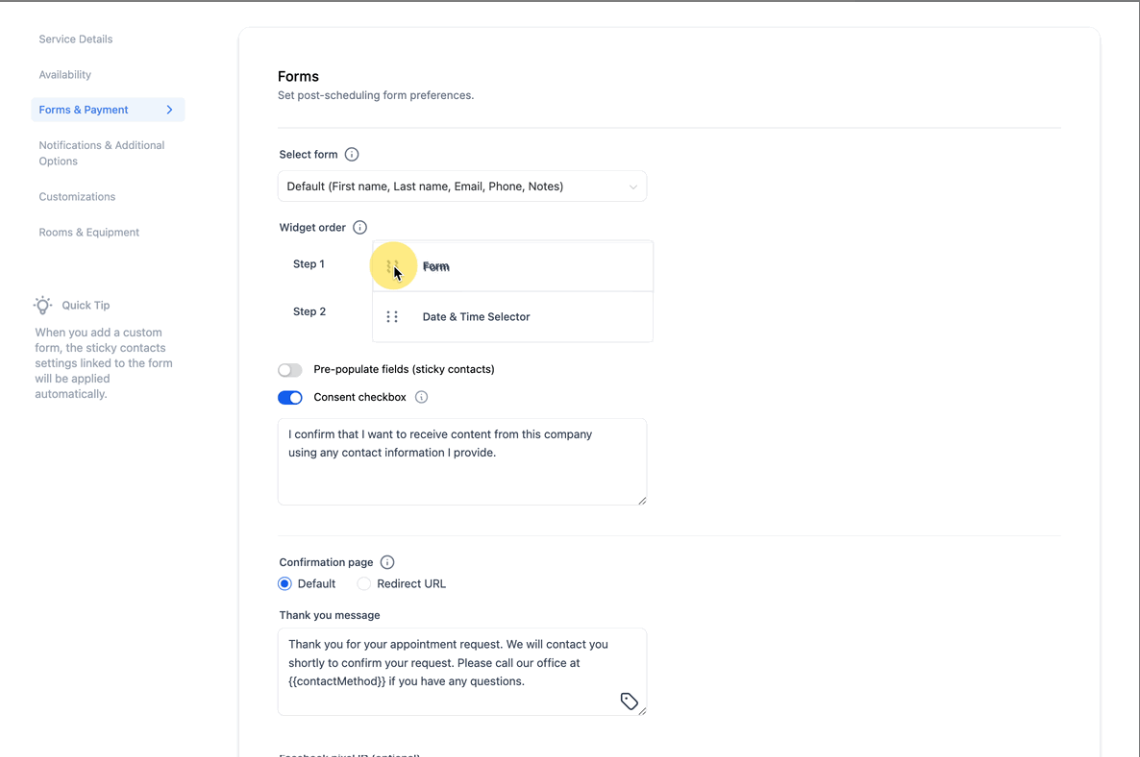
- Navigate to Calendar Settings and select the calendar you want to customize (typically your tour calendar).
- Click on Forms & Payments.
- Drag and drop the Date & Time Selector and Form sections to arrange them in your preferred order.
- Click Save to apply your changes.
How It Works
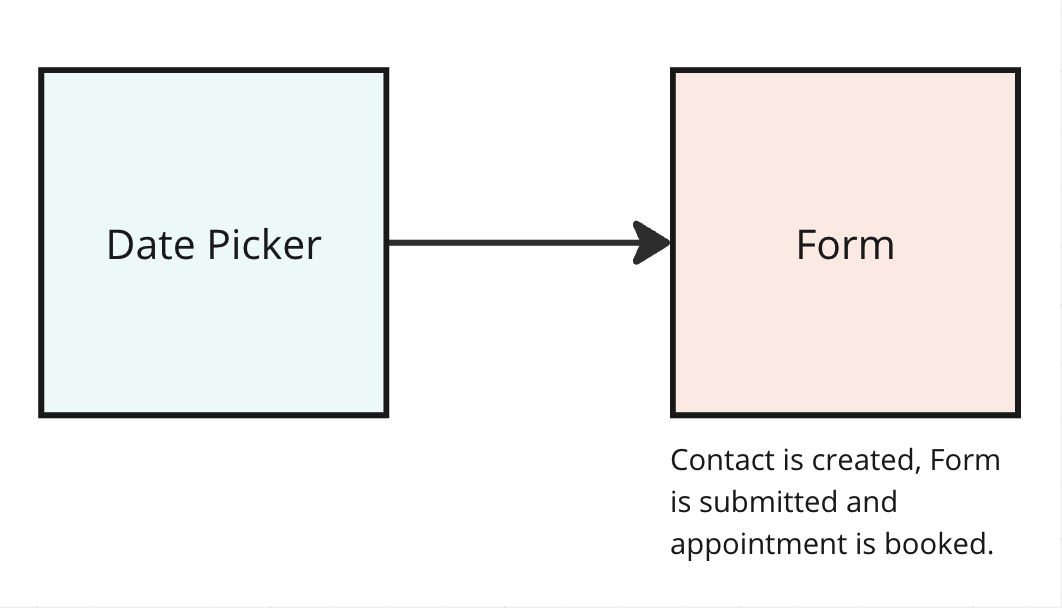
Date Picker First, Form Second
What happens: Parents choose their tour date and time, then fill out their contact information.
Result: The tour is booked immediately, a family record is created in your system, and the form is submitted.
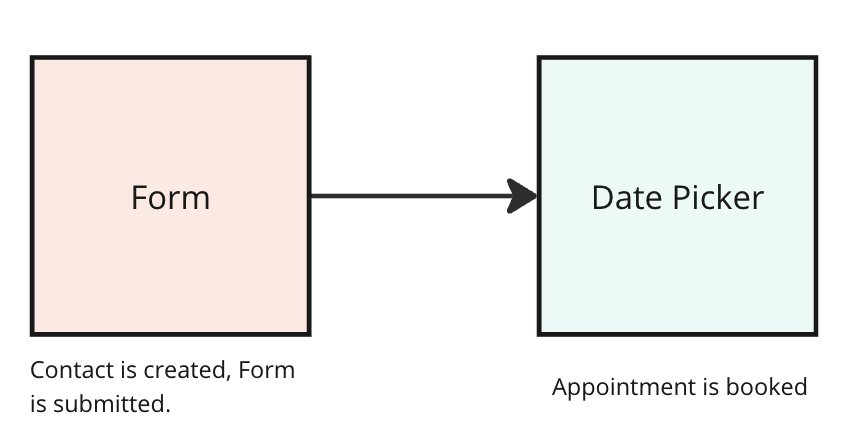
Form First, Date Picker Second
What happens: Parents fill out their contact information before selecting a date.
Result: A family record is created as soon as they submit the form. If they then choose a date and complete the booking, the tour appointment is added to their record. If they leave without booking, you still have their information to follow up.
How Payments Work
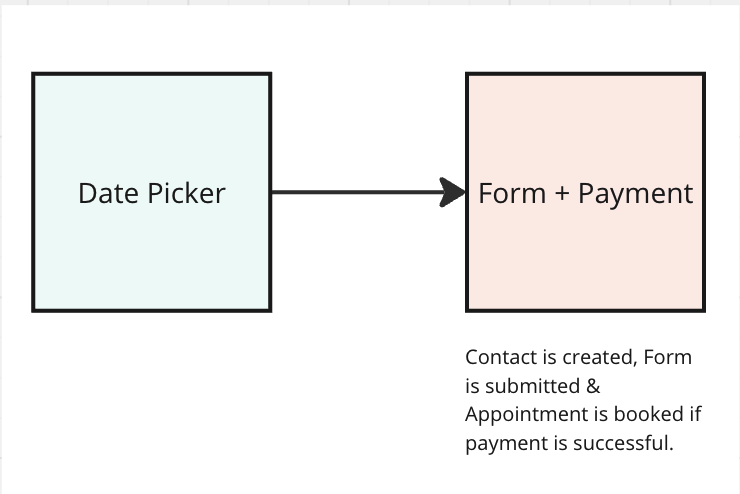
If you've enabled tour deposits or registration fees, the booking process includes an additional step:
- Payment window: Parents have 10 minutes to complete payment after selecting their time slot.
- Successful payment: The tour is confirmed and appears on your calendar.
- Payment not completed: The time slot is released after 10 minutes and becomes available for other families to book. No appointment is created.
Widget Order Scenarios
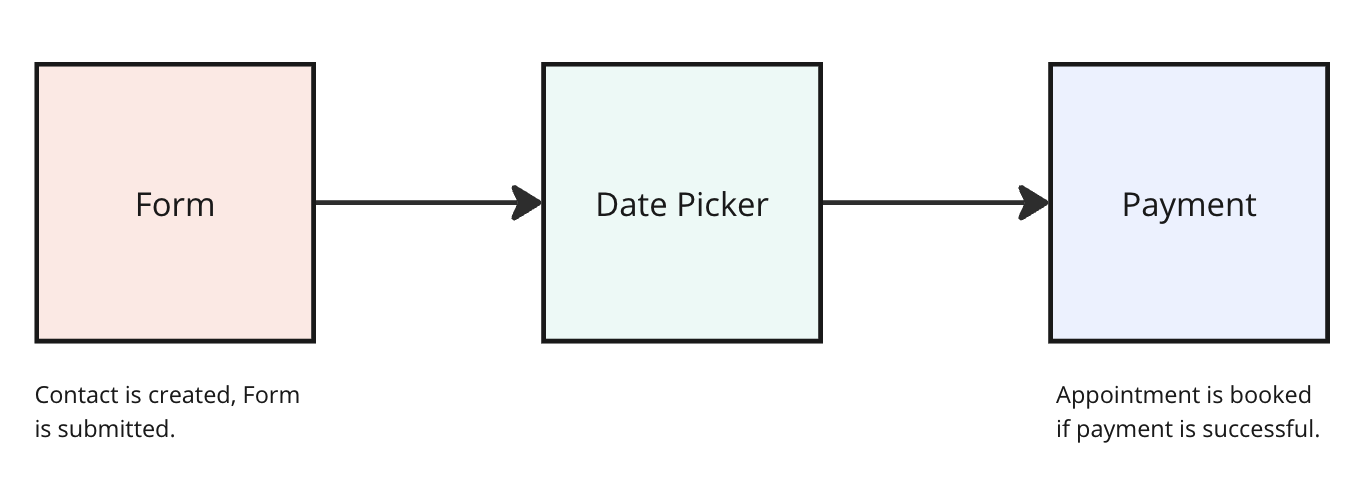
Here are the four possible configurations:
- Date Picker First (no payment required)
- Date Picker First (payment required)
- Form First (no payment required)
- Form First (payment required)
Common Questions
What happens if someone clicks back and submits the form again?
If a parent resubmits the form in the same session, you'll see multiple form submissions. The family record will be updated with the information from their latest submission.
When do my form submission automations trigger?
Form first: Automations trigger immediately when the form is submitted — even if the parent doesn't book a tour.
Form second: Automations only trigger if the tour is successfully booked.
When do my tour booking automations trigger?
No payment required: Automations trigger as soon as the tour is booked.
Payment required: Automations only trigger after payment is successfully completed. The tour is only confirmed once payment goes through.
Why don't I see a time slot that should be available?
This usually means another parent has selected that slot but hasn't completed payment yet. The slot is held for 10 minutes:
- If they complete payment within 10 minutes, the tour is booked and appears on your calendar.
- If the 10 minutes expires without payment, the slot is released and becomes available again.