
Overview
The Transaction CSV Export lets you download detailed payment records for reporting, reconciliation, accounting, and compliance. Whether you're preparing for tax season or reconciling your books, this export gives you complete visibility into your enrollment fees, tuition payments, and registration charges.
You can export:
- All transactions from your account
- Filtered transactions based on date range, payment status, or source
Exports are delivered via a secure email link and open in Excel, Google Sheets, or any spreadsheet tool.
How to Export Transactions
- Go to Payments → Transactions
- Apply filters or search if needed (date range, payment status, source type)
- Click the Download icon
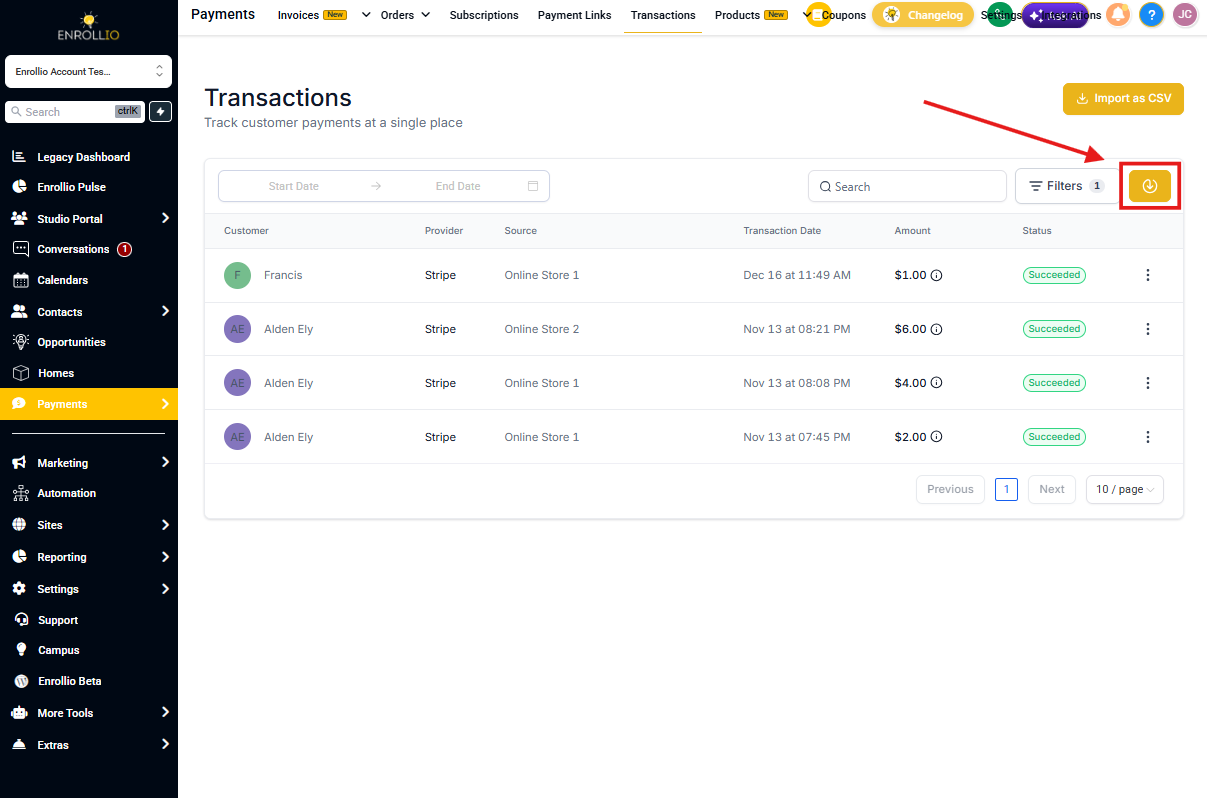
A secure download link will be emailed to you within minutes.
How You'll Receive Your Export
The export link arrives in your email inbox within a few minutes. Click the link to download your CSV file — it won't download directly in the platform.
If your link expires, just repeat the export steps above to generate a fresh one.
Understanding the CSV Structure
Here's what's important to know: each row may not equal one transaction.
A single enrollment payment or registration fee can include:
- Multiple line items (registration fee + tuition deposit)
- Multiple taxes (state tax + local tax)
- Additional charges (processing fees, late fees)
Each financial component appears on its own row so you can track it separately for accounting purposes.
When a transaction spans multiple rows, some columns will be blank — that's intentional. Product-specific data appears only on product rows, and full transaction data appears on the first row.
Data Formatting Standards
These exports are designed for reliable accounting and reporting workflows:
Zeros vs. Blank Cells
- 0 appears when the field applies and the value is actually zero
- Blank appears when the field doesn't apply to that row
Consistent Column Structure
Column ordering stays the same every time you export, making it easy to import into accounting software or create recurring reports. The multi-row format is intentional — it supports product-level and tax-level tracking.
Column Reference Guide
| Column Name | Description | Example |
|---|---|---|
| Internal transaction id | Unique transaction identifier | 69369a9968f735180bfeb6ed |
| Location id | Client Account identifier | NyGCsdhgRZ8Ffa8Ssagfhd |
| Customer id | Parent/family identifier in Enrollio | jbtyjkzMjvd8cLi9HUC |
| Customer name | Parent name from transaction | Alex Ray |
| Customer email | Email used for receipt | alex@example.com |
| Customer phone | Phone number used at checkout | +1 555-012-2345 |
| Payment method | Method used for payment | Credit Card, Cash, Bank Transfer |
| Currency | Currency of transaction | USD |
| Sub total | Product total before discounts and taxes | 100.00 |
| Discount | Total discounts applied | -15.00 |
| Total tax amount (excluded in prices) | Tax added on top of subtotal | 8.40 |
| Total tax amount (included in prices) | Tax already included in product prices | 0.00 |
| Tip amount | Tip added by parent | 5.00 |
| Late fees | Late payment charges | 10.00 |
| Total amount due | Original total (includes subtotal, discount, taxes, late fees); doesn't reflect partial payments | 103.40 |
| Total amount paid | Actual amount paid (includes tips and processing charges) | 110.40 |
| Coupon code | Applied coupon code, if any | WELCOME15 |
| Status | Transaction status | Success, Refunded |
| Live mode | Whether in Live or Test mode | Yes / No |
| Source type | Where purchase occurred | Invoice, Landing Page, Form |
| Source id | Internal ID of the source | inv_8281 |
| Source name | Display name of source | Q4 Billing Invoice |
| Internal order id | Order reference within Enrollio | jfnkwbgfwbegiu234 |
| Payment provider | Gateway used for transaction | Stripe, NMI, Authorize.net |
| Subscription id | Subscription reference, if applicable | sub_7A91F |
| Charge id | Provider charge identifier | ch_1NHXYZ |
| Connected account | Payment provider merchant account ID | acct_1sagewg732Hko |
| Transaction date | Date of charge | Dec 8, 2025 |
| Transaction time | Time of charge | 03:00 PM |
| Timezone | Timezone of record | America/New_York |
| Is refunded | Refund status | Yes / No |
| Amount refunded | Total refunded (sum of all refunds if multiple) | 25.00 |
| Refund date | Last refund date | Dec 9, 2025 |
| Line item name | Product name | Annual Registration Fee |
| Line item quantity | Quantity purchased | 1 |
| Line item price | Price per line item | 100.00 |
| Line item coupon discount | Coupon portion for this product | 15.00 |
| Line item subtotal | Subtotal for this product | 85.00 |
| Line item product id | Enrollio Product identifier | prod_5449 |
| Tax name | Unique tax label | Sales Tax |
| Tax amount | Tax value (summed for all products with this tax name) | 8.40 |
| Processing charge name | Name of miscellaneous fee (max 1 per transaction) | Platform Fee |
| Processing charge amount | Miscellaneous fees amount | 2.00 |
| Gift card order number | Gift card identifier if used | GC-ORD-19202 |
| Gift card amount used | Amount redeemed via gift card | 20.00 |
Special Formatting Notes
- Multiple products: Each product creates its own row under the same Transaction ID
- Multiple taxes: Each tax appears on a separate row. If 2 products each have 2 taxes, you'll see 4 total rows (2 products × 2 taxes)
- Combined payments: Card + Gift Card payments show distinct values in separate columns
- Tax precision: Tax rate percentages export with 4 decimal places (e.g., 7.1250%) for accuracy. Tax amounts round to 2 decimals.
Frequently Asked Questions
Why does a single transaction show multiple rows?
Because each product and each tax gets its own row. This is standard for accounting-grade reporting and lets you track exactly where money is going.
Why does Total Amount Due differ from Total Amount Paid?
Total Amount Due shows the original invoice or order total. Total Amount Paid includes processing charges, tips, and reflects partial payments. The difference helps you reconcile what was owed versus what actually moved through your payment processor.
Why don't I see some transactions in my export?
Check that:
- All filters are cleared
- Your date range covers the transactions you're looking for
- You're viewing the correct Client Account if you manage multiple centers
Will my export include failed transactions?
Yes — unless you filter to show only Successful transactions. This helps you track declined payments and follow up with families.