
What is Outlook Calendar Integration?
Integrating your Outlook calendar with Enrollio syncs your bookings automatically between both systems. This keeps your availability accurate, prevents double bookings with parents, and makes tour scheduling effortless.
Key Benefits of Integrating Outlook Calendar
- Seamless Integration: Connect your existing Outlook (Microsoft) account in just a few clicks.
- Smart Availability: Automatically reflect your Outlook calendar availability in Enrollio scheduling.
- Avoid Double-Booking: Events from Outlook display as busy slots in Enrollio, so parents can't book tours during your existing meetings.
- Streamlined Management: Centralize tour appointments and parent meetings while staying synced with your external calendar.
Prerequisites for Outlook Calendar Integration
- You must have an active Outlook (Microsoft) account.
- You need to be logged into your Enrollio user profile.
- Writer access is required to send events to Outlook.
Steps to Connect Outlook Calendar
Step 1: Navigate to Calendar Connections
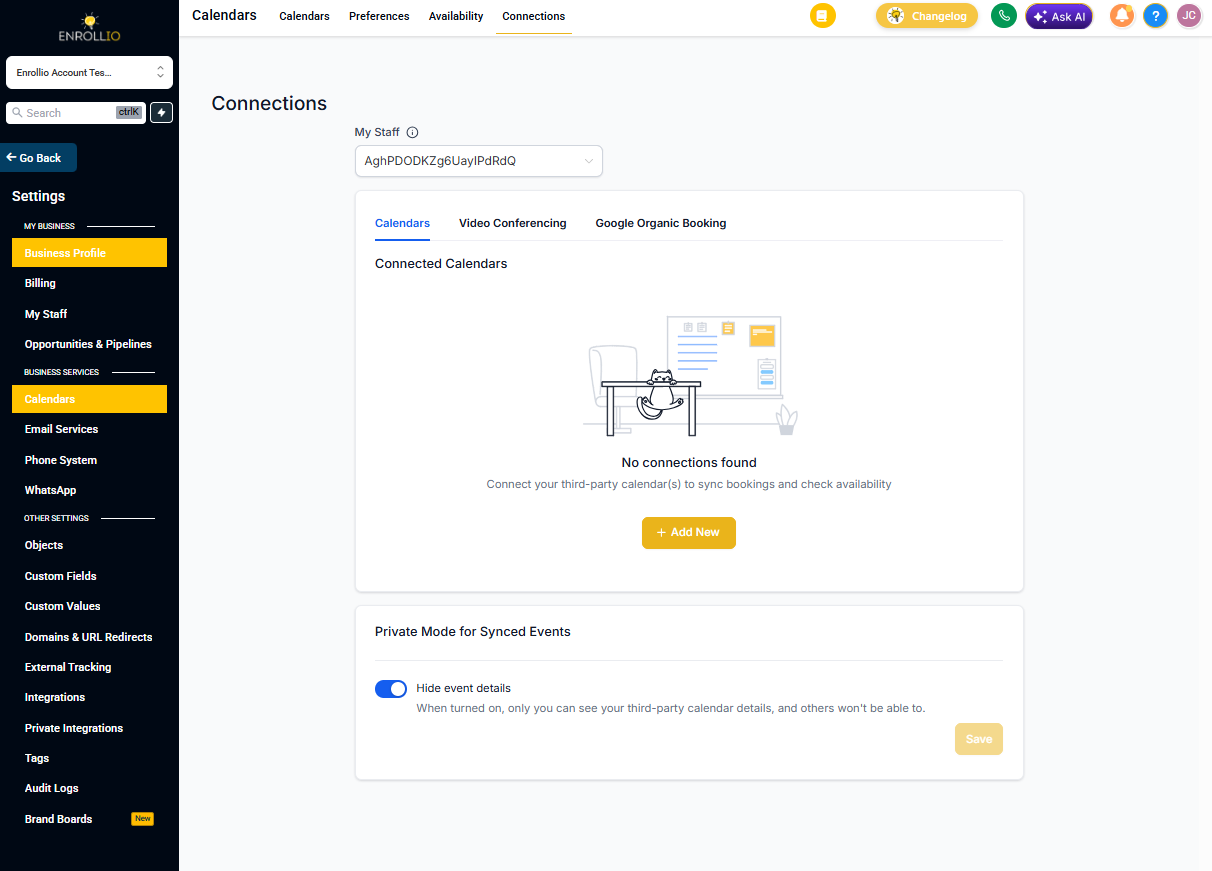
- Go to your Client Account Settings.
- Select Calendars under Business Services.
- Click on the Connections tab, then click + Add New to add a new calendar connection.
Step 2: Authenticate with Outlook
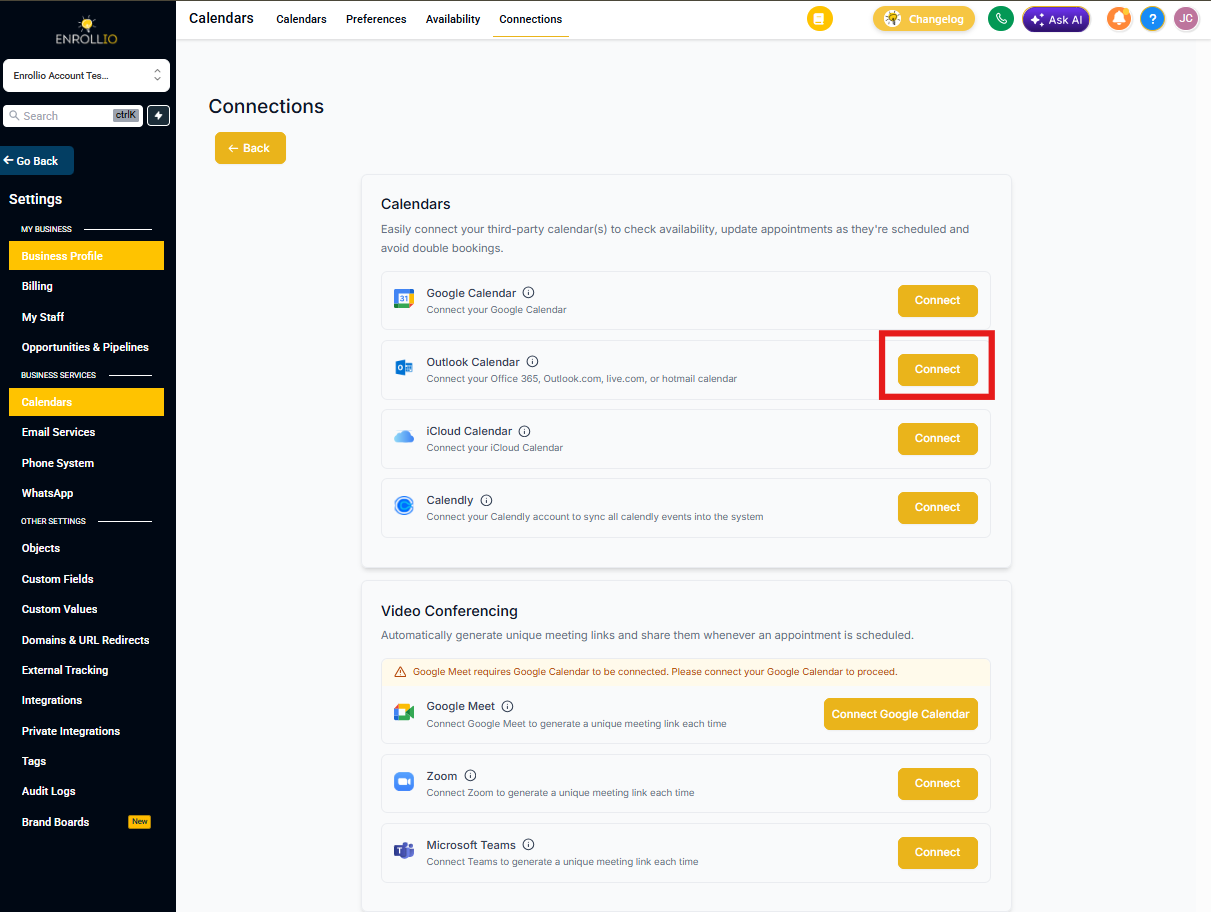
- From the Connections page, click the Connect button beside Outlook Calendar.
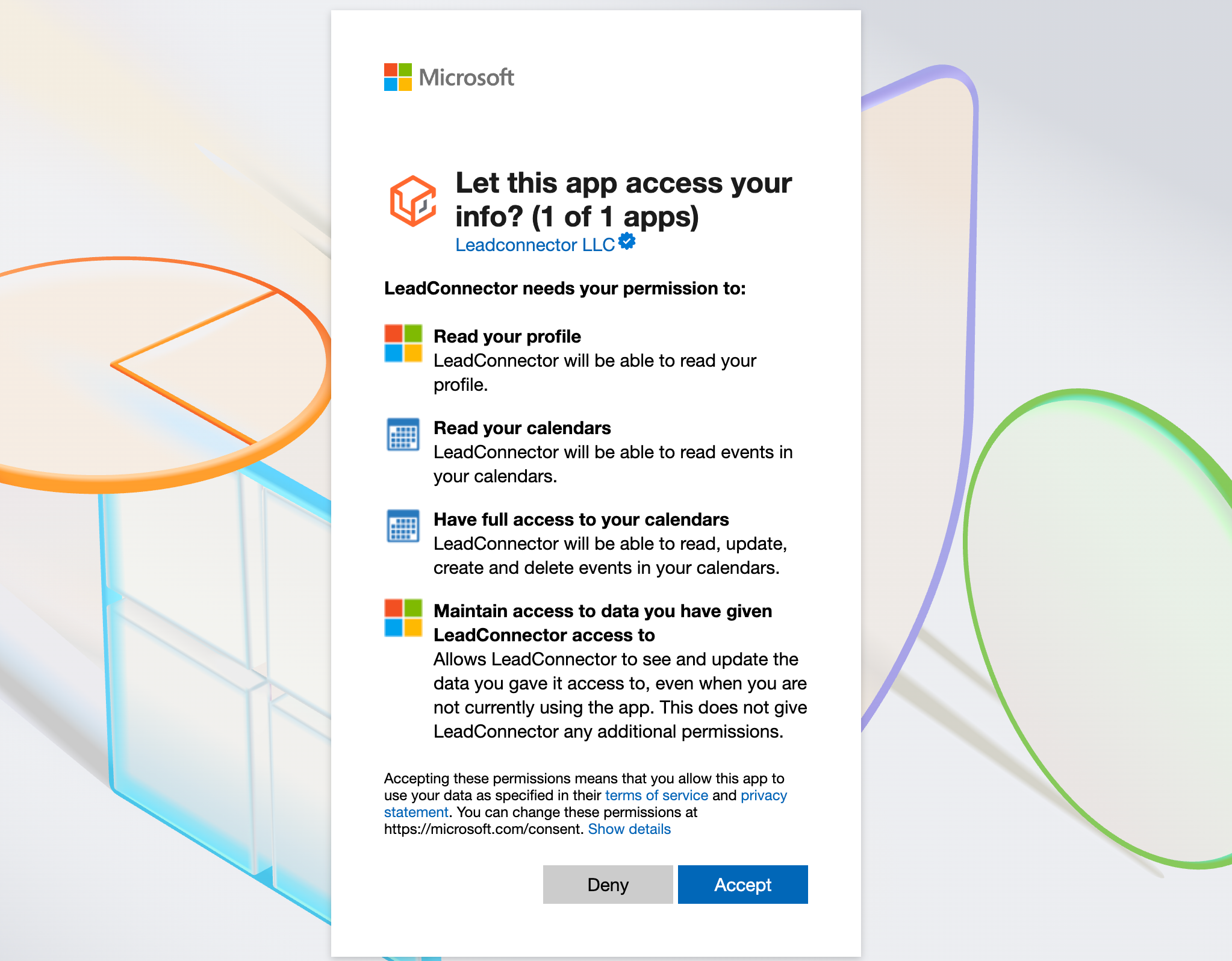
- Sign in to your Outlook Account.
- Accept the necessary permissions to complete the authentication process.
Supported and Unsupported Accounts
Supported: Microsoft 365 / Exchange Online accounts, Office 365, Outlook.com, live.com, and hotmail calendar.
Not Supported: Stand-alone or on-premises Microsoft Exchange servers, or Outlook Desktop events not synced to the cloud.
Frequently Asked Questions
Can I integrate multiple Outlook accounts?
Yes, you can integrate more than one Outlook account. The same Outlook account can also be connected across multiple client accounts.
What happens if I disconnect Outlook?
Enrollio will no longer receive availability or event data from Outlook, which may impact calendar-based tour scheduling and parent meetings.
What if my Outlook calendar was deleted and Enrollio shows an error banner?
Click Fix This on the banner to review deleted calendar instances and where they're connected in Enrollio. Then select Remove Deleted Calendars to remove broken connections and restore an error-free setup.
What scenarios are not supported by this integration?
If you use Outlook Desktop and your events are not synced to the cloud, those events will not be visible to Enrollio. We also do not support Outlook accounts hosted on on-premise Exchange servers.