
What is the Calendly Integration?
The Calendly integration lets Enrollio automatically import events from your Calendly calendars. When parents book tours or consultations through Calendly, those appointments sync directly into Enrollio where you can trigger automations, create family records, and keep your enrollment pipeline up to date.
This integration is perfect for childcare centers using Calendly to schedule parent tours, enrollment consultations, or director meetings.
Key Benefits of Connecting Calendly
Once you connect Calendly, your scheduling activity flows seamlessly into Enrollio. Here's what you can do:
- Automatically import tour and consultation appointments
- Create family records from Calendly bookings
- Assign appointments to staff members based on calendar ownership
- Sync shared or personal Calendly calendars
- Trigger follow-up automations when tours are scheduled
How to Connect Your Calendly Account
Setting up the integration takes just a few minutes. Follow these steps to securely connect and start syncing your calendars.
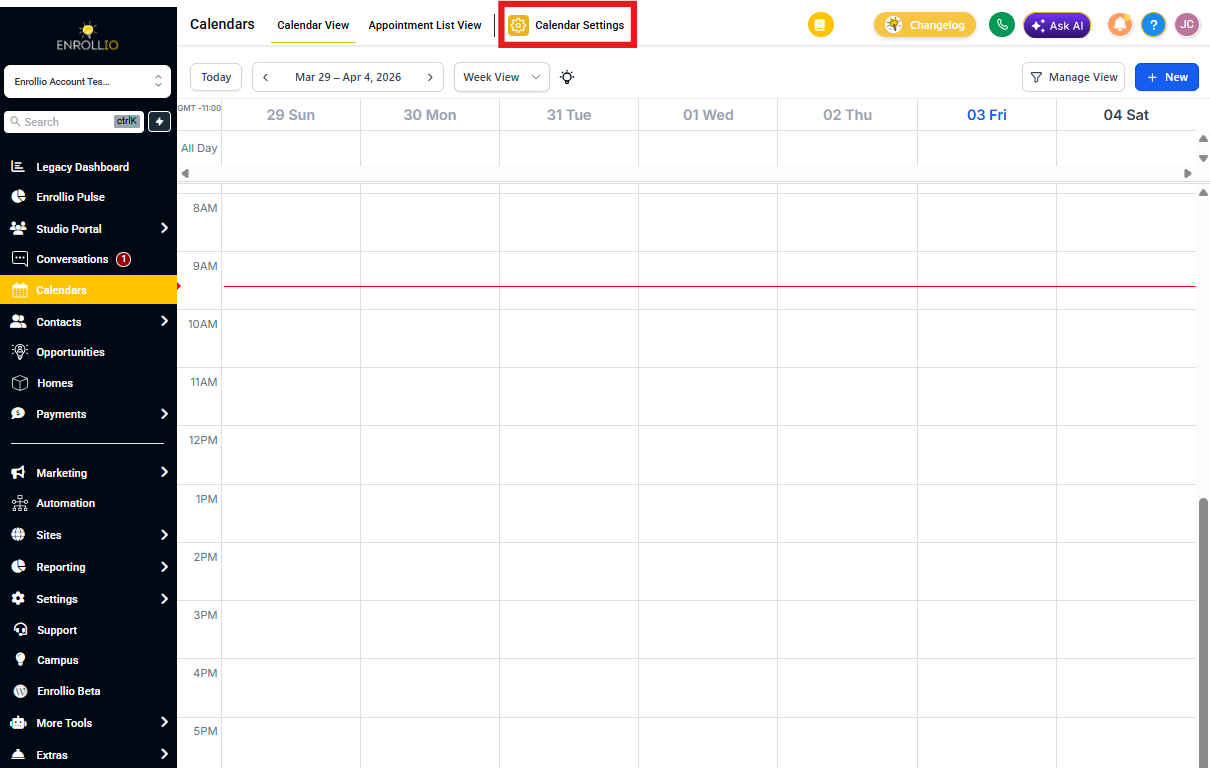
Step 1: Access Calendar Settings
Navigate to Calendars in the left-hand menu, then click Calendar Settings in the top-right corner. This is your hub for managing all calendar connections.
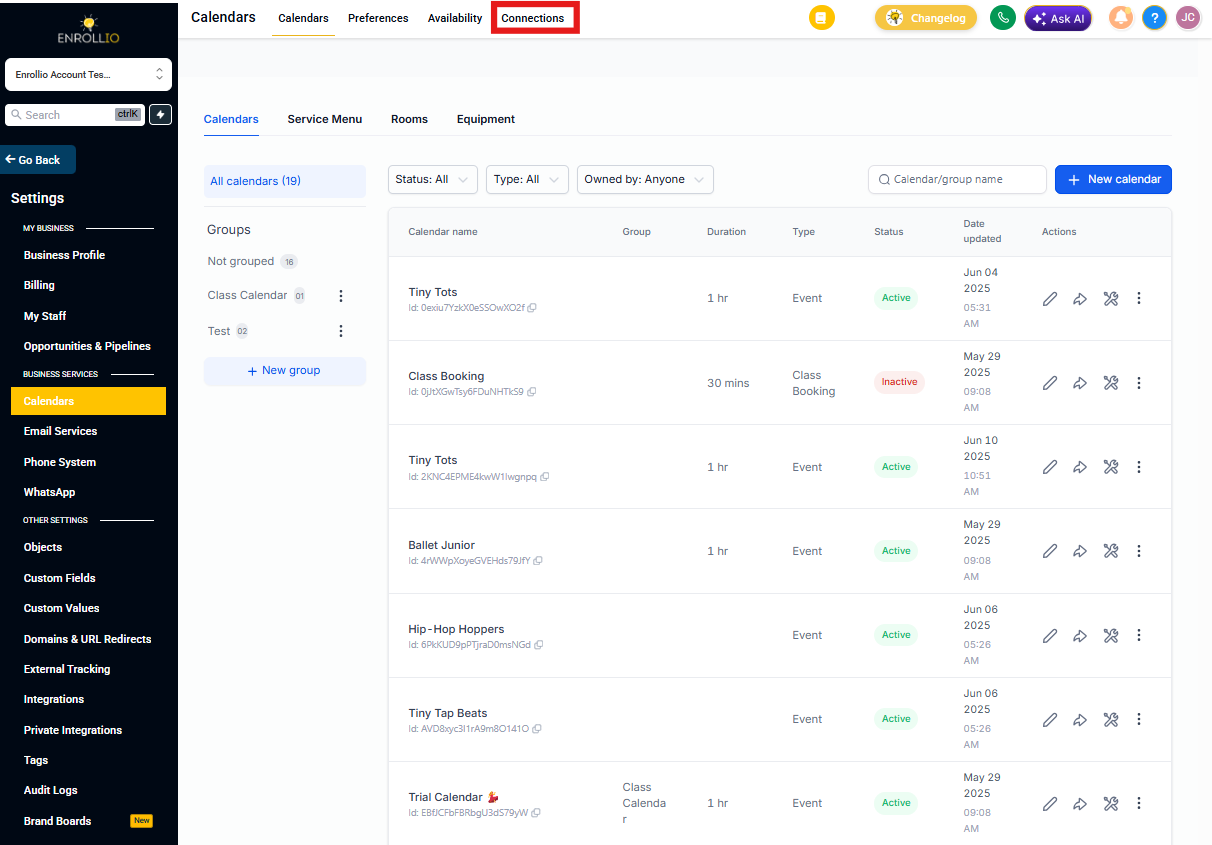
Step 2: Open Connections Tab
Click the Connections tab at the top to view your integrated calendar accounts. You'll add, edit, or remove third-party calendars like Calendly here.
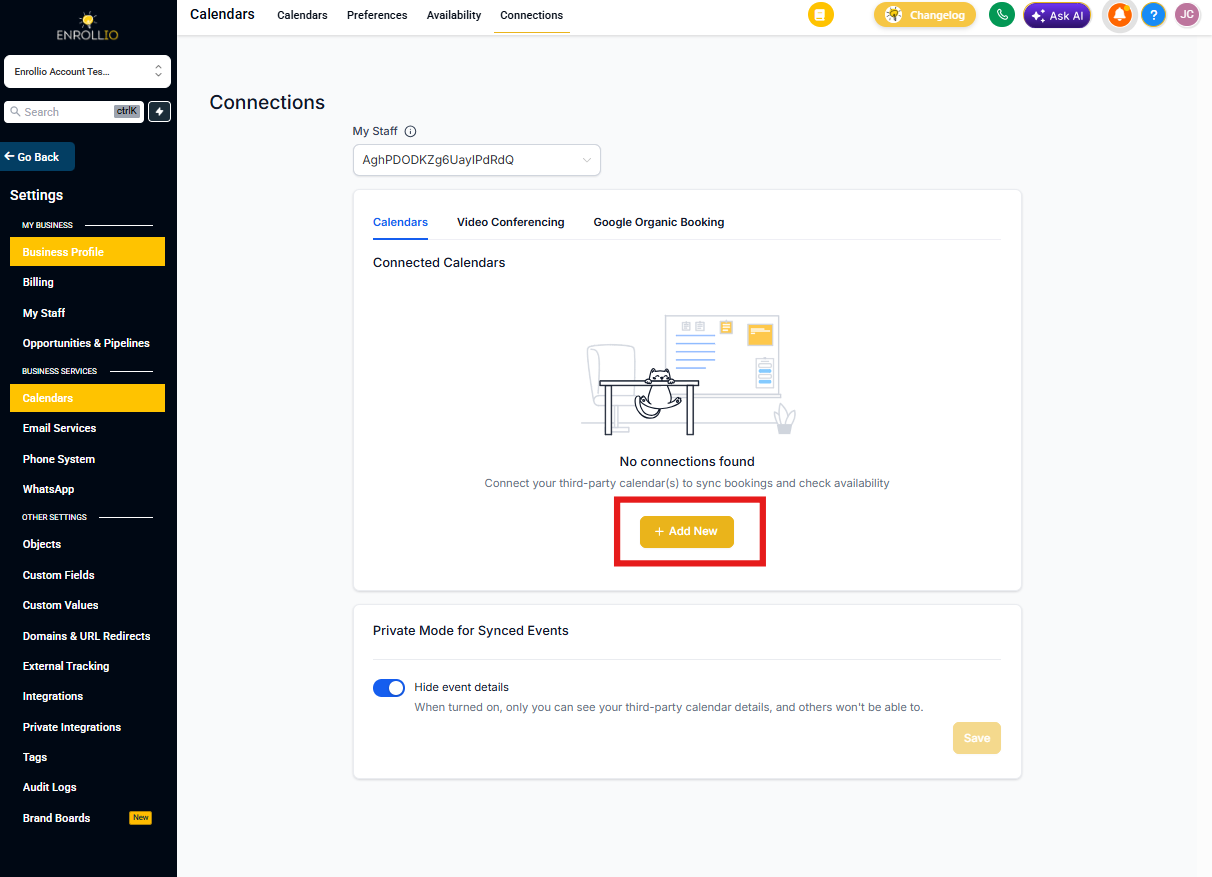
Step 3: Add New Integration
Click + Add New to start a new calendar connection. This opens the list of available calendar providers.
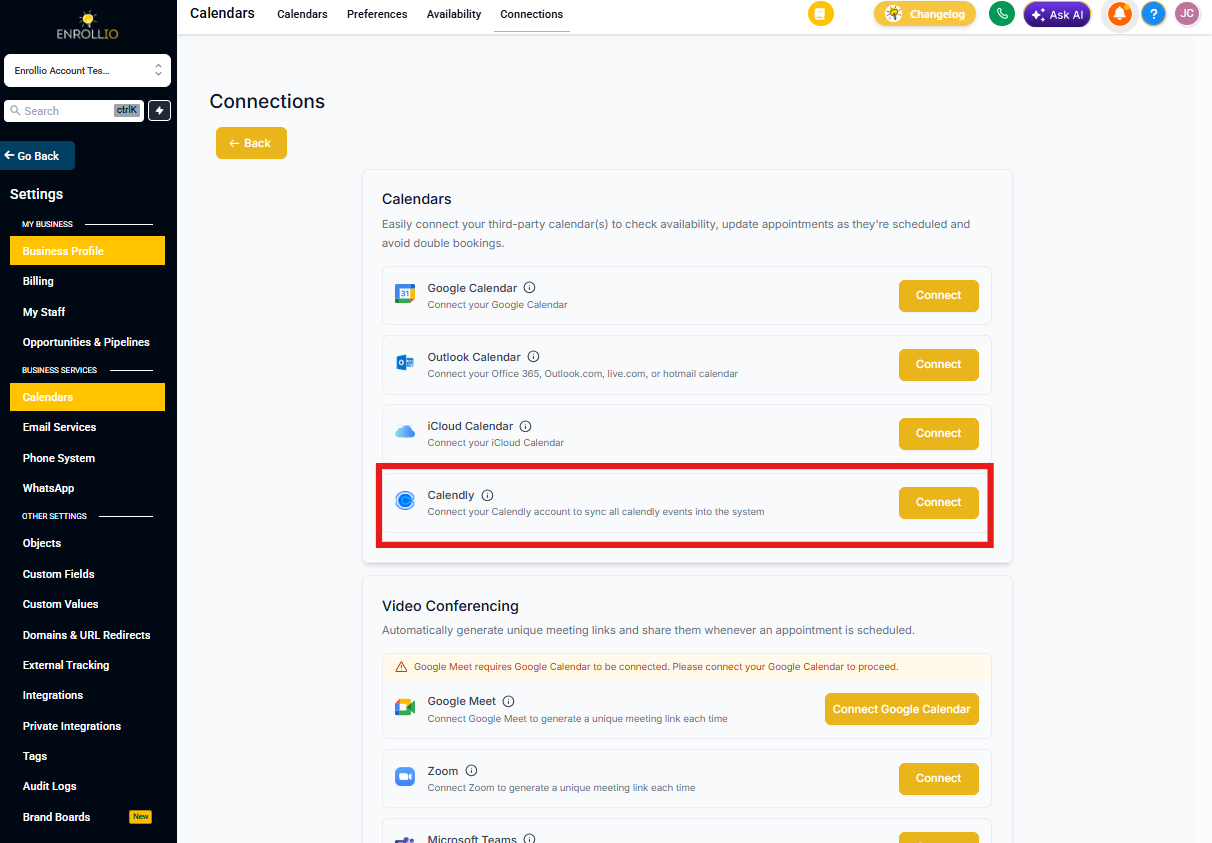
Step 4: Select Calendly
Find Calendly in the list of calendar providers and click Connect. This starts the authorization process.
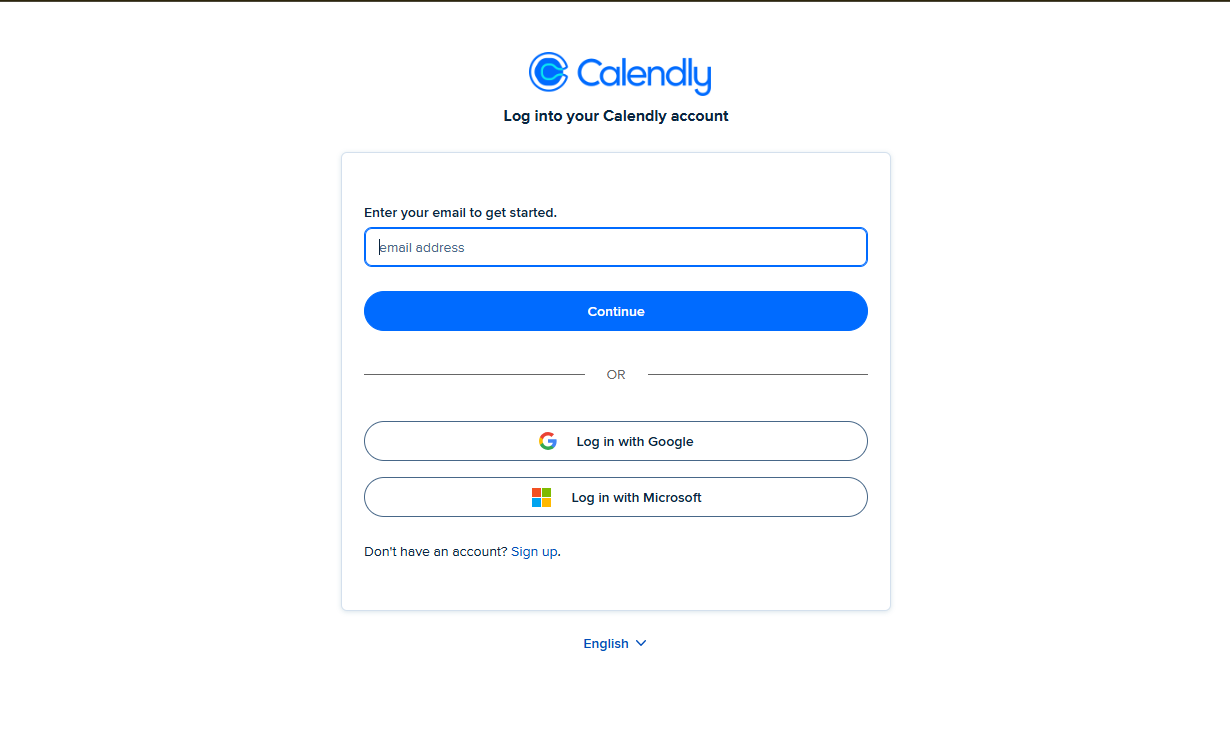
Step 5: Log Into Calendly
Enter the email address linked to your Calendly account and click Continue. You can also log in using Google or Microsoft credentials if you've linked them to Calendly.
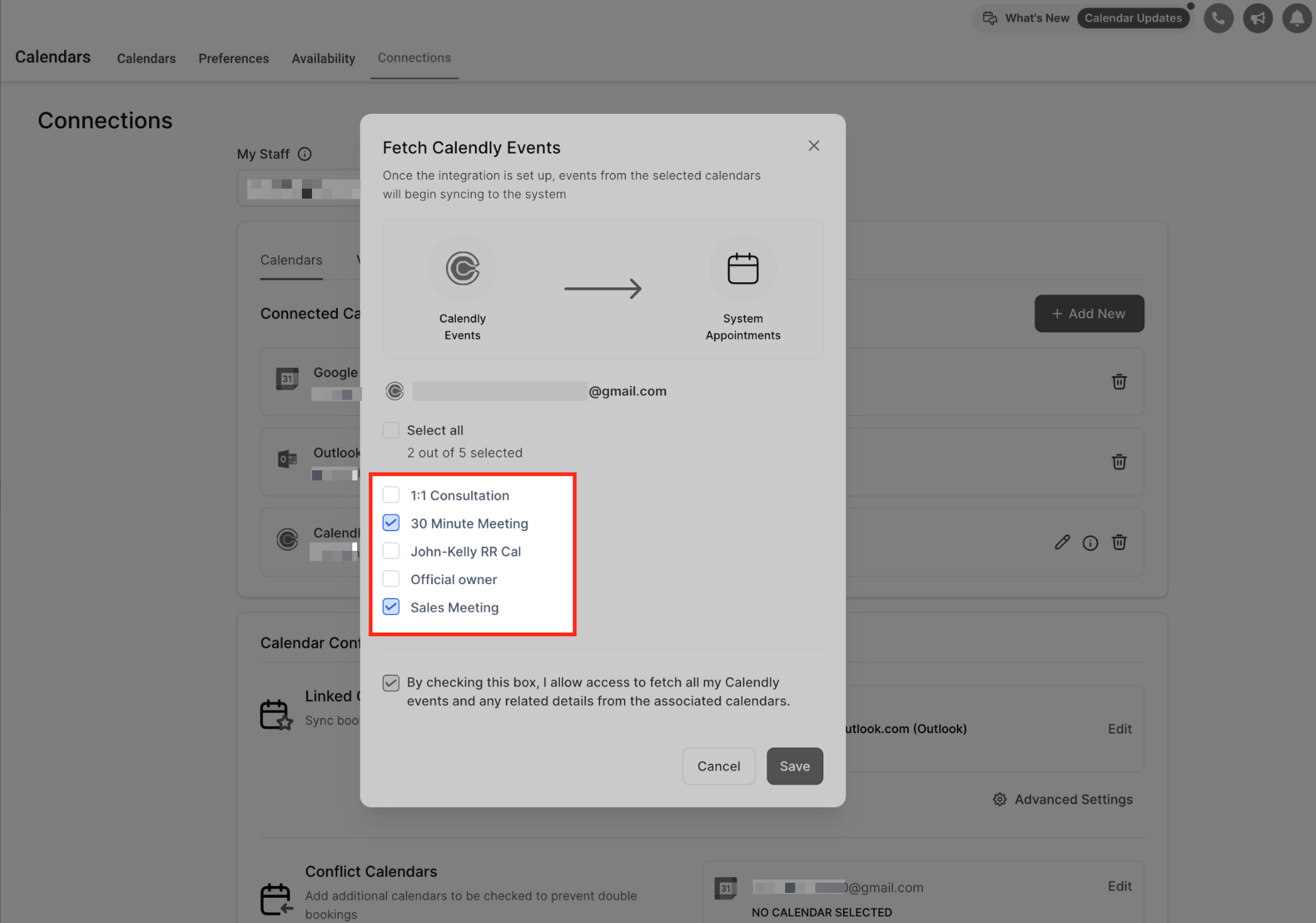
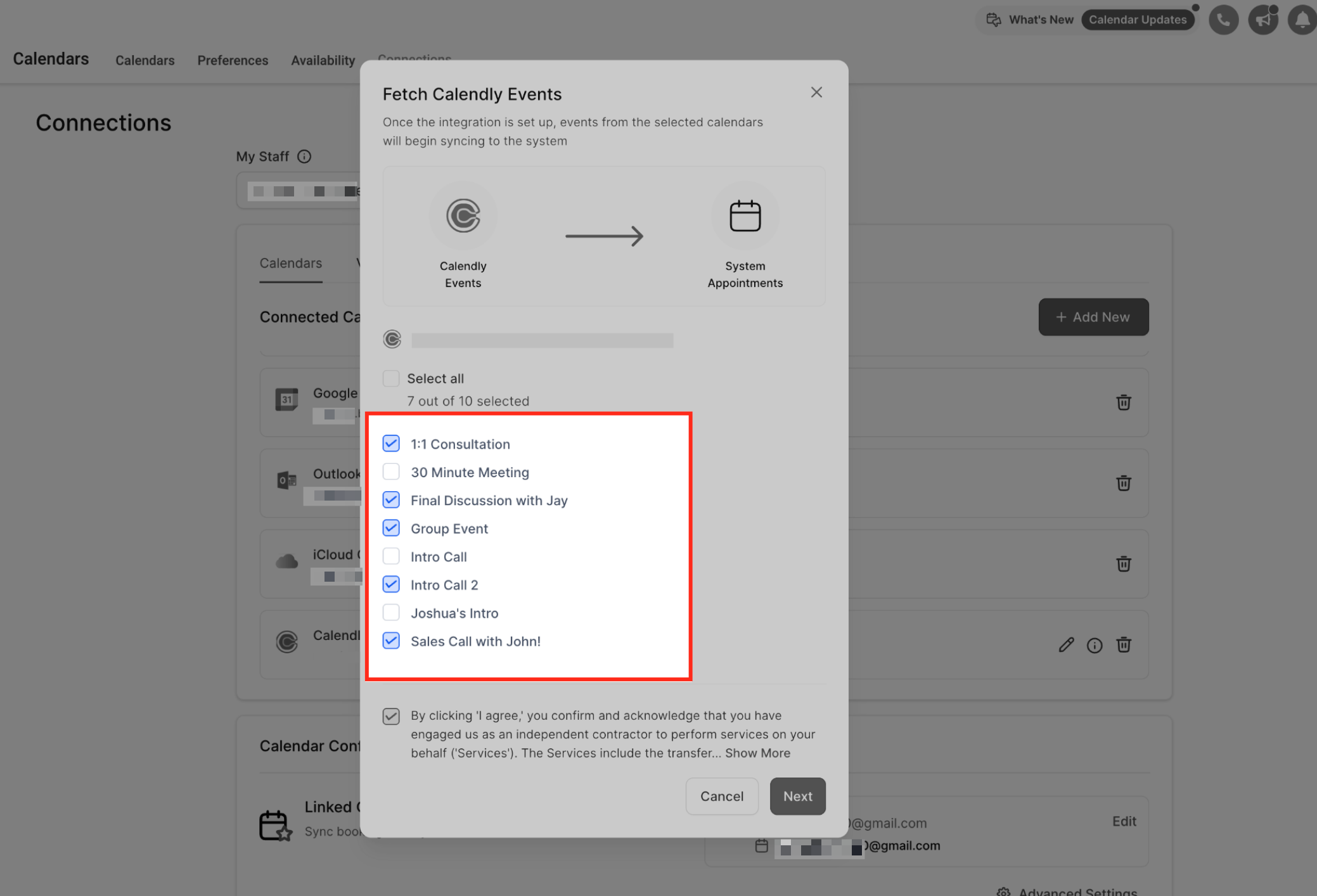
Step 6: Choose Which Calendars to Sync
Select the Calendly calendars you want to sync into Enrollio. Only events from these selected calendars will appear as appointments in your system.
Pro tip: If you use separate Calendly calendars for tours, consultations, and staff meetings, you can choose which ones to sync based on your needs.
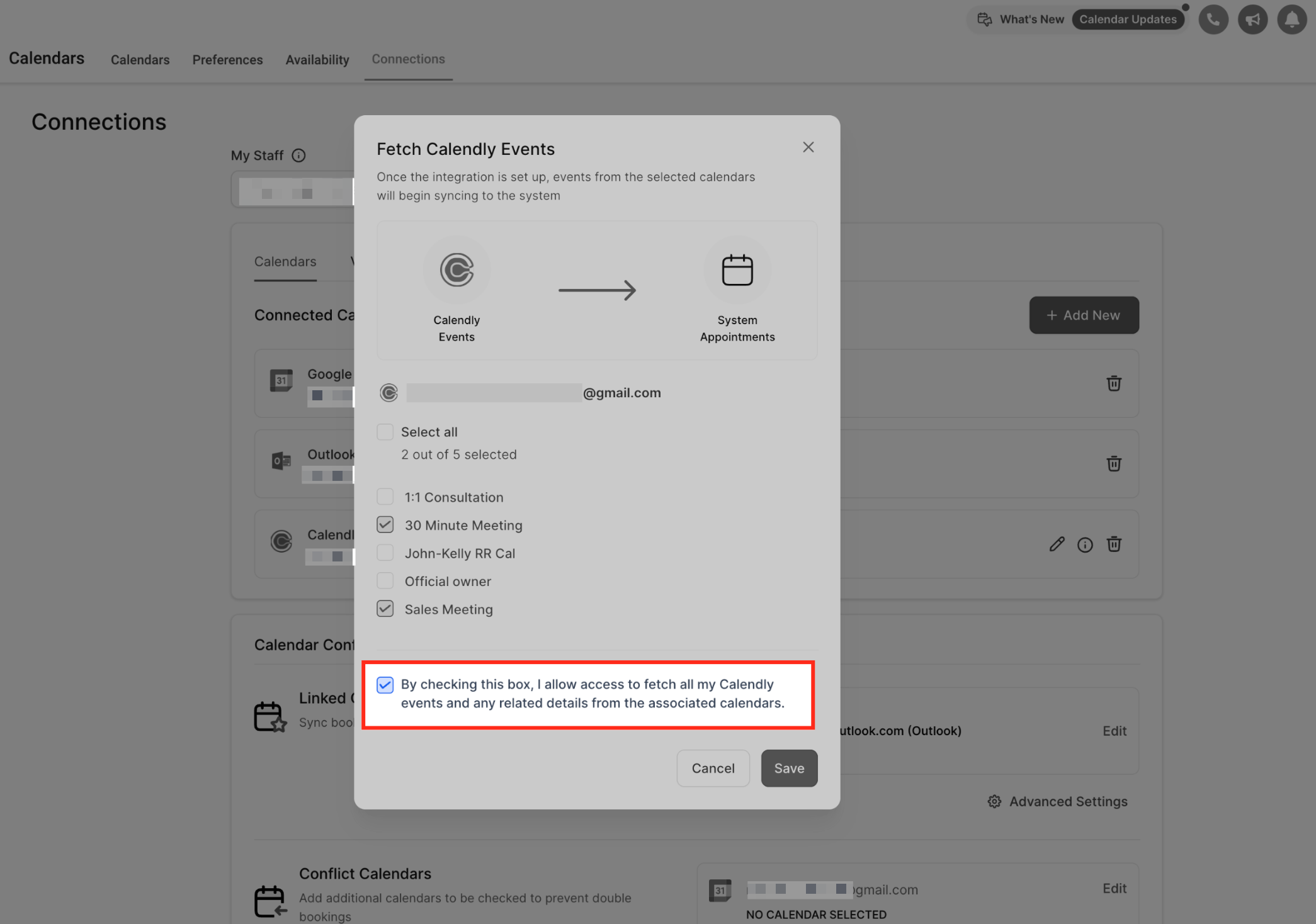
Step 7: Approve Sync Access
Check the consent box to allow Enrollio to fetch your Calendly events and details. Click Save to complete the setup.
Enrollio automatically imports upcoming events plus any past events created within the last 180 days from the time you connect.
How Phone Numbers Sync from Calendly
Enrollio can import parent phone numbers from Calendly in different ways. When multiple sources exist, you choose what syncs to the family record.
Automatic sync from meeting location
If a parent enters their phone number in the Calendly meeting location field and there's no phone field in the Calendly form, Enrollio automatically syncs that number to their profile.
Mapping when phone comes from form fields
If your Calendly form includes a phone number field (in the Q&A section), Enrollio shows a mapping screen so you can choose what to sync:
- Select a phone value from a form field
- Select the meeting location phone field (if present)
- Choose "Do not sync" if you don't want to map phone numbers
Note: If your selected Calendly calendar has no phone fields at all, this step is skipped automatically.
Shared calendars: If anyone on your team updates the phone sync option, the change applies to everyone using that calendar.
How to Edit or Update Synced Calendars
Your preferences change, and so can your sync settings. Here's how to update which calendars sync into Enrollio.
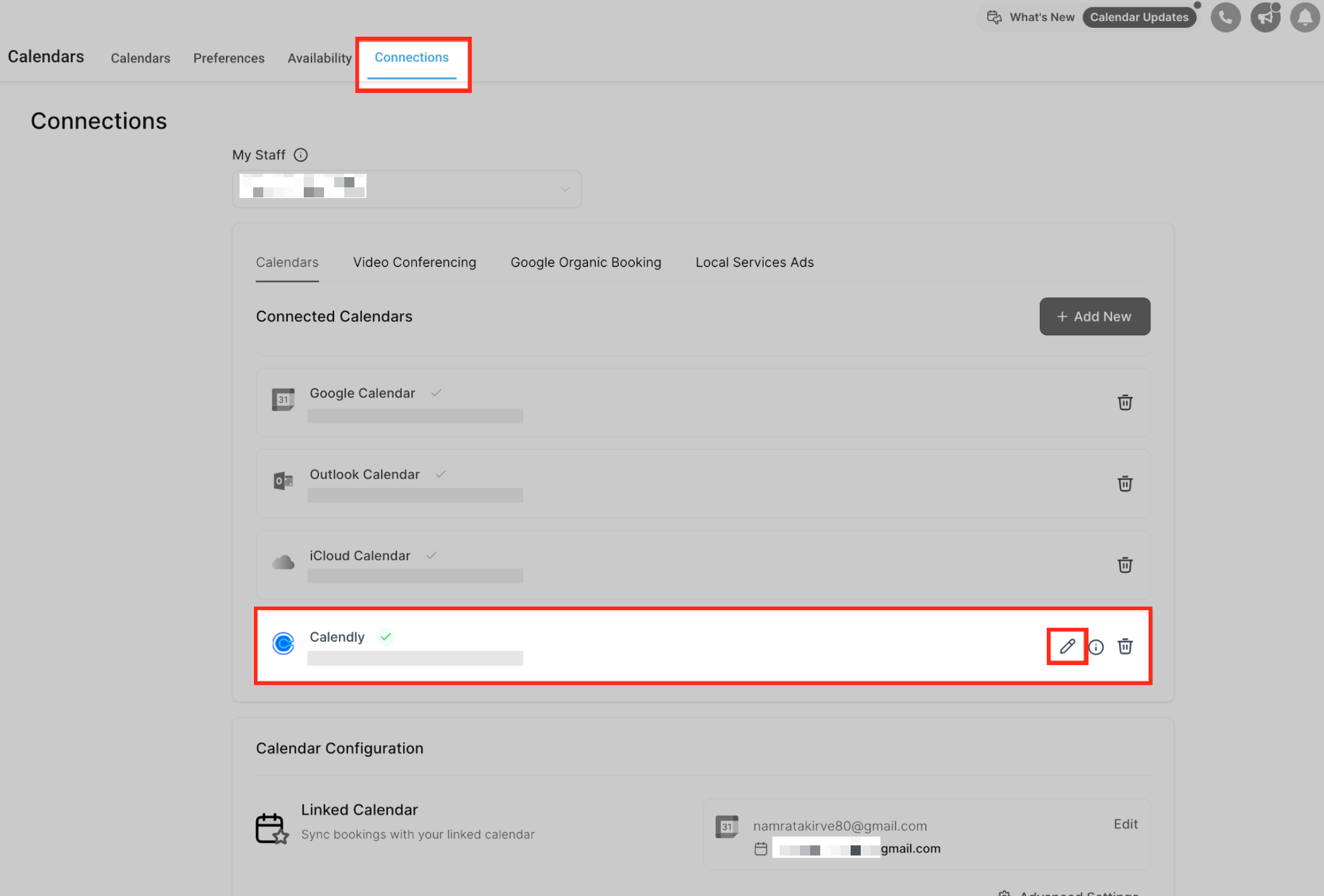
Edit Calendar Selection
Once connected, your Calendly integration appears under Connected Calendars. Click the pencil icon to edit which Calendly calendars are synced.
This is helpful when you add new team calendars or want to stop syncing certain event types.
Modify Synced Calendars
Check or uncheck calendars based on what you want to sync. Only selected calendars will continue syncing into Enrollio.
Events from newly selected calendars start syncing immediately after you save your changes.
Frequently Asked Questions
Can I connect multiple Calendly accounts to one user?
No. Each user can connect only one Calendly account per Client Account.
Can the same Calendly account be used by multiple users?
Yes. A single Calendly account can be connected to multiple users across different Client Accounts.
What Calendly plans does this integration support?
Only Calendly's Standard, Teams, and Enterprise plans are supported. Free and Essentials plans are not compatible with this integration.
What happens if I'm on a Calendly trial?
You can connect Calendly during your trial period. If you don't upgrade to a supported Calendly plan after the trial ends, the integration will stop working.
Can I edit Calendly events inside Enrollio?
No. This is a one-way sync from Calendly to Enrollio. All event changes must be made inside Calendly, and they'll sync automatically to Enrollio.