
Deactivating Calendar Groups
When you need to temporarily disable all calendars within a group — for example, during staff changes or seasonal closures — you can deactivate the entire group at once rather than disabling calendars individually.
How to Deactivate a Calendar Group
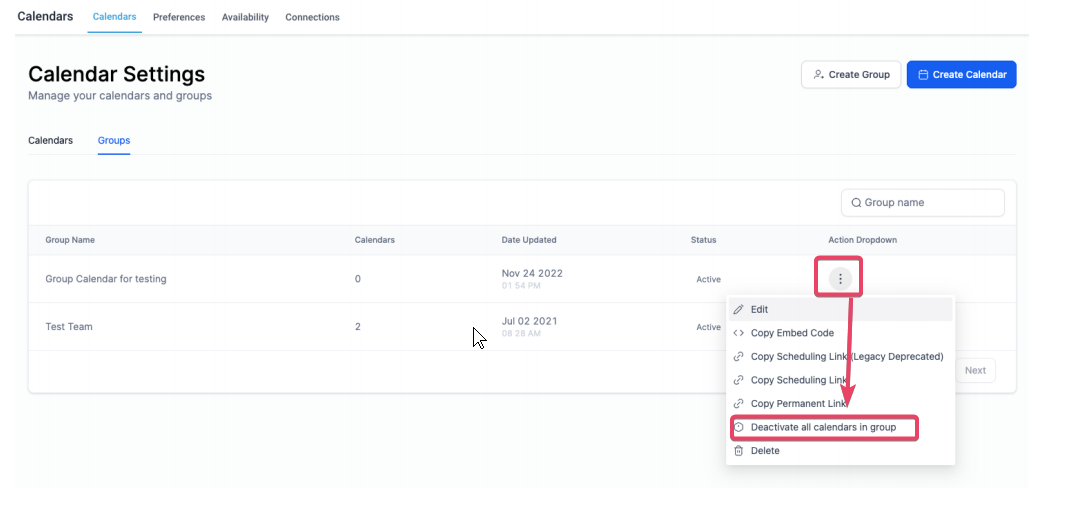
- Navigate to Calendars in your Enrollio dashboard
- Find the calendar group you want to deactivate
- Click the three dots (⋮) next to the group name
- Select Deactivate all calendars in group from the menu
- Click Confirm in the popup to complete the deactivation
Pro Tip: Deactivating a calendar group prevents new tour bookings for all calendars in that group. Parents won't see these time slots when scheduling tours. You can reactivate the group anytime to restore booking availability.
What Happens When You Deactivate
When you deactivate a calendar group:
- All calendars within the group become inactive
- New tour appointments cannot be booked for these calendars
- Existing scheduled appointments remain unchanged
- The group remains in your calendar list but is marked as inactive
Reactivating Calendar Groups
To reactivate a deactivated group, follow the same steps and select Activate all calendars in group from the menu. All calendars within the group will become available for booking again.