
Troubleshooting Your Tour Calendar
The Calendar Troubleshooting Tool helps you quickly identify and fix issues that prevent parents from booking tours or appointments. When your calendar isn't working correctly, you miss opportunities to connect with families. This tool shows you exactly what's wrong—like missing availability, sync errors, or incorrect staff settings—so you can fix it fast.
What is the Calendar Troubleshooting Tool?
The Calendar Troubleshooting Tool is a built-in diagnostic feature that detects configuration issues preventing tour bookings. It pinpoints problems like missing availability, user sync errors, or incorrect team settings without needing to contact support.
Misconfigured calendars lead to missed tours, frustrated parents, and lost enrollments. This tool gives you instant clarity so you can get back to booking families.
Key Benefits
- Instant Visibility: Detects common setup issues in real-time, including availability gaps, unassigned staff, or Google/Outlook sync failures
- Self-Service Diagnostics: Identify problems yourself without waiting for support
- Faster Recovery: Quickly uncover why bookings are failing so tours can resume
- Multi-Calendar Support: Works with team and round-robin calendars
- Staff Sync Insights: Highlights sync-related issues tied to individual staff members or their connected accounts
How to Access the Troubleshooting Tool
The tool is always available—you just need to know where to find it.
From Calendar Settings
Step 1: Click Settings → Calendars in Enrollio.
Step 2: Find the calendar you want to troubleshoot and click the Wrench Icon next to it.
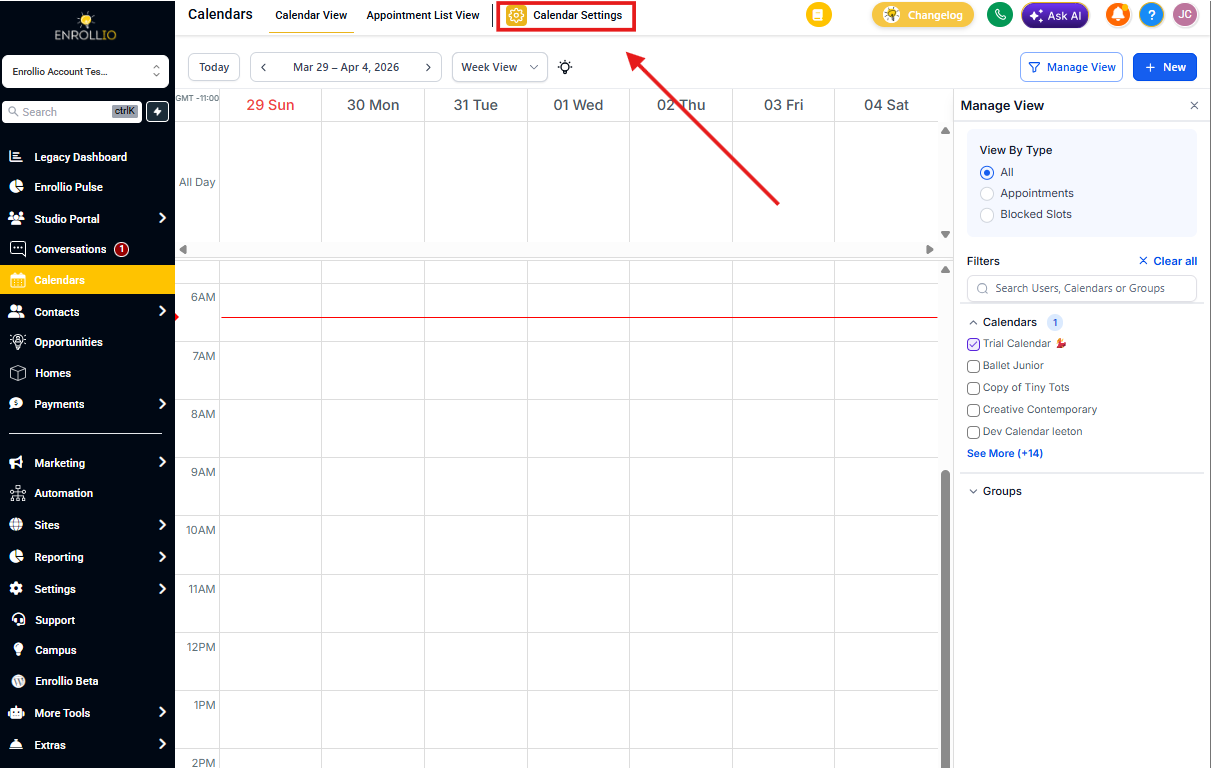
Quick Access from Calendar Editor
If you're already editing a calendar, you can launch diagnostics without leaving the page.
Step 1: Open Settings → Calendars → [Your Calendar]
Step 2: Click Troubleshoot Calendar in the top-right header
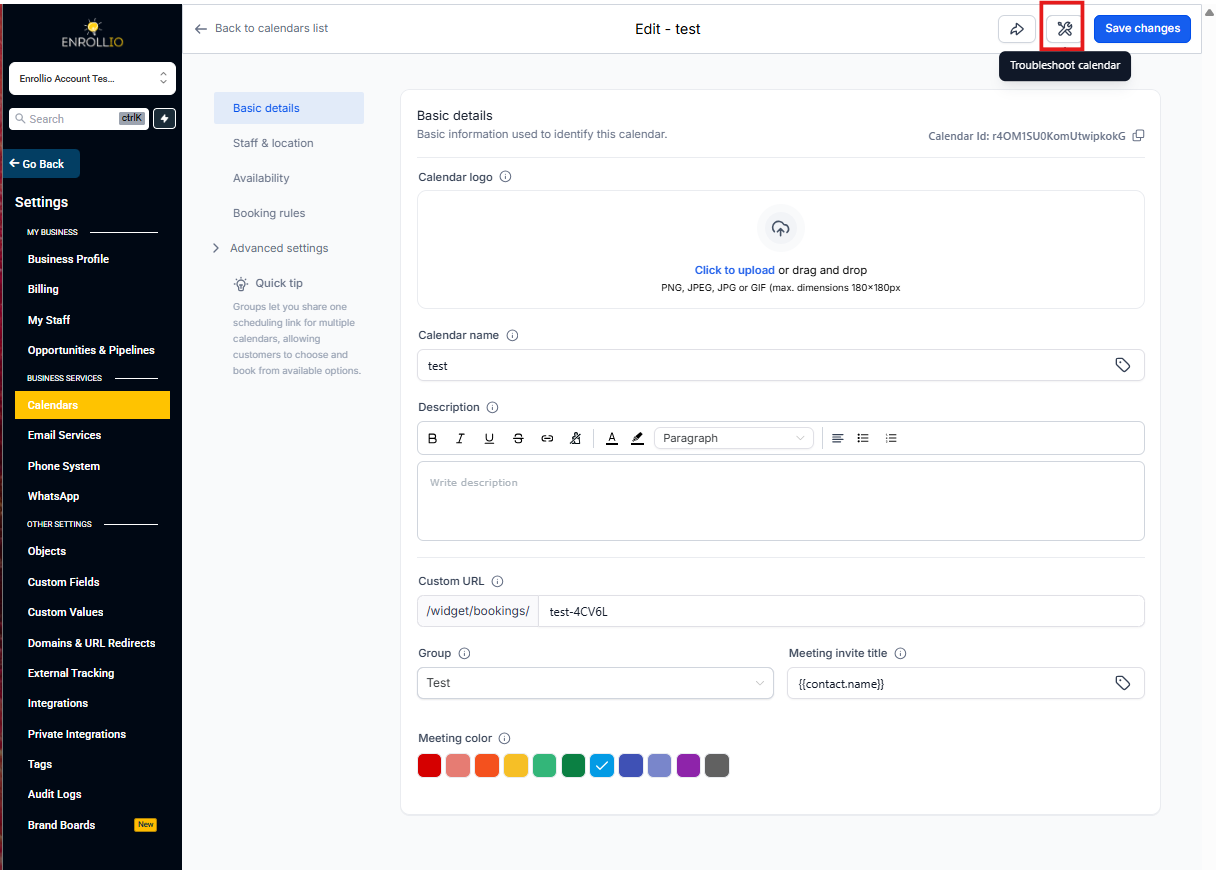
How to Use the Tool
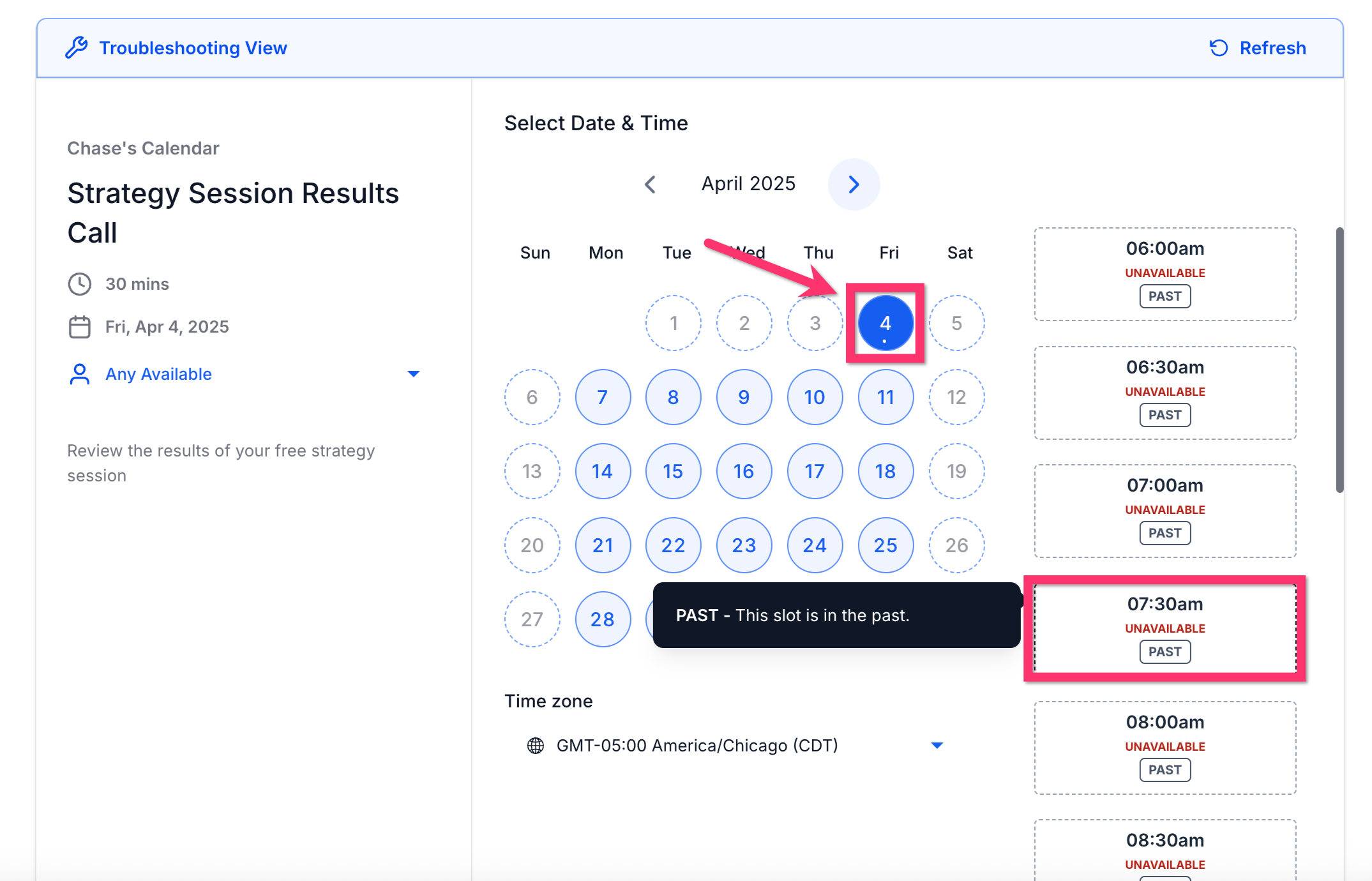
Step 1: Select a date on the calendar grid.
Step 2: Hover over an unavailable time slot to view the reason in a tooltip.
The tooltip will show you exactly why that time can't be booked—whether it's a staff conflict, missing availability, or another issue.
Checking Calendar Integration Status
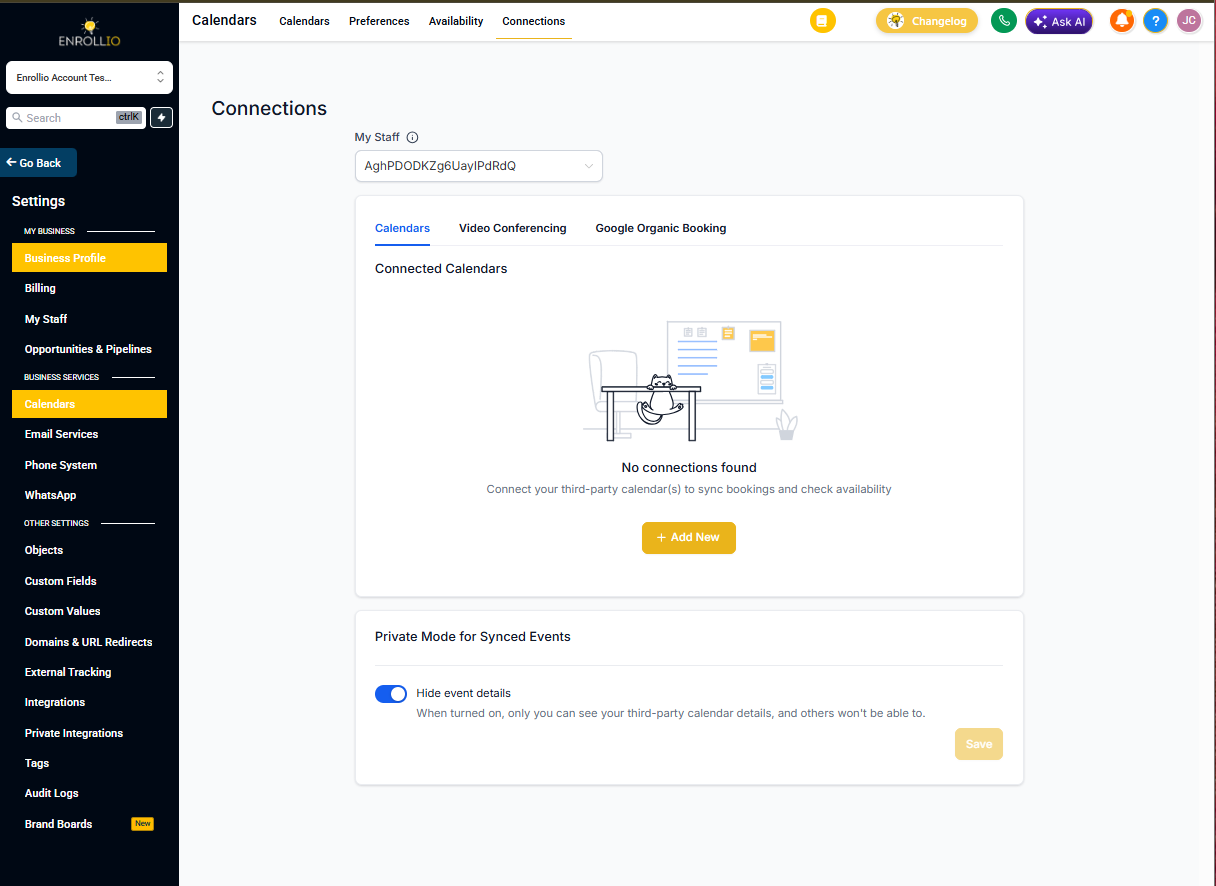
Your calendar integration is the foundation for accurate syncing. If it's not connected correctly, tour bookings may fail to appear or sync incorrectly.
Step 1: Go to Settings → Calendars → Connections
Step 2: Confirm Google or Outlook is marked "Connected"
Step 3: If needed, reconnect and select the correct calendar
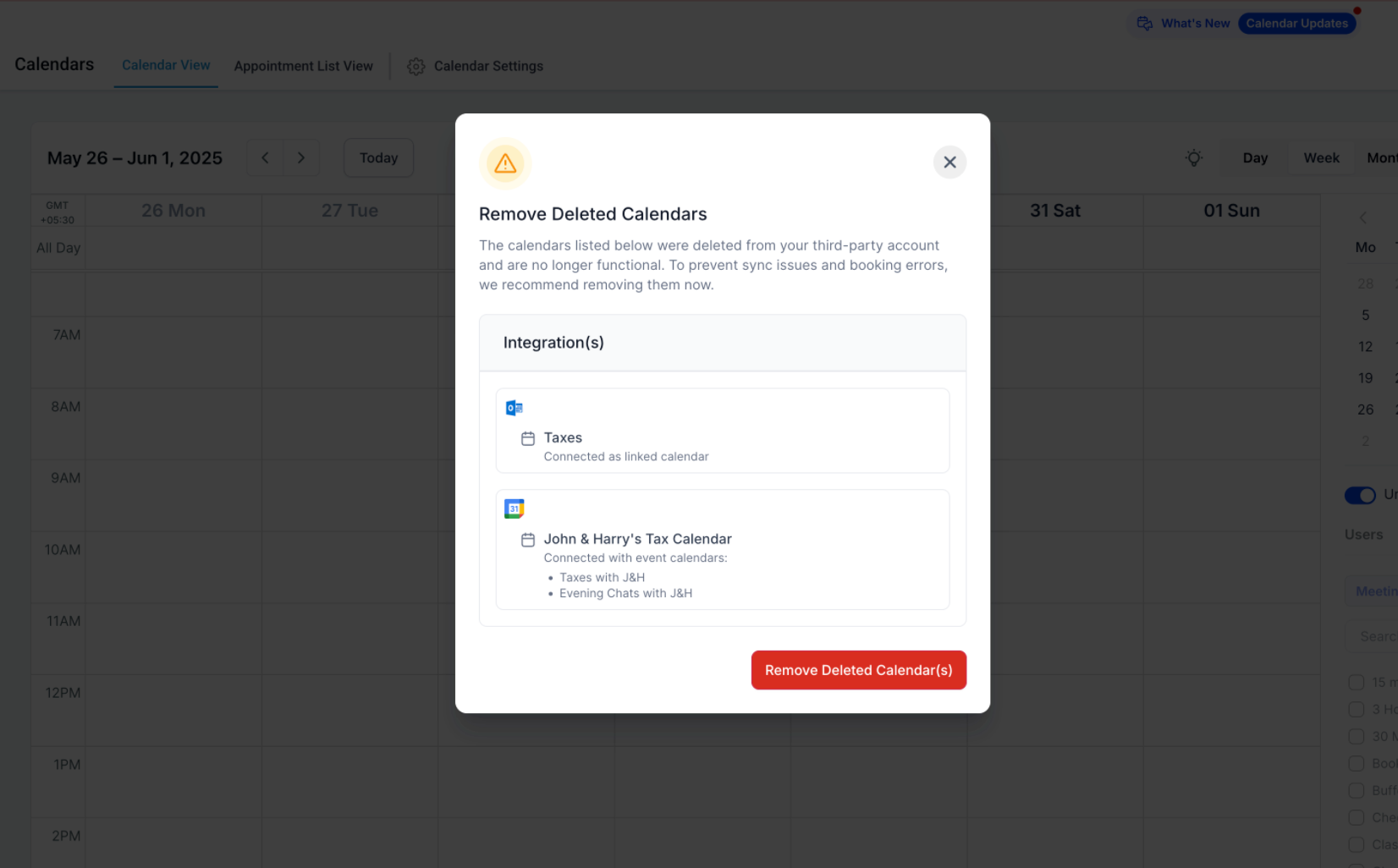
Fixing Deleted Calendar Connection Errors
If you deleted a Google or Outlook calendar at the source, Enrollio may show an error banner. You can now clean this up yourself.
Step 1: Go to Settings → Calendars → Connections
Step 2: Click Fix This if you see a deleted calendar warning
Step 3: Review the list of deleted calendars—each item shows where it's still connected in Enrollio
Step 4: Click Remove Deleted Calendars to clear all broken connections at once
Step 5: Reconnect or select a valid calendar if needed
Troubleshooting Staff Availability Settings
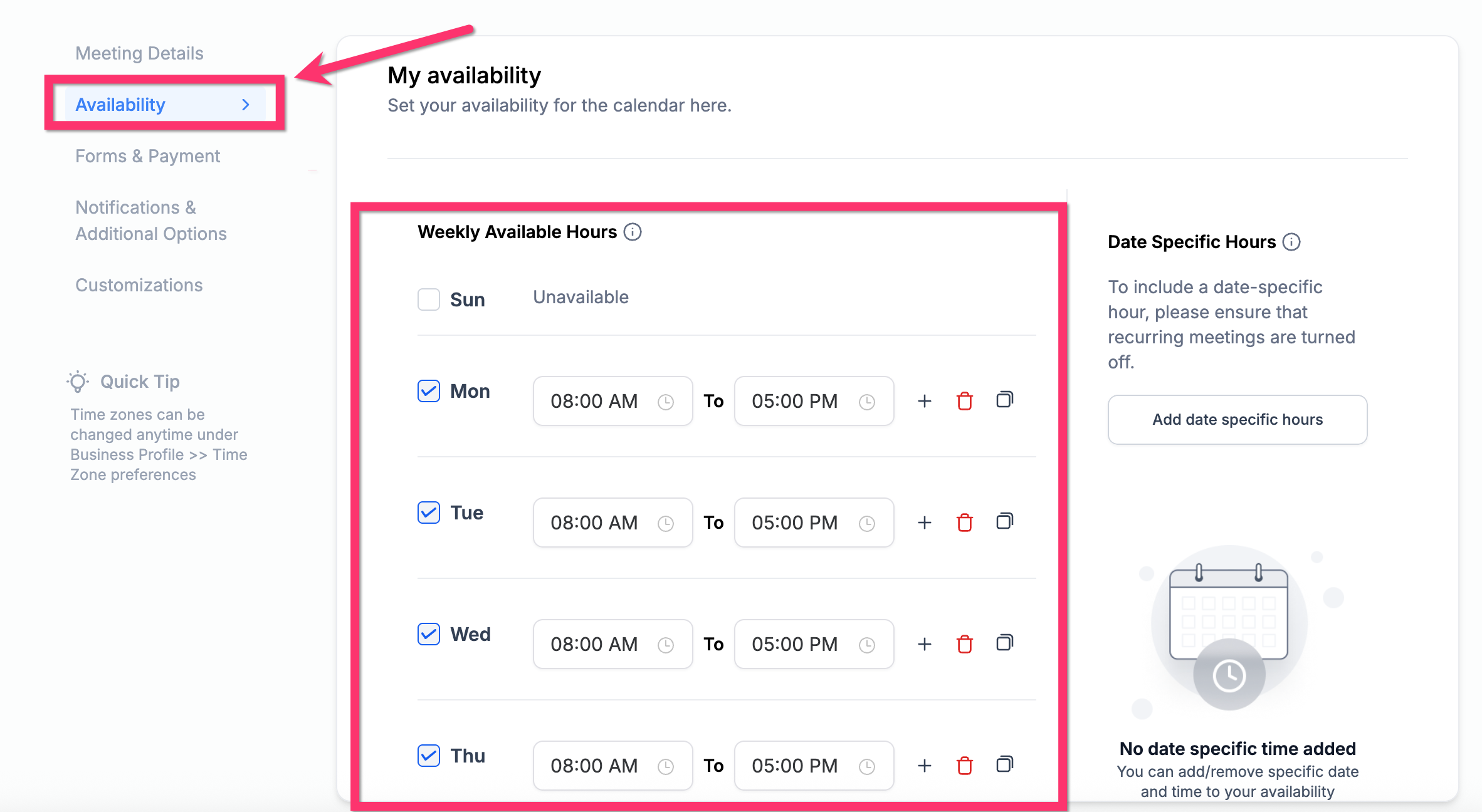
Even if your calendar is connected, missing or incorrect availability blocks parent bookings. The Troubleshooting Tool will flag staff members without defined working hours.
Step 1: Go to Settings → Calendars
Step 2: Find the calendar assigned to the staff member and click Edit
Step 3: Click the Availability tab
Step 4: Add or edit available time blocks for relevant days
Understanding Common Booking Issues
Each status code in the Troubleshooting Tool tooltip reveals why a time slot isn't bookable. Here's what they mean:
- USER: No available staff at this time
- COLLECTIVE: One or more staff members are unavailable
- CONFLICT: Third-party calendar conflict (Google/Outlook event)
- BOOKED: Already booked in Enrollio
- BLOCKED: Manually blocked time
- NOTICE: Violates minimum scheduling notice (e.g., requires 24 hours notice)
- TOOFAR: Beyond allowed date range
- DAYLIMIT: Day's appointment limit reached
- SLOTMAX: Max bookings for this slot reached
- BUFFER: Buffer time blocks this slot
- DURATION: Tour duration too long for available gap
- PAST: Time is in the past
- LOOKBUSY: Hidden via Look Busy setting
- NO SEATS: Max seats reached (for group tours)
- RESOURCE: Required resource is unavailable
Diagnosing Double Booking Issues
Double bookings happen when multiple staff members are synced to the same calendar or if availability overlaps.
Use the Troubleshooting Tool to identify which staff members are in conflict. Then adjust individual calendars or separate calendars per staff member to avoid overlaps.
Understanding Permission-Related Errors
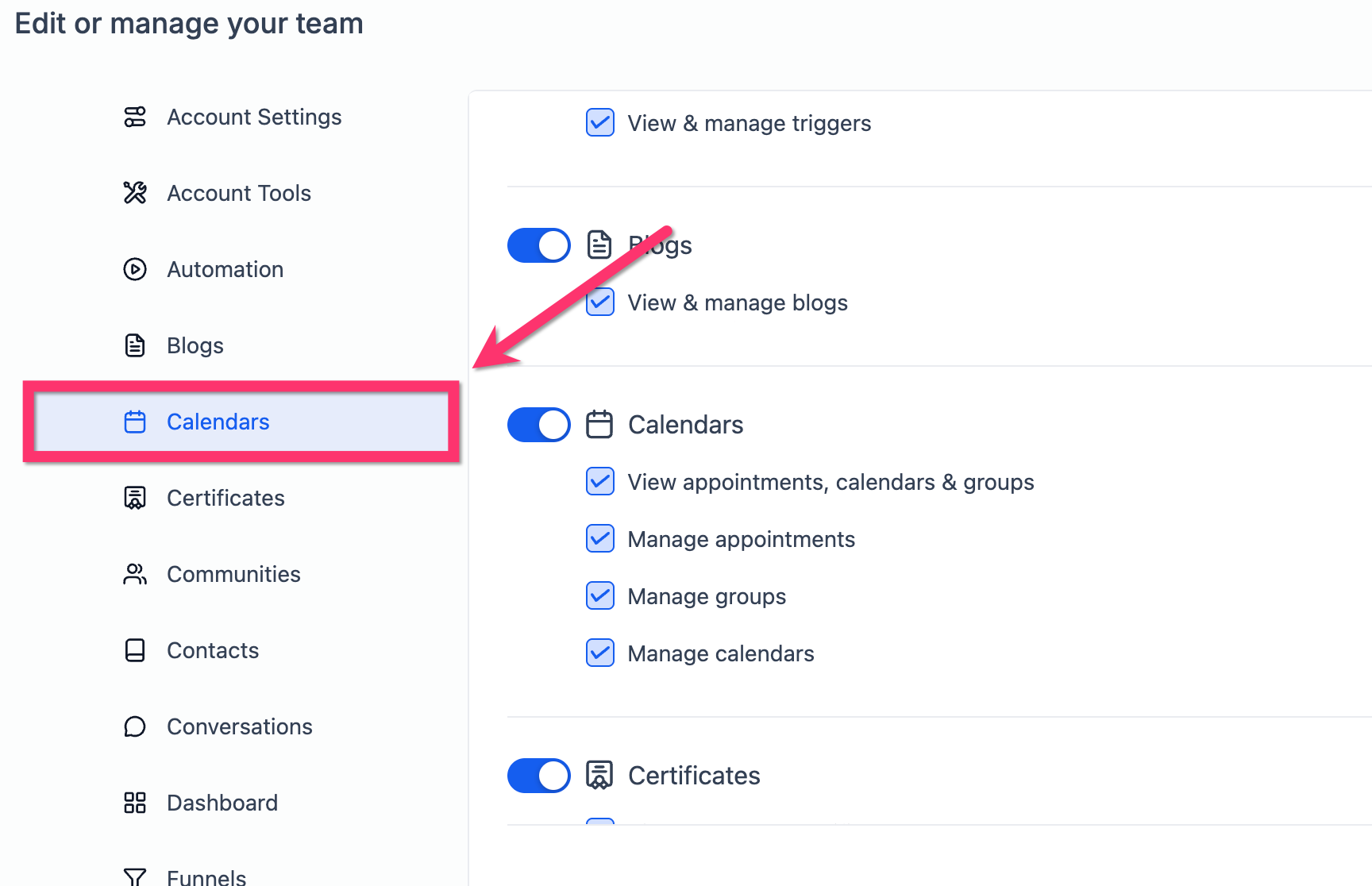
Sometimes booking issues occur because Google or Outlook permissions were revoked or access scopes are missing.
Step 1: Go to Settings → My Staff
Step 2: Find the staff member and click Edit
Step 3: Click Calendar on the left ribbon
Step 4: Confirm all required permission scopes are granted
Frequently Asked Questions
Do I need to enable the Troubleshooting Tool separately?
No. The tool is built into Enrollio and automatically available under Calendar Settings.
Why is a time slot showing as "UNAVAILABLE"?
This means the staff member is outside their availability hours, or the time is blocked by a conflict—like another event, sync issue, or booking restriction.
Why does my calendar show no available times at all?
This usually happens when no staff member is assigned, no availability is set, or your calendar sync is disconnected. Check all three in Settings → Calendars.
Can I use this tool for team or round-robin calendars?
Yes. It works with team calendars and shows which staff members are causing booking failures.
Does the Troubleshooting Tool show automation errors?
No. It only surfaces calendar-specific setup issues—not automation logic or text message delivery.
Can I view availability from the parent's timezone?
No. The view is based on your logged-in timezone. Parents will see availability in their own timezone when booking tours.