
Enrollio lets you accept PayPal when families book tours or enrollment appointments—giving parents a familiar, trusted checkout experience while you get paid instantly. Add PayPal alongside Stripe, Square, Authorize.net, or NMI to boost conversion and flexibility.
What is PayPal Support for Calendars?
PayPal Support for Calendars adds PayPal as a payment option when families book tours, enrollment appointments, or other calendar events. Once connected, PayPal appears at checkout so parents can pay with their PayPal balance, linked bank account, or card.
You control pricing per calendar and collect the funds directly in your PayPal account.
Key Benefits
- One-click checkout — No card entry required for PayPal customers
- Multiple payment options — Works side-by-side with Stripe, Square, NMI, and Authorize.net so families pick the method they prefer
- Instant fund settlement — Money arrives in your PayPal dashboard immediately
- Fully PCI-compliant — Enrollio never stores PayPal credentials
Supported Payment Providers
Enrollio calendars now support:
- PayPal
- Stripe
- Authorize.net
- NMI
- Square
- Razorpay*
*PayPal and Razorpay cannot both be active at the same time. If both are connected, Razorpay will be used by default.
PayPal Compatibility & Limitations
This section clarifies where PayPal does—and does not—work so you can avoid setup issues.
- Supported: All calendar types including tour calendars, enrollment appointments, round-robin, and personal calendars
- Cannot be combined with Razorpay — Razorpay becomes the default if both are connected
- Follows the same currency, partial-payment, and coupon rules already in Calendar Payments
How to Set Up PayPal for Calendar Bookings
Connecting PayPal takes just a few minutes and immediately unlocks PayPal checkout on every eligible calendar.
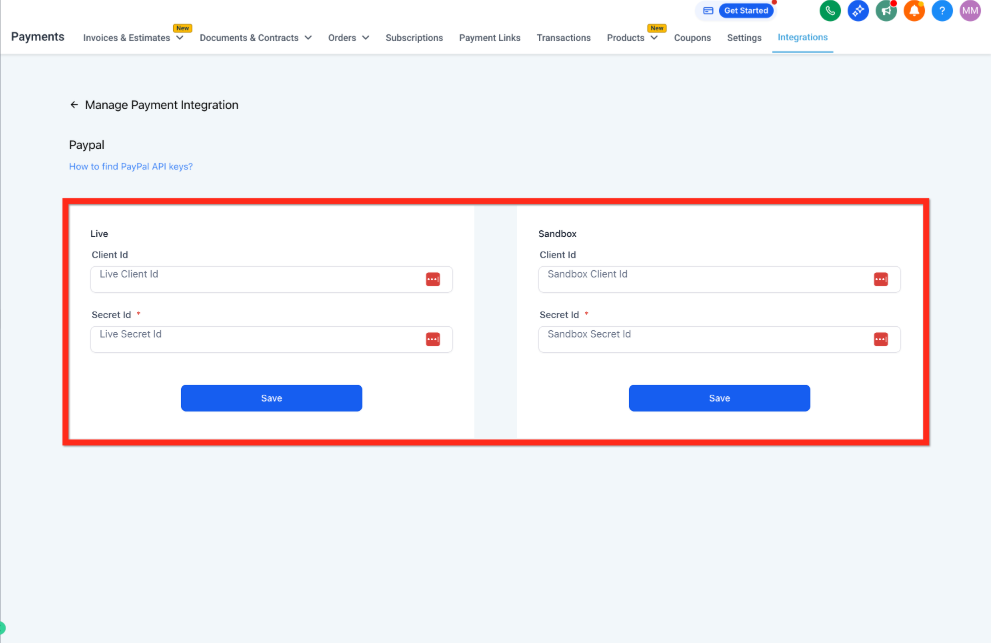
Step 1: Connect PayPal to Your Account
- Go to Payments → Integrations
- Click PayPal → Connect, then enter your PayPal Client ID and Secret
- Click Save
Step 2: Enable Payments on a Calendar
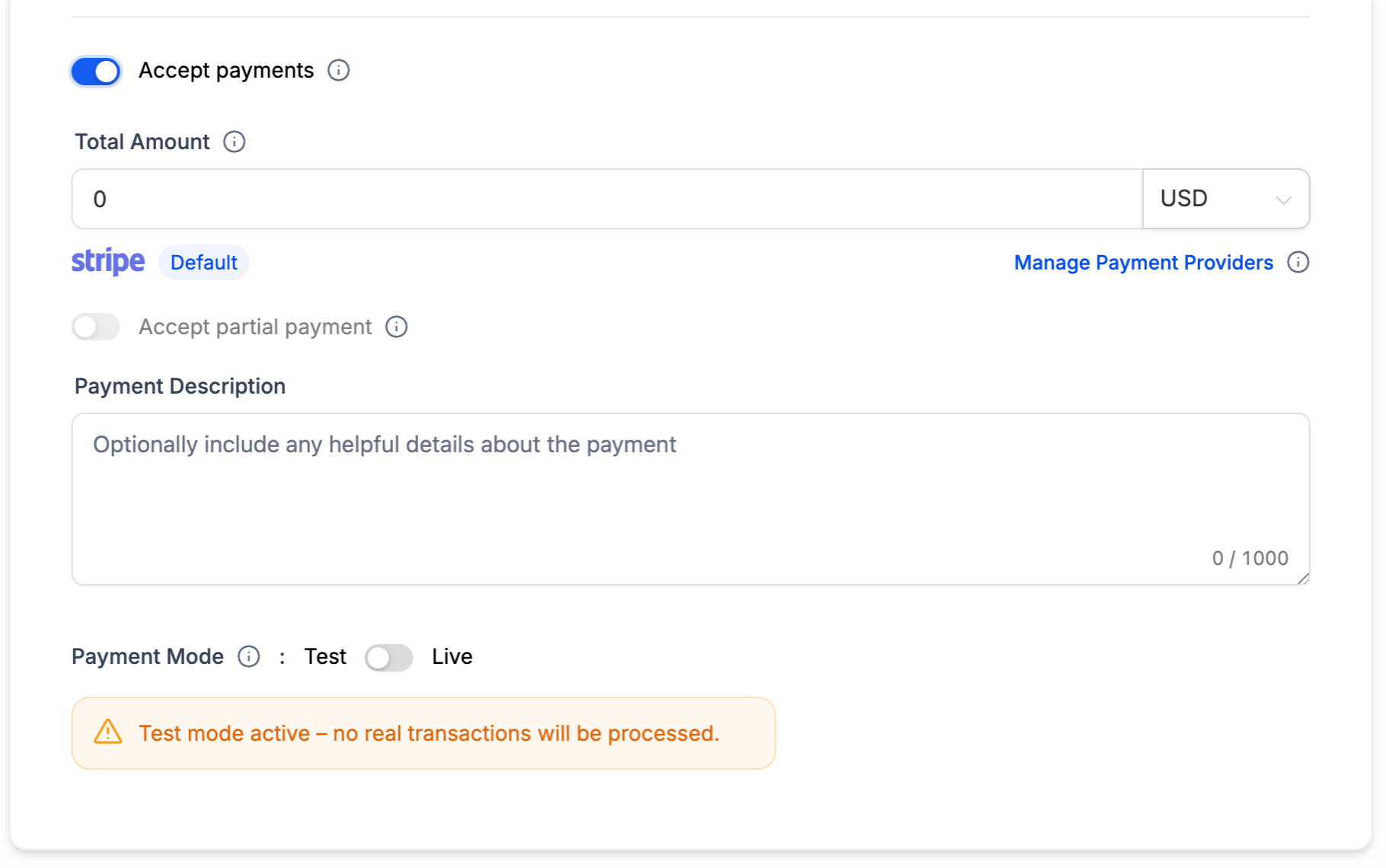
- Go to Calendars → Settings and open the calendar you want to charge for (e.g., your tour calendar or enrollment appointment)
- Under Forms & Payments, toggle Accept Payments to On
- Choose PayPal (or leave it on Default if PayPal is your only gateway)
- Enter the Amount, Description, and choose Live or Test mode
- Click Save
Frequently Asked Questions
Can I offer both PayPal and credit-card checkout?
Yes. If Stripe, Square, NMI, or Authorize.net are also connected, your booking widget will display PayPal alongside card options. Parents choose their preferred method at checkout.
What happens if I also connect Razorpay?
Enrollio prioritizes Razorpay. To use PayPal instead, disconnect Razorpay or change your default gateway.
Does PayPal work with recurring appointments?
Yes, provided you are using supported calendar types like tour calendars, enrollment appointments, round-robin, or personal calendars.
Where do the funds go?
Payments settle directly into the PayPal account you connected under Payments → Integrations.
Can I refund PayPal payments inside Enrollio?
Not yet—refunds must be processed from your PayPal dashboard.
Is PayPal available in my country?
PayPal availability depends on PayPal's supported regions and currencies. Check PayPal's documentation if you are unsure.
Related Articles
- Collecting Payments in Calendars
- Payments Tab in Calendars
- Partial Payment: Collect Deposit Amount
- Setting Up Linked Calendars & Conflict Calendars