
Set Up Recurring Calendar Appointments
Recurring appointments let you schedule repeating tours, parent meetings, or check-ins without creating individual appointments each time. Perfect for weekly enrollment consultations or monthly family updates.
Instead of booking the same meeting over and over, set it up once and Enrollio handles the rest.
What's Covered in This Article
- How to set up a recurring appointments calendar
- Managing booking conflicts
- How automations work with recurring appointments
- Syncing with Google Calendar or Outlook
How to Set Up a Recurring Appointments Calendar
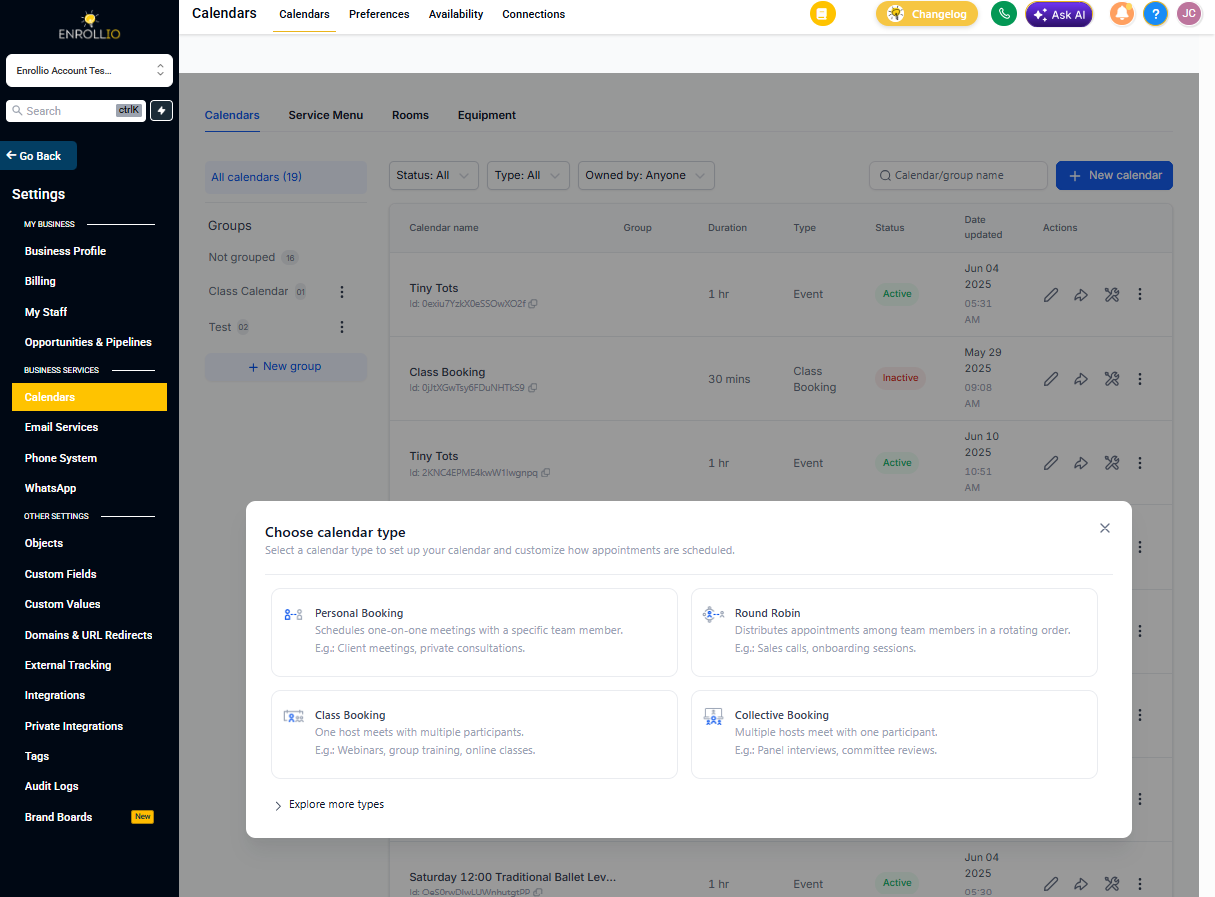
- Click Settings
- Click Calendars
- Click Create Calendar
- Select your calendar type under Round Robin Booking
Note: All calendar types support recurring appointments except Service Calendars. If you choose Round Robin, you can only assign one staff member to the calendar.
Configure Recurring Settings
- Go to the Availability tab
- Toggle on Recurring Appointments
- Configure your recurring schedule based on your needs
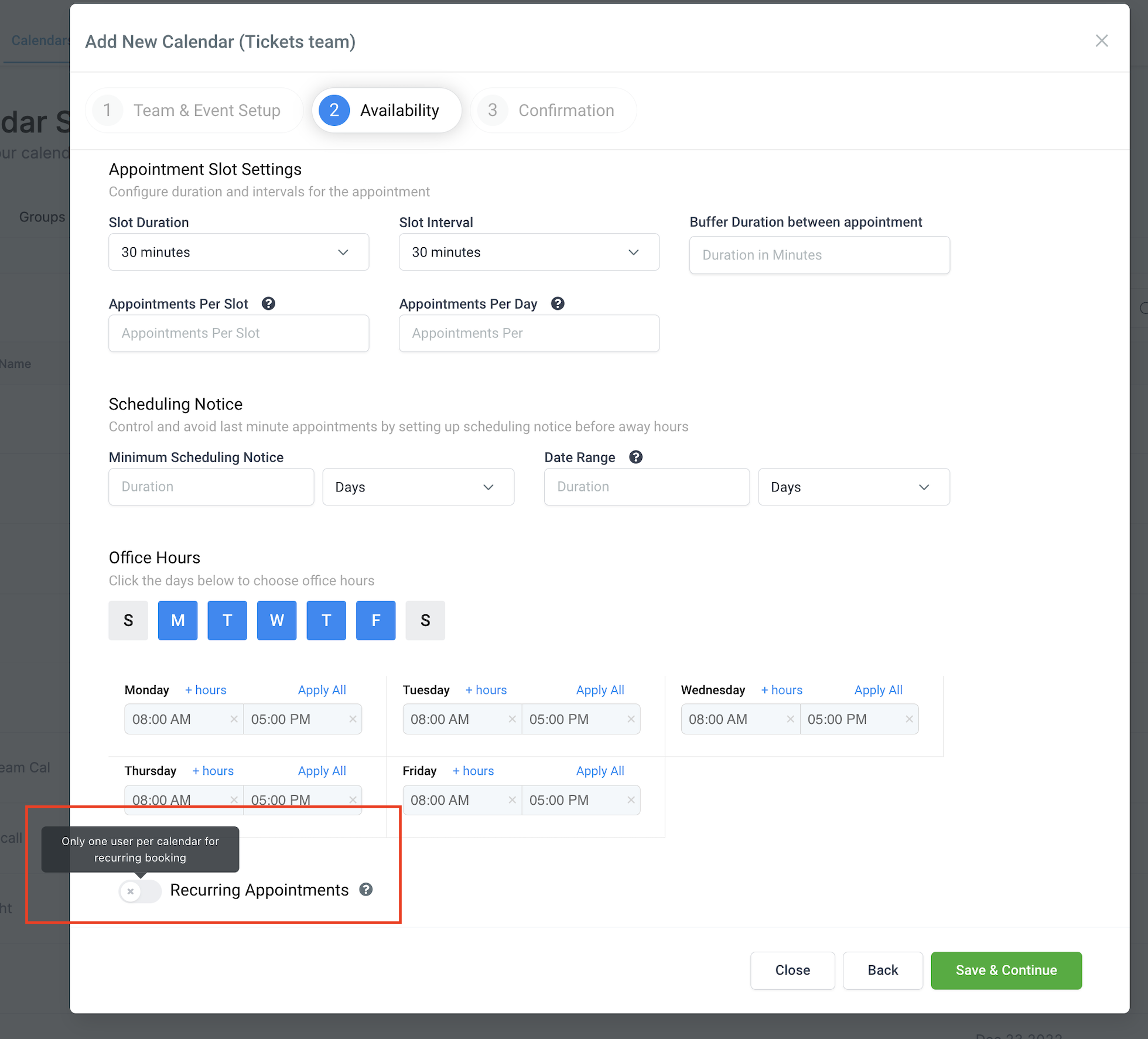
Limit: Appointments can repeat up to 24 times maximum.
Handle Booking Conflicts
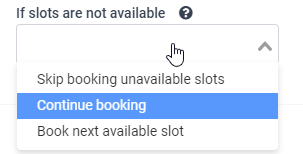
When a time slot is already booked, you have three options in the "If slots are not available" dropdown:
1. Continue Booking
Allows double-booking the same time slot. You'll see an additional option for what to do when double bookings happen.
2. Skip Booking Unavailable Slot
Only books the available slots and skips any that conflict. The most common choice for tour scheduling.
3. Book Next Available Slot
Automatically finds the next open slot, even if it's weeks out. Enrollio checks the next 3 available slots. If none are available, the booking is skipped.
Pro Tip: For parent tours, use "Skip Booking Unavailable Slot" to avoid scheduling conflicts with your team's existing commitments.
Important Limitations
- Recurring appointments only work with standard time slots (not custom slots)
- You can't book recurring appointments from the enrollment opportunities page
- Calendars with recurring appointments enabled won't support payments
- You can't bulk update (cancel or reschedule) recurring appointments
How Automations Work with Recurring Appointments
Your existing appointment automations won't automatically fire for recurring appointments. You need to update your automation triggers.
Update Your Automation Triggers
Enrollio added a new Event Type filter to appointment triggers. This lets you control which types of appointments trigger your automations.
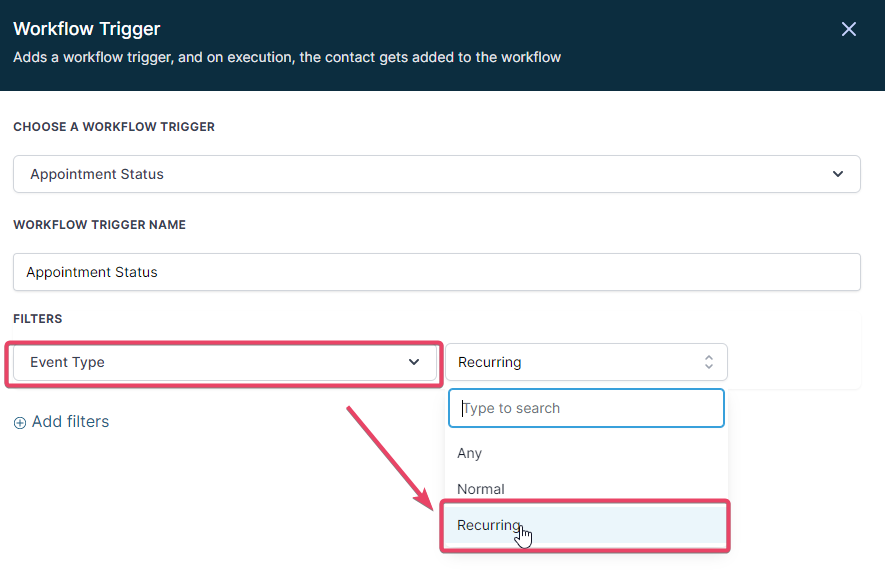
Event Type Options:
Normal: Fires only for single, non-recurring appointments. All your existing automations default to this setting.
Recurring: Fires only for appointments booked through calendars with recurring enabled.
Any: Fires for all appointment types, whether recurring or single.
Who Booked the Appointment?
You can also filter by who created the appointment using the Modified By filter:
- Parent: Appointment booked by a parent through your booking widget
- User: Appointment booked by your staff inside Enrollio
- API: Appointment created through an API integration
Note: The "Customer Booked Appointment" trigger is being phased out. Use the "Modified By: Parent" filter instead.
Video Meeting Links for Recurring Appointments
If you use Zoom or Google Meet, each recurring appointment gets its own unique meeting link. Enrollio automatically generates a new URL for every occurrence.
Syncing with External Calendars
When calendar sync is turned on, recurring appointments sync to Google Calendar or Outlook as individual events — not as a recurring series. Each occurrence appears separately on your external calendar.
Payments and Recurring Appointments
Payment collection is currently unavailable for calendars with recurring appointments enabled. If you need to collect enrollment fees or deposits, use a standard single-appointment calendar.
Frequently Asked Questions
Can I bulk cancel or reschedule recurring appointments?
No, you need to cancel or reschedule each occurrence individually.
What happens if a parent cancels one occurrence?
Only that specific appointment is cancelled. The rest of the series continues as scheduled.
Can parents book recurring appointments from my website?
Yes, if you've enabled recurring appointments on your calendar, parents can select recurring options when booking through your widget.
Do recurring appointments show on my staff's personal calendars?
Yes, if calendar sync is enabled. Each occurrence syncs as a separate event.