
What is a Custom Calendar URL?
A custom calendar URL lets you create a memorable, branded booking link for your tours and enrollment appointments. Instead of a generic string of characters, you can use a clean, professional slug like /schedule-tour or /enrollment-call.
This makes your booking links easier to share with prospective families and helps maintain a consistent brand experience across your website, emails, and marketing materials.
Why Use Custom URLs?
Planning your calendar URLs upfront saves time and creates a better experience for families:
-
Professional appearance: Clean URLs like
/book-tourlook more trustworthy than auto-generated links - Easy to remember: Short, descriptive links are simple for families to type and recall
- Better organization: Use naming conventions to manage multiple locations or program types
- Clear expectations: Descriptive URLs help families understand what they're booking before they click
- Fewer broken links: Reserve your URLs early to avoid conflicts and rework later
Understanding Calendar Types
Enrollio offers different calendar types depending on how you want to route appointments. Choose the right type to match your staffing model:
Unassigned Calendar: Routes tour bookings to a pool of staff members (round-robin or availability-based). You can set a custom URL for the calendar itself.
Assigned Calendar: Routes appointments directly to one specific staff member. Custom URL options may vary by calendar type.
Group Calendar: Displays multiple calendars under one booking page. The group has its own link separate from individual calendar URLs.
Where Your Custom URL Appears
Your custom calendar URL shows up in several places. Knowing where helps you test thoroughly before sharing:
- Direct booking links: The link you copy from calendar settings and share via email or text
- Website embeds: Booking widgets embedded on your enrollment site or external website
- Email and text messages: Any call-to-action linking directly to your calendar
- Group pages: Individual URLs remain available even when using group booking pages
How Branded Links Work
Your public booking link combines your branded domain with the custom slug you choose. Set up branding first to avoid changing links later.
Your custom slug (like /schedule-tour) appears under your branded domain in all system-generated links. If you configure or change your branded domain after sharing calendar links, you'll need to update all your booking CTAs.
Naming Best Practices
A little planning prevents conflicts and broken links. Follow these guidelines to create URLs your team can scale with:
- Keep URLs short, lowercase, and use hyphens:
tour-booking,enrollment-call - Avoid special characters, spaces, and very long strings
- Use prefixes for multiple locations or programs:
downtown-tour,infant-enrollment - Track reserved URLs in a simple spreadsheet to avoid duplicates
- Test in a private browser window to confirm the link works as expected
Important: Changing URLs Later
Editing a URL after you've shared it will break existing links in emails, landing pages, text messages, and ads. Plan carefully:
- Changing the custom URL creates a new public link—old links stop working
- Before renaming, audit where the link appears: website, landing pages, automations, emails, texts, ads
- Update all placements before the change goes live
- After editing, test the new link in a private window and have a teammate verify
Permissions Needed
Make sure you have the right access before getting started:
- You must have permission to view and edit calendars in your client account
- If using a branded domain, an admin must configure it before you share links
How to Set Up Your Custom Calendar URL
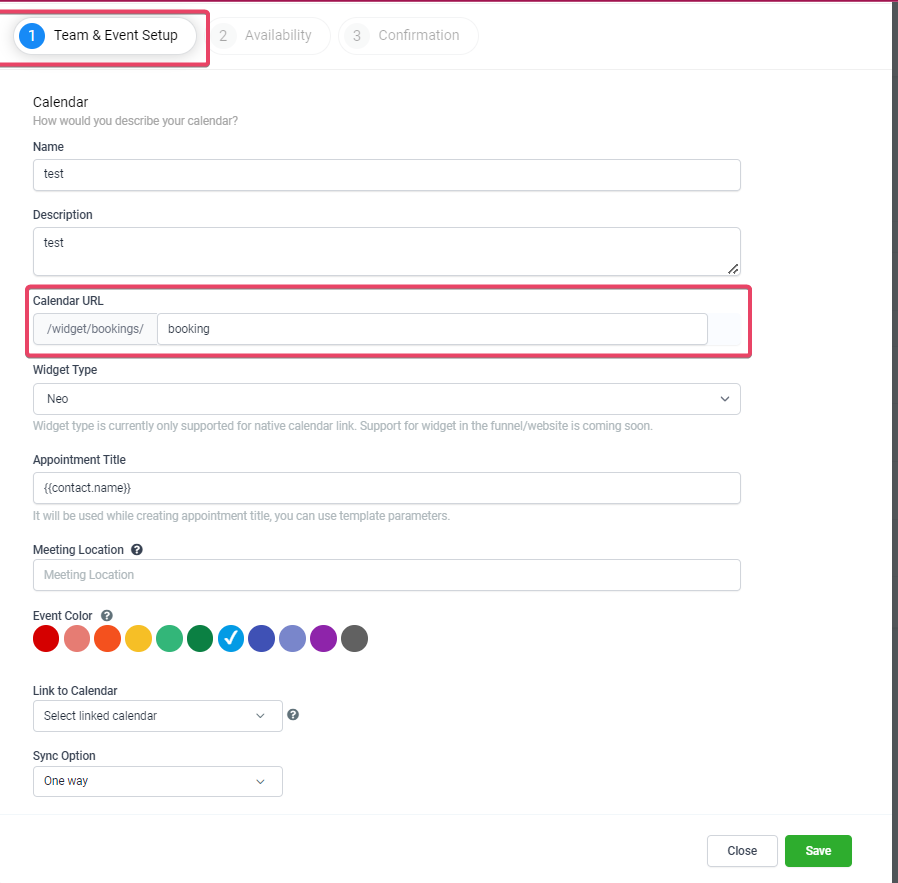
Follow these steps to create or edit the custom URL for an unassigned calendar. Complete them in order and check availability before saving.
- Click Settings → Calendars in your client account
- Click Create Calendar (or open an existing unassigned calendar to edit)
- Select Unassigned Booking as the calendar type
- In the Team & Event Setup section, locate the Custom URL field
- Click in the text box and type your preferred URL (e.g.,
schedule-tour) - Enrollio automatically checks if the URL is available:
- Green check: The URL is available—you can save
- Red X: The URL is taken—try a different variation
- Once you see the green check, click Save to finalize your calendar
Verify and Share Your Booking Link
Always validate your link before sharing it with families. This quick check ensures everything works correctly:
- Copy your calendar booking link from the calendar settings
- Open the link in a private or incognito browser window
- Confirm the link displays under your branded domain (if configured)
- Complete a test booking to ensure the page loads and routing works correctly
- Update the link across your enrollment site, landing pages, emails, texts, and any other marketing materials
Troubleshooting
Use these solutions to resolve common issues quickly:
"URL not available" message:
Choose a different URL or add a prefix (location, program type, etc.). Example: change tour to downtown-tour
Validation fails when saving:
Remove spaces and special characters. Use only lowercase letters, numbers, and hyphens.
Link doesn't show branded domain:
Confirm your branded domain is configured and active. Re-copy the link after domain configuration is complete.
Can't edit calendar settings:
Verify you have permission to manage calendars in your client account. Contact your account admin if needed.
Frequently Asked Questions
Is my custom URL unique across all of Enrollio or just my account?
URLs are unique within the scope where your calendar lives. If a URL shows as unavailable, choose a different variation.
What characters can I use in my URL?
Use lowercase letters (a-z), numbers (0-9), and hyphens (-). Avoid spaces, capital letters, and special characters.
Can I change my URL after families are already booking?
Yes, but the old link will stop working immediately. Update all placements before making the change to avoid broken links.
How long should my URL be?
Keep it short and descriptive—typically 2-4 words. Examples: book-tour, infant-enrollment, schedule-visit
Do I need a custom URL for every calendar?
No, but custom URLs make links more professional and easier to share. They're especially valuable for calendars you'll promote publicly.