
Managing tours, parent meetings, and staff schedules is easier with Enrollio's calendar view. Access it from the Calendar module to see all your appointments and synced events in one comprehensive view.
In This Article
- Quick Day View
- Quick Month View
- Multi-User Selection
- Multi-Calendar View
- Multi-Group View
- Color Coding for Clarity
- Annotation Key
- Intuitive Icons
- Persistent Multi-Select
- Additional Info on Hover
Quick Day View
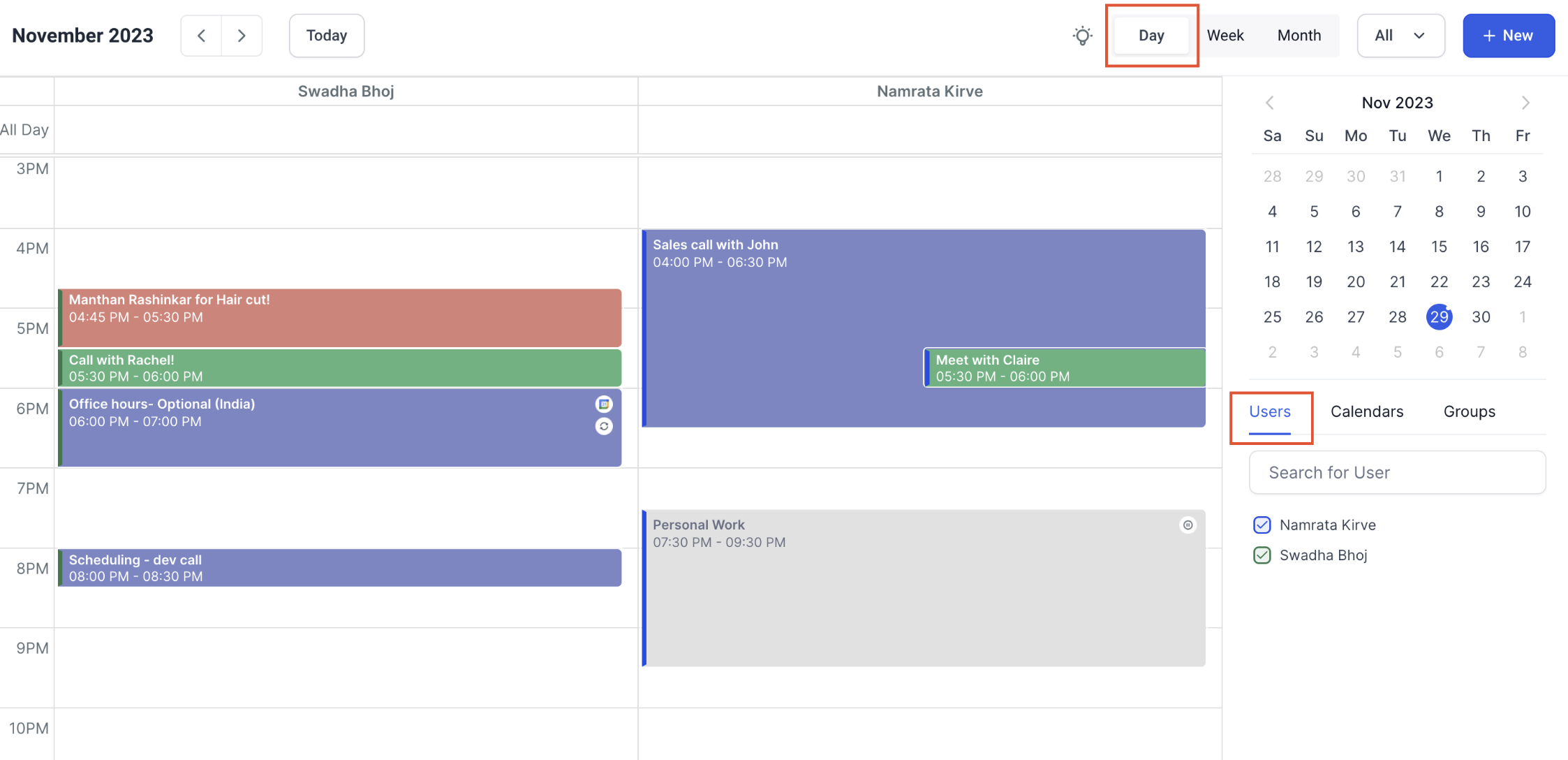
View your team members, calendars, and groups side-by-side. Select the Day view to see a horizontal list of all selected entities.
For example, in the user's Day view, you'll see a horizontal list of staff members with their individual day calendar below their names. This makes it easy to identify available time slots and compare daily schedules at a glance.
Quick Month View
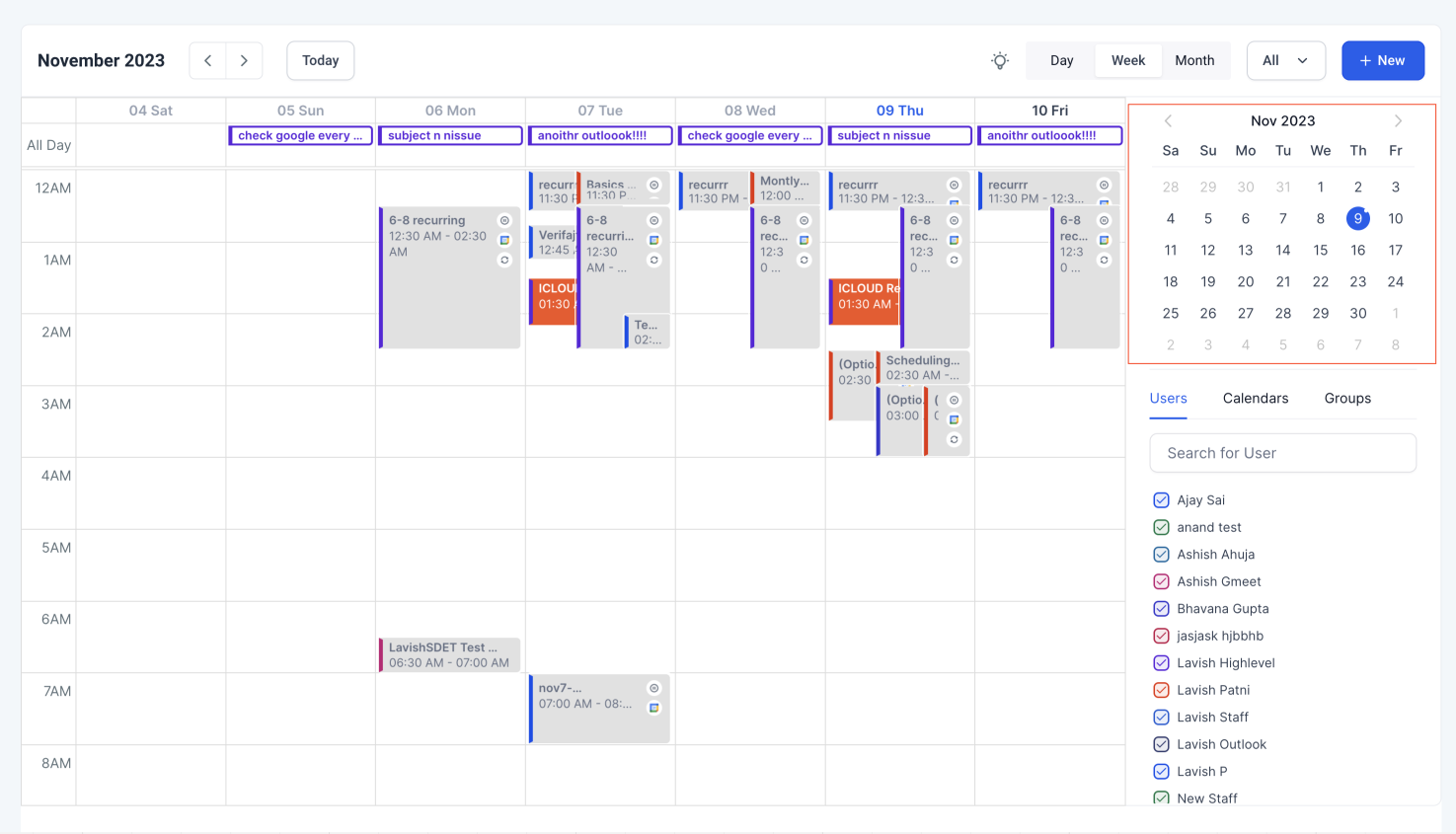
Navigate through future dates with the month view to stay on top of upcoming tours and appointments. Never miss an important parent meeting or enrollment deadline.
Multi-User Selection
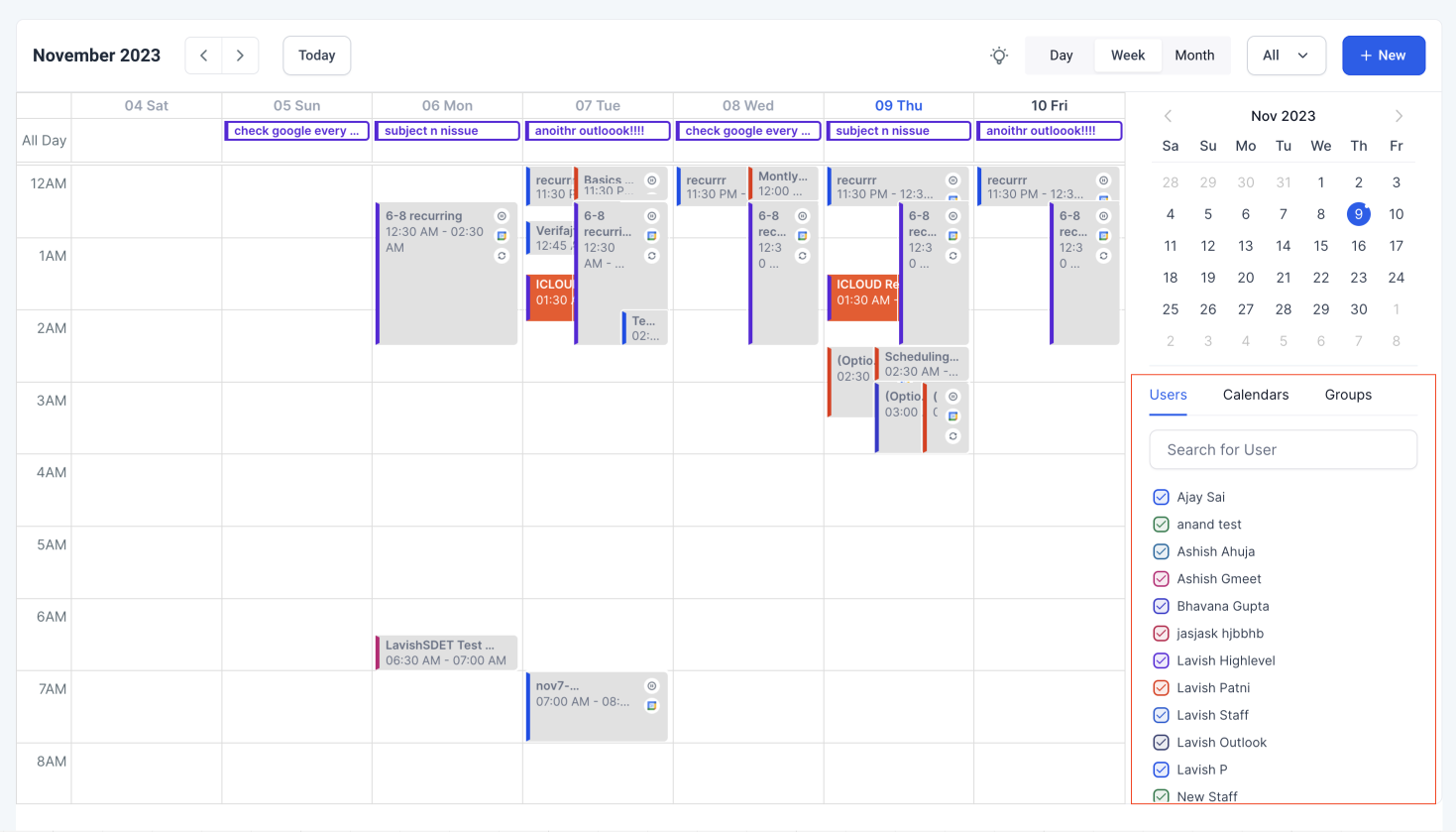
Select multiple staff members at once and view all their appointments in a single view. No need to check calendars one by one—see everyone's availability instantly.
Pro tip: This is especially helpful when scheduling parent tours and need to coordinate with multiple staff members.
Multi-Calendar View
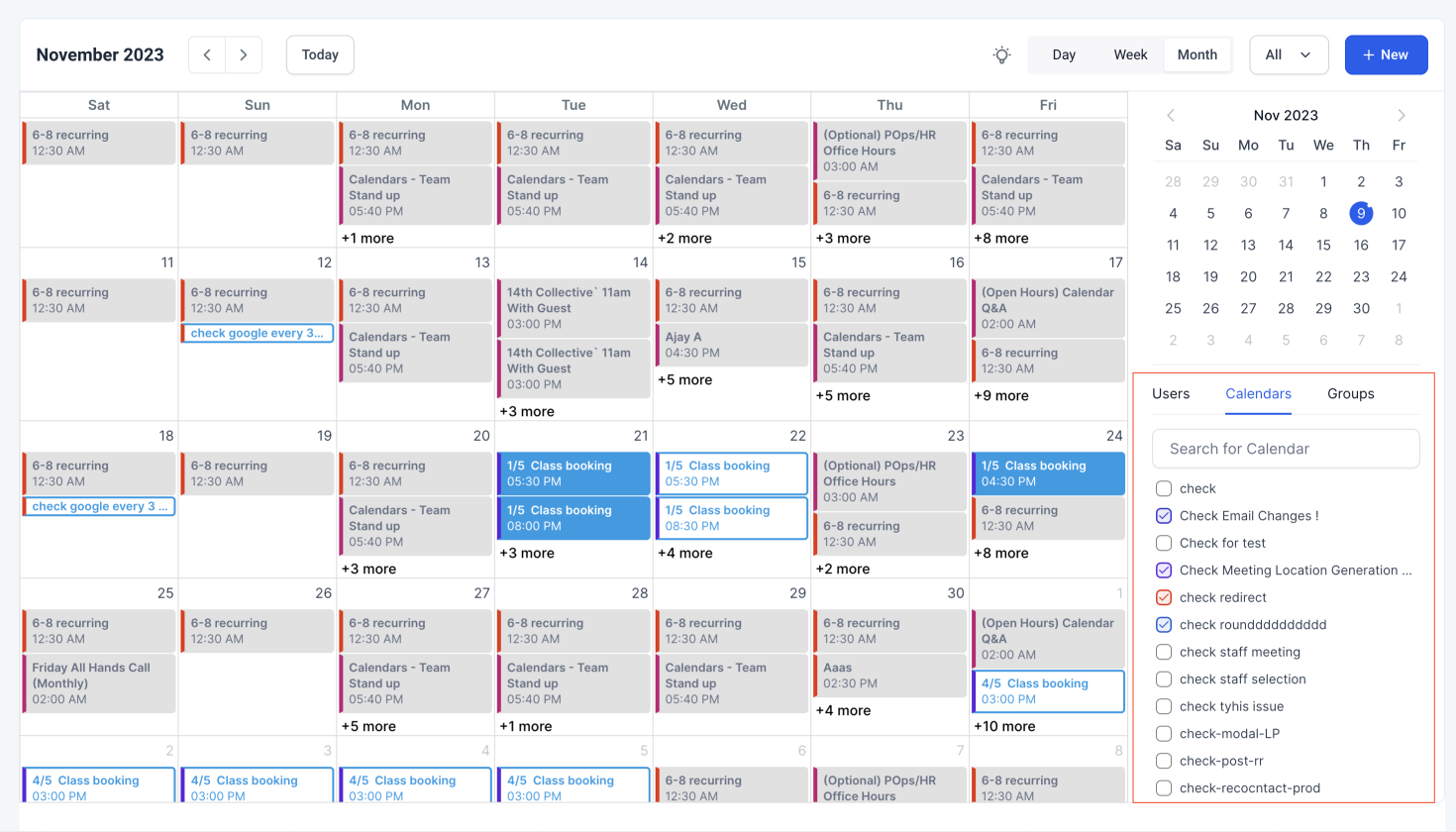
Choose different calendars and see all their appointments consolidated in one display. Switch between your tour calendar, staff meeting calendar, and parent conference calendar without losing your place.
Multi-Group View
Select multiple groups to see all their appointments overlaid on your calendar. Get a comprehensive overview of what's happening across your entire center.
Color Coding for Clarity
Each staff member's appointments appear in their own color, making it easy to distinguish schedules at a glance. Group and calendar appointments display in colors based on your customized settings.
Users: Each staff member gets a unique color for their appointments
Groups and Calendars: Appointments display in your customized colors for easy identification
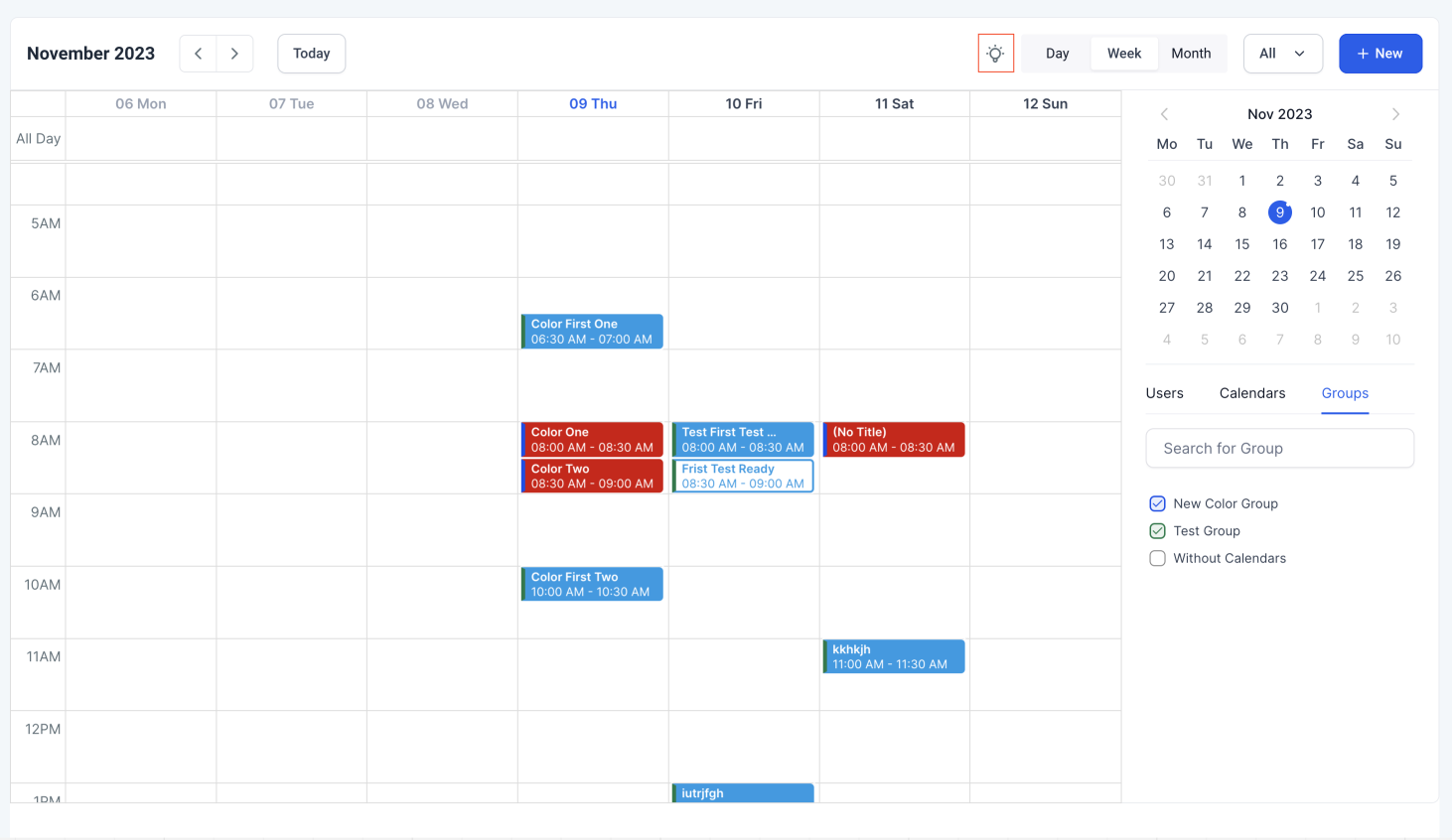
Annotation Key
The annotation key helps you understand the different icons and patterns used for events. Click the key icon to see definitions for all visual indicators.
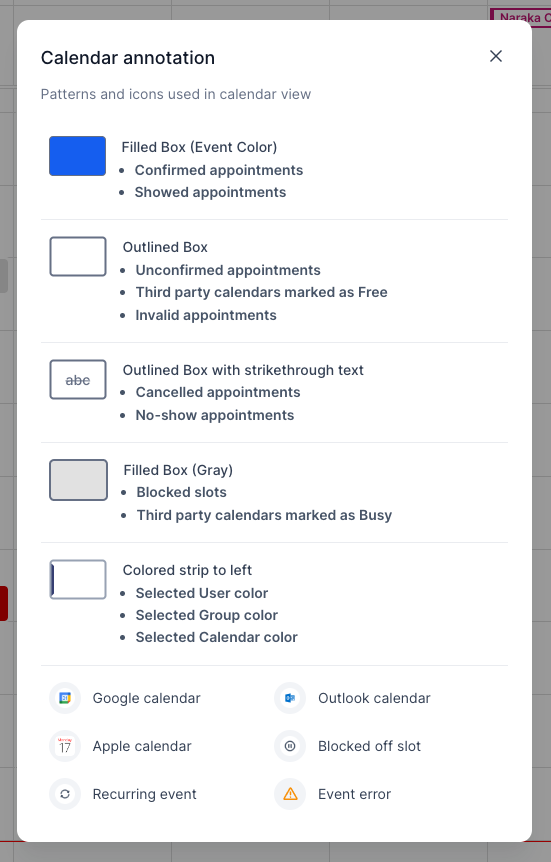
Intuitive Icons
Recognize event types instantly with clear icons. Tour appointments, staff meetings, and parent conferences each have their own visual indicator.
Persistent Multi-Select
Your selected calendars and staff members are remembered. When you return to the calendar, your preferred view is ready and waiting.
Additional Info on Hover
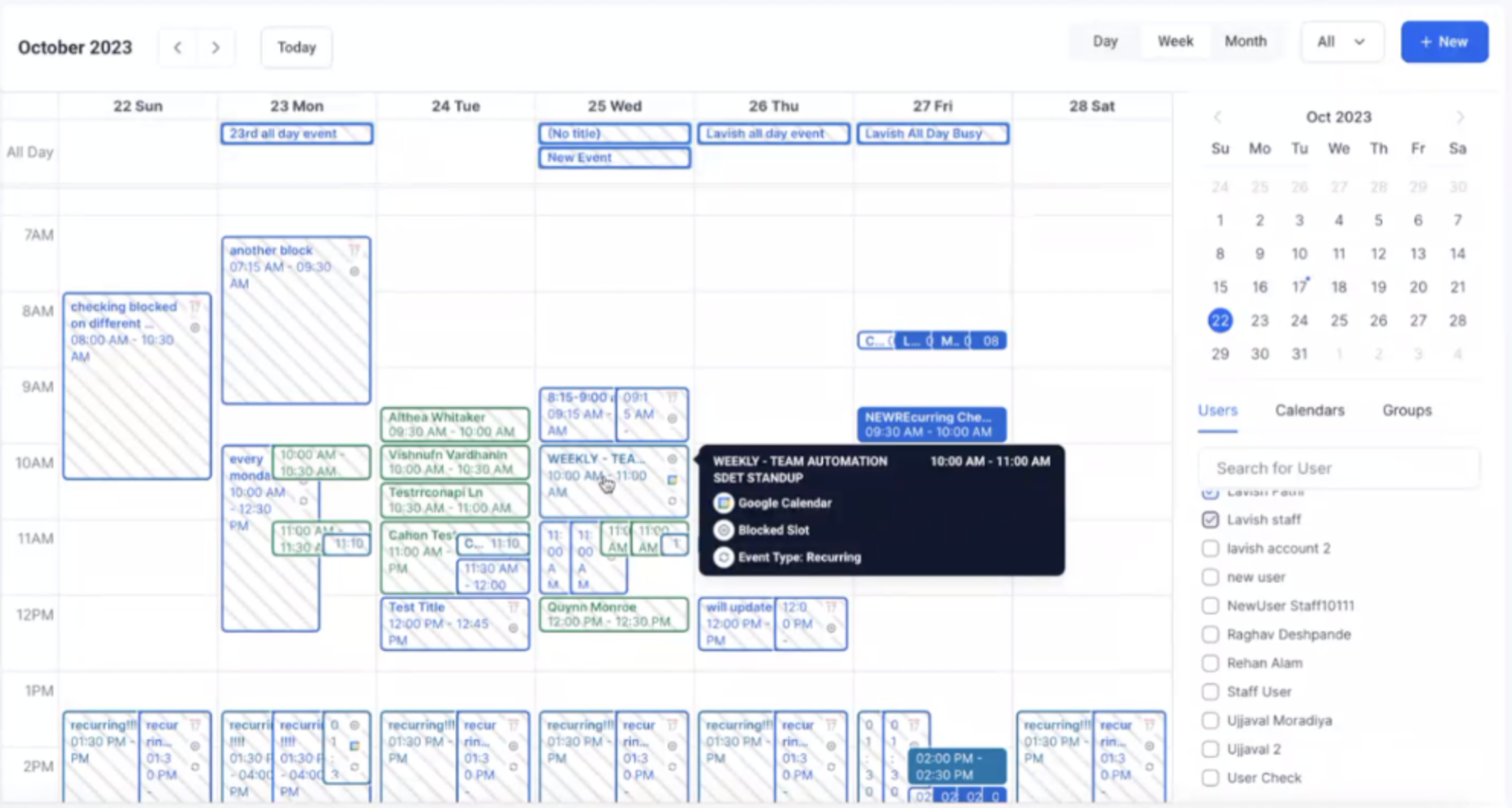
Hover over any appointment to see a detailed snapshot including event type, title, start time, and end time. No need to click—get the information you need instantly.
Pro tip: Use the calendar view to quickly identify gaps in your tour schedule and maximize enrollment opportunities.