
Understanding Syncing and Why It Matters
Syncing your Enrollio calendar with Calendly means that new events booked through your selected Calendly calendars will automatically appear as appointments inside Enrollio. This enables seamless family record creation and automation triggers based on real-time bookings—eliminating the need for manual data entry.
The integration works as a one-way sync, meaning events are pulled from Calendly into Enrollio, but not the other way around. Syncing begins only after the integration is connected via Calendar Settings > Connections, and it applies exclusively to the calendars you select during setup.
If you later deselect a calendar, syncing stops for that calendar, and re-selecting it will not bring in missed events—only new ones going forward will sync. Sync occurs in real-time or near real-time after each Calendly booking.
Pro Tip: To ensure a smooth and reliable experience, use a supported Calendly plan (Standard, Teams, or Enterprise), select only relevant calendars, and ensure your event types collect essential details like parent name and email.
What Gets Synced From Calendly?
The integration focuses on the core data needed to manage tour appointments and family communications effectively.
| Synced | Not Synced |
|---|---|
| Event Date & Time | Cancelled or rescheduled events are not updated in Enrollio |
| Guest Name & Email | Historical events (created before setup) |
| Appointment Title | Attachments or notes |
| Source (marked as "Calendly") | Calendar the event belongs to |
| Phone number from location or Q&A fields |
How Does the Calendly Integration Work?
The Calendly integration works a bit differently from other calendar platforms like Google, Outlook, or iCloud. It's designed to import events from Calendly into Enrollio, not the other way around.
Calendly Event Syncing
Once your Calendly account is connected and at least one calendar is selected, Enrollio will begin pulling in new events automatically. Only events created after the integration is set up will sync into your calendar.
If you later remove a calendar from the connection, new events from that calendar will no longer sync into Enrollio. And if you reconnect that calendar in the future, then both upcoming events and past events created within the last 180 days at the time of connecting your Calendly account will be synced. Any appointments made while the calendar was disconnected won't be imported retroactively.
One-Way Syncing
The Calendly integration is one-way—Enrollio fetches events from Calendly, but not the other way around. That means:
- Events created in Enrollio won't show up in Calendly
- Events that come from Calendly can't be edited within Enrollio—you'll need to make those changes directly in Calendly to ensure everything stays accurate
Family Record Creation from Bookings
Every new Calendly event that syncs into Enrollio is treated as an appointment (not just a placeholder or blocked time). If the event includes a guest, a family record is automatically created in your system using their name and email.
From there, you can trigger automations, add them to follow-up sequences, and manage them just like any other family in your platform.
Who Owns the Appointment?
Ownership depends on the type of calendar:
- Personal Calendly links: The user who connected their Calendly account will be assigned as the appointment owner
- Shared calendars (like round-robin or team links): The system will randomly assign the appointment owner from among the connected Calendly users
Family Assignment
The family's Assigned User field will be automatically updated to match the owner of their most recent appointment. This ensures the right team member is connected to the family and any follow-up automations go to the correct user.
Managing Calendars After Setup
You can make changes to your calendar selection anytime. Here's how:
- Navigate to Calendar Settings
- Click on the Connections tab
- Locate your Calendly integration from the list of connected calendars
- Click the Edit icon next to it to open the calendar selection panel
- Add new calendars you'd like to sync or remove any that are no longer needed
- Click Save to apply the updates
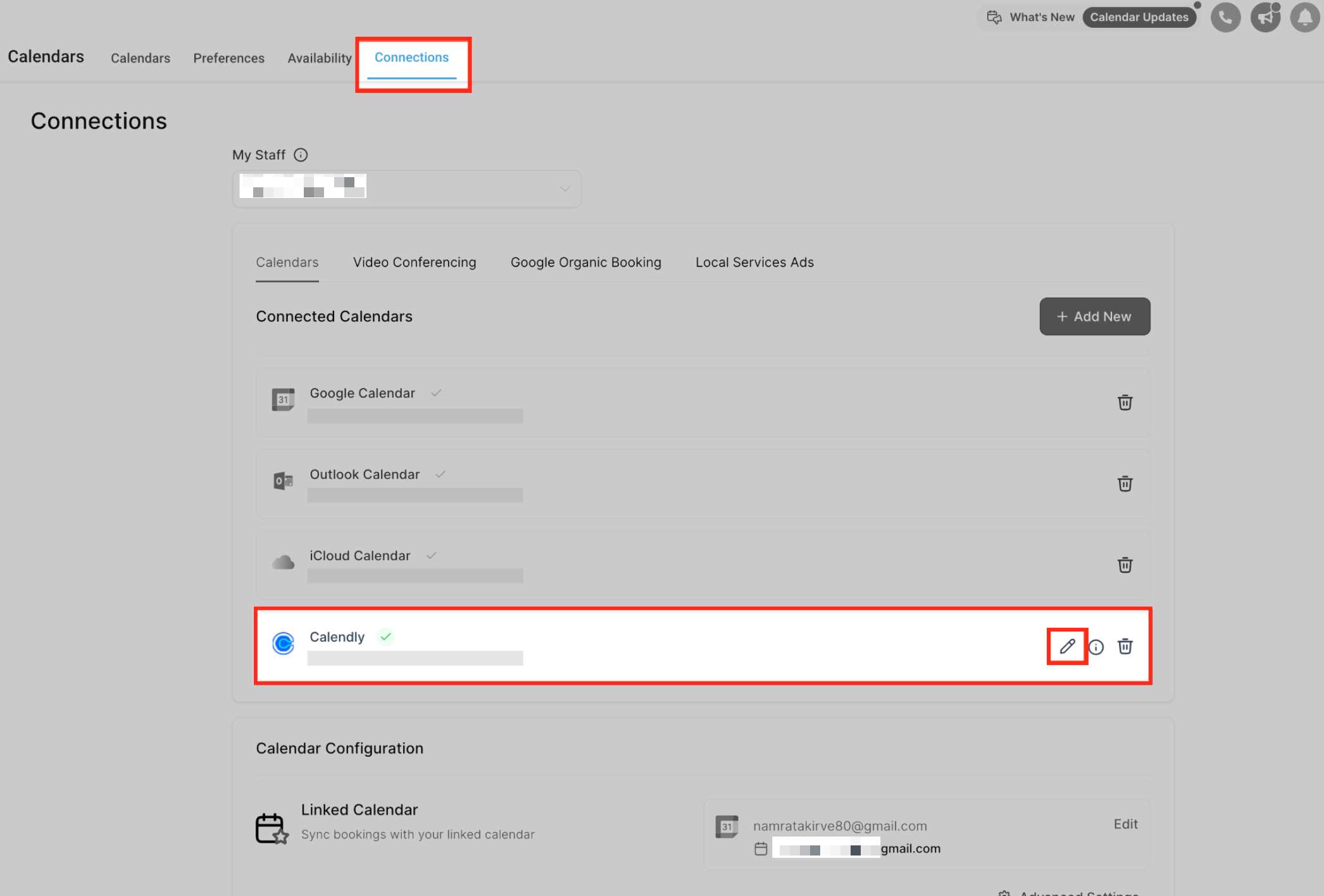
Important: Only events from the calendars currently selected will sync moving forward. No historical data will be imported.
Deleting Synced Calendly Events
When disconnecting a calendar or removing Calendly, you'll be prompted to choose whether to delete the synced events.
Deleting Events From One Calendar
You can choose to delete all events synced from a specific calendar. Deleted events cannot be restored later.
Shared Calendars
If multiple users have connected Calendly to the same shared calendar, all of them must choose to delete the events for them to be removed. If one user keeps the calendar, the shared events will remain visible.
Disconnecting Calendly Completely
You'll be given the option to delete all synced events from all calendars. Deletion is permanent. If Calendly is reconnected, we automatically import both upcoming events and past events created within the last 180 days at the time of connecting your Calendly account.
Known Limitations of the Calendly Integration
Here are the key limitations to be aware of when using the Calendly integration:
- One Calendly account per user per Client Account: You can connect the same Calendly account in multiple Client Accounts you belong to
- Supported only for Standard, Teams, and Enterprise plans on Calendly: Free or Essentials Calendly plans are not supported
- Events cannot be edited in Enrollio: Changes must be made directly in Calendly
- Limited data sync: Only name and email of the guest are synced (no Q&A or custom fields beyond phone)
- Phone number capture: Enrollio captures phone numbers from Calendly using clear source rules to reduce manual cleanup
Frequently Asked Questions
Can I sync events both ways between Enrollio and Calendly?
No, the integration is one-way only. Events flow from Calendly into Enrollio, but appointments created in Enrollio won't appear in Calendly.
What happens if I disconnect and reconnect a calendar?
When you reconnect a calendar, Enrollio will sync both upcoming events and past events created within the last 180 days. Any appointments made while the calendar was disconnected won't be imported.
Can I edit Calendly appointments in Enrollio?
No, you'll need to make changes directly in Calendly. The integration pulls data from Calendly, so that's where updates need to happen to keep everything accurate.
How do I know which staff member will be assigned to a family?
For personal Calendly links, the user who connected the account is assigned. For shared calendars (round-robin), the system randomly assigns from the connected users. The family's Assigned User field automatically updates to match the owner of their most recent appointment.