
Overview of Creating a Tour Booking
The Create Booking feature lets you manually schedule tours for families directly from the Calendar or Appointments view. When you create a booking manually, you have complete flexibility—meaning you can create bookings outside your normal availability rules.
This means you can:
- Schedule tours outside your regular business hours
- Set any start and end time, even if time selection is normally restricted
- Create bookings for any duration, regardless of default tour lengths
- Bypass minimum notice periods and maximum advance booking windows
- Still respect buffer times between tours to avoid back-to-back scheduling conflicts
Example: If your standard tour hours are 9 AM–5 PM and families can only book 30-minute or 1-hour slots, you can still manually create a 2-hour tour starting at 7 AM for a special circumstance.
Why Create Bookings Manually?
Manual booking gives you the control to handle exceptions while keeping your schedule organized:
- Handle urgent requests: Schedule tours immediately without waiting for online bookings
- Make exceptions: Accommodate families who need times outside normal availability
- Prevent conflicts: Buffer times and availability are still enforced to avoid double-booking
- Book multiple resources: Schedule tours across multiple classrooms or with different staff in one booking
- Keep your team in sync: Bookings appear instantly in your Calendar and Appointments view
How to Create a New Booking
You can create a booking from two places in Enrollio:
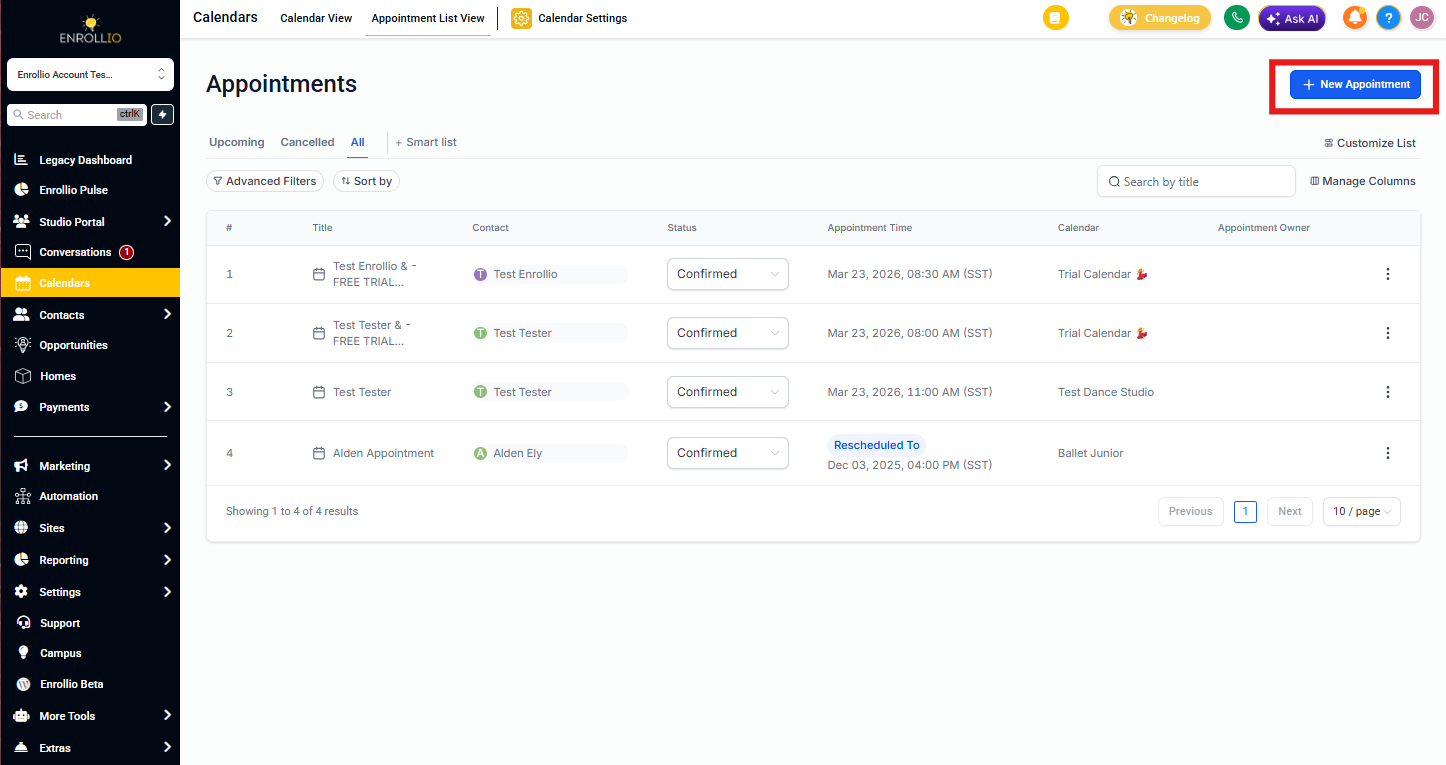
Option 1 — From the Appointments View
- Navigate to Calendar → Appointments
- Click + Create Booking in the top-right corner
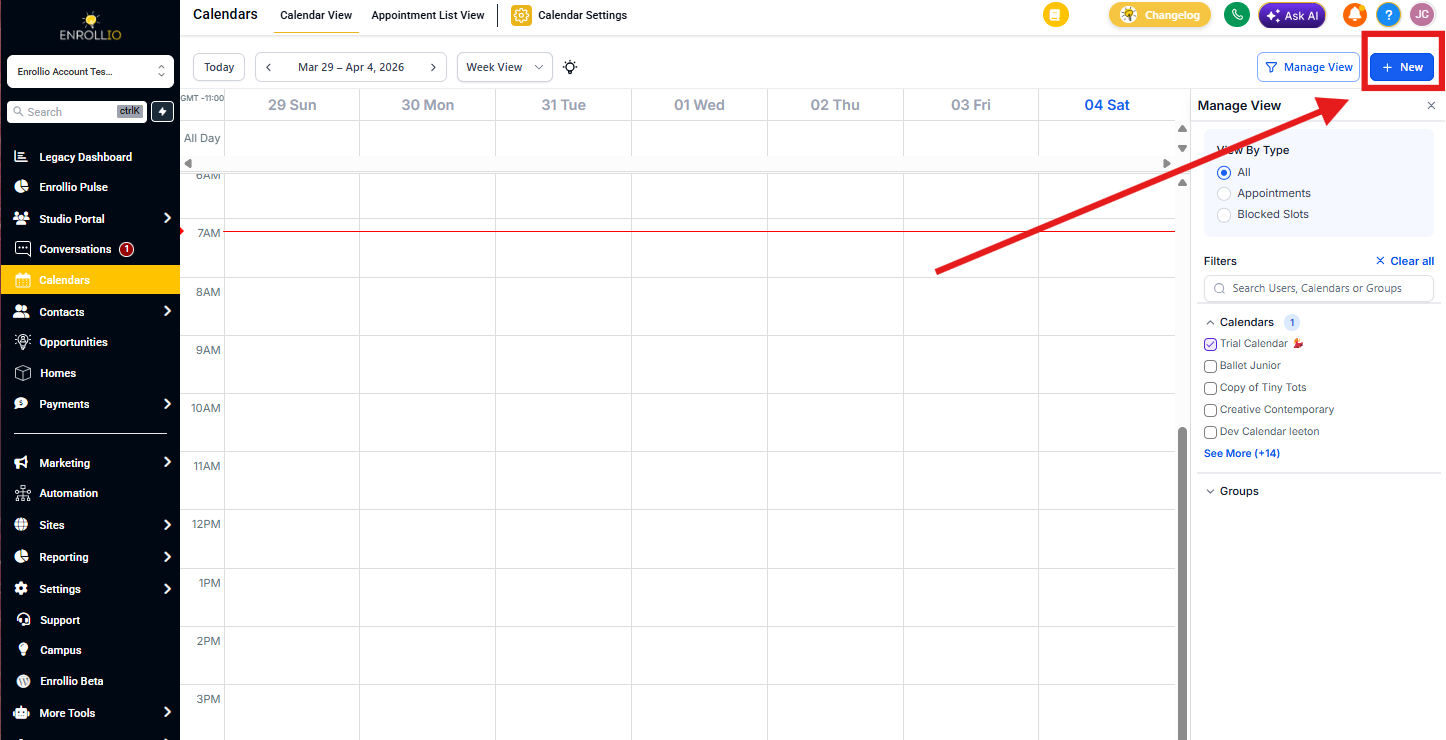
Option 2 — From the Calendar View
- Go to Calendar → Calendar View
- Click + New in the top-right corner
Sections of the Create Booking Form
The booking form has five main sections. Here's how to complete each one:
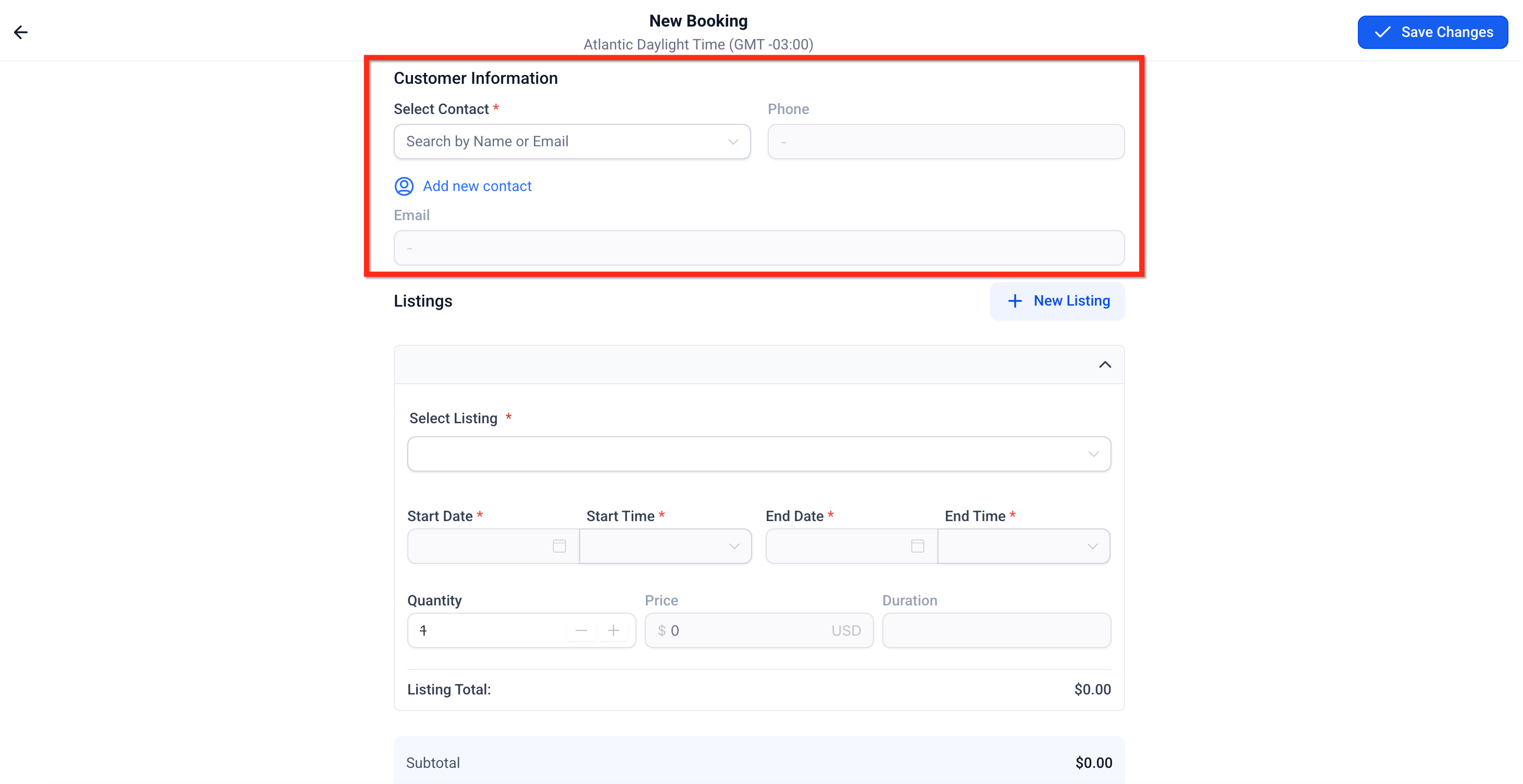
Family Information
Start by selecting or creating the family record for this tour.
- Select Family: Search your existing families or click Add New Family to create one on the spot
- Phone & Email: These pull automatically from the family record
Tour Details Section
This is where you configure what's being booked—which tour type, classroom, or resource.
To Add a Tour Slot:
- Choose the Tour Type from the dropdown (e.g., Infant Tour, Toddler Tour, Open House)
- Select a Variant if you have different options (e.g., Private Tour vs. Group Tour)
- Enter the Quantity—how many slots or families this booking covers
- Set your Start Date/Time and End Date/Time
You can choose custom times and durations even if your tour calendar normally restricts them. The duration calculates automatically, but you can adjust it manually if needed.
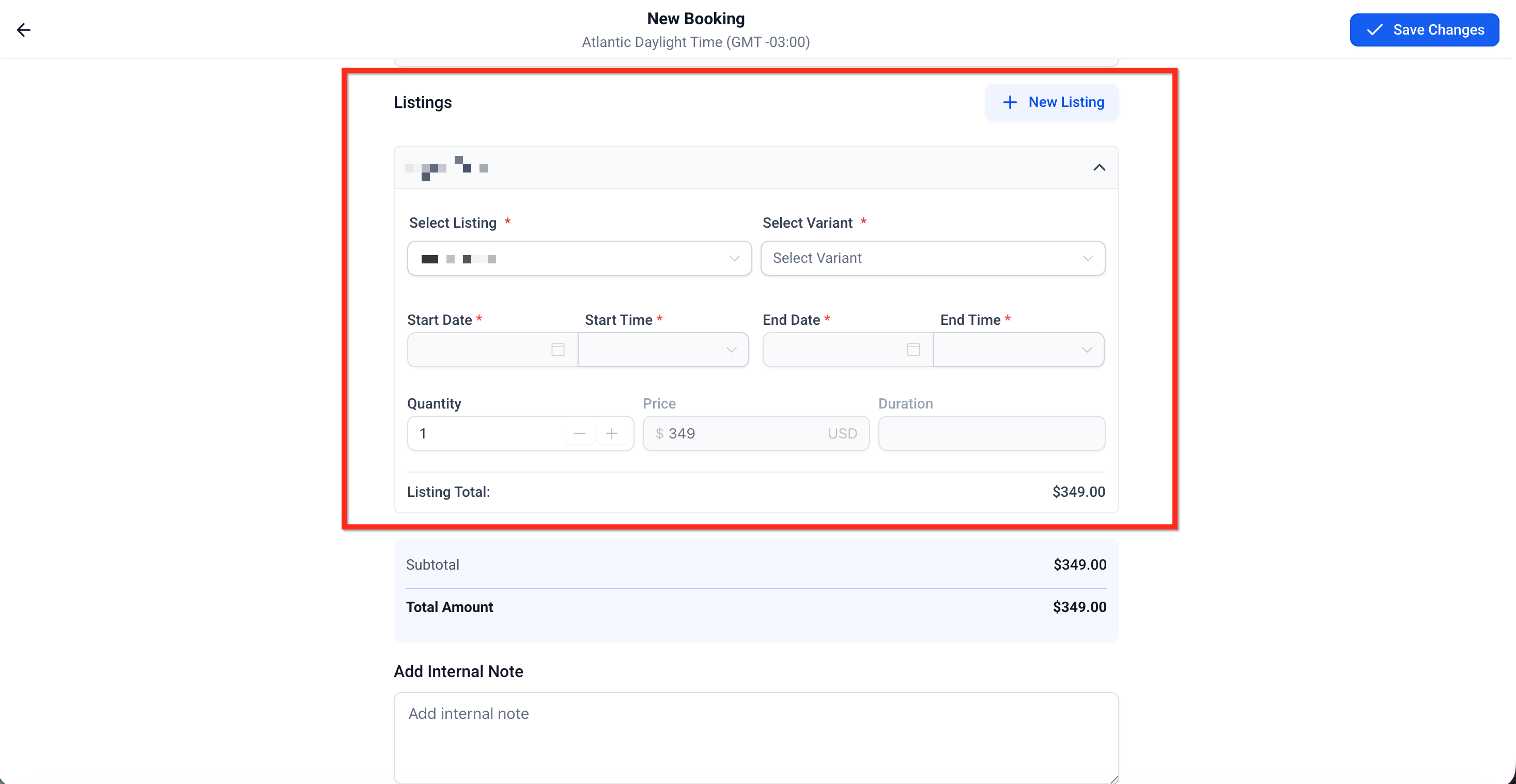
Important: While manual bookings ignore minimum/maximum durations and advance notice rules, they still respect buffer times. If a time slot conflicts with an existing booking or buffer, you'll see an error.
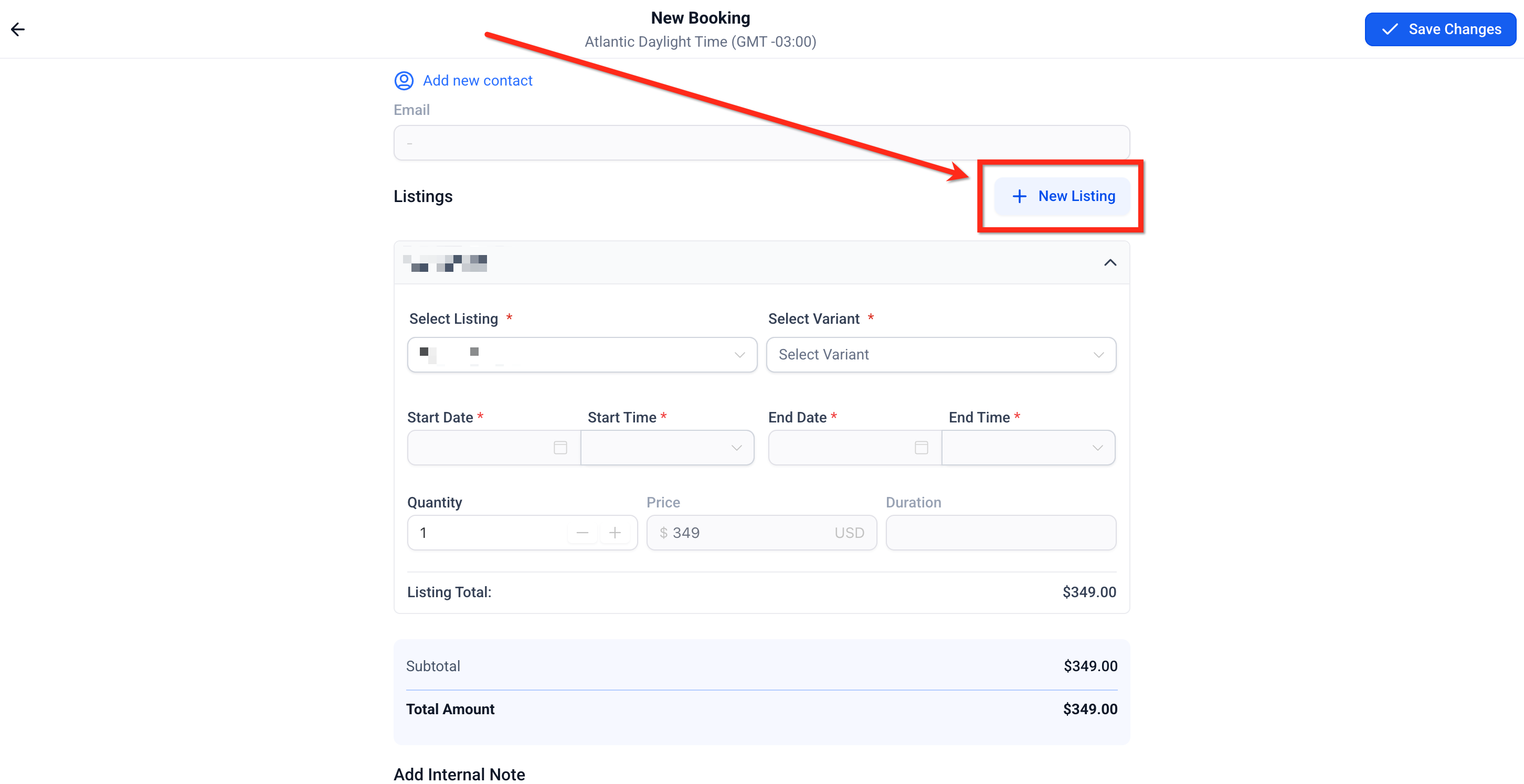
Adding Multiple Resources to One Booking
Need to book multiple classrooms or tour types for the same family? Click + Add Another to include multiple items in a single booking. Each can have its own start time, duration, and quantity.
Payment Summary
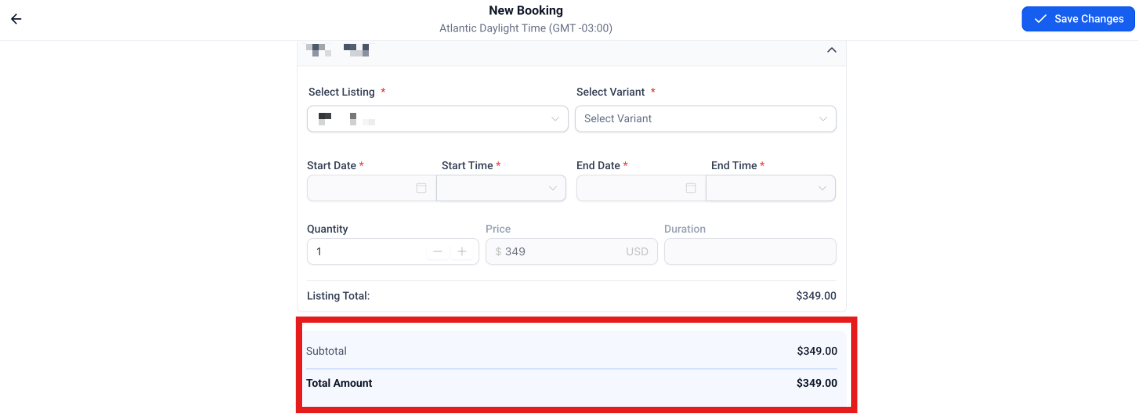
This section shows the total cost for everything in the booking.
You'll see:
- Subtotal: Combined total of all tour slots
- Security Deposit Total: Any required deposit (if applicable)
- Total Amount: The final amount due
Note: If you collect deposits on a card on file, the deposit shows in the total but isn't charged until you explicitly process it.
Internal Notes
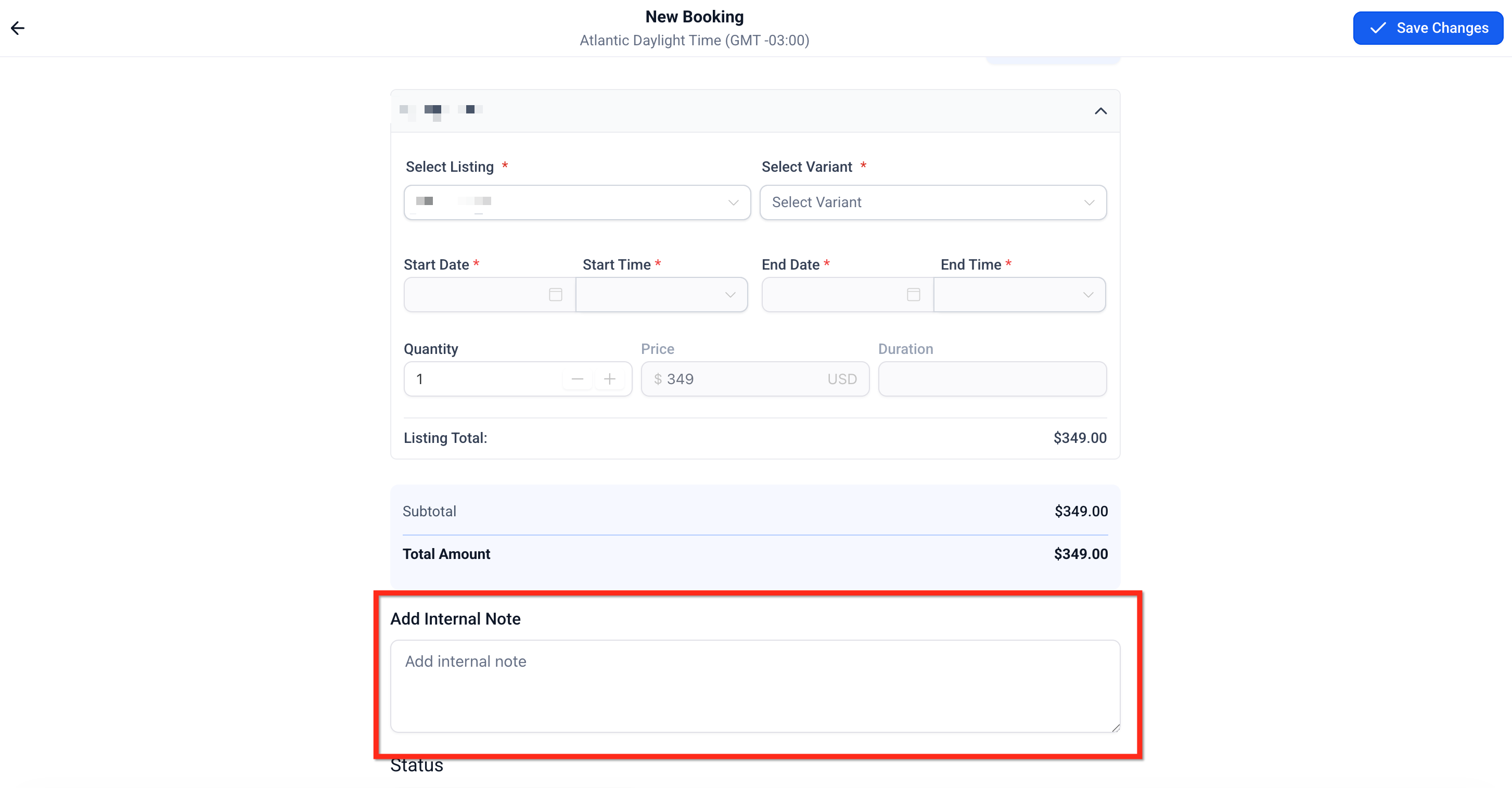
Use this field to record any special instructions or context your team needs to know.
Examples:
- "Family is interested in infant and toddler rooms"
- "Dad will arrive 10 minutes early to complete enrollment paperwork"
- "Referred by current family - the Johnsons"
Set Booking Status
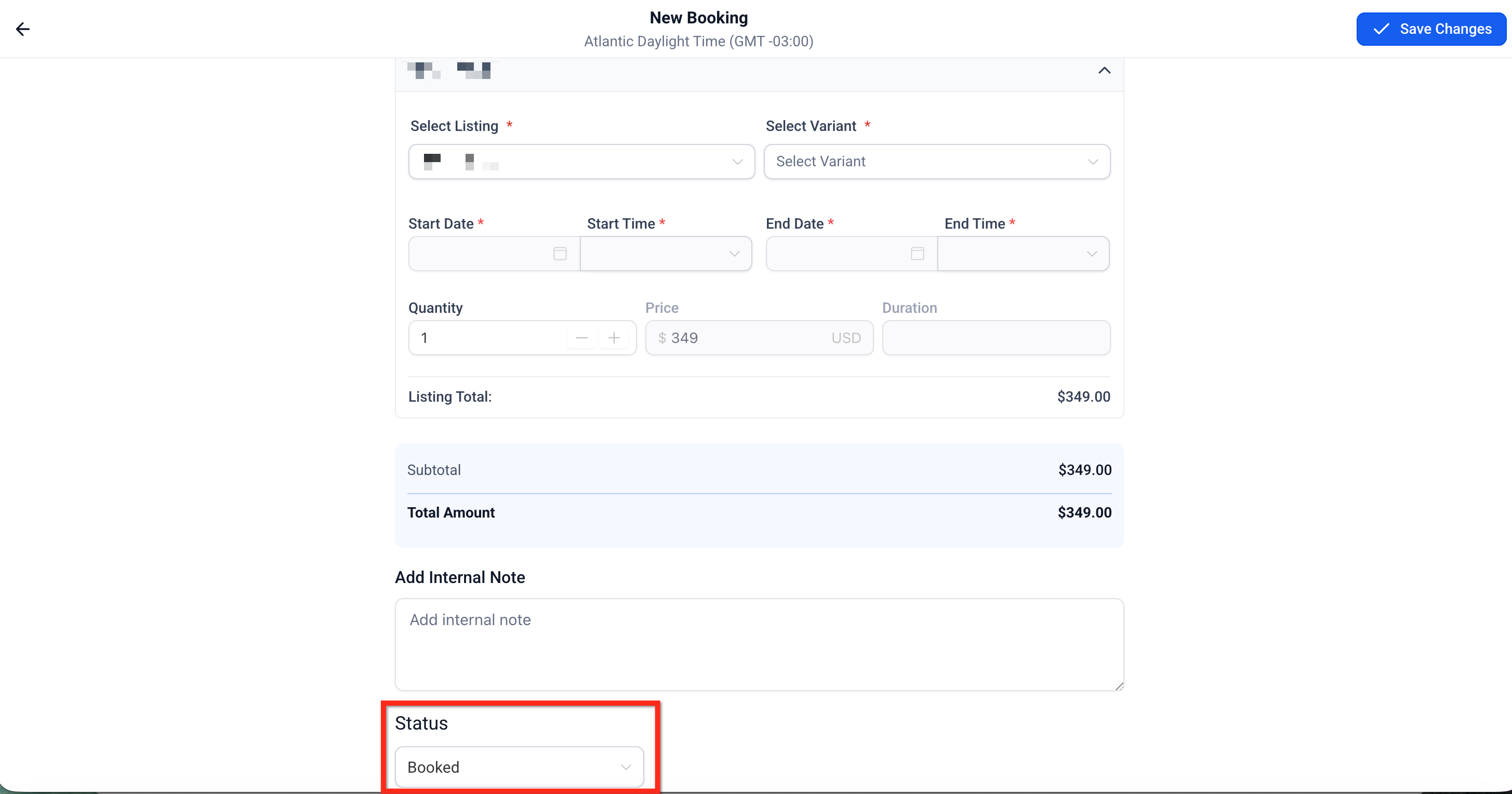
Before saving, choose the initial status:
- Unconfirmed: Use this for tentative bookings or holds you need to confirm later
- Booked: The tour is confirmed and ready to go
This gives you flexibility to manage provisional holds without blocking your calendar.
Save and Confirm
Once you've filled in all the details:
- Review the family info and tour details one more time
- Click Save Changes
The booking appears immediately in your Appointments list and Calendar view. If you set up confirmation automations, the family will receive their confirmation text or email right away.
Frequently Asked Questions
Q: Can I create a booking without collecting payment right now?
Yes. Save the booking without payment, then open it later to collect the deposit or full amount.
Q: Why isn't the deposit showing in the Payment Summary?
Check your tour settings to make sure deposits are enabled and that you haven't set the deposit amount to $0.
Q: What happens if my time overlaps a buffer or there's no availability?
You'll see an error and won't be able to save. Adjust your start/end time to respect buffers, or reduce the quantity to match available slots.
Q: How do bookings with multiple tour types work?
Each tour type appears as a separate line item with its own pricing. The booking might show "Partially Paid" until you collect payment for all items.
Q: Can I edit a booking after I create it?
Absolutely. Open the booking from your Calendar or Appointments view and click Edit to make changes.