
Calendar Availability: Weekly Working Hours & Date-Specific Hours
Set your tour booking hours with confidence in Enrollio calendars! This article shows how to use Weekly Working Hours for your baseline schedule and Date-Specific Hours for one-off changes like holidays or special events.
What is Calendar Availability?
Calendar availability defines when your calendar can accept tour bookings. Weekly Working Hours create your repeating weekly pattern, while Date-Specific Hours override that pattern for individual dates (think holidays, staff development days, or special events).
Together, these settings control which time slots parents see when they book a tour on your calendar page.
Weekly Working Hours
Weekly working hours represent your regular tour availability on a recurring basis. This is perfect for setting up your default schedule that repeats week after week.
For instance, if you offer tours every Monday, Wednesday, and Friday from 9 AM to 4 PM, set those as your weekly working hours. Enrollio automatically applies this schedule every week.
How to Set Weekly Working Hours
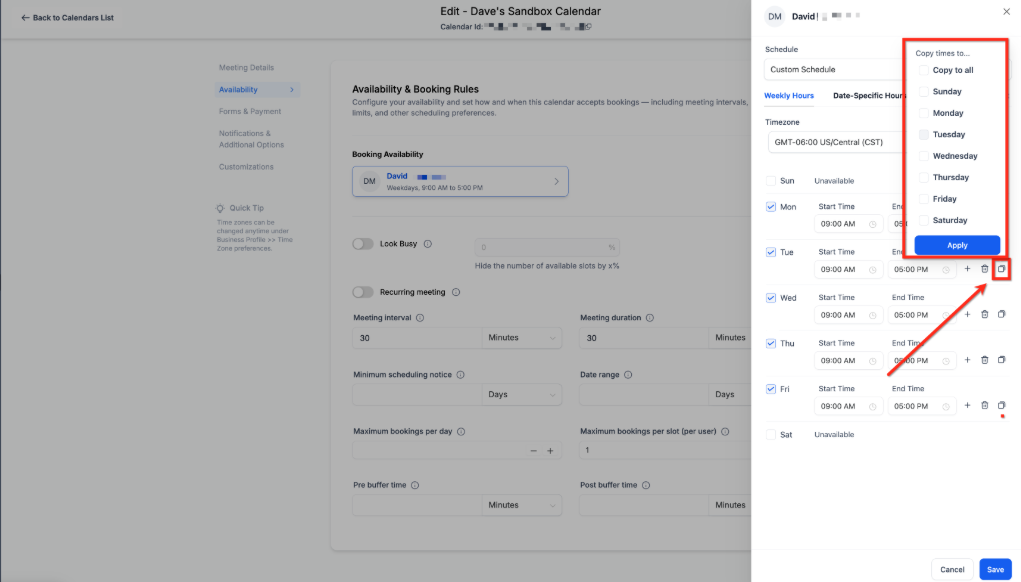
- Go to Calendars → Calendar Settings and click Edit Calendar.
- Select Availability in the left menu.
- Under Booking Availability, click on the staff member's name to open the side panel.
- In Weekly Working Hours, click Edit and set availability hours for each day.
- (Optional) Click Copy to copy settings to additional days.
- Click the blue Save button to apply your changes.
Date-Specific Hours
Date-specific hours let you customize your availability for specific dates. This feature is perfect for handling exceptional circumstances, holidays, or special events.
Here are a few examples:
- Holidays: Mark upcoming holidays like Easter, Christmas, or Thanksgiving as unavailable. Your calendar will show you're closed, preventing tour bookings on those days.
- Staff Development Days: If your center is closed for staff training on a specific day, mark yourself as unavailable without blocking your entire weekly schedule.
- Extended Hours: Hosting an open house event? Use date-specific hours to extend your tour availability for that special day only.
- Personal Commitments: If your tour coordinator has a dentist appointment on February 10th from 1 PM to 3 PM, adjust availability for just that time without affecting the rest of the week.
How to Set Date-Specific Hours
- Go to Calendars → Calendar Settings and click Edit Calendar.
- Select Availability in the left menu.
- Under Booking Availability, click on the staff member's name to open the side panel.
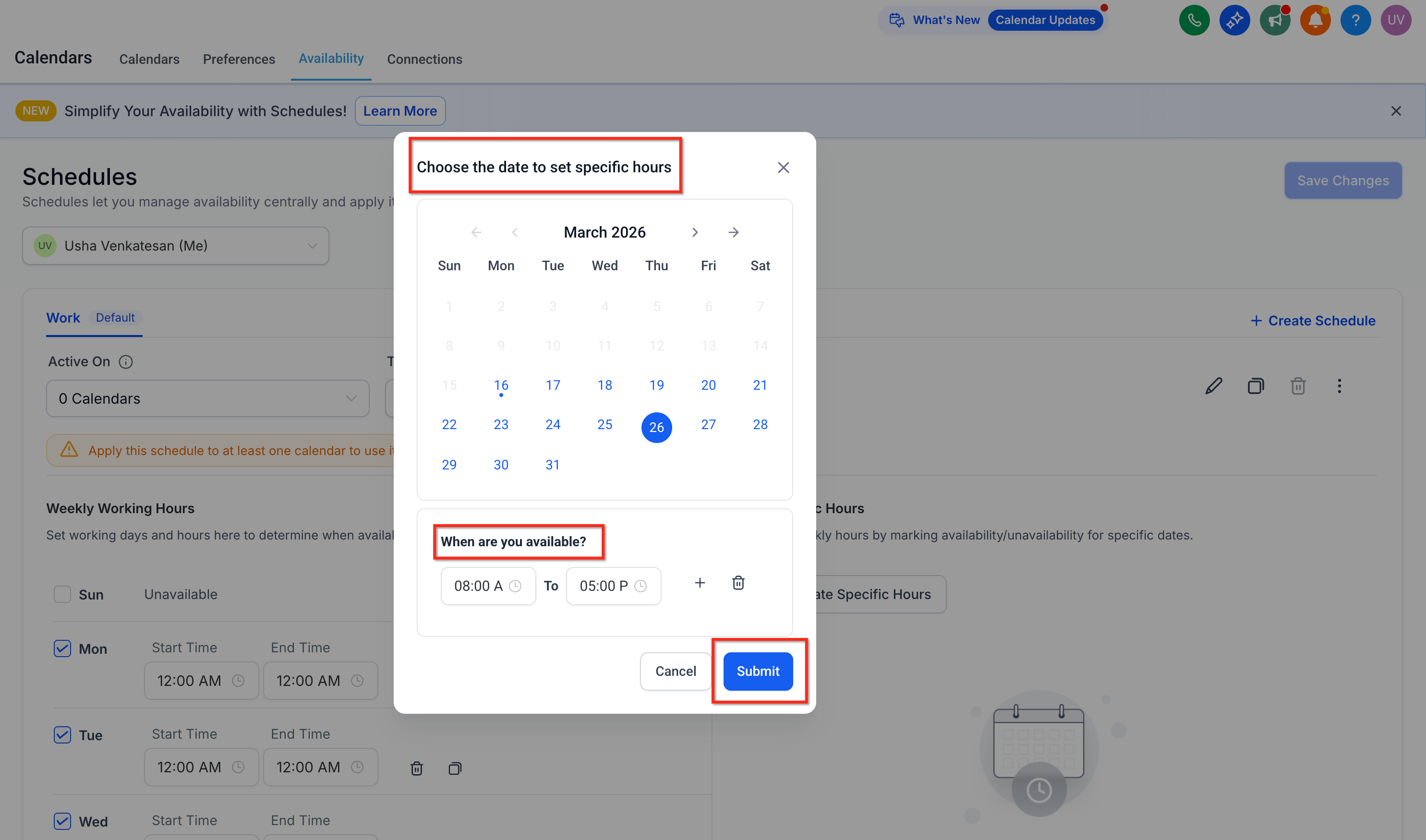
- Go to the Date-Specific Hours tab and click Edit.
- Click + Add date-specific hours and use the popup to select a date.
- To accept bookings on that date, add a time range. Click the Plus (+) icon to add multiple time ranges.
- To block the date entirely, remove all time ranges (click the Trash icon) so the day reads Unavailable.
- Click the Submit button to apply your changes.
Frequently Asked Questions
Can I set up a bi-weekly (every 2 weeks) recurring availability schedule?
Currently, Enrollio calendars support only weekly recurring schedules. If your tour availability follows a bi-weekly pattern, use date-specific hours to define custom availability for each applicable day.
While this requires manual setup, it ensures your calendar reflects your exact schedule. We recommend setting a reminder every two weeks to update your calendar, or use date-specific hours in bulk ahead of time for the upcoming months.