
What is Calendar Customization?
Calendar customization gives you complete control over how your booking calendar looks and feels. Personalize colors, buttons, and display options to match your center's brand and create a seamless booking experience for families.
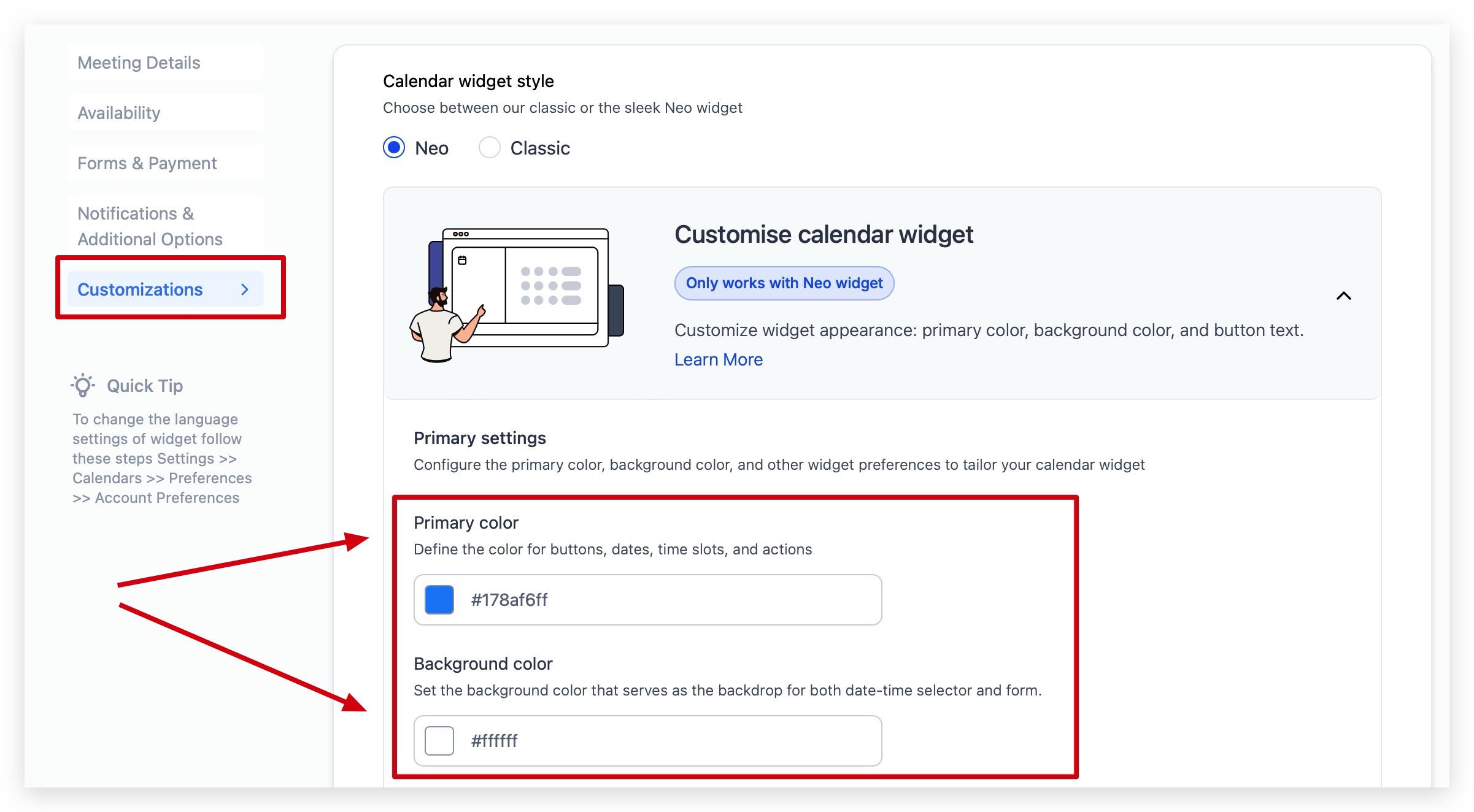
How to Customize Your Calendar
- Navigate to Calendar Settings
- Click Edit for the calendar you want to customize
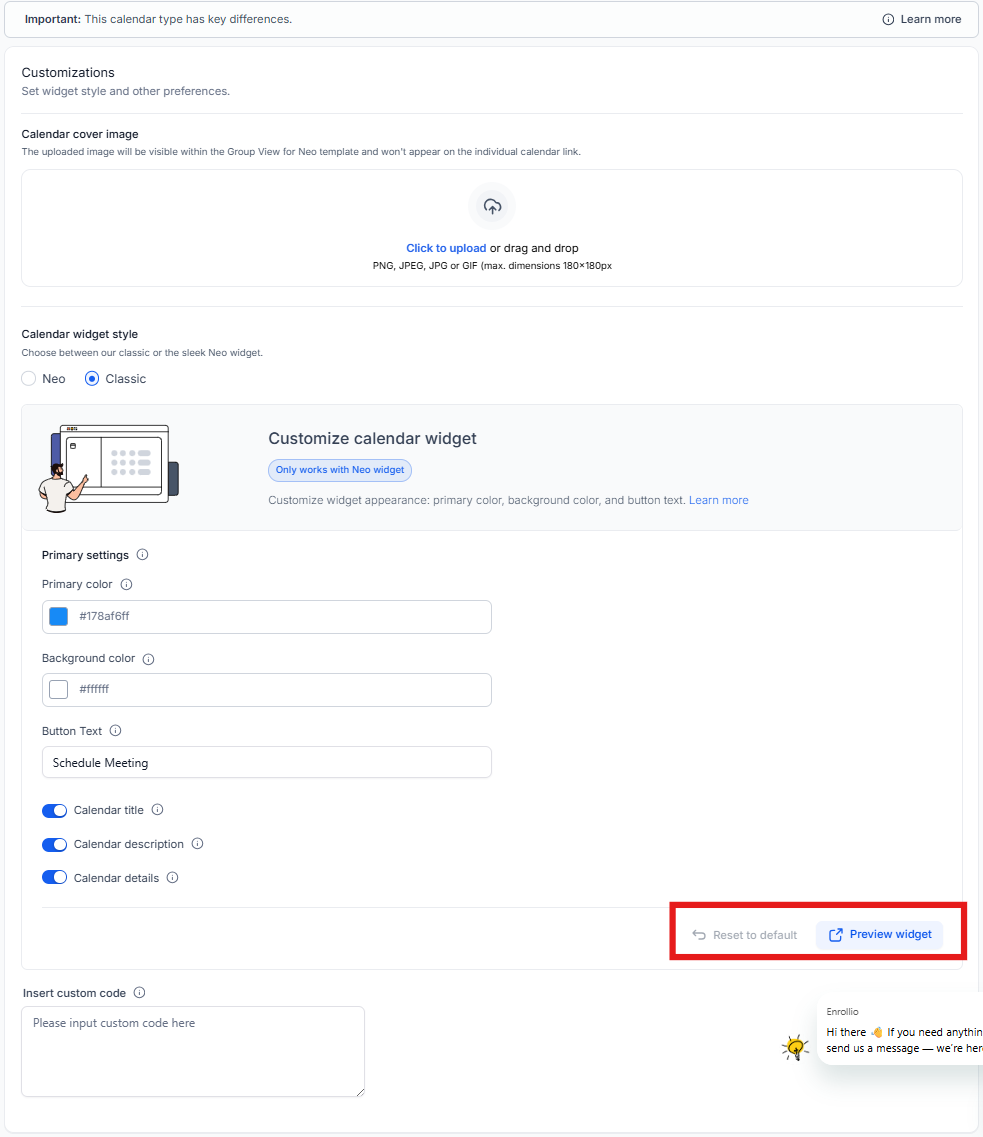
- Select the Customizations tab
Customization Options
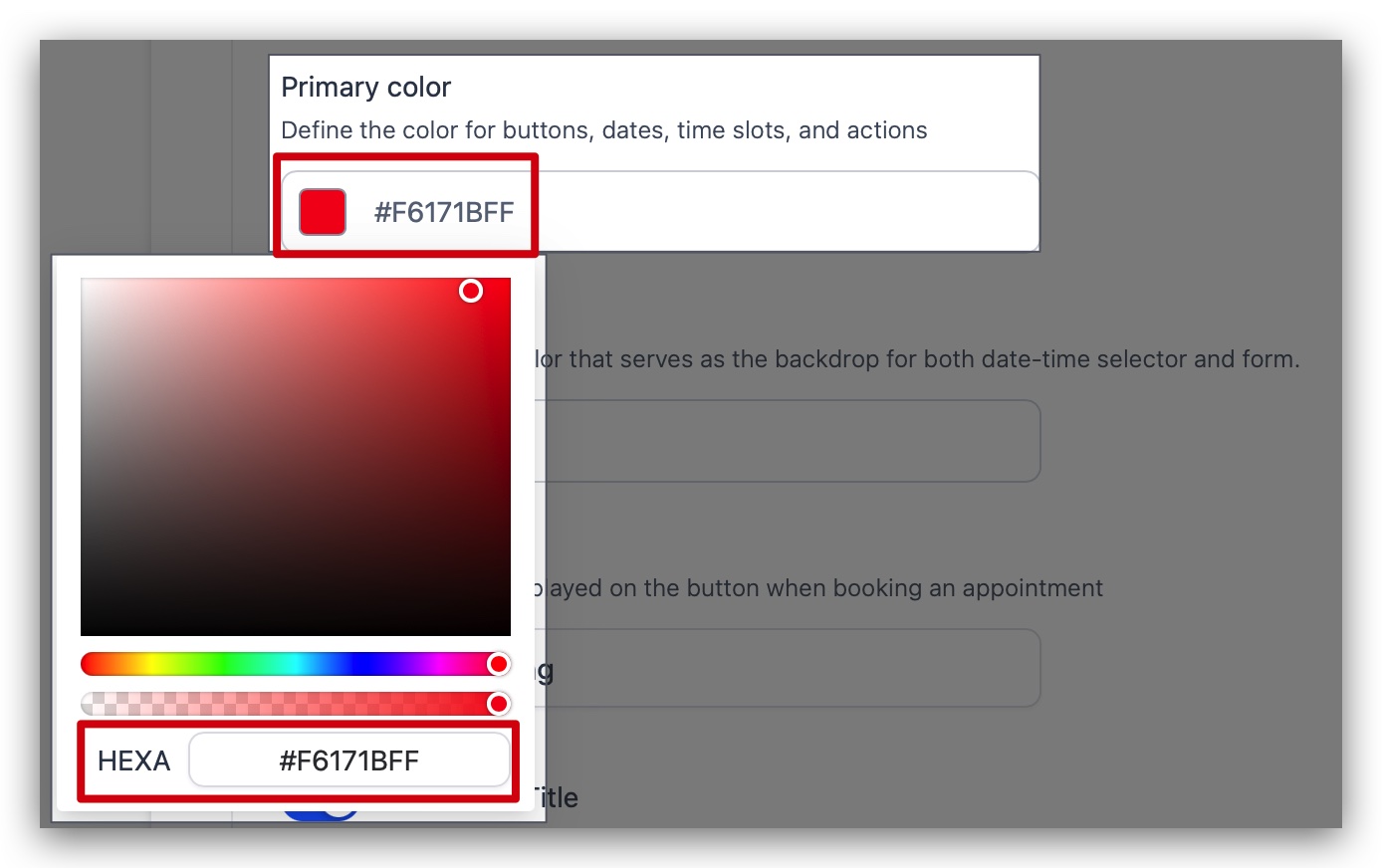
Primary Color
This color appears on buttons, dates, time slots, and interactive elements like staff selection and guest options. Choose a color that aligns with your center's branding.
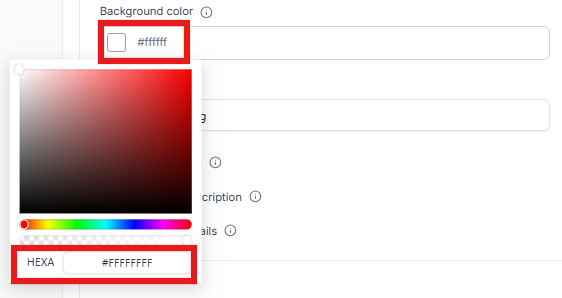
Background Color
Sets the background for both the date-time selector and booking form. If you're using a custom form, its background will match this color—but individual form fields follow your custom form settings.
Button Text
Customize what appears on the final booking button. This button shows on the last step when families complete their booking.
Examples: "Book Tour", "Schedule Visit", "Confirm Enrollment", "Reserve Spot"
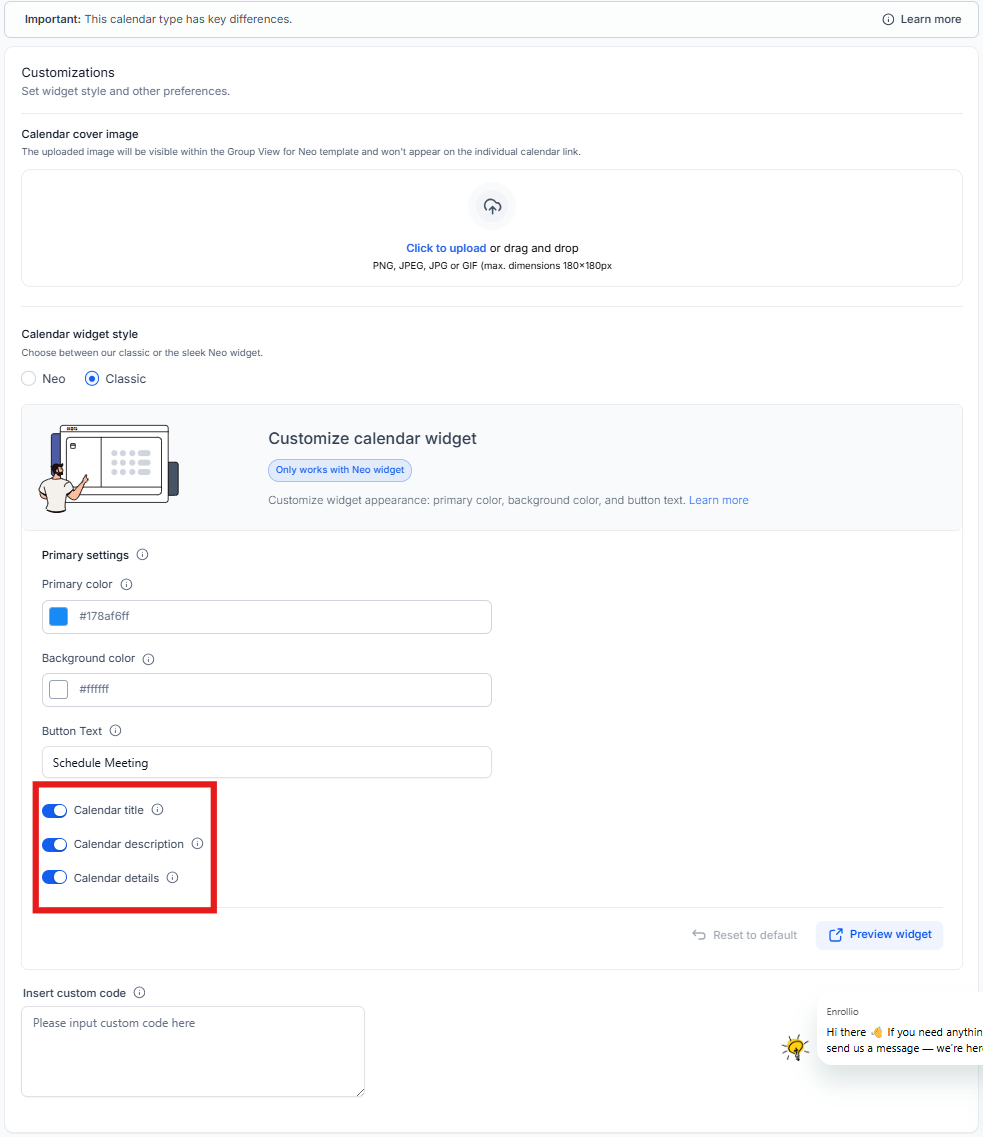
Hide Calendar Details
You can hide specific information from the left panel of your booking calendar:
- Calendar name
- Calendar description
- Duration, date, and time
- Recurring appointment details
- Timezone information
To hide your logo, remove it from the calendar details tab.
Preview Your Changes
Click Preview Widget to see how your calendar will appear to families. Each time you make a change, click Preview again to see the updated version.
Reset to Default
Need to start over? Click Reset to Default to return all customizations to the standard blue and white calendar design.
Hiding the Entire Left Panel
To completely hide the left information panel, you'll need to disable several settings:
- In Calendar Details:
- Disable calendar name
- Disable calendar description
- Disable calendar details
- Remove any calendar logo
- In the Customizations tab, disable "Allow Select Staff"
Frequently Asked Questions
Which calendars support customization?
All calendar types support customization: Event calendars, Round Robin, Class Booking, and Collective calendars.
Can I use a custom form with my calendar?
Yes! You can add a custom form to collect additional information during booking. Just make sure your form theme complements your calendar customizations for a consistent look.
What happens if I've added custom CSS?
Custom CSS takes priority over calendar customization settings. Your custom styles will override the built-in customization options, giving you complete design control.