
Overview
Configure your staff to control who can be booked for tours, when they're available, and which services they can handle. This guide walks you through adding staff, assigning them to services, and defining their availability.
The Staff panel lets you manage the team members who conduct tours, enrollment meetings, or other appointments at your childcare center. Whether you're a solo director or managing a full team, staff profiles are essential to your booking system working properly.
Important: Only services assigned to active, available staff members can be booked by prospective families.
Why Configure Staff?
Setting up staff at the service level ensures bookings follow the right person's schedule:
- Staff Visibility: Assign services to make a staff member appear in the booking flow for specific appointment types
- Centralized Availability: Manage each staff member's hours and availability in one place
- Flexibility: Create multiple time slots per day to accommodate breaks and varying schedules
- Appointment Limits: Cap how many tours or meetings a staff member can take per day
- Quick Management: Edit staff details and schedules anytime
Accessing the Staff Panel
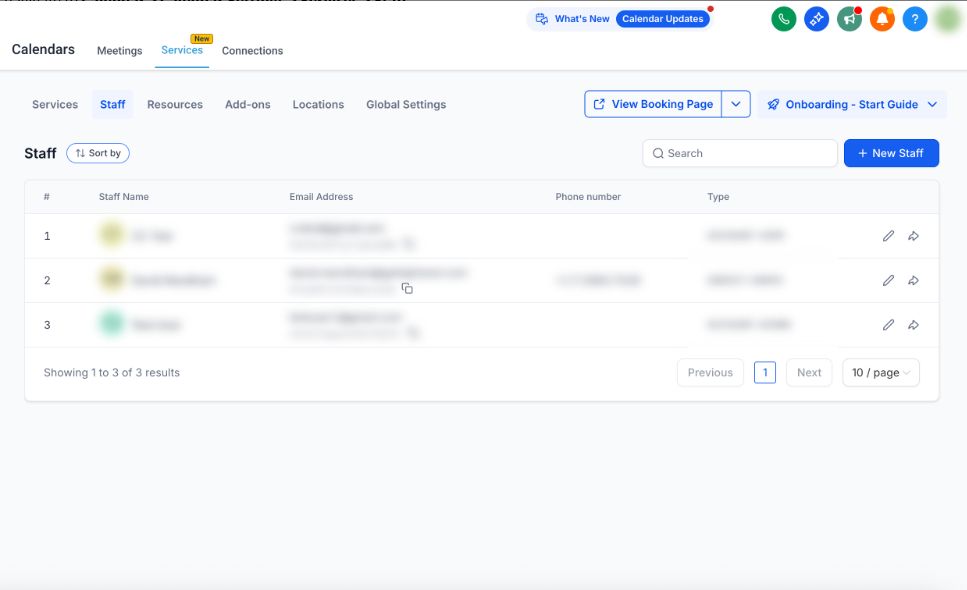
Navigate to Calendar → Calendar Settings → Services → Staff
From here, you can:
- View your staff list with names, emails, phone numbers, and roles
- Use the search bar to quickly find specific staff members
- Add new staff or edit existing profiles
- Share a staff member's booking page link directly with families
Adding a Staff Member
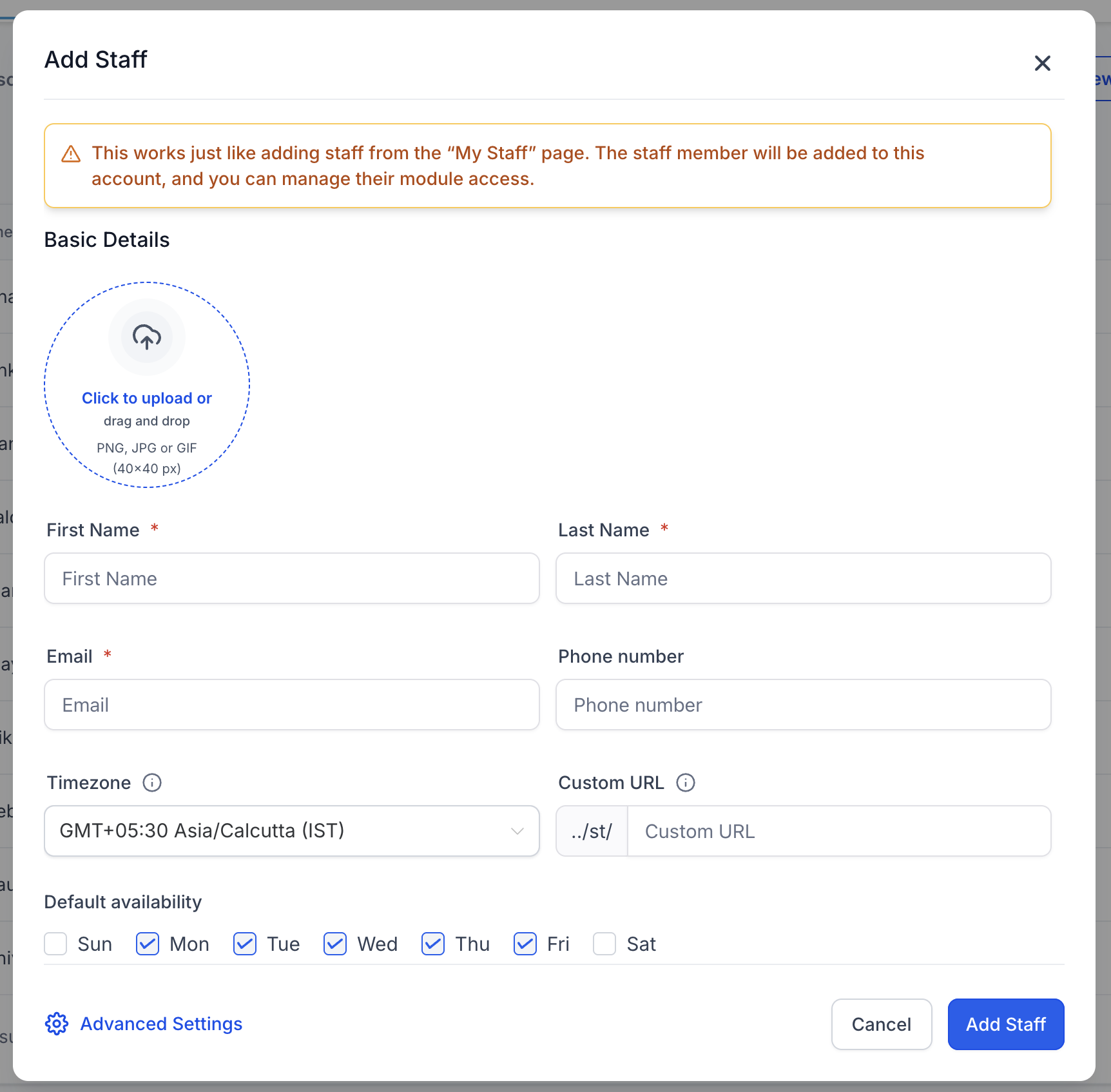
Click Add Staff to create a new profile. You'll configure these details:
Basic Information
- Profile Picture: Upload a photo that will appear on booking pages
- First & Last Name (required): Shown to families during booking
- Email (required): Must be unique; used for login and notifications
- Phone Number: Optional contact number
- Timezone: Set the timezone this staff member works in
- Custom URL: Generate a unique booking link for this staff member
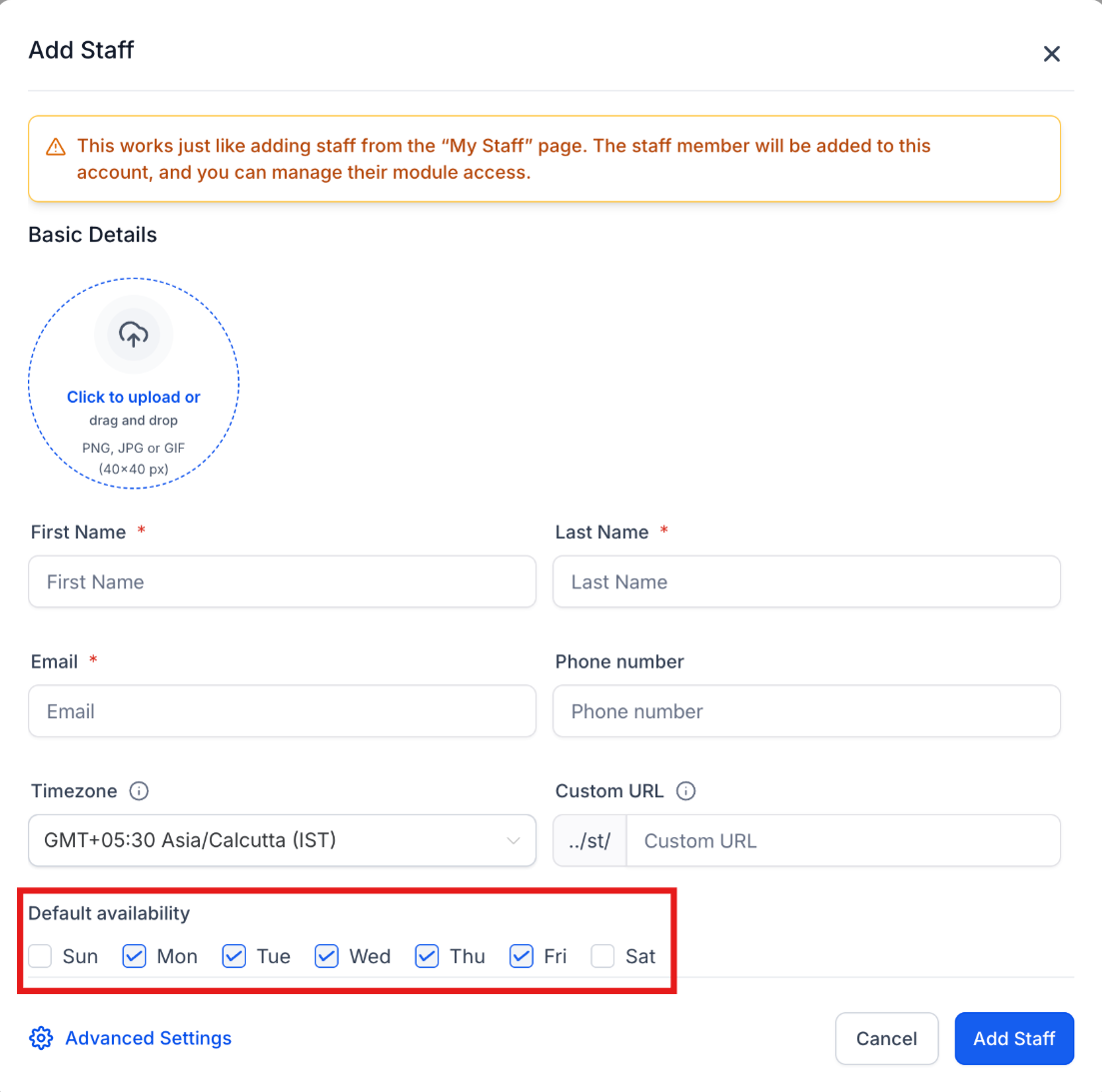
Default Availability
This is your staff member's baseline schedule—think of it as their starting point for working hours (e.g., Monday–Friday, 9:00 AM – 5:00 PM).
Why it matters: Default availability ensures that whenever you assign this staff member to a service, they're immediately bookable. Without availability set, families won't be able to book appointments with them.
Example: If Sarah's default availability is Monday–Friday, 9:00 AM – 5:00 PM, those hours will automatically apply whenever she's assigned to conduct tours or enrollment meetings. You can refine her schedule later if she has different hours for specific services.
Editing Staff Members
Click the pencil icon next to any staff member to update their profile, assign services, or adjust availability.
1. Basic Details Tab
Update core profile information:
- Name, email, phone number, or profile picture
- Staff member's timezone
- Custom booking URL
- Default availability schedule
2. Assign Services Tab
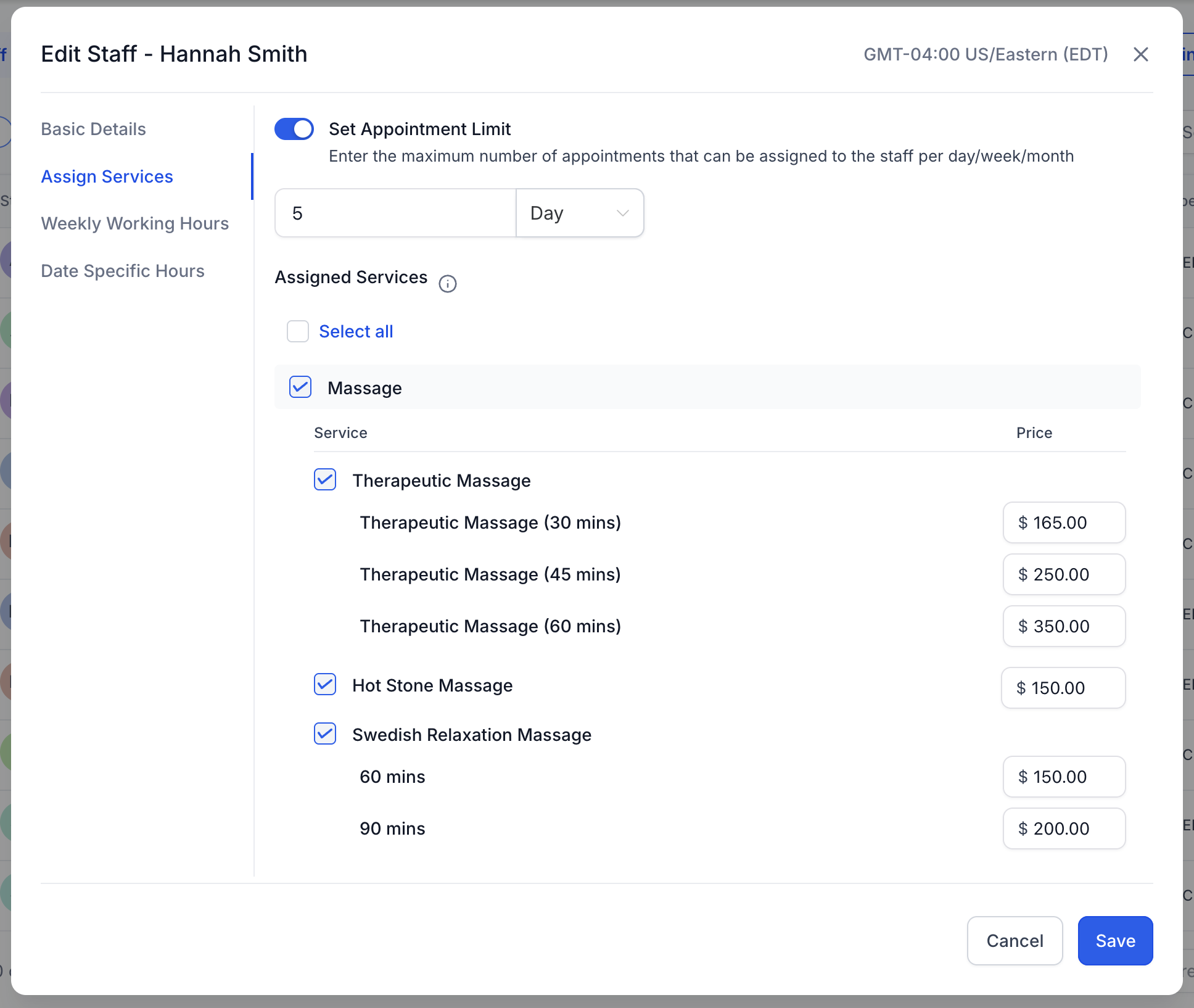
Select which services this staff member can provide (tours, enrollment meetings, parent consultations, etc.).
Key options:
- Service-Specific Pricing: Set different rates if this staff member charges differently for certain services
- Appointment Limits: Cap the number of appointments per day, week, or month this staff member can accept
Important: You must assign at least one service for the staff member to appear in your booking flow.
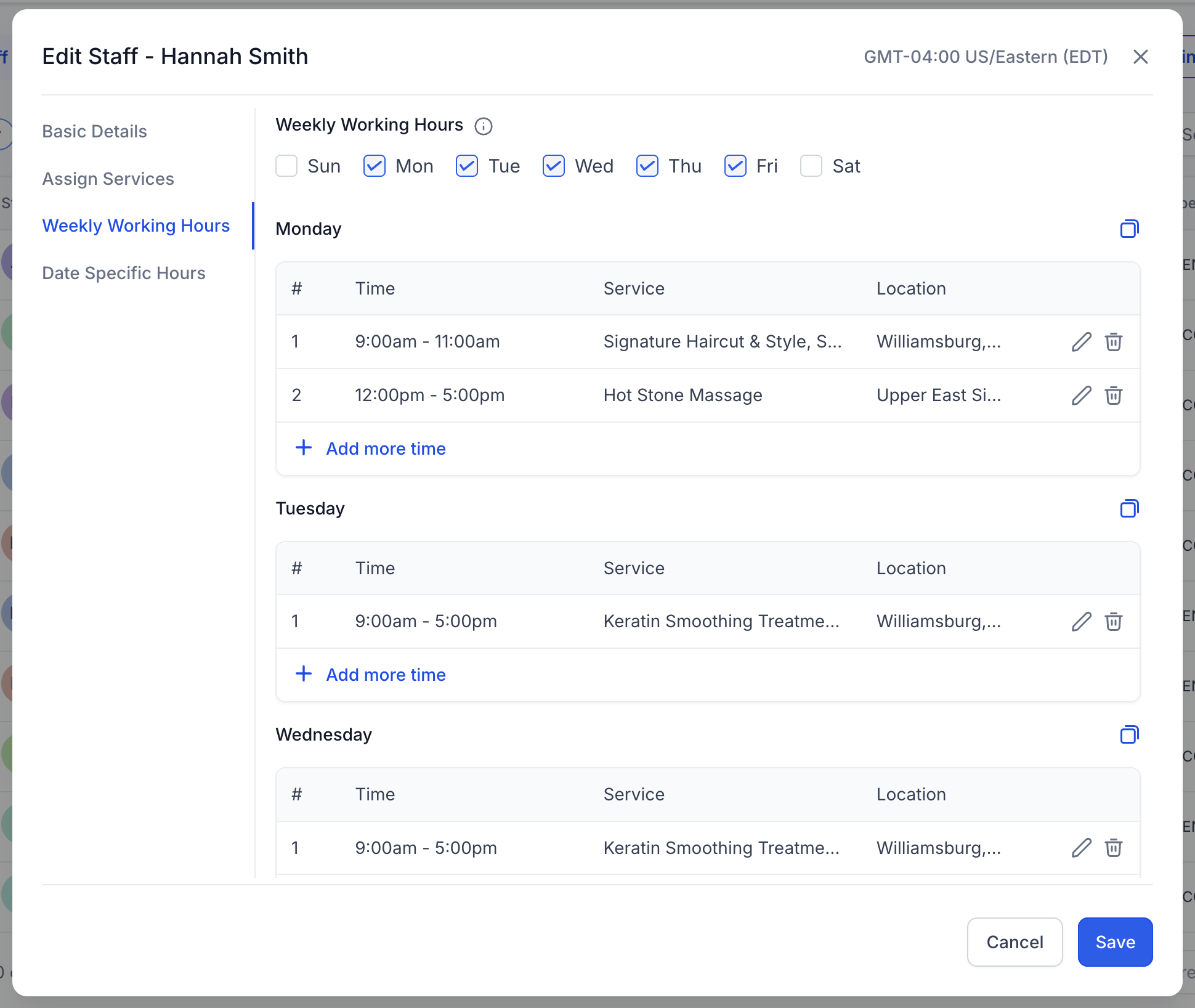
3. Weekly Working Hours Tab
Configure your staff member's regular weekly schedule:
- Set which days they work each week
- Add multiple time slots per day (perfect for split shifts or breaks)
- Assign which services they provide during specific time blocks
- Set which locations they work at during these hours
Creating breaks: Insert separate time blocks (e.g., 9:00 AM–12:00 PM and 1:00 PM–5:00 PM) to account for lunch breaks.
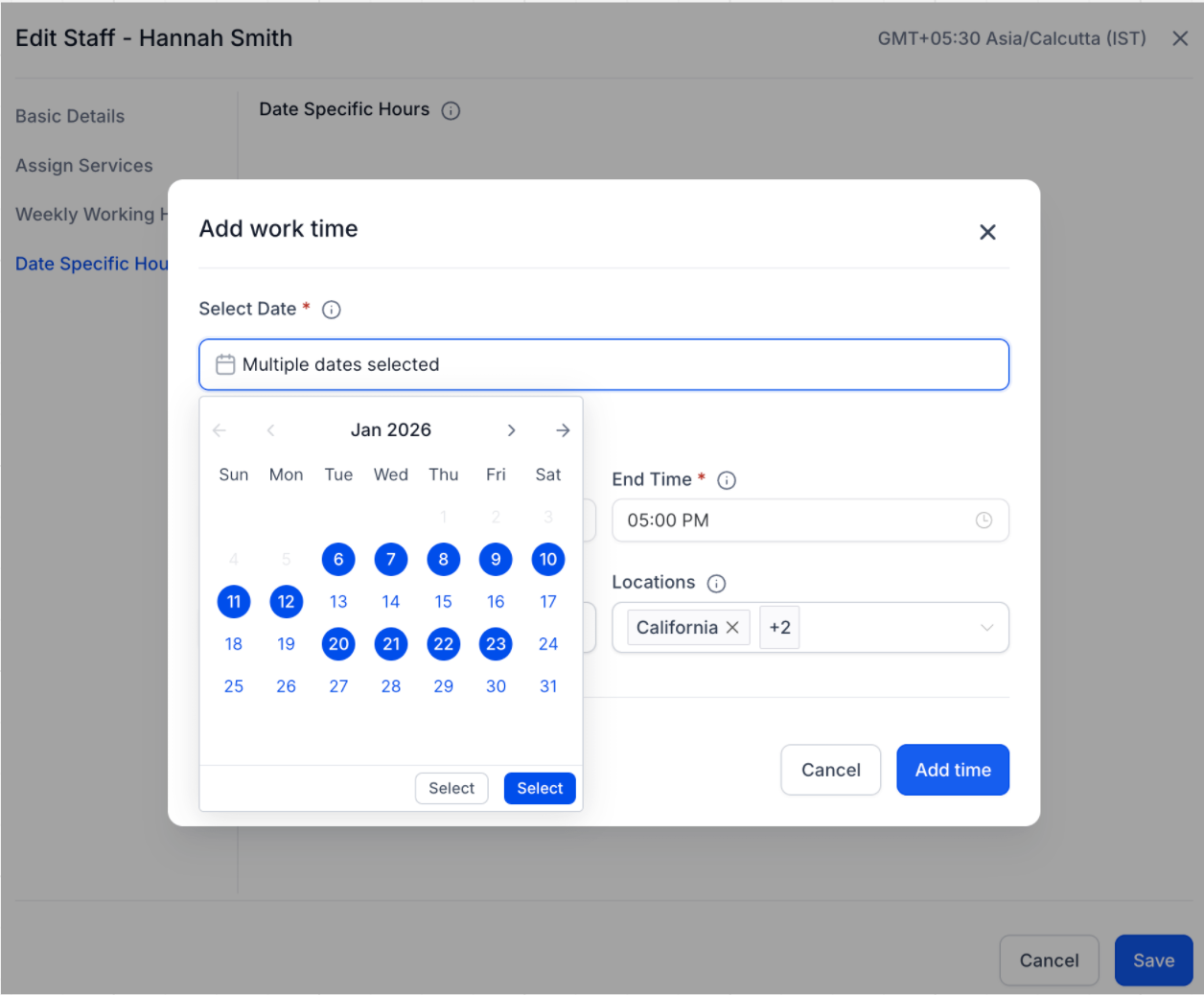
4. Date-Specific Hours Tab
Override weekly hours for special circumstances:
- Mark staff as available or unavailable on specific dates
- Define custom time blocks for particular days
- Configure these hours for specific services and locations
- Perfect for holidays, center events, or one-off schedule changes
Bulk date entry: When you need the same hours across multiple days (like holiday hours), you can:
- Select multiple dates in the date picker
- Set the start and end times
- Choose which services and locations apply
- Click Apply to add the same hours across all selected dates
Enrollio automatically groups consecutive dates into one entry to keep your list organized.
Understanding Availability Types
There are three levels of availability you can set for staff:
| Type | What It Means | When to Use It | Example |
|---|---|---|---|
| Default Availability | A template schedule applied when staff are first assigned to a service | To avoid manually entering the same schedule every time you add a staff member to a service | Sarah's default is Mon–Fri, 9 AM–5 PM. When she's added to any service, those hours appear automatically |
| Weekly Working Hours | The staff member's actual recurring schedule that controls ongoing bookability | To customize availability for each service or reflect the staff member's real working routine | Sarah works Mon–Thu, 10 AM–4 PM for tours, but Fri 12–6 PM for enrollment meetings |
| Date-Specific Hours | One-time overrides that replace weekly hours for particular dates | To handle exceptions like holidays, time off, or temporary schedule changes | Sarah marks herself unavailable on May 27th for a staff training day |
Best Practices
- Always assign staff to at least one active service and location for them to be bookable
- Ensure staff have availability set for their assigned services—without it, families can't book with them
- Use default availability to set your center's standard hours, then customize from there
- Review and update staff schedules regularly, especially during school breaks or staff changes
Frequently Asked Questions
How do I set lunch breaks or mid-day gaps?
In Weekly Working Hours, add multiple time slots for the day. For example, set 9:00 AM–12:00 PM and 1:00 PM–5:00 PM to create a one-hour lunch break.
How do I let families pick which staff member to book with?
Turn on "Allow customers to pick who they book with" in your Global Settings. This gives families the option to select their preferred staff member during the booking process.
What happens if a staff member has no availability set?
Families won't be able to book appointments with that staff member, even if they're assigned to services. Always ensure availability is configured.
Can different staff members charge different rates for the same service?
Yes! Use the service-specific pricing option when assigning services to set custom rates for individual staff members.