
Tag Families from Campaign Statistics
Segmenting families just got easier! You can now add and automate tags directly from your campaign statistics page based on interactions like opens and clicks. No more pre-planning or tedious manual work.
Overview
Tag families based on their interaction with your email campaign—opens, clicks, and more—directly from the campaign's statistics page. This lets you instantly segment parents and personalize your follow-ups without setting up tags in advance.
With auto-tagging, new families who engage with your campaign will be tagged automatically in real-time. Your segments stay updated without any extra effort on your part.
Why This Matters
Previously, tagging required pre-planned automations or manual bulk actions. Now you can:
- Segment instantly: No need to plan ahead—segment after your campaign goes out
- Automate tagging: New interactions get tagged without manual effort
- Track your actions: Keep a clean history of all tag actions
- Apply multiple tags: Use multiple tags for more nuanced segmentation of your parent base
What You Can Do
Tag by Interaction: Apply tags to families who opened, clicked, or engaged—right from the statistics page.
Auto-Tag Future Interactions: Automatically tag new families who interact with your campaign going forward.
How to Tag Families from Campaign Stats
Tag Families by Interaction
- Go to Marketing → Email Campaigns
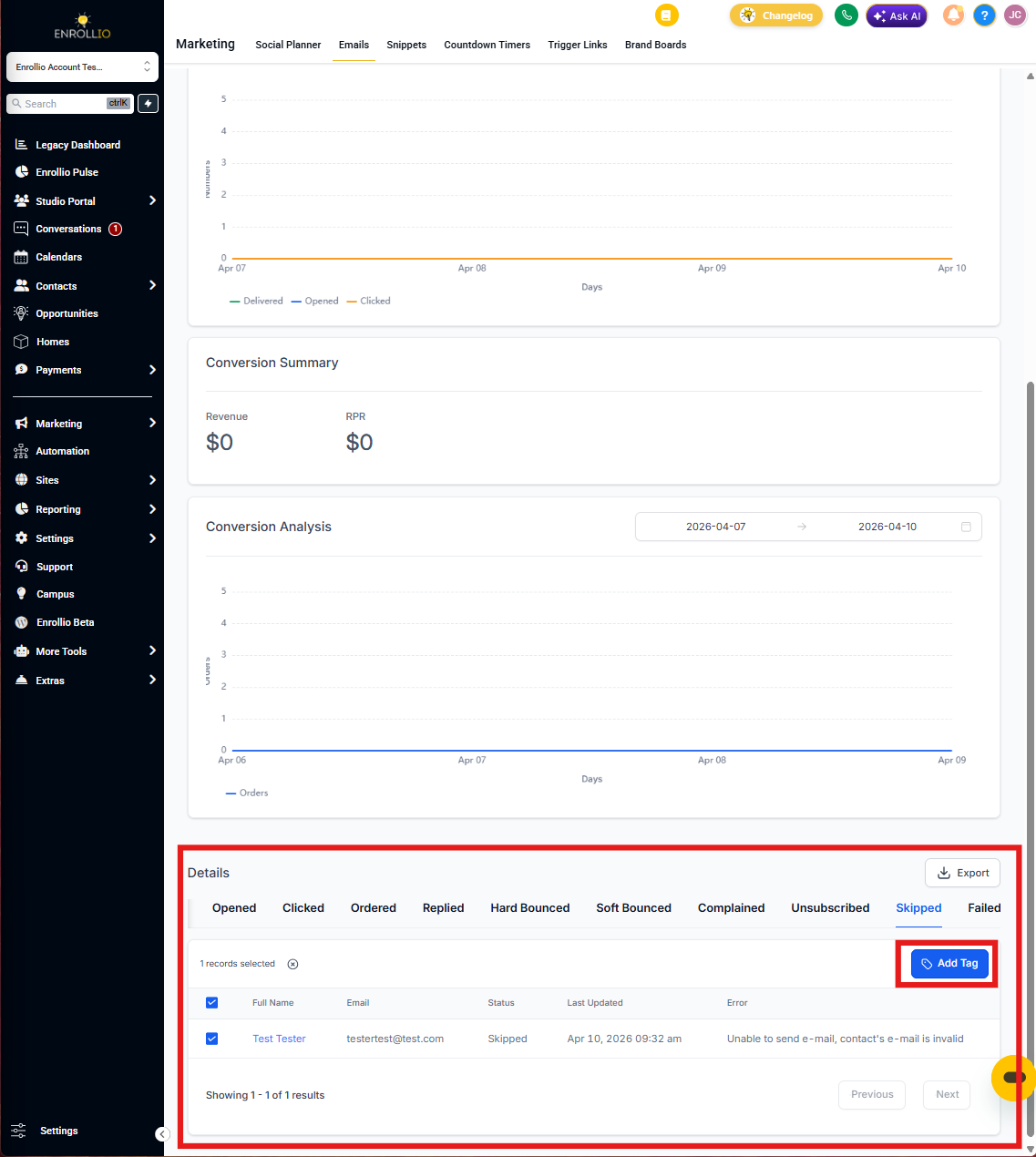
- Find your sent campaign and click the 3-dot menu → Statistics
- Click Load More to view interaction data (Opened, Clicked, etc.)
- Choose an interaction category (e.g., Opened)
- Select the families you want to tag
- Click Add Tags, type your desired tag, and apply
Auto-Tag Future Interactions
- In the interaction category (e.g., Opened), select All
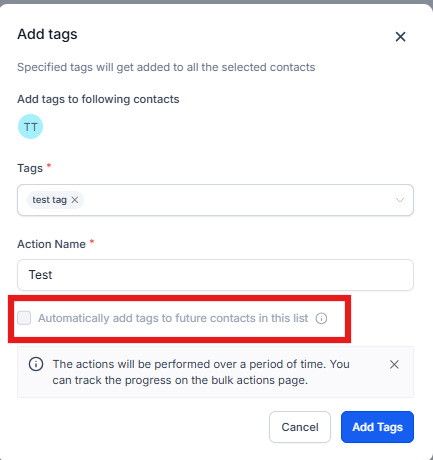
- Click Add Tags and enter your tag(s)
- Enable the Auto-Tag Future Interactions toggle
Pro Tip: Use auto-tagging to build engaged parent segments automatically. For example, tag all parents who click on your "Schedule a Tour" link so you can follow up with personalized messages.
Track Tags and Logs
All manual tagging appears in your Tags and Bulk Actions logs. Auto-tagged families won't appear in the Bulk Actions log, but they'll be tagged automatically as they interact with your campaigns.
Limitations
Keep these limitations in mind:
- Auto-tagging is not available for invalid contacts or order details lists
- All manual actions are logged in the Bulk Actions tab, but future auto-tagging is not
Frequently Asked Questions
Can I remove tags using this feature?
No. This feature currently only supports adding tags. You can remove tags manually through your Families list or Tags settings.
What happens if I apply the same tag again?
Duplicate tags are ignored. A family won't get tagged multiple times with the same tag.
Can I use this with A/B test campaigns?
Yes, tagging works with A/B test campaigns.
How many tags can I apply at once?
You can apply multiple tags at once, just like in your Families section.
Where will I see the log data?
You'll see the log data within the Statistics interface.