
Import Your Existing Families and Contacts
Your families are the heartbeat of your childcare business. Quickly import your existing parent contacts, waitlist families, and leads from spreadsheets or other platforms into Enrollio. Having everyone in one place means less hassle, more effective communication, and stronger relationships with families.
How to Import Contacts
Follow these steps to import your families into Enrollio:
- Navigate to Contacts.
- Click Import (the icon looks like a downward arrow pointing into a box).
- Select Contacts and click Next.
- Confirm your file format and upload your CSV file (up to 50MB).
- Map your spreadsheet columns to Enrollio contact fields. If you need help, click Download Sample File to see the standard format.
- If you have custom data (like "Child's Age" or "Program Interest"), create a new custom field or select "Don't import data in unmatched columns".
- Fill in the import details:
- Name your import (e.g., "Fall 2025 Waitlist")
- Create lists to organize families
- Set consent preferences for texting and emails
- Click Bulk Import.
- Wait for the import to complete. You'll see a progress indicator.

Standard Contact Fields
When importing, you can map your data to these standard fields:
- Contact ID
- Name, First Name, Last Name
- Date of Birth
- Contact Owner (assign to a staff member)
- Contact Source (how you met them)
- Contact Type (parent, guardian, etc.)
- Phone, Email
- Address, City, State, Postal Code, Country
- Time Zone
- Website
- Additional Email, Additional Phones
- Notes
- DND (Do Not Disturb - blocks automated messages)
Create Custom Fields for Childcare Data
Capture information specific to your childcare business by creating custom fields. Track details like child's age, program preferences, dietary restrictions, or pickup authorization — whatever matters to your operations.
Here's how to create custom fields:
- Navigate to Settings > Custom Fields.
- Click Add Field.
- Select the field type (text, dropdown, date, etc.).
- Fill in the details:
- Field name (e.g., "Child's Age" or "Program Interest")
- Group (organize related fields together)
- Placeholder text
- Click Save.
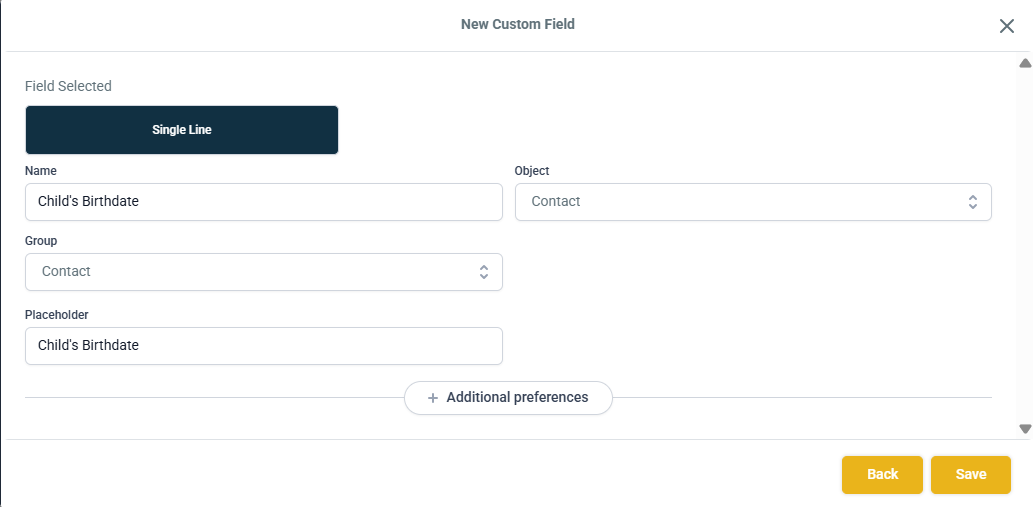
Once created, these custom fields will appear in your import mapping options and on family contact records.
Bulk Actions for Contact Management
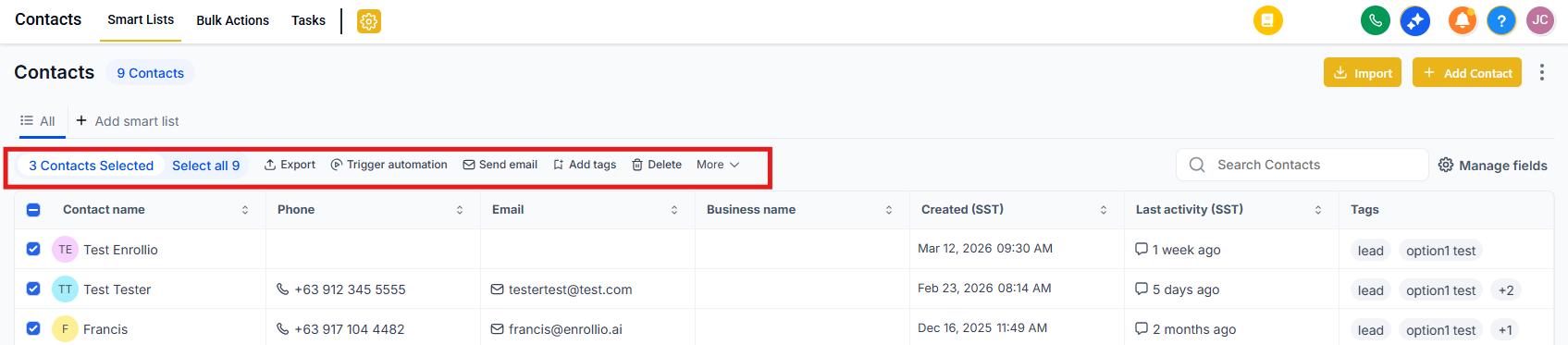
Manage groups of families efficiently with bulk actions. Tag all waitlist families at once, send tour reminders to prospects, or add families to an automation — all without clicking through individual records.
Here's how:
- Navigate to Contacts.
- Use filters to narrow down your list (e.g., "all families on infant waitlist").
- Select the checkboxes next to your chosen contacts.
- Click a bulk action button: Add Tag, Send Text, Send Email, or Add to Automation.
Managing Duplicate Contacts
If you're importing from multiple sources, you might create duplicates. Enrollio can automatically detect and merge duplicate family records based on email or phone number. Configure your deduplication preferences in Settings before importing.
Next Steps
Now that your families are imported, you're ready to:
- Segment families with tags and lists for targeted communication
- Set up enrollment pipelines to track families through your enrollment process
- Create automations to send welcome messages and follow-ups automatically
- Launch text and email campaigns to engage with families